


















The Pendulum or Swing strategy involves the sequential opening of pending orders with an increased lot size. The core principle…
VirtualTradePad (VTP) Trading Panel. Trade Pad for One Click Traiding from Chart and Keyboard

Why an EA Works on Demo but Trades Differently on a Real Account


Main
Documentation
Settings
FAQ
Changelog
Reviews
Comments
Extra
About AI Sniper
Our team is thrilled to introduce Trading Robot, the cutting-edge Smart Trading Expert Advisor for the MetaTrader terminal.
AI Sniper is an intelligent, self-optimizing trading robot designed for both MT4 and MT5 terminals.
It leverages a smart algorithm and advanced trading strategies to maximize your trading potential.
With 15 years of experience in trading exchanges and the stock market, we have developed innovative strategy management features, additional intelligent functions, and a user-friendly graphical interface.
Every function within AI Sniper is backed by an optimized program code and rigorous testing.
Its advanced computational intelligence identifies the best entry and exit points for trades through meticulous technical analysis and thousands of mathematical calculations at each price movement step.
Whether the trend is bearish or bullish, AI Sniper accurately analyzes signals to execute precise BUY or SELL trades.
Vision. Mission. Strategy. Success is deeply embedded in our commitment to empowering traders with the best tools.
Multiple trading strategy functions are collected in a unique trading robot. AI Sniper!
Our goal is your success.
Download. Test. And experience the transformative power of AI Sniper for yourself.
Visit our website at expforex.com to get started and take advantage of our free offer today.
Thank you for your time, and we look forward to supporting your journey to trading success.
The EA obtains data on these parameters from a currency pair specification, the current prices, and other factors that are a part of our strategy.
How does AI Sniper work?


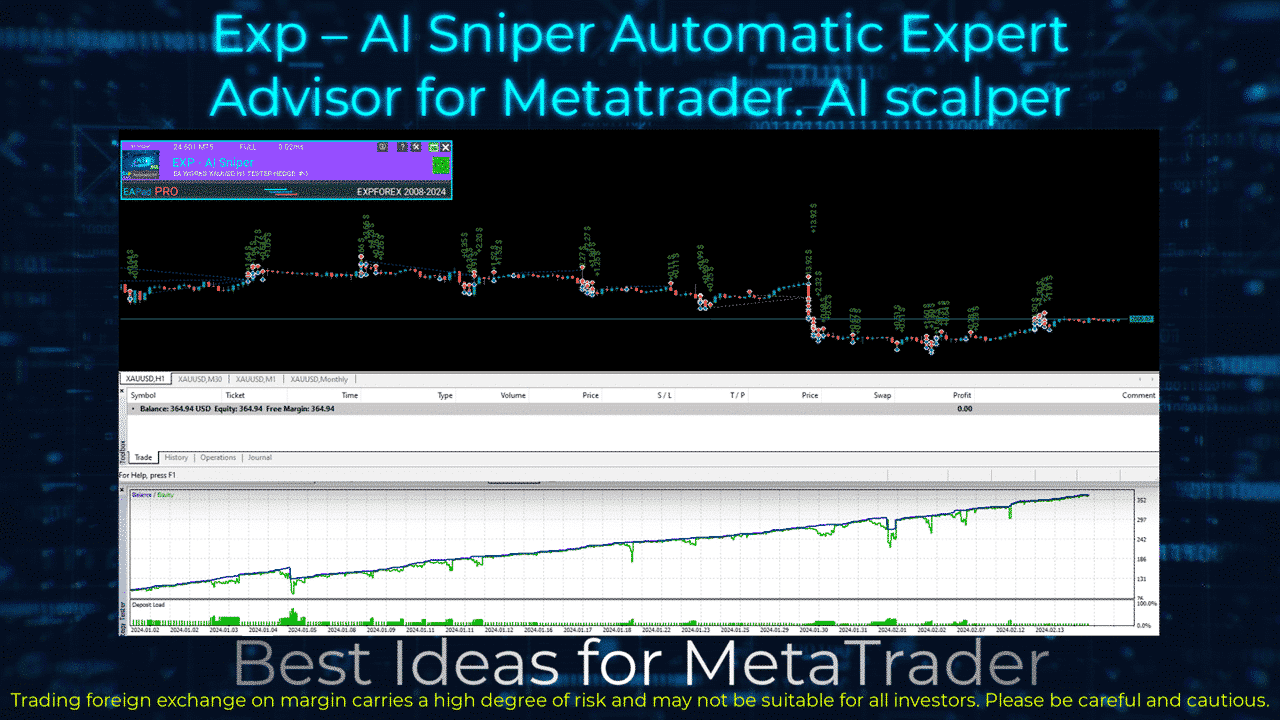
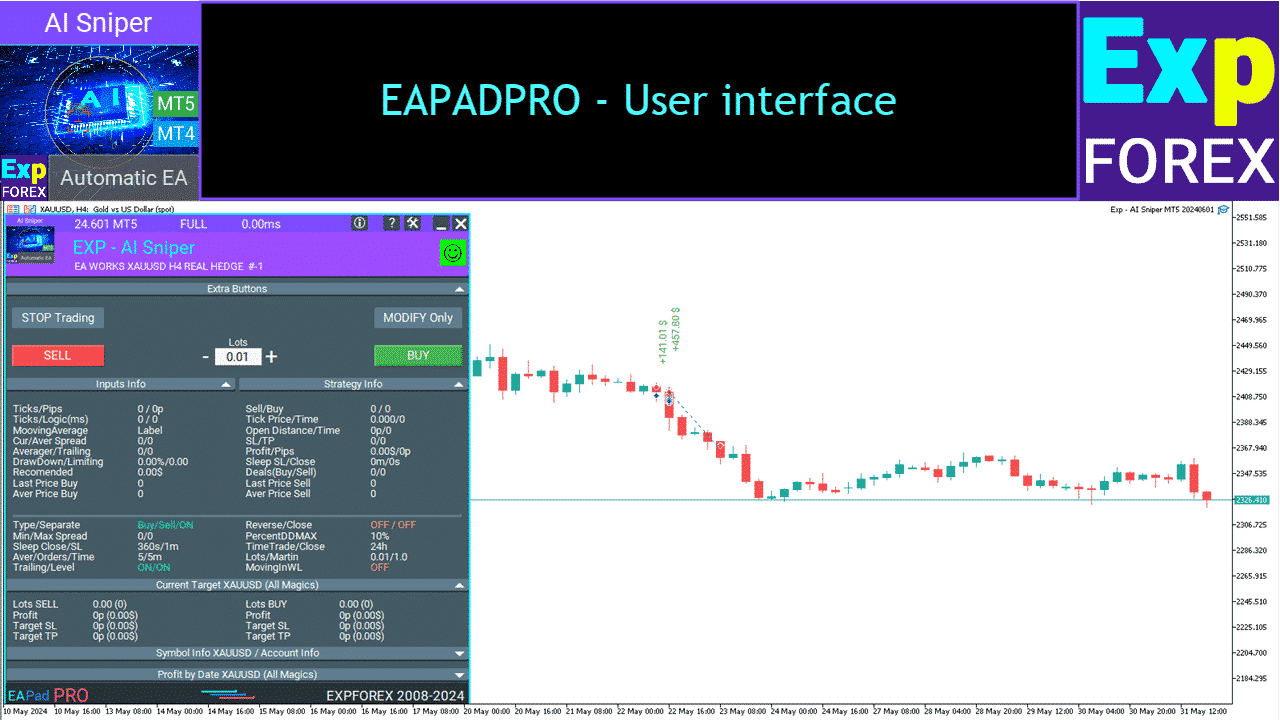










What do people write about AI Sniper based on TickSniper?

Wilhelm Alexander Rettig
Have it run on a 4500 Euro real ecn Account and it works great. I only Use the 3 forex pairs like in the subscription. I make over a hundred Euro a day. Thanks a lot.-
mangusto
The best expert advisor I know. It Works very well. One question: is it possible in the next update to change the parameter "HoursSleepEaAfterStopLoss" from hours to minutes? Thank you and congratulations! Hello. Thank you. Yes, minutes can be done.
 -
Olga Snizhko
Since beginning of 2022, this strategy has died completely. EA looks interesting, I bought it for collection and do not plan to use it in real. Test on real tick quotes in MT5 to see result of its work)) Five stars to author for long development and support of this product. -
[Deleted]
Hello, I have never seen better EA. One question, how do I activate the "Averaging_LotsMartin"? I have done everything but I can not activate it.Thank you. You can adjust this parameter. Averaging_LotsMartin increase in the LOT for each averaging deal. It allows you to increase the LOT of averaging deals. Increase the lot for the grid positions — the coefficient of increase of each averaging position. For example: Starting lot of the main position = 0.1 LotsMartin = 2, then The next lot of the opened averaging position will be 0.2, 0.4, 0.8 and so on. Attention: The middle line will be calculated using the formula using lots. It allows you to bring the break-even level (middle line) closer to the current price. But martingale can be dangerous to your account. Please, calculate this parameter so that your deposit will withstand such a load -
GERALDO FERREIRA MESQUITA
Good options for set up!!! It is for professional not for dreamer!!! -
sigmaslu
I have had very good experiences with the EA, even if the start was very bumpy because of my own mistakes. But I also got to know the support team and I have to say it is really great. Immediate response and very helpful and good support, thank you. keep it up. -
Stefan Angelov
Hello, Exp Tick Sniper Pro PRO FULL is Top Expert Advisor -
Вполне рабочий робот. Выставленный автором сигнал показывает стабильность работы. Хотя по выставленному сигналу автором можно сказать. Аренда одного месяца слегка завышена если торговать стандартными настройками. Либо нужно иметь депозит более 10000.
-
I've been using it for near two months now and I'm very happy with this EA. One of the best available for MT5. Once you learn how to use it and fine tune the settings to your own convenience it will give consistent profits. Also the support from the author is excellent, he answers all the questions in the comments section and usually with very fast response time. It really deserves the 5 stars!
-
Good!
-
Apollo1969
Buy this EA. It’s an ATM machine. Easy to set up and run, awesome service from Vlad. This is the only EA you need to run. -
Correcttrader FONT Well, this masterpiece is doing well on live (normal spread) trading, altought the floating losses (if trading 8 pairs, you certainly have to cope with these) is my consurn, i need to figured out how to handle that after day’s end, weekly end, just to get rid of those swaps, or start fresh on mondays. Any suggestion here? Also you need to give this EA some time to understand, and use it fully with all kind of pairs, even indexes. Then you will see the beauty of it.
-
Tick Sniper PRO works fantastic. Its very profitabele. Let the system do its work and it makes money for you. Be patient, thats what i learned from Tick Sniper PRO.
You can Download free AI Sniper
Get started for FREE!
You can download and install our program for free!
And you can test it on your DEMO account without time limits!
And you can also test our program for free on a REAL account using the USDJPY symbol!
You can buy full AI Sniper
Official MQL5 Market Links
|
|
MT5 Full version For MetaTrader 5 799 $ | MT5 Rent for 3 months For MetaTrader 5 129 $ | MT4 Full version For MetaTrader 4 799 $ | MT4 Rent for 3 months For MetaTrader 4 129 $ |
|---|---|---|---|---|
| MetaTrader | MT5 | MT5 | MT4 | MT4 |
| Time Use | Lifetime | 3 months | Lifetime | 3 months |
| Trade Accounts | Unlimited | Unlimited | Unlimited | Unlimited |
| Computers / Activations | 10 | 10 | 10 | 10 |
| Functions | Full | Full | Full | Full |
| Support | 24/7 | 24/7 | 24/7 | 24/7 |
| Action | Buy for MT5 | Rent for MT5 | Buy for MT4 | Rent for MT4 |
Swipe cards ◂ ▸
Time UseLifetime
Trade AccountsUnlimited
Computers / Activations10
FunctionsFull
Support24/7
Time Use3 months
Trade AccountsUnlimited
Computers / Activations10
FunctionsFull
Support24/7
Time UseLifetime
Trade AccountsUnlimited
Computers / Activations10
FunctionsFull
Support24/7
Time Use3 months
Trade AccountsUnlimited
Computers / Activations10
FunctionsFull
Support24/7
Before making a purchase, we highly recommend reviewing our instructions and FAQ section to ensure a smooth experience.
Table of Contents (click to show)
List
- Description
- General Recommendations for Using a Trading Robot AI Sniper
- Recommendations for Using the New Expert Advisor AI Sniper
- Recommended Brokers and Trade Accounts for AI Sniper
- How to install it?
- What information is displayed in our EAPADPRO
- The difference between AI SNIPER – TICKSNIPER
- What do people write about AI Sniper based on TickSniper?
Description
AI Sniper Expert Advisor: A New Benchmark in Automated Trading
MetaTrader users and forex traders meet the AI Sniper Expert Advisor, the next evolution in automated trading software. Built upon the robust foundation of the renowned TickSniper, AI Sniper elevates your trading strategy with advanced features and enhanced performance, ensuring you stay ahead in the competitive world of forex trading.
AI Sniper: Key Features and Principles of Operation
Advanced Algorithmic Precision AI Sniper utilizes state-of-the-art artificial intelligence and machine learning algorithms to enhance trading signals.
The system dynamically adapts to market conditions, offering greater accuracy and reliability compared to its predecessor, TickSniper.
This improvement results in optimized trade entry and exit points, maximizing profit potential while minimizing risks.
Real-Time Market Data Collection and Analysis AI Sniper continuously gathers a wide range of market data, including price movements, trading volumes, economic indicators, and significant news events.
The system processes and cleans this data to eliminate noise and inaccuracies, ensuring high-quality inputs for analysis.
Leveraging sophisticated data analytics, AI Sniper monitors and analyzes market trends in real-time, allowing for swift adjustments to trading strategies.
This capability ensures the advisor capitalizes on emerging opportunities and effectively mitigates potential losses.
Customizable Trading Parameters AI Sniper offers extensive customization options, enabling traders to tailor the advisor to their specific trading styles and risk tolerances.
Whether you prefer aggressive, moderate, or conservative trading, AI Sniper can be fine-tuned to meet individual needs, providing flexibility and control over your trading approach.
Enhanced Risk Management A standout feature of AI Sniper is its comprehensive risk management module.
The advisor incorporates advanced stop-loss and take-profit mechanisms, intelligent position sizing, and capital allocation strategies.
These elements work together to protect your investments, even in volatile market conditions.
By setting appropriate stop-loss orders and defining take-profit levels, AI Sniper ensures that potential losses are limited and gains are secured efficiently.
Automated Trade Execution and Monitoring Upon generating a trading signal, AI Sniper automatically executes the trade, ensuring quick and precise action to take advantage of real-time market opportunities.
The advisor continuously monitors open positions, making necessary adjustments to optimize results.
This automated process eliminates the delays and errors associated with manual trading, enhancing overall trading efficiency.
User-Friendly Interface Despite its advanced functionalities, AI Sniper boasts an intuitive and user-friendly interface.
Both novice and experienced traders will find the platform easy to navigate, simplifying the setup and monitoring processes.
The clear and organized design ensures that users can efficiently manage their trading activities without unnecessary complexity.
Continuous Learning and Adaptation AI Sniper employs machine learning to learn from past trades, continually refining its algorithms and strategies.
This ongoing feedback loop ensures that the advisor evolves over time, becoming more effective in its trading decisions.
The system’s ability to adapt to changing market conditions enhances its long-term performance and reliability.
Continuous Updates and Support The development team behind AI Sniper is dedicated to providing regular updates and enhancements, ensuring that the advisor stays at the cutting edge of trading technology.
Comprehensive customer support is also available to assist users with any questions or issues, ensuring a seamless and supportive trading experience.
Why Choose AI Sniper?
AI Sniper represents a significant upgrade from TickSniper. It incorporates the latest advancements in AI and machine learning to deliver a superior trading experience. Its ability to adapt to changing market conditions, combined with its robust risk management and customizable features, makes it an invaluable tool for traders seeking consistent profitability and reduced risks.
By choosing AI Sniper, you are investing in a powerful, intelligent trading advisor that not only enhances your trading strategy but also provides the peace of mind that comes with knowing your investments are in capable hands.
Conclusion
The AI Sniper Expert Advisor is more than just an upgrade; it is a revolution in automated trading. Its blend of advanced technology, user-centric design, and comprehensive support makes it a must-have for any serious trader. Experience the future of trading with AI Sniper and take your trading performance to new heights.
Recommended Broker.
General Recommendations for Using a Trading Robot AI Sniper
To get the most out of the AI Sniper Expert Advisor and ensure a successful trading experience, follow these key recommendations:
1. Download or Purchase
- Download the demo version of AI Sniper or buy the full version to start.
2. Understand the System
- Before using AI Sniper, take some time to learn about its features, capabilities, and how it works. Familiarize yourself with the user interface and the different settings available for customization.
3. Customize Settings
- Adjust AI Sniper’s settings to match your trading style and risk tolerance. Key parameters to customize include:
- Stop-Loss and Take-Profit Levels: Set your stop-loss and take-profit parameters to fit your trading strategy.
- Position Sizing: Configure the position size according to your account size and risk management plan.
5. Start with a Demo Account
- Begin by using AI Sniper on a demo account to practice and observe how it operates without risking real money. This will help you gain confidence in the system and make any necessary adjustments to your settings. Also, check the system on your broker’s server.
6. Monitor Performance
- Regularly monitor AI Sniper’s performance. While the system is automated, it’s important to keep an eye on its trades and overall results to ensure they meet your expectations and fit current market conditions.
7. Keep Software Updated
- Make sure you are using the latest version of AI Sniper. The developers regularly release updates and improvements, so keeping your software up to date will allow you to benefit from the newest features.
8. Diversify Your Portfolio
- Avoid putting all your capital into a single trade or market condition. Use AI Sniper as part of a diversified trading strategy to spread risk across different assets and markets.
9. Set Realistic Expectations
- Understand that no trading system guarantees profits. Set realistic expectations and be prepared for both winning and losing trades. AI Sniper is designed to optimize your strategy, but market conditions can be unpredictable.
10. Regularly Review and Adjust
- Periodically check AI Sniper’s settings and performance. Market conditions change, and what worked well in the past may need adjustments. Use insights from backtesting and live trading to fine-tune your strategy.
11. Educate Yourself
- Keep learning about Forex trading and market analysis. The more you know, the better you can understand and use AI Sniper’s capabilities.
12. Risk Management
- Always prioritize risk management. Use AI Sniper’s advanced risk management features to protect your capital. Ensure that stop-loss orders are set and avoid over-leveraging your trades.
13. Seek Support When Needed
- If you encounter any issues or have questions about using AI Sniper, don’t hesitate to reach out for support from the development team or user community. Addressing concerns quickly can help you make the most of the advisor.
By following these recommendations, you can effectively use AI Sniper to enhance your trading strategy, manage risks, and work towards achieving consistent trading success.
Recommendations for Using the New Expert Advisor AI Sniper
Before you buy the Expert Advisor AI Sniper, it is crucial to evaluate its performance and compatibility with your trading environment. Follow these steps and recommendations to ensure you make the most of AI Sniper:
- Download and Test the Demo Version:
- Initial Testing: Download the demo version of AI Sniper and test it on a demo or real account, specifically with the USDJPY currency pair.
- Broker Compatibility: Check the system’s performance on your broker’s server to ensure compatibility and optimal operation.
- Broker Specificity:
- Considerations for Commission and Spread:
- Commission Impact: Be aware that commissions can significantly reduce profits.
- Spread Requirements: The system does not perform well with a zero spread. Use a floating spread for better results.
- Fixed vs. Floating Spread: AI Sniper is tested on a floating spread. It may not work correctly with a fixed spread, affecting its performance.
- Strategy Testing Limitations:
- Strategy Tester Limitations: The Expert Advisor may not work correctly in the strategy tester due to limited quotation history and fixed spreads. Results in the strategy tester may differ from real account performance.
- Operational Mechanics:
- Spread Adjustment: AI Sniper works by adjusting to changes in the spread and the rate of quotation receipt, leading to varied results with different brokers.
- Averaging and StopLoss: The system uses averaging every 75 spreads from the previous position and sets Stop Loss at a distance of 250 spreads.
- Scalper Strategy: Positions can be closed within a range of 1 to 8888888888 points.
- Capital Management:
- Deposit Calculation: Your deposit will be calculated based on tests on your broker’s server to ensure it can withstand the currency pair’s average annual movement.
- Reinvestment and Profit Management: Use reinvestment, timely take profits, and effective money management strategies.
- Risk Awareness:
- Forex Risks: Understand that forex trading involves risks. Learning the basics of forex trading is essential before engaging in live trading.
- Profit and Loss: Recognize that profits are not guaranteed consistently. While you may profit today, there is no assurance of profit in the future due to the unpredictable nature of forex.
- VPS Recommendations:
- Dedicated VPS: If you install AI Sniper on a VPS, it is best to dedicate one VPS to one Expert Advisor without connecting or enabling other terminals. The advisor works on ticks, so there should only be one terminal with one advisor on the VPS.
- Execution Speed: Ensure excellent execution of opening positions with up to 100 ms.
- Recommended VPS: Use the best VPS from MetaQuotes for optimal performance.
Recommended Brokers and Trade Accounts for AI Sniper
To ensure the optimal performance of the AI Sniper Expert Advisor, consider the following recommendations for brokers, trade accounts, and deposit levels based on your risk tolerance:
Recommended brokers
- For MetaTrader 4 (MT4) Terminal: ECN PRO
- For MetaTrader 5 (MT5) Terminal: ECN PRO
Recommended Account Types
- Deposit Over $1,000: PRO Standard or ECN PRO account
- Deposit Under $1,000: PRO Cent account
Deposit Recommendations Based on Risk Levels
- Low Risk
- Recommended Deposit: $1,000
- Lot Size: Minimum lot of 0.01
- Currency Pairs: Trade on three pairs (e.g., EURUSD, USDCHF, USDJPY)
- Leverage: 1:300
- Medium Risk
- Recommended Deposit: $300
- Lot Size: Minimum lot of 0.01
- Currency Pairs: Trade on one pair (e.g., EURUSD)
- Leverage: 1:300
- High Risk
- Recommended Deposit: $100 (Cent Account)
- Lot Size: Minimum lot of 0.01
- Currency Pairs: Trade on one pair (e.g., EURUSD)
- Leverage: 1:300
Additional Recommendations
- Floating Spread: Use a floating spread. Zero spread is prohibited for AI Sniper.
- Leverage: 1:300 or higher is recommended.
- Timeframe: The timeframe does not matter as AI Sniper operates based on tick data.
Signal Settings
The signal setting options for AI Sniper determine the trading mode and strategy used by the Expert Advisor. Here’s an explanation of each setting option:

- EASY:
- Mode: Easy mode
- Description: Fewer trades with more accurate signals.
- Timeopen: 3000 milliseconds
- DistanceTickSpread: 7 points
- MEDIUM:
- Mode: The golden circle
- Description: Balanced mode with moderate trading frequency and accuracy.
- Timeopen: 1500 milliseconds
- DistanceTickSpread: 2 points
- HARD:
- Mode: Aggressive method
- Description: More trades with less accuracy, suitable for aggressive trading.
- Timeopen: 1500 milliseconds
- DistanceTickSpread: 1 point
- SlowQuotesBroker:
- Mode: Trading mode for brokers with a weak stream of quotations
- Description: Optimized mode for brokers with slower quote streams.
- Timeopen: 3000 milliseconds
- DistanceTickSpread: 2 points
- CRAZY:
- Mode: Mega Mode
- Description: Highly aggressive trading mode with fast deal executions.
- Timeopen: 3000 milliseconds
- DistanceTickSpread: 1 point
How to install it?
After reading the article How to buy and install a Market Advisor, our advisor will installed in your Navigator!
To install AI Sniper, follow these steps:
- Download AI Sniper:
- Visit the official website or authorized distributor of AI SNIPER to download the AI Sniper Expert Advisor files.
- Locate the Downloaded Files:
- Once the download is complete, locate the downloaded files on your computer. The files may be compressed in a ZIP folder.
- Extract the Files:
- If the files are in a ZIP folder, extract them to a location on your computer using file extraction software like WinZip or WinRAR.
- Open MetaTrader Platform:
- Launch your MetaTrader trading platform (either MetaTrader 4 or MetaTrader 5).
- Navigate to the “Navigator” Window:
- In MetaTrader, look for the “Navigator” window. It is typically located on the left side of the platform.

- Locate “Expert Advisors” Section:
- Expand the “Expert Advisors” section in the Navigator window.
- Copy AI Sniper Files:
- Copy the extracted AI Sniper files from your computer’s file explorer.
- Paste into MetaTrader “Experts” Folder:
- In MetaTrader, find the “MQL4” or “MQL5” folder. Within this folder, locate the “Experts” subfolder.
- Paste the copied AI Sniper files into the “Experts” folder.
- Restart MetaTrader Platform:
- Close and restart your MetaTrader platform to ensure that AI Sniper is properly loaded.
- Enable Expert Advisor (EA) and Auto Trading:
- In MetaTrader, ensure that Expert Advisors (EAs) and Auto Trading are enabled. You can do this by checking the options in the platform’s settings or by clicking the respective buttons on the toolbar.


- Drag AI Sniper onto Chart:
- From the Navigator window, locate AI Sniper under the Expert Advisors section.
- Drag and drop AI Sniper onto the chart of the currency pair you wish to trade. Alternatively, you can right-click on the chart, select “Expert Advisors,” and choose AI Sniper from the list.
- Adjust Settings (Optional):
- Once AI Sniper is applied to the chart, you may need to adjust its settings according to your trading preferences. This can include parameters such as risk level, lot size, and currency pairs.
- Monitor AI Sniper:
- After configuring AI Sniper, monitor its performance on the chart. You should see indicators or signals generated by the Expert Advisor.
- Troubleshoot (if Necessary):
- If AI Sniper does not appear to be functioning correctly, double-check the installation steps and ensure that all settings are configured properly. You may also need to consult the user manual or seek assistance from the developer or support team.
What information is displayed in our EAPADPRO

In EAPADPRO (Expert Advisor Panel Pro), you’ll find a comprehensive display of information pertinent to the operation and performance of the AI Sniper Expert Advisor. Here’s a breakdown of the information displayed:
- Ticks / Pips:
- Ticks: Number of ticks that arrived at the terminal for the specified time.
- Pips: Number of points passed for these ticks.
- Sell / Buy: Number of signals in the direction of SELL / BUY.
- Ticks / Logic:
- Ticks: Number of ticks that arrived at the terminal.
- Logic: Number of milliseconds of the algorithm for determining signals.
- TickPrice: The last quote processed by the advisor.
- LastTickTime: The time at which the last quotation arrived.
- Moving Average: Indicator signal direction.
- OpenDistance: Distance to open positions in points.
- OpenTime: Time of opening positions in milliseconds.
- CurrentSpread: Current spread of the selected currency pair.
- AverageSpread: Average spread of the selected currency pair.
- Stoplosspips: Stop-loss in points.
- Takeprofitpips: Take-profit in points.
- Averagerpips: Averaging distance in points.
- TrailingStoppips: Trailing stop point in points.
- Profit / Pips: Current profit in dollars and points.
- DrawDown: Current drawdown in percentage.
- SleepafterSL: Number of seconds left after closing stop-loss.
- SleepafterClose: Number of seconds left after the last close.
- Limiting: Current limit on losses and profits.
- Recommended: The minimum deposit needed for the current currency pair and selected settings, as calculated by the advisor.
- Deals (Buy / Sell): The number of current open positions for buying and selling.
- Average Price (Buy / Sell): The average price of the current open positions for buying and selling.
- Last Price (Buy / Sell): The latest price of the current open positions for buying and selling.
The difference between AI SNIPER – TICKSNIPER
The new AI Sniper and TickSniper are both Expert Advisors (EAs) designed for automated trading on the MetaTrader platform, but they have some key differences:
- Functionality:
- TickSniper: TickSniper is an Expert Advisor that specializes in high-frequency trading, aiming to capitalize on small price movements within the market. It often employs scalping strategies and is designed to execute a high volume of trades based on rapid price changes.
- AI Sniper: AI Sniper, on the other hand, is an improved version of TickSniper that incorporates advanced artificial intelligence (AI) algorithms. While it may still utilize some aspects of high-frequency trading, AI Sniper’s primary focus is on employing AI and machine learning techniques to analyze market data and generate more accurate trading signals. It aims to provide more intelligent and adaptive trading decisions compared to TickSniper.
- Trading Approach:
- TickSniper: TickSniper typically relies on technical indicators and price action patterns to identify short-term trading opportunities. It may execute trades based on rapid changes in price, aiming to profit from small price fluctuations.
- AI Sniper: AI Sniper takes a more sophisticated approach by leveraging AI and machine learning algorithms to analyze market data. It may incorporate a wider range of factors, including fundamental analysis, sentiment analysis, and macroeconomic trends, to make informed trading decisions. AI Sniper aims to adapt to changing market conditions and improve its performance over time through continuous learning.
- Risk Management:
- TickSniper: TickSniper may have basic risk management features such as stop-loss and take-profit orders to mitigate losses and lock in profits. However, its primary focus is on executing trades based on rapid price movements, and risk management may be relatively straightforward.
- AI Sniper: AI Sniper typically offers more advanced risk management capabilities, including dynamic position sizing, adaptive stop-loss, and take-profit levels, and real-time monitoring of trade performance. It may incorporate sophisticated risk management algorithms to minimize drawdowns and optimize risk-adjusted returns.
- Performance and Accuracy:
- TickSniper: TickSniper’s performance and accuracy may vary depending on market conditions, broker execution speed, and the effectiveness of its trading strategies. It may excel in high-volatility environments but may also experience challenges during periods of low liquidity or choppy price action.
- AI Sniper: AI Sniper aims to improve upon TickSniper’s performance and accuracy by incorporating AI and machine learning techniques. It seeks to generate more reliable trading signals by analyzing a broader range of market data and adapting its strategies to evolving market conditions. AI Sniper may provide more consistent and robust performance compared to TickSniper over the long term.
In summary, while both TickSniper and AI Sniper are Expert Advisors designed for automated trading, AI Sniper represents an evolution with enhanced functionality, a more sophisticated trading approach, advanced risk management capabilities, and potentially improved performance and accuracy through the use of AI and machine learning algorithms.
Table of Contents (click to show)
List
- Common Settings
- General Signal options
- Filter options
- Averaging Filter options
- Auto Set
- Manual Set
- AutoLot Sets
- Time Set For Trade
- Trailing options
- Limiting losses and profits options
- Trade Sets other
- Description of AI Options Block Settings
- What do people write about AI Sniper based on TickSniper?
External Variables and Settings AI Sniper
| Name | Description | ||
|---|---|---|---|
Common Settings | |||
| TypeFilling | The type of fill positions and orders. It is used for the MT5 terminal. In AUTO mode, the Expert Advisor tries to determine the fill type automatically. But, in some situations, you need to set the fill type yourself. If you get an error when opening a position 10030 TRADE_RETCODE_INVALID_FILL, An unsupported type of execution of the remainder order is indicated. Set the type of fill that your broker rules. Example: FillOrKill This execution policy means that the order can be executed only in the specified amount. If the market currently does not have a sufficient amount of a financial instrument, then the order will not be executed. The required volume can be made up of several offers available at the moment in the market. ImmediateOrCancel It means the agreement to make a deal on the maximum available volume on the market within limits specified in the warrant. In case of impossibility of full execution, the order will be executed for an accessible volume, and the unexecuted order volume will be canceled. Return This mode is used for market, limit, and stop-limit orders and only in the modes “Market Execution” and “Stock Execution”. In case of partial execution, a market or limit order with a residual volume is not withdrawn but continues to operate. For stop-limit orders, the corresponding limit order with the execution type Return will be created upon activation. | ||
| RoundingDigits | EA can be rounding all prices when opening and modifying orders and positions (deals). Options: No rounding, Rounding up to 1 digit, Rounding up to 2 digits. The function is created for Gold and Silver, as well as for brokers, where a specified accuracy of ticks is required. Example: Deal open price = 1.12345 Rounding to 1 digit = 1.12340 Rounding up to 2 digits = 1.12300 | ||
| typeorder | Type of positions(Deals) for opening by signals. — BUY and SELL; — Only BUY; — Onle SELL. | ||
| Trade_by_BUYSELL_Separate | It allows you to trade in two directions simultaneously. If TRUE, when EA opens the BUY position, and there is a signal to open the SELL position, the advisor will open SELL and will accompany 2 different directions. | ||
| ClosePosifChange | Close the positions(Deals) with the common reverse signal. If TRUE, when EA has an opened BUY position, and EA creates a signal to open a SELL position, the EA will close BUY and open SELL. | ||
| OnlyModify | Function to monitor open positions(deals) and work with Smart Trailing Stop and Averaging without opening new deals on signals. You can click the button MODIFY ONLY on EAPADPRO. These functions are the same. | ||
General Signal options | |||
| Timeope | Signal strength in milliseconds (Auto Mode). | ||
| DistanceTickSpread | Signal strength in spreads(Auto Mode). | ||
| DistanceTickMANUAL | Signal strength in points(Manual Mode) If a value is specified, then DistanceTickSpread should be set to 0 | ||
| TimeToCheckAverageSpread | The number of seconds to calculate the average spread. – TimeToCheckAverageSpread: The number (milliseconds, 20,000 = 20 seconds) for determining the average spread – AutoCheckLowSpread Auto-determination of the low spread. Automatically determines the spread to be too low (Less than 1 point (Pips) ) and sets all system settings to the lowest possible spread. It allows you to protect the system from reducing the spread of the broker. StoplossTickSpread= 100 means that the StopLoss of each position will be equal to 100 * Average spread, which was calculated by the Expert Advisor for TimeToCheckAverageSpread milliseconds. If the spread is 20 Points (Pips), then the Stoploss at the time of opening will be 2000 Points (Pips). With a floating spread, this value always changes. The average and current spread, as well as the level of the Auto Spread Low spread, will be displayed in our panel in the section Strategy Info. | ||
| AutoCheckLowSpread | Auto-determination of the low spread. Automatically calculate the spread if it is too low (Less than 1 point) and set all system settings to the lowest possible spread. It allows you to protect the system from reducing the spread of the broker. | ||
| ManualMinimumAverageSpread | You can set the Manual setting of the minimum average spread so that all parameters of the advisor are set to this average spread. For example, if AutoCheckLowSpread = false and setting ManualMinimumAverageSpread = 10: If the average spread on a currency pair is lower than 10 pips(Points), then the Expert Advisor takes the value of the average spread ( AverageSpread ) as 10 Points(pips), and all system parameters work from an average spread of 10 pips. If the average spread calculated by the advisor is more than 10 points(pips), then the Expert Advisor takes the average spread = the value from the Expert Advisor. | ||
| ReverseSignal | Flipping(Reverse) the overall strategy signal received from the Main strategy + filter! If the common signal is to open a Buy, then the Expert Advisor opens a Sell! If the common signal is to open a Sell, then the Expert Advisor opens a Buy! | ||
Filter options | |||
| MaxSpreadToNotTrade | The maximum spread at which the advisor can open a position. If the current spread at the time of receiving the signal is greater than the specified value, the indicator signal is ignored until the spread is less than the specified value. | ||
| MinSpreadToNotTrade | Minimum spread, in which the advisor can open a position. Warning: This filter is only used To open positions by signal, averaging, and additional opening. All other functions work in the normal mode. | ||
| Include_Commission_Swap | Take into account the author’s calculation of the Commission and the swap when the functions are turned on: BreakEven (stop loss on the breakeven Point(Pips)), Trailing stop, Averaging. The author’s calculation of the Commission is based on the formula for calculating the value of 1 Point(Pips) from the open positions for this symbol and the magic; a negative swap and Commission participate in the calculation. The function returns the cost of a negative swap and Commission in Point(Pips) and takes this into account when working with the Breakeven functions (stop loss on the Breakeven Point(Pips) ) and trailing stop. Attention: If you have a floating spread on your broker, the settlement of the Commission is executed and set at the moment of the operation of the Breakeven functions (stoploss on the breakeven Point(Pips) ) and trailing stop, but the spread may increase, which will incur additional loss Point(Pips). This is not a calculation error! Also, it is worth considering that when a swap occurs, the advisor recounts the line Breakeven (stoploss on the breakeven Point(Pips) ) and establishes new stops if the server allows it. (Restriction to the minimum stop level for your StopLevel broker). If the server does not allow to set a breakeven and returns a minimum stop level error, the EA will not be able to modify the position, and you can receive additional loss Points (Pips). To avoid receiving a loss when using a commission with a commission and when receiving a negative swap, we recommend that you increase the distance between Breakeven (stoploss on a breakeven Point(Pips) ) or trailing stop. The level of Breakeven (stop loss on the breakeven Point(Pips) ) ( LevelWLoss ) can be calculated independently, given the Commission. For example, the Commission for opening and closing a position = 2 dollars (EURUSD) per 1 lot. So, in order to cover the loss on the Commission, you need to set LevelWLoss = 2 (Point(Pips) ) +1 (control points) = 3 Point(Pips). Thus, the advisor will install a breakeven (StopLoss at the breakeven Point(Pips) ) by +3 Point(Pips), which in turn will cover the loss on the Commission. | ||
| Commission_Coefficient (Only for MT5) | Commission_Coefficient – Parameter coefficient for fixed commission. If your broker has a fixed commission per 1 lot, then Expert Advisor calculates it automatically for each trade separately. For some brokers, the commission is calculated both when opening and closing a trade. | ||
| CommissionPer1LotinPercent (Only for MT5) | Parameter for calculating the commission per one deal(Poistion) if the commission is not fixed (floating). CommissionPer1LotinPercent = The cost of the commission for 1 Deal(Position) per 1 trading lot(Volume) in percentage. This parameter can be viewed in the contract specification in the Commissions section if this parameter is not fixed and is indicated as a percentage! Helps the Expert Advisor to calculate the commission when closing a deal(Position) if the commission is not known in advance from the contract specification in Auto Mode (Some brokers) | ||
| PercentDDMAX | Turning off new signals (Opening new positions(Deals)) when the drawdown is exceeded on the whole account (Filter by Magic only) in percent. Limitation of drawdown does not affect already opened deals and support (Averaging, trailing stop, closing) of already opened deals! This means that if the drawdown is exceeded, new signals are canceled. Expert Advisor will continue to support and open new averaging deals. Suppose the current drawdown for all currency pairs and the magic number (MAGIC ) of our Expert Advisor exceeds the specified value of the drawdown in percent(PercentDDMAX). In that case, the Expert Advisor will not open new positions on the new signals. All positions(Deals) for all currency pairs and the magic number (Magic) are taken into account. If Magic == – 1, then the total drawdown for the entire account for all Positions and all Magics is taken into account. | ||
| NoNewPosition_below_MarginLevel | There is a restriction on the opening of new deals if the margin level in the account drops less than the specified value in percentage. If the margin level (Current Margin as a percentage) is lower than the set value (NoNewPosition_below_MarginLevel ), then the Expert Advisor does not open new signals. | ||
| SecondsSleepEaAfterClose | The number of seconds of inactivity and ignoring new advisor signals after the last position is closed. It allows you to cut off movements of the currency pair that are too frequent if the previous position or series of positions closed less than 6 minutes (SecondsSleepEaAfterClose =300) ago. | ||
| HoursSleepEaAfterStopLoss | The number of hours of inactivity and ignoring new signals from the Expert Advisor if the last position closes in a loss on the Stop Loss. | ||
| PeriodFilterMa | The moving average period for the M1 chart is for monitoring and filtering trades on a trend. If the MA shows BUY, then the trades open only on BUY. If the MA shows SELL, then the trades open only on SELL. | ||
| MethodFilterMa | MA method (Standart settings) | ||
| TFFilterMA | Timeframe MA (Standart settings) | ||
| CloseByMa | Closing of positions or series of positions when changing the direction of the signal from the indicator Moving Average False = 0 – Expert Advisor does not close positions when changing the direction of the MA indicator; OnlySignal = 1 – When changing the direction of the MA, the advisor closes only the Main Position. Also, the average positions have not yet been opened. SignalAverage = 2 – When changing the direction of the MA, the EA closes all positions, including positions averaging. | ||
Averaging Filter options | |||
| AveragingbyFilterMA | Ea can open an averaging deal(position) only if the MA filter shows the same direction as the averaging deal direction. (If the EA needs to open an averaging deal SELL and the MA is above the price for the BUY, the averaging order will not be opened). | ||
| StartAveragingFilterMAafterNdeals | The parameter turns On the function of filtering the averaging deals after the specified value, for example: StartAveragingFilterMAafterNdeals = 0 Each averaging will be filtered using MA; StartAveragingFilterMAafterNdeals = 2 The first 2 averaging deals will not be filtered using MA, but the Third averaging deal will be filtered using MA. | ||
| MinTimebeforenextAverage | Min Time in minutes for the next step for open averaging deal. The minimum number of minutes before the next opening of the Averaging Deal (Position)! Useful for large Bar(Candle) when Candle(Bar) opens several average deals. Thus, we limit the next opening deal to minutes. | ||
| MaxOrders | Maximum number of positions for this currency pair in 1 direction (separately for BUY and SELL) 0-unlimited; | ||
Auto Set | |||
| TakeProfitTickSpread | Takeprofit in spreads of each deal(position) Spread is calculated based on the average spread that is received for TimeToCheckAverageSpread milliseconds of the Expert Advisor. | ||
| StoplossTickSpread | Stoploss in spreads of each deal(position) Spread is calculated based on the average spread that is received for TimeToCheckAverageSpread milliseconds of the Expert Advisor. | ||
| DistanceAverageSpread | Distance for averaging in spreads Spread is calculated based on the average spread, which is obtained for TimeToCheckAverageSpread milliseconds of the Expert Advisor. To turn off the Averaging system, please set DistanceAverageSpread = 0; | ||
| DistanceAverageSpread_Coef | Coefficient of Distance to next step for averaging – allows you to set the coefficient to increase or decrease the spreads to average deals from the initial value of DistanceAverageSpread. For example: DistanceAverageSpread_Koef = 2, DistanceAverageSpread = 50: The first averaging deal will be at a distance of 50 current spreads. The second averaging deal will be at a distance of 100 current spreads! | ||
| DistanceAverage Spread_Different | Steps of Distance for averaging separated by commas – allows you to specify the averaging values in the spreads through the comma. For example: “10,20,50,50,20,10” means that the first averaging deal will be at a distance of 10 current spreads, the second -20 spreads, the third -50, and so on. If three average deals are opened with a “10,20,30” distance, after the third average deal, all next Deals open with 30. | ||
| TrailingStopaTickSpread | Distance of Trailing Stop for the deal total deals in spreads Spread is calculated based on the average spread that is received for TimeToCheckAverageSpread milliseconds of the Expert Advisor. Note: If the averaging positions are opened: If you open 2 or more positions, the Expert Advisor turns on the trailing stop function from the middle line and not from the open position price. The average price is displayed on the chart. 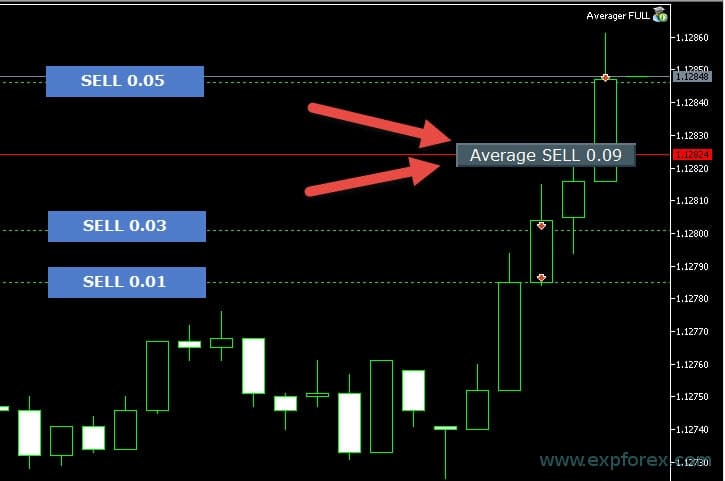 | ||
Manual Set | |||
| TakeProfitMANUAL AverageDistanceMANUAL TrailingStopaMANUAL StopLossMANUAL | Parameters of manual setting in points. For example, If the parameter TakeProfitTickSpread == 0, then the Expert Advisor takes values in points from the TakeProfitMANUAL parameter. For example: If you want to set fixed values, for example, Stop Loss, you can set the parameter StopLossMANUAL = 1000 points and StoplossTickSpread=0. If you want to set fixed values, for example, Take Profit, you can set the parameter TakeProfitMANUAL = 500 points and TakeProfitTickSpread =0. If you want to set a fixed averaging distance, you can set DistanceMANUAL = 100 points and DistanceAverageSpread=0. | ||
| LevelProfitMANUAL | Enable the break-even function. The function modifies the stop loss in LevelWLoss points when the position dials the LevelProfit of the profit items. Example: LevelWLoss = 50 LevelProfit = 200 As soon as the position accumulates 200 points of profit, the StopLoss of the position will be modified to the opening price of the position (+ spread) + 50 points. Example: LevelWLoss = 0 LevelProfit = 100 As soon as the position accumulates 100 points of profit, the StopLoss of the position will be modified to the opening price of the position (+ spread) Attention: If the averaging function is turned ON(true): Then, when you open 2 or more positions, the advisor turns ON a breakeven function from the middle line and not from the opening price of positions. | ||
| LevelWLossMANUAL | The level of profit (LevelWLoss) in points on which the Stop Loss is set when this function is enabled. 1 = 1 point of profit; 0 = Automatic minimum profit mode. If it is 0, then the number of points of profit for the breakeven (stoploss on the breakeven point) = Spread of the current currency pair. | ||
| TrailingStep | Step of StopLoss when the trailing stop function is enabled. | ||
AutoLot Sets | |||
| Averaging_LotsMartin | Coefficient: Increase the lot(Volume) for the grid positions. The coefficient of increase Lots of each next averaging position. For example: Starting Lot(Volume) of the main position = 0.1 LotsMartin = 2, then The next lot(Volume) of the opened averaging position will be 0.2, 0.4, 0.8, and so on. If Martin = 1, then the martingale does not turn on (Fixed lots (Volumes)). If Martin = 0, then the Expert Advisor can not open the next position. If Martin = 2, then the first lot = 0.1, the second lot = 0.2, and so on, 0.4 – 0.8 – 1.6 – 3.2 – 6.4….. If Martin = 0.5, then the first lot = 1, the second lot = 0.5, and so on, 0.25 – 0.125. Attention: The middle line will be calculated using the formula using lots. It allows you to bring the break-even level (middle line) closer to the current price. But martingale can be dangerous to your account. Please calculate this parameter so that your deposit will withstand such a load. | ||
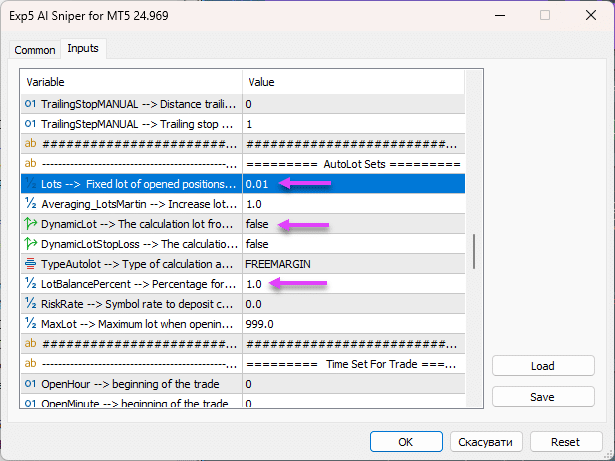
| Lots | A fixed lot(Volume) is used to open a position (Deal). | ||
| DynamicLot | A dynamic lot, Autolot, for an open position. You can turn ON dynamic lot calculation in percent of free margin and other factors. Calculation of our autolot. | ||
| DynamicLotStopLoss | Risk from SL – Calculate the automatic lot, taking into account Stop Loss. The maximum loss in percentage of the balance when closing a deal at StopLoss. When calculating the lot, our Expert Advisor will take into account the stop loss (at the moment of opening the deal). If the deal closes at the stop loss, the loss of this deal will be = % of the balance (at the time of opening the deal). Important! If your stop loss was changed after the deal was opened, the lot of the deal could not be changed. At closing the deal, the loss can be more or less. Important! If you use a Trailing Stop, the deal Stoploss changes with each tick. But the lot cannot be changed. Formula and code: https://expforex.com/my-autolot-secrets-dynamiclot-autolot/#eb-table-content-5 | ||
| TypeAutolot | Autolot calculation type: BALANCE – Autolot is calculated from the current balance. Lot calculation from account balance! If there are open positions on the account, then the next lot will be approximately the same because the balance does not decrease from the number of current open positions! FREEMARGIN – The standard lot calculation from the current free margin is that the more open positions on the account, the smaller the lot calculated for the next position. Because when opening a position, the free margin decreases, respectively, each new open position has a smaller lot when calculating the autolot | ||
| LotBalancePcnt | Percent for autolot. I recommend a maximum setting of 1% for a deposit of 10,000 or more. | ||
| RiskRate | The rate of your currency against the dollar (Or your account currency). By default, RiskRate = 0, which means that the Expert Advisor will try to find the correct rate in the Market Review. For Autolot to work well with all currency pairs, you need to turn ON the “Show all currency pairs” in the Market Watch. 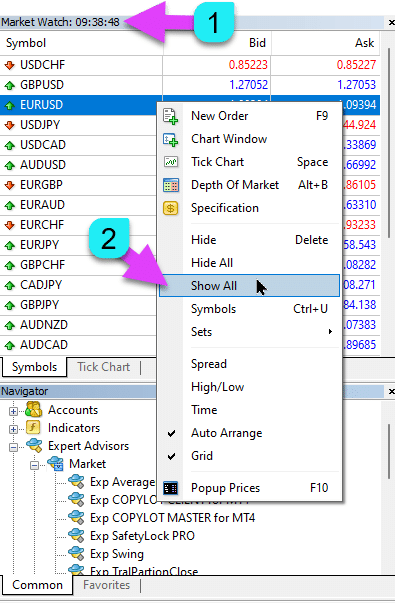 | ||
| MaxLot | The maximum lot that an Expert Advisor can open when calculating an autolot and martingale for the first main position. | ||
Time Set For Trade | |||
| OpenHour OpenMinute CloseHour CloseMinute | The Expert Advisor checks the trading time according to the parameters: OpenHour:OpenMinute – the beginning of the trade and ; CloseHour:CloseMinute – the end of the trade for 1 day. For example: OpenHour = 5 and OpenMinute = 0, and also CloseHour = 18 and CloseMinute = 59, Then, the EA will trade every day from 5:00 to 18:59. | ||
| CloseAllTradesbyOutofTime | Also, you can close all open trades and pending orders during non-business hours if CloseAllTradesByOutOfTime = true. In this case, the Expert Advisor will trade at the time specified above, and when the trading time is over, the advisor will close all open positions and orders. – Not Use = Do not use the function; – Only Positions = Close only positions (BUY and SELL); | ||
| ClosingPositionAtASpecificTime | Closes all positions on a specific day and time. Variable Format: Day of the Week / Closing Hour: Minute of Closing For example ClosingPositionAtASpecificTime = 5/20:00 This means that the Expert Advisor will close all open positions(deals) on Friday at 20:00! | ||
Trailing options | |||
| TrailingStopUSE | The function of standard trailing stop function. Note: If the averaging or additional positions are enabled (true): If you open 2 or more positions, the Expert Advisor turns on the trailing stop function from the middle line and not from the open position price. The average price is displayed on the chart. | ||
| SaveTPafterTrailingStop | When enabled, the Take Profit of the modified positions will not be modified after TrailingStop. For example: SaveTPafterTrailingStop = false: When running a Trailing Stop, the takeprofit of the modified position will be deleted (Set to 0); SaveTPafterTrailingStop = true: When the Trailing Stop is running, the takeprofit of the modified position will be saved. | ||
| Set_StopLoss_ to_the_next_profitable_position_level | When it is turned on(true), this option monitors the open positions and modifies the Stop Loss to the following profitable levels. If the EA opens the BUY direction, but the price goes against the position, 3 averaging positions are opened at the lower levels. Then, the price goes in the BUY direction but does not yet cross the middle line to activate the Smart Trailing Stop. And if the price has crossed the level of opening Second of the bottom position, then EA modifies the stop-loss of the lowest position to the next level (next deal higher). And if the price passes level Third of the bottom position, then the stop-loss of the first position will be modified to the opening level of the 2nd position. A Stop Loss of the Second position = the opening price of this position. And so on. If the price goes down, two positions will work with profit at the break-even level. After this, if Expert Advisor again opens the position of averaging over the algorithm, we will have already closed 2 profitable trades. | ||
| MovingInWLUSE | Enable the break-even function. The function modifies the stop loss in LevelWLoss points when the position dials the LevelProfit of the profit. Example: LevelWLoss = 50 LevelProfit = 200 As soon as the position accumulates 200 points of profit, the StopLoss of the position will be modified to the opening price of the position (+ spread) + 50 points. Example: LevelWLoss = 0 LevelProfit = 100 As soon as the position accumulates 100 points of profit, the StopLoss of the position will be modified to the opening price of the position (+ spread) Attention: If the averaging or additional function is turned ON(true): Then, when you open 2 or more positions, the advisor turns ON a breakeven function from the middle line and not from the opening price of positions. | ||
Limiting losses and profits options | |||
| Limiting losses and profits | Limitation of losses and profits for a certain period Limit loss and profit for 1 day/week/month. Limiting LimitFor – Limit type day/week/month; LimitForLosses – Limit on loss; LimitForProfits– Limit on profit; LimitType – Limit type by Dollars, Points, Deposit Interest; ClosebyLIMITING – Close the advisor’s deals when the Limit is exceeded; UseCurrentProfit – Take into account, when calculating the Limit, the current profit/loss; This function is able to turn off the work of the Expert Advisor if the Expert Advisor gained a certain profit/loss in the deposit currency for the day/month/week. The next work of the Expert Advisor will be the next day, week, or month. For example, LimitFor = DAY, LimitForProfits = 1, LimitForProfits = 10 dollars; Also, you can select LimitType limit type for calculations( In dollars, points, percent of the balance of the account). If you need to close and delete all deals for this Expert Advisor, if you exceed the limits, you can put ClosebyLIMITING = true. The UseCurrentProfit Enable/Disable calculation of the current floating profit/loss for this Expert Advisor. | ||
Trade Sets other | |||
| market | For opened positions with stop-loss / take-profit on an account with MARKET execution. First, an EA can open the position (Deal), and after the successful opening, the levels of StopLoss and TakeProfit are modified in this position (deal). | ||
| Sounds | Use trade sounds (After Open and Close) | ||
| ModifyStoplossEverySeconds | Ea can Modify new SL after averaging Spread every 10 or 200 seconds. 0 – function is turned off; | ||
| Slippage | The level of the maximum possible deviation in price when opening and closing positions (in Points). Example: Slippage = 1 Maximum deviation in price when opening a position = Opening price + -1 point(pips). Slippage = 100 Maximum deviation in price when opening a position = Opening price + -100 points(pips). For example, the price of opening a position when sending a deal to the server = 1.12345 But, if during the time of sending and opening a position (deal), the price has changed within 100 points (Requote), then the position (deal) will open with the price of within 1.12245 – 1.12445 | ||
| CommentToOrder | Comment for deals. “TS”+CommentToOrder; “Aver”+CommentToOrder. | ||
| Magic | The magic number of the positions opened by the advisor EA. If Magic= -1, by default, the advisor keeps monitoring all positions of any magic number of the current currency pair. | ||
Description of AI Options Block Settings
The AI Options block is an experimental module added for additional filtering of signals generated by the main strategy of the Expert Advisor (EA). It functions as an advanced filter based on tick history analysis and helps to select entry points more precisely.
Currently, this module is in the testing phase, so it is disabled by default when the EA is loaded.
Generation Filter
This is the main switch that activates or deactivates the entire AI Options filtering block.
What does it do? The Generation Filter parameter enables or disables an additional check of trading signals (Buy/Sell) based on tick data analysis.
How do true or false affect the signals?
- false (default value): The filter is completely disabled. The EA will open trades based on the main strategy’s signals without any additional checks from this block.
- true: The filter is activated. Before opening a trade, the EA will check the signal against the conditions set in the Depth of Research and Number of Patterns parameters. The signal will only be confirmed if it passes this check.
Depth of Research (range: 1–10,000)
This parameter determines how deep into the tick history the AI will look to analyze the current market situation.
What does this parameter control? It sets the number of recent ticks to be analyzed for identifying directional movements (patterns). For example, a value of 500 means the filter will study the last 500 ticks to make a decision.
How does changing the value affect the EA?
- Increasing the value (Depth of Research > 1000): The AI analyzes a longer period of tick history. This allows for a more statistically weighted assessment of recent activity, smoothing out short-term noise. However, it may slightly increase the signal processing time.
- Decreasing the value (Depth of Research < 500): Only the most recent market activity is analyzed. This makes the filter very fast and sensitive to sharp movements, but also more vulnerable to random price fluctuations.
Number of Patterns (range: 1–100)
This parameter sets the filter’s sensitivity threshold. It determines how strong the signal confirmation must be.
What does this parameter define? It defines the minimum number of unidirectional tick movements (“patterns”) that must be detected within the Depth of Research for a signal to be considered reliable.
How does changing the value affect filtration?
- Increasing the value: Makes the filter stricter. The EA will wait for a strong and clear confirmation when the majority of recent tick movements point in the same direction. This leads to fewer trades but potentially increases their accuracy.
- Decreasing the value: Makes the filter less strict. Fewer unidirectional ticks are required to confirm a signal. This will result in more trades, as the filter will allow even weakly confirmed signals.
Balancing Bias and Variance (range: 1–10)
This parameter is designed for fine-tuning the balance between the model’s accuracy on historical data and its ability to adapt to new market conditions.
What does this balancing mechanism do? In machine learning theory, this is a trade-off:
- Bias: An error from a model’s overly simplistic assumptions. High bias can lead to the model ignoring complex patterns in the data (underfitting).
- Variance: An error from excessive model complexity, where it begins to capture random noise in the data. High variance results in a model that performs perfectly on historical data but poorly on new data (overfitting).
What trade-off is created by a low or high value?
- Low value: Reduces Bias. The model will attempt to match historical data as closely as possible, which can increase the risk of Variance (overfitting).
- High value: Reduces Variance. The model becomes simpler and more generalized, which can increase the risk of Bias (underfitting).
This parameter is in the testing phase.
FAQ Questions and Answers about our Scalper AI Sniper

Our General FAQ
FAQ Answers to the Most Common Questions
What should I do if my broker has notified me about high hyperactivity on my account and warned that my account might be disabled?
“We have noticed a high degree of hyperactivity on your account xxxxxxxxxxx and this can potentially overload our servers.“
Answer:
Receiving a notification from your broker about high hyperactivity on your account indicates that the number of trades or server requests (such as modifications to stop-losses and take-profits) exceeds the set threshold of 2,000 operations per day. This excessive activity can lead to server overload, negatively impacting the platform’s performance for all users.
To prevent your account from being disabled and to ensure the smooth operation of your trading strategy, it is recommended to take the following steps:
- Check for Additional EAs or Utilities: Ensure that no other Expert Advisors or utilities are installed on your account that might automatically modify stop-losses (SL) and take-profits (TP).
- Limit the Trailing Step for Stop-Loss Modifications: Configure the
TrailingStepparameter to a fixed value (e.g., 10) to reduce the frequency of stop-loss adjustments. - Account for Floating Spreads: Floating spreads can cause fluctuations in the distance to SL and TP, resulting in additional modification requests. Consider fixing the spread or adjusting your strategy to accommodate its variability.
- Use the
ModifyStoplossEverySecondsFunction: Set up this function so that the EA modifies the SL only after a specified period (e.g., every 10 or 200 seconds). This will help decrease the number of modification requests. Set the value to0to disable the function if necessary.
By following these recommendations, you can reduce the activity on your account, prevent server overloads, and avoid the potential disabling of your account by the broker.
Q: Does the AI Sniper Expert Advisor require manual configuration of parameters?
A: No, the AI Sniper Expert Advisor performs automatic tuning of all parameters. All settings are configured automatically based on the currency pair and your broker’s conditions.
Q: How do I set up the AI Sniper Expert Advisor?
A: Install the advisor on the chart of your chosen currency pair. The advisor will handle the rest automatically. It’s an automated advisor with optimization capabilities.
Q: Do I need to adjust any settings manually?
A: No, you do not need to change any settings manually. The AI Sniper Expert Advisor automatically optimizes all parameters for optimal performance.
Q: Is a set file required for the AI Sniper Expert Advisor?
A: No, the AI Sniper Expert Advisor does not require a set file. The advisor automatically configures all settings.
Q: How does the AI Sniper Expert Advisor optimize parameters?
A: The advisor automatically optimizes parameters for the specific currency pair and broker, ensuring optimal performance without the need for manual intervention.
Because the strategy tester works with historical data and is based on incomplete quotations, the spread in the strategy tester is fixed (exception only for MT4).
Therefore, in the strategy tester, there are no situations of sharp movements in quotations.
There are no sharp price jumps that a broker assumes when trading in the market.
The strategy tester cannot check the spread and sharp jumps in quotes and prices because the advisor is working on them.
Please download the demo version of the Expert Advisor and test it on a demo account at least.
Q: Can I test the AI Sniper Expert Advisor in the strategy tester?
A: While the AI Sniper Expert Advisor can be tested in the strategy tester, it’s essential to understand its limitations. The strategy tester may not accurately reflect real trading conditions, leading to inaccurate results.
Q: Why might the strategy tester produce inaccurate results for the AI Sniper Expert Advisor?
A: The AI Sniper Expert Advisor operates at the speed of real-time quotes, capitalizing on swift movements in currency pairs, particularly during news events. The strategy tester cannot fully simulate these market conditions, leading to discrepancies between testing results and real trading outcomes.
Why an EA Works on Demo but Trades Differently on a Real Account
Q: How should I interpret the results from testing the AI Sniper Expert Advisor in the strategy tester?
A: While testing in the strategy tester can help verify the algorithm’s correctness, it’s crucial to recognize that the results may not align perfectly with real trading outcomes. The strategy tester is not capable of replicating all market conditions accurately.
Q: Should I rely solely on strategy tester results for decision-making?
A: It’s not advisable to rely solely on strategy tester results for decision-making. Instead, consider testing the AI Sniper Expert Advisor on a demo account or with small live trades to assess its performance under real market conditions.
Q: How do you test the AI Sniper Expert Advisor?
A: For accurate testing, it’s recommended to use the AI Sniper Expert Advisor on a live trading account or a demo account with real-time market data. This provides the most realistic assessment of its performance.
Q: Can the AI Sniper Expert Advisor be optimized in the MetaTrader 5 Strategy Tester?
A: While it’s possible to optimize the AI Sniper Expert Advisor in the MetaTrader 5 Strategy Tester, it’s important to understand the limitations and considerations involved in this process.
Q: What should I consider before optimizing the AI Sniper Expert Advisor in the Strategy Tester?
A: Before proceeding with optimization, it’s essential to acknowledge that the Strategy Tester may not fully replicate real trading conditions. Therefore, the results obtained from optimization may not perfectly align with actual trading outcomes.
Q: Are there any minimum requirements for terminal setup when optimizing the AI Sniper Expert Advisor?
A: Yes, when optimizing the AI Sniper Expert Advisor, ensure that you meet the following minimum requirements for terminal setup:
- Use the MetaTrader 5 (MT5) terminal for optimization.
- Configure the Strategy Tester settings to closely resemble real trading conditions as much as possible.
- To accurately simulate actual market conditions, set realistic spread, slippage, and modeling quality in the Strategy Tester.
Q: How can I optimize the AI Sniper Expert Advisor effectively?
A: To optimize the AI Sniper Expert Advisor effectively, consider testing various parameter combinations and optimizing parameters such as timeframes, indicators, and risk management settings. Additionally, prioritize real-market testing on a demo account or with small live trades to validate optimization results.
Q: Should I solely rely on optimization results from the Strategy Tester?
A: While optimization in the Strategy Tester can provide valuable insights, it’s important not to rely solely on these results for decision-making. Be sure to validate optimization results through real-market testing to ensure the AI Sniper Expert Advisor performs well under actual trading conditions.

You can try optimizing the following parameters:
| Parameter (1 – check the box) | Default | Start (2) | Step (3) | Stop (4) |
|---|---|---|---|---|
| TimeOpen | 1500 | 500 | 500 | 5000 |
| DistanceTickSpread | 2 | 1 | 1 | 5 |
| PercentDDMAX | 10 | 5 | 5 | 30 |
| MaxOrders | 5 | 5 | 5 | 20 |
| TakeProfitTickSpread | 50 | 5 | 5 | 50 |
| StopLossTickSpread | 250 | 10 | 10 | 250 |
| DistanceAverageSpread | 75 | 10 | 10 | 250 |
| TrailingStopTickSpread | 5 | 1 | 1 | 10 |
| Averaging_LotsMartin | 1 | 1 | 1 | 5 |
| DynamicLot | false | false | true | |
| LotBalancePercent | 1 | 1 | 1 | 5 |
| Set_StopLoss_to_the_next_profitable_position_level | true | true | false | |
| MovingInWLUSE | true | true | false |
Example:
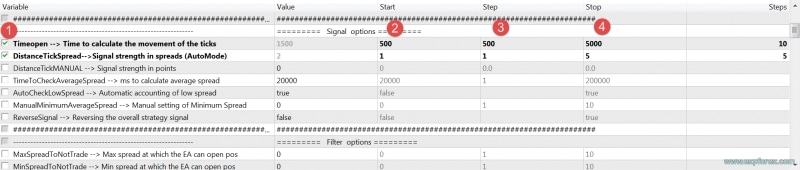
How to Optimize Expert Advisors: Optimizing and Testing an Expert Advisor: Basic Rules.
A “.set” file for optimization based on our example: Download AI Sniper Optimization MT5.set
Q: Why are the results of the strategy tester different from the results on your real account?
A: The results of the strategy tester and real trading accounts can vary due to several factors. While we continuously update and optimize the EA based on real-market data, it’s important to understand that forex trading involves inherent risks, and no two market conditions are exactly alike.
Scalping Systems Based on Quote Rates!
Q: Why did the EA open a BUY position when I expected it to open a SELL position?
A: The EA operates based on its internal algorithm and trading strategy, which have been developed and tested over several years. If you believe there’s an error or discrepancy in the EA’s trading decisions, we recommend consulting our Programming Advisors section for assistance.
Why an EA Works on Demo but Trades Differently on a Real Account
Q: Why did the advisor open a losing position?
A: Forex trading is inherently risky, and no trading strategy can guarantee profits every time. The EA follows its signals and employs risk management techniques such as averaging positions and trailing stops to mitigate losses. However, losses are inevitable in trading, and it’s essential to understand and accept this reality.
Q: Why do two identical advisors behave differently on identical terminals?
A: Despite using identical terminals, various factors can influence the EA’s performance, such as the speed of quote reception and the timing of receiving quotations. We provide general recommendations to optimize your trading environment, but please be aware that slight variations can occur even with identical setups. Trading Scalping Systems for Forex: Mistakes and Causes
Why an EA Works on Demo but Trades Differently on a Real Account
General Recommendations:
- Close any unused symbols in Market Watch.
- Close unnecessary charts.
- Install TF M1 (1-minute timeframe).
- Close all unnecessary programs running on your server.
- Note that quote reception speed depends on the bandwidth between your server and your broker’s server, which can vary.
Q: Why does the advisor get different results from different companies?
A: Different brokers have varying trading terms, including spreads, swaps, commissions, stop levels, margin requirements, and contract specifications. Additionally, different trading servers and quote rates can contribute to discrepancies in results. However, the advisor operates based on a consistent algorithm and signals across all terminals.
Q: I installed the advisor yesterday, but it didn’t open any positions. Why?
A: Check if the indicator in our EAPADPRO panel is green, indicating that the EA is enabled for trading. If it’s red, the EA may not be allowed to trade on your account. Also, review the Expert Advisor’s log on the EXPERTS tab for any error messages that could explain why no positions were opened.
GUI for the EAPADPRO Expert Advisor is a control panel for our experts
Methods for Eliminating Errors in the EA
Q: Why didn’t the advisor open a position despite seeing a signal after a sharp movement?
A: The advisor follows a set of rules encoded in its algorithm. If all conditions for opening a position are not met, the advisor will not trade. Please be patient and trust the advisor’s signals, as it operates based on a predefined strategy.
Q: Will the advisor work on ECN accounts with commissions?
A: Yes, the advisor is designed to work on any account type, including ECN accounts with commissions. However, note that accounts with commissions may have shorter average distances and stop-loss levels, potentially affecting profitability. Nevertheless, the advisor’s code is fully optimized to account for commissions and includes functions for trailing stops and averaging.
Recommendation: We recommend using our Recommended ECN PRO brokers for optimal performance.
I have previously traded on ECN accounts and gained significant experience with that type of execution. Currently, I am trading on a Pro account, primarily to take advantage of a more stable and predictable spread.
There has long been a debate about whether it’s more advantageous to trade with a tighter spread and commission structure or a more conventional spread without commissions. From my experience, I believe that for more consistent and effective trading, it’s preferable to work with a regular spread without relying heavily on commission-based structures.
The spread plays a crucial role in how signals are generated and interpreted within the framework of this strategy. Essentially, the spread serves as a key indicator for determining price movement and market behavior. The dynamics of the spread often reveal the onset of significant price movements, making it a central factor in the decision-making process.
In summary, everything in this strategy is fundamentally tied to the spread, as it directly influences the identification and timing of trade opportunities.
Q: What is the difference between the version for MetaTrader 4 and MetaTrader 5?
A: There are no differences between the versions for MetaTrader 4 and MetaTrader 5. Both versions of the advisor have the same algorithm and functionality. The only distinction lies in the terminal version, allowing flexibility based on broker compatibility.
The Expert Advisor (EA) operates on tick history data, continuously collecting and analyzing it to generate signals and parameters for opening positions. Since each trading terminal generates and processes its own tick data, there are inherent differences in the data between MT4 and MT5. This discrepancy can lead to different signals being generated on each platform, even when using the same strategy.
The divergence between MT4 and MT5 data is a well-known issue among traders. These differences stem from variations in tick data generation, aggregation methods, and the underlying technology of the two platforms. As a result, signal behavior can differ, affecting the timing and accuracy of trade entries.
I discussed this issue in a blog post over a decade ago, where I explored the complexities of scalping systems based on quote rates: Scalping Systems and Underwater Rocks.
Q: Where does the advisor trade better? On MetaTrader 4 or MetaTrader 5? And why?
A: Based on our extensive testing and observations, we believe that the MetaTrader 5 terminal offers more quotes, a higher rate of quote reception, and faster order execution. Consequently, the Expert Advisor on MetaTrader 5 tends to open more accurate positions compared to MetaTrader 4.
Q: Does the Expert Advisor work on VPS? Which VPS should I choose?
A: Yes, the Expert Advisor is designed to work on Virtual Private Servers (VPS) to ensure uninterrupted operation. We recommend selecting a VPS that is closer to your broker’s server for optimal performance. It’s worth noting that the advisor works seamlessly on VPS provided by MetaQuotes.
Q: Why does the Expert Advisor not open positions on VPS from MetaQuotes?
A: While it’s unclear why the Expert Advisor may not open positions on VPS from MetaQuotes, it’s essential to recognize that discrepancies in quote reception between different platforms (such as VPS and home computers) are normal. These variations can affect the behavior of the EA, particularly since it relies on real-time quotes for decision-making.
Example of EA working on Real Accounts:
MT5

MT4
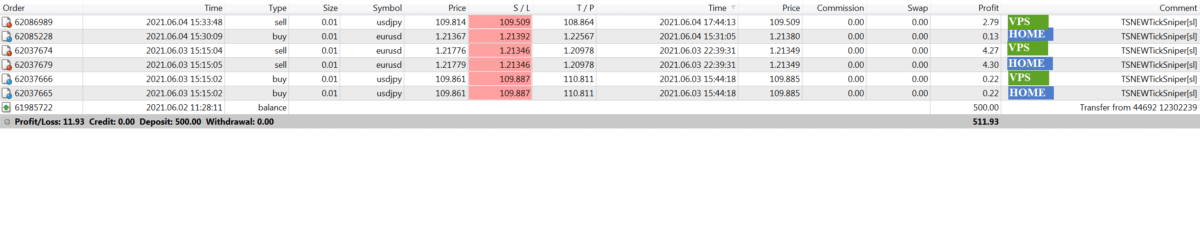
Q: Why do some positions close with a small loss?
A: In scalping, positions may close with small losses due to floating spreads affecting the installation of stop-loss orders at breakeven and subsequent trailing stops. The advisor may adjust the stop-loss to breakeven based on the current price and spread, but fluctuations in the spread can lead to losses. This is a normal aspect of trading.
Q: What does leverage affect?
A: Leverage primarily affects the margin required at the time of opening a position. Lower leverage necessitates more margin for opening averaging positions, but it doesn’t affect profitability or other parameters. The advisor automatically adjusts to leverage changes, so no manual adjustments are needed.
- To open a position on EURUSD with a lot size of 1.00 on an account with a leverage of 1:100, you need to have $1,171 of free margin.
- To open a position on EURUSD with a lot size of 0.01 on an account with a leverage of 1:100, you need to have $11.71 of free margin.
- If the averaging distance is 1,000 points, and the cost per 0.01 lot is $0.01, then at a loss of 1,000 points, the advisor will have a loss of $10 + Free Margin $11.71 = $21.71.
- To open one averaging position, another $11.71 is required.
- Total: If the Expert Advisor opens 3 averaging positions plus the main position, you must have on the account: $30 + $20 + $10 + ($11.71 * 4) = $106.84 + StopOut (20%) = $128.20
$128.20 is necessary to have on the account for the normal operation of the advisor for 1 currency pair with a lot size of 0.01 and a leverage of 1:100.
- To open a position on EURUSD with a lot size of 1.00 on an account with a leverage of 1:50, you must have $2,342 of free margin.
- To open a position on EURUSD with a lot size of 0.01 on an account with a leverage of 1:50, you must have $23.42 of free margin.
- If the averaging distance is 1,000 points, and the cost per 0.01 lot is $0.01, then with a loss of 1,000 points, the Expert Advisor will have a loss of $10 + Free Margin $23.42 = $33.42.
- To open one averaging position, another $23.42 is required.
- Total: If the Expert Advisor opens 3 averaging positions plus the main position, you must have on the account: $30 + $20 + $10 + ($23.42 * 4) = $153.68 + StopOut (20%) = $184.42.
$184.42 is necessary to have on the account for the normal operation of the advisor for 1 currency pair with a lot size of 0.01 and a leverage of 1:50.
- With less leverage, fewer additional positions may be opened.
- With lower leverage, a Margin Call can be activated quickly.
- The greater the leverage, the better the performance.
Q: How does leverage impact position sizing and account requirements?
A: Leverage directly affects the amount of free margin required to open positions. For example, opening a position with a lot size of 0.01 on EURUSD with 1:100 leverage requires $11.71 of free margin. Higher leverage allows for larger position sizes with less margin, but it also increases the risk of a Margin Call activation.
Q: Why does the advisor open too few positions?
A: If you desire more positions, consider adjusting parameters like TimeOpen and DistanceSpread. Lowering TimeOpen to 2000 and DistanceSpread to 1 may prompt the advisor to trade faster, but it could compromise signal quality. Experiment cautiously with parameter adjustments to find a balance between trading frequency and signal accuracy.
Q: How stable is the advisor? How much profit can you get?
A: The system’s stability depends on current market conditions and adherence to standard recommendations. The EA’s profitability and drawdown are influenced by various factors, including market dynamics, account balance, risk management, and global events impacting currency movements. Higher deposits and trading lots can yield greater profits but also carry higher risks of drawdown.
Q: Can you add a function to the advisor to improve trading?
A: While additional functions may seem beneficial, each new feature requires extensive testing on real accounts, which is time-consuming. As the advisor has been thoroughly tested on live accounts, adding new functions could disrupt its performance. If you have specific requirements for customization, please consider using the Programming Expert Advisors section.
Q: I am from the USA. Is it possible to trade on a FIFO system? How do I limit the opening of new positions?
A: FIFO (First In, First Out) is a rule required by certain brokers, particularly those regulated in the U.S., which dictates that traders must close their oldest positions first before closing any newer ones in the same currency pair.
To meet your broker’s FIFO requirements, you can disable hedging and averaging in your trading strategy. While I don’t recommend turning off these features, as they play a key role in many trading strategies, including ours, you have the option to do so to ensure compliance with FIFO rules.
Trade_by_BUYSELL_Separate = false
DistanceAverageSpread = 0
By adjusting these parameters, you’ll be able to follow the FIFO requirements without compromising your broker’s regulations.
Q: Why do different timeframes yield different results in the strategy tester, even though TimeFrame doesn’t matter?
A: When setting a timeframe (TF) in the Strategy Tester, such as M15, the advisor may not receive data from the indicator on TF M1, leading to variations in results. To ensure accurate testing, please set the period to M1 during Strategy Tester sessions.
How to enable BUY/SELL buttons for the EA to accompany manual trades?
You can open BUY/SELL positions manually. Then, my advisor will continue to follow your positions according to its algorithm.
To do this, enable BUY/SELL control from the EAPADPRO panel.

Do I need to open positions myself?
Can I close positions opened by the advisor?
Do I need to turn it off during news events?
What should I do with the advisor?
Do I need to add other position management utilities?
Dear user!
I urge you to read the complete instructions for my automated trading advisor!
This is an automatic trading robot that independently trades on your trading account.
It automatically opens and closes positions.
My advisor automatically manages open positions, closes excess ones, opens new ones, modifies, and initiates trailing stops and an averaging system!
This is an automatic and independent trading robot for Forex!
You do not need to turn it off during news events, close its positions, open new positions, or use other utilities that can harm the trading strategy.
Install the advisor on the chart and let it work!
My trading advisor does not need your help.
If you have a desire to help it, “You can help it.” It’s your choice. But it does not require assistance.
Risk Warning:
Past trading performance does not guarantee future results.
Trading foreign exchange on margin carries a high degree of risk and may not be suitable for all investors.
Be aware that using trading robots involves substantial risk, and you could lose more than your initial investment.
Please proceed with caution, assess your financial situation carefully, and consider seeking advice from a qualified professional.
Changelog for AI Sniper
Changelog
Update history will be loaded when this tab is opened.
What do people write about AI Sniper based on TickSniper?
Thanks for feedback!

Samuel Bandele
⭐⭐⭐⭐⭐
Hey i want to inquire about the function "LIMIT LOSSES AND PROFIT". does the EA look at the overall account balance or just the pair where it is being used? For instnce, if i use the EA in EURUSD with a daily loss limit of $500 and i have other open pairs. will the EA close position when my account balance go below $500 from the other pairs or it will just wait until EURUSD go loses $500Reply from ExpForex:
Hello ✅LIMIT LOSSES AND PROFIT ✅The limit function controls only the trades on the current symbol (the symbol of the chart where the EA is running). It does not monitor the entire account or other pairs. ✅Important note: by default MagicNumber = -1, so TickSniper monitors all trades on this symbol with any MagicNumber, including manual trades and trades from other EAs. This is done to properly calculate drawdown and symbol statistics. If you want to control only this EA, set a unique MagicNumber. ✅======================================= EXAMPLE If the daily loss limit is 500 USD on EURUSD, the EA stops only when EURUSD (the chart symbol) reaches this loss. Losses on other symbols do not affect this limit. With MagicNumber = -1 all EURUSD trades are counted, and with a custom MagicNumber only the EA’s own trades are counted. ✅ ======================================= SUMMARY ✅ Controls the chart symbol only, not the whole account ✅ Other pairs do not trigger the limit ✅ Magic = -1 counts all trades on the chart symbol ✅ Unique Magic counts only EA trades

Rene Nijholt
⭐⭐⭐⭐⭐
Tick Sniper PRO works fantastic. Its very profitabele. Let the system do its work and it makes money for you. Be patient, thats what i learned from Tick Sniper PRO.
Correcttrader FONT
⭐⭐⭐⭐⭐
Correcttrader FONT Well, this masterpiece is doing well on live (normal spread) trading, altought the floating losses (if trading 8 pairs, you certainly have to cope with these) is my consurn, i need to figured out how to handle that after day’s end, weekly end, just to get rid of those swaps, or start fresh on mondays. Any suggestion here? Also you need to give this EA some time to understand, and use it fully with all kind of pairs, even indexes. Then you will see the beauty of it.

Apollo1969
⭐⭐⭐⭐⭐
Apollo1969
Buy this EA. It’s an ATM machine. Easy to set up and run, awesome service from Vlad. This is the only EA you need to run.

albertlux
⭐⭐⭐⭐⭐
albertlux 2023.06.11 19:03
Hello, very useful , one question please..is the leverage taken into account while testing in the strategy tester ? I have the impression it is not . Also , the times when trading is not allowed seem not to be taken into account in the strategy tester , is that so ? Also , I would like to increase the lot sizes to a maximum and I do not manage , what parameters do allwow that , have you built in a limiter ? ( Draw down are accordingly very low , what is good , but I wish to push the limit higher )2023.06.11 19:39Hello. The leverage of your broker works in the strategy tester. in the mt5 strategy tester, you can even set a floating spread. This is very good. there are no restrictions on the lot in the EA, you can increase the lot lots.

alforwin
⭐⭐⭐⭐⭐
alforwin 2023.05.16 08:39
Установил советник 9-го мая. По сегодняшний день - великолепная система! Огромное спасибо автору! Впервые за десяток лет не переживаю за депозит! Браво! Единственное небольшое замечание (может быть я просто не понимаю логики советника) - стоплосс далековато от цены и не подтягивается за нею вплотную, на этом теряется достаточно большая доля прибыли. во всём остальном - отлично!!!
pollian
⭐⭐⭐⭐⭐
pollian 2023.05.01 10:37
Hi, I bought the EA about 2 weeks and running the trading test on the "demo account". How do set the "Stop Loss " in the item " Manual Set"? I have a deficit of over $75. I have read the manual from the website, and know the EA setting automatically to run, but I want to change the "Stop Loss" setting to fix my need. What I can set on the manual trading? Could you check my setting file for me? and how can send my file to you?

mangusto
⭐⭐⭐⭐⭐
mangusto
The best expert advisor I know. It Works very well. One question: is it possible in the next update to change the parameter "HoursSleepEaAfterStopLoss" from hours to minutes? Thank you and congratulations!Hello. Thank you. Yes, minutes can be done.
Olga Snizhko
⭐⭐⭐⭐⭐
Olga Snizhko
Since beginning of 2022, this strategy has died completely. EA looks interesting, I bought it for collection and do not plan to use it in real. Test on real tick quotes in MT5 to see result of its work)) Five stars to author for long development and support of this product.
[Deleted]
⭐⭐⭐⭐⭐
[Deleted]
Hello, I have never seen better EA. One question, how do I activate the "Averaging_LotsMartin"? I have done everything but I can not activate it.Thank you. You can adjust this parameter. Averaging_LotsMartin increase in the LOT for each averaging deal. It allows you to increase the LOT of averaging deals. Increase the lot for the grid positions — the coefficient of increase of each averaging position. For example: Starting lot of the main position = 0.1 LotsMartin = 2, then The next lot of the opened averaging position will be 0.2, 0.4, 0.8 and so on. Attention: The middle line will be calculated using the formula using lots. It allows you to bring the break-even level (middle line) closer to the current price. But martingale can be dangerous to your account. Please, calculate this parameter so that your deposit will withstand such a load


asaens15
⭐
asaens15 2022.09.19 06:10
Per comment(s) by author in Sept 2022, author is no longer supporting his product and not making needed changes or investigating possible solutions to user problems.2022.09.19 09:24I do that support whenever possible. I can't make changes to my products. but always willing to answer questions.

JSP500
JSP500 2022.09.16 17:47
How to reduce stop loss2022.09.16 17:54You can use this StoplossTickSpread stoploss in spreads of each deal in spreads (Spread is calculated based on the average spread that is received for TimeToCheckAverageSpread milliseconds of the Expert Advisor )

Wilhelm Alexander Rettig
⭐⭐⭐⭐⭐
Wilhelm Alexander Rettig
Have it run on a 4500 Euro real ecn Account and it works great. I only Use the 3 forex pairs like in the subscription. I make over a hundred Euro a day. Thanks a lot.
Comments about AI Sniper
Do you have a question?
50 responses to “AI Sniper. Automatic Smart Expert Advisor for Metatrader.”
-

Hi [EXP FOREX MY AI SNIPER EA
I’m noticing an issue with my EA that I could use your help with. Basically, when a trade is first opened, the stop loss and take profit levels are set very wide. However, once the trade closes, I see that the final SL and TP values end up much tighter than what was initially placed. In other words, the EA sets a wide SL/TP at the start, but by the end of the trade, the levels are actually quite narrow.
Could you please take a look and let me know if this is a known behavior or if there’s a setting I might need to adjust? Thanks so much!
-
Hello.
In my strategy, stop-loss and take-profit are set based on the spread size.
Once the position reaches a certain profit, the trailing stop kicks in.
Are you considering increasing the trailing stop?
-
-
It is mentioned that these EA’s are self optimizing.
Yet the user has to manually select what type of lotsize algorithm he wants to use.It would be nice if the EA was REALLY self optimizing, as in automatically optimizing ALL SETTINGS from default to best result.. without user input.
As mentioned in previous comment, stop loss started occurring after 800 trades and now is occurring frequently, often about every 50 trades or so; 12 so far, for the month if April, not making any net profit after 4/3/25, in fact ddropping from 1500 to 1260. So, apparently, the price behavior from Jan to April was condicive to profit, and since April, is losing. This does not represent a AutoOptimizing EA as far as i can see.
-
Hi,
Thank you for your observations.
You’re right — while AI Sniper includes self-optimizing elements, such as signal distance, averaging step, stop loss, trailing stop, and take profit — all of which dynamically adjust based on spread and market conditions — it’s not possible to fully auto-optimize every parameter in real-time.
Some key settings, like lot size selection, are intentionally left for the user to decide based on individual risk tolerance and account size. The EA provides lot size suggestions on the panel, but the final decision remains with the trader.As for profitability — it’s important to note that Forex conditions change constantly, and no EA can perform equally well in all phases of the market. What worked from January to April may behave differently in a new cycle. This is not a flaw but a reflection of real market dynamics.
Thank you again for your feedback — it helps us improve.
Best regards,
Vladislav
Expforex Team
-
-
It is mentioned that these EA’s are self optimizing.
Yet the user has to manually select what type of lotsize algorithm he wants to use.It would be nice if the EA was REALLY self optimizing, as in automatically optimizing ALL SETTINGS from default to best result.. without user input.
As mentioned in previous comment, stop loss started occurring after 800 trades and now is occurring frequently, often about every 50 trades or so; 12 so far, for the month if April, not making any net profit after 4/3/25, in fact ddropping from 1500 to 1260. So, apparently, the price behavior from Jan to April was condicive to profit, and since April, is losing. This does not represent a AutoOptimizing EA as far as i can see.
-
It is mentioned that these EA’s are self optimizing.
Yet the user has to manually select what type of lotsize algorithm he wants to use.It would be nice if the EA was REALLY self optimizing, as in automatically optimizing ALL SETTINGS from default to best result.. without user input.
As mentioned in previous comment, stop loss started occurring after 800 trades and now is occurring frequently, often about every 50 trades or so; 12 so far, for the month if April, not making any net profit after 4/3/25, in fact ddropping from 1500 to 1260. So, apparently, the price behavior from Jan to April was condicive to profit, and since April, is losing. This does not represent a AutoOptimizing EA as far as i can see.
Extra
Navigation by tabs
Related Posts

Trade Report of TickSniper and the best advisors from Expforex
Description We have summed the summary and detailed trading results of our experts TickSniper, Good Santa, Tick Hamster, The X, on our real trading accounts. Trade…

Duplicator – Duplication of deals/positions on the MetaTrader terminals
The Exp-Duplicator is an automatic Expert Advisor designed to duplicate trades and positions a preset number of times on your…
Averager. Averaging trading positions. Opening deals against the trend and
Averaging positions. Opening of additional positions on the trend and against the trend with the function of the general trailing…
Partial Close and Trailing. Partial closing of positions on rollbacks
Partial Close and Trailing is an EA assistant that closes a portion of a position (i.e., part of the lot)…

Templates MQL Open Source. Template for Creating Expert Advisor
Brief Creating Expert Advisors (EAs) to test your strategy using any indicator can indeed be simplified using templates and open-source resources….
Market Time Pad. Indicator for MetaTrader with trading sessions
The Time Indicator displays the current time across the major world markets and highlights the active trading session. It is easy…
The X and The xCustomEA: Testing and Optimization
Description The X and The xCustomEA are two standout Expert Advisors (EAs) in the Forex trading community, gaining widespread popularity over…
CLP CloseIfProfitorLoss with Trailing. Control of the total profit or
The Expert Advisor (EA) offers advanced features for managing and closing positions in MetaTrader, specifically upon reaching a predetermined level…

Tick Hamster Automatic trading robot. Nothing extra!
Tick Hamster – Expert Advisor with Automatic Optimization for Any Trading Symbol in MetaTrader Tick Hamster is a fully automated Expert…

Assistant – the best free trading panel to support positions
Auto Setting stop loss, take profit, trailing stop, breakeven levels, enabling virtual stops. Exp Assistant will help you organize maintenance of your…

Copylot – Forex copier for trade deals for MetaTrader. Copier
Trade copier for MetaTrader. It copies forex trades, positions, orders from any accounts. It is one of the best trade copiers MT4-MT4, MT5 – MT4 for…

EA The xCustomEA: Universal Trading Advisor for iCustom Indicators. Custom
Universal trading adviser on custom indicators for MetaTrader . Exp – The xCustomEA Universal trading advisor on custom indicators. The xCustomEA works on…
VirtualTradePad (VTP) Trading Panel. Trade Pad for One Click Traiding
VirtualTradePad or VTP – control panel for trade in 1 click in MetaTrader 4 and 5. Trade in 1 click from…


TickSniper Automatic Expert Advisor for Metatrader. Tick scalper
Exp-TickSniper is a fast tick scalper that automatically selects parameters for each currency pair separately. The EA has been developed based on…
โพสต์นี้มีให้บริการใน:
Leave a Reply