























Partial Close and Trailing is an EA assistant that closes a portion of a position (i.e., part of the lot)…

Copylot – Forex copier for trade deals for MetaTrader. Copier between terminals

AI Sniper. Automatic Smart Expert Advisor for Metatrader.
Main
Documentation
Settings
FAQ
Changelog
Reviews
Comments
Extra
About VirtualTradePad
Virtual Trade Pad (VTP) – Your One-Click Control Panel for Trading in MetaTrader
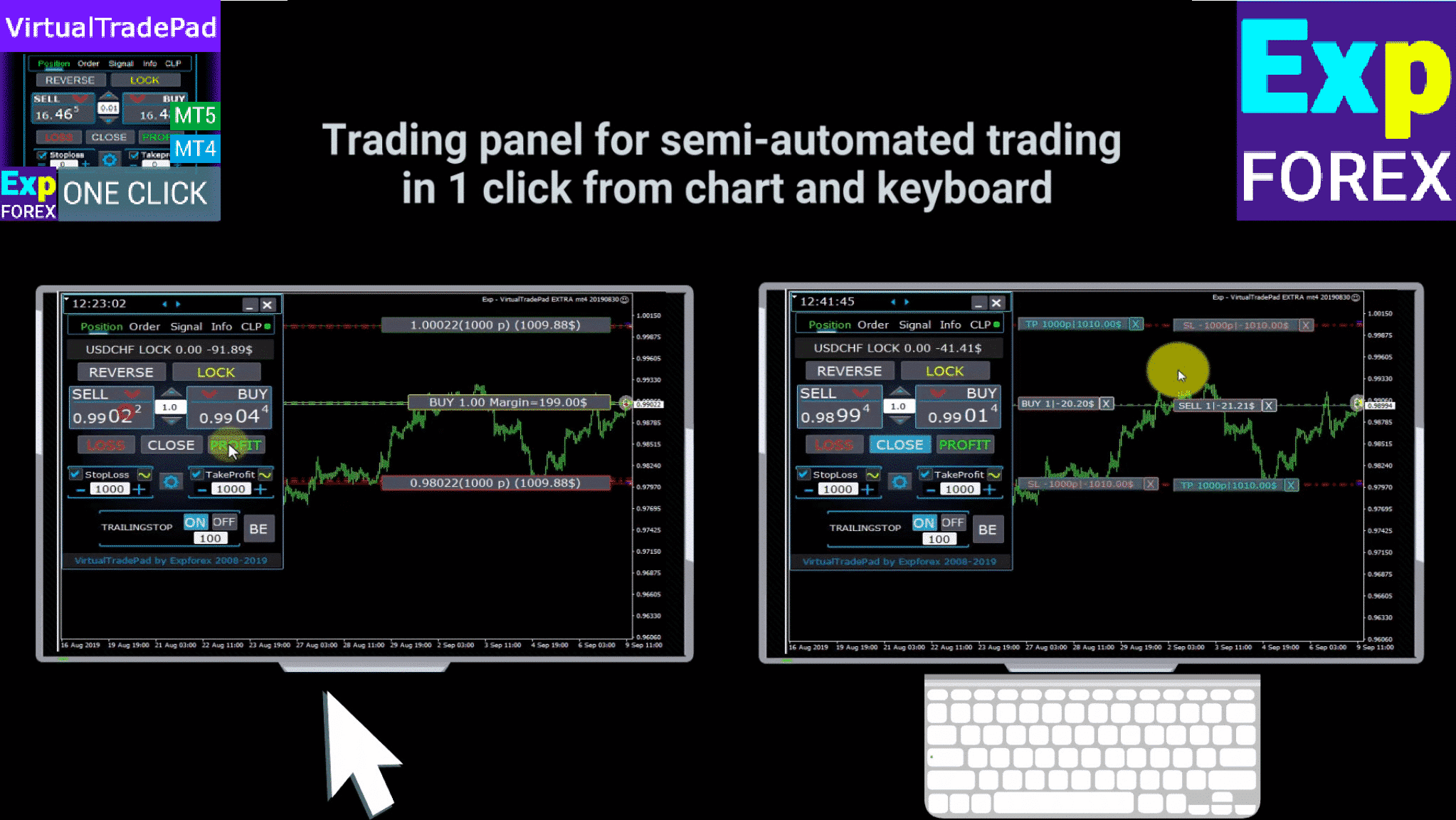
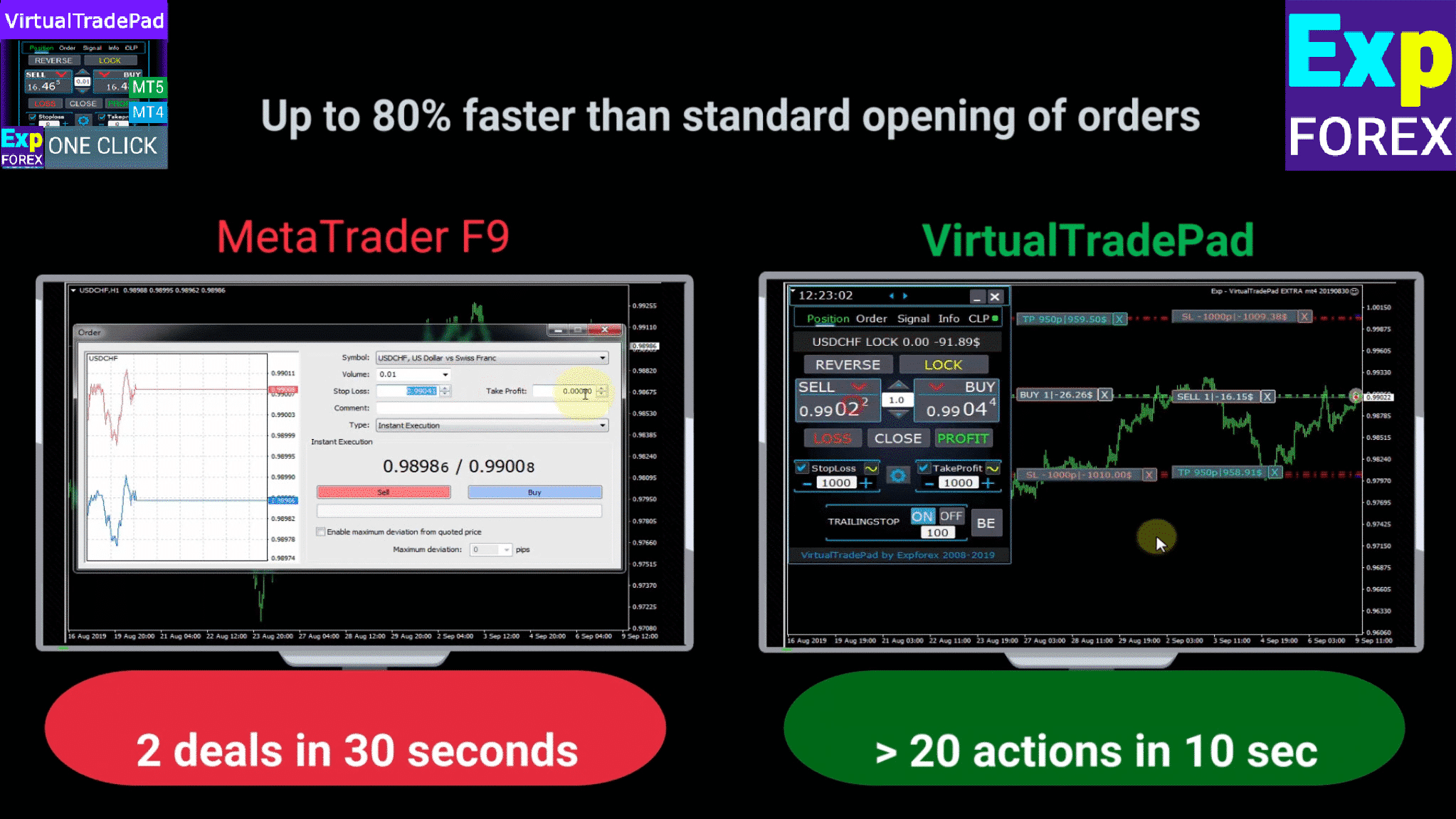
Trade with ease using just one click from the chart or your keyboard.
Designed for scalping and manual trading on Forex, the Virtual Trade Pad (VTP) offers a wide range of features.
Key Features of Virtual Trade Pad (VTP):
- Over 30 buttons for quick trading: buy, sell, buy stop, buy limit, sell stop, sell limit, close, delete, modify, trailing stop, reverse, lock, orders grid, virtual stops, average take profit, and average trailing stop.
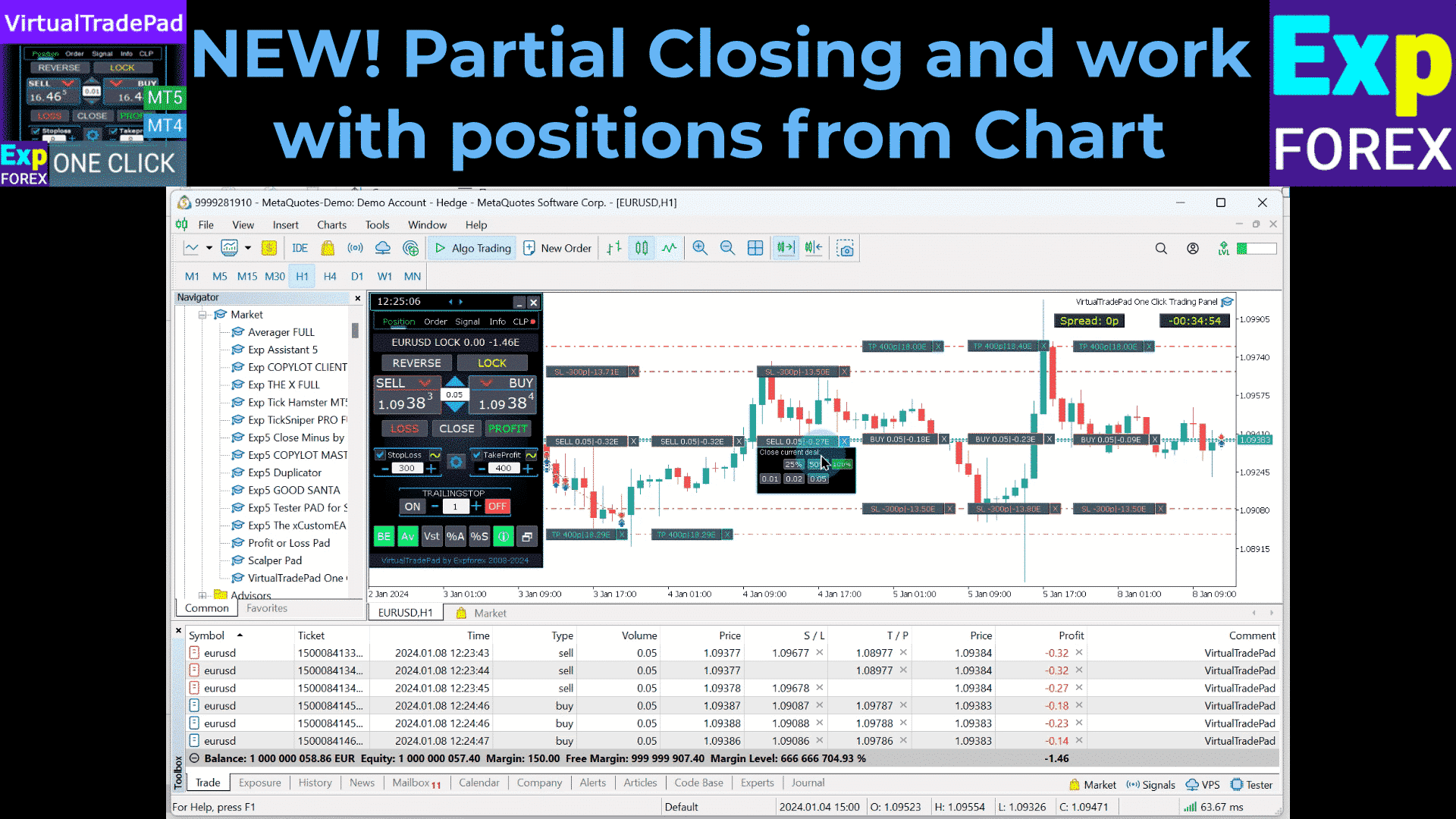
- Partial position close directly from the chart.
- Move or delete StopLoss and TakeProfit directly on the chart.
- Manage trades directly from the chart.
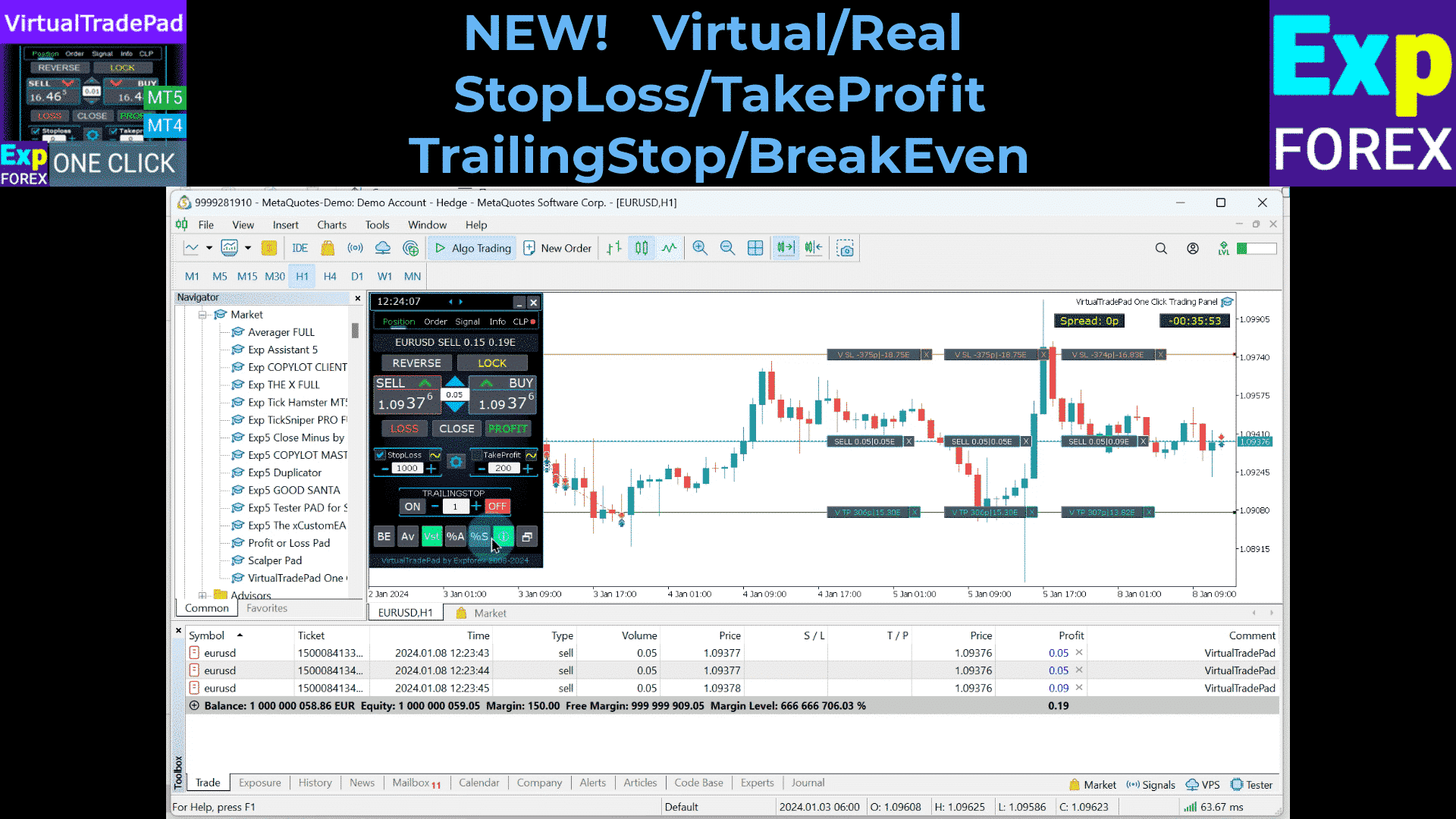
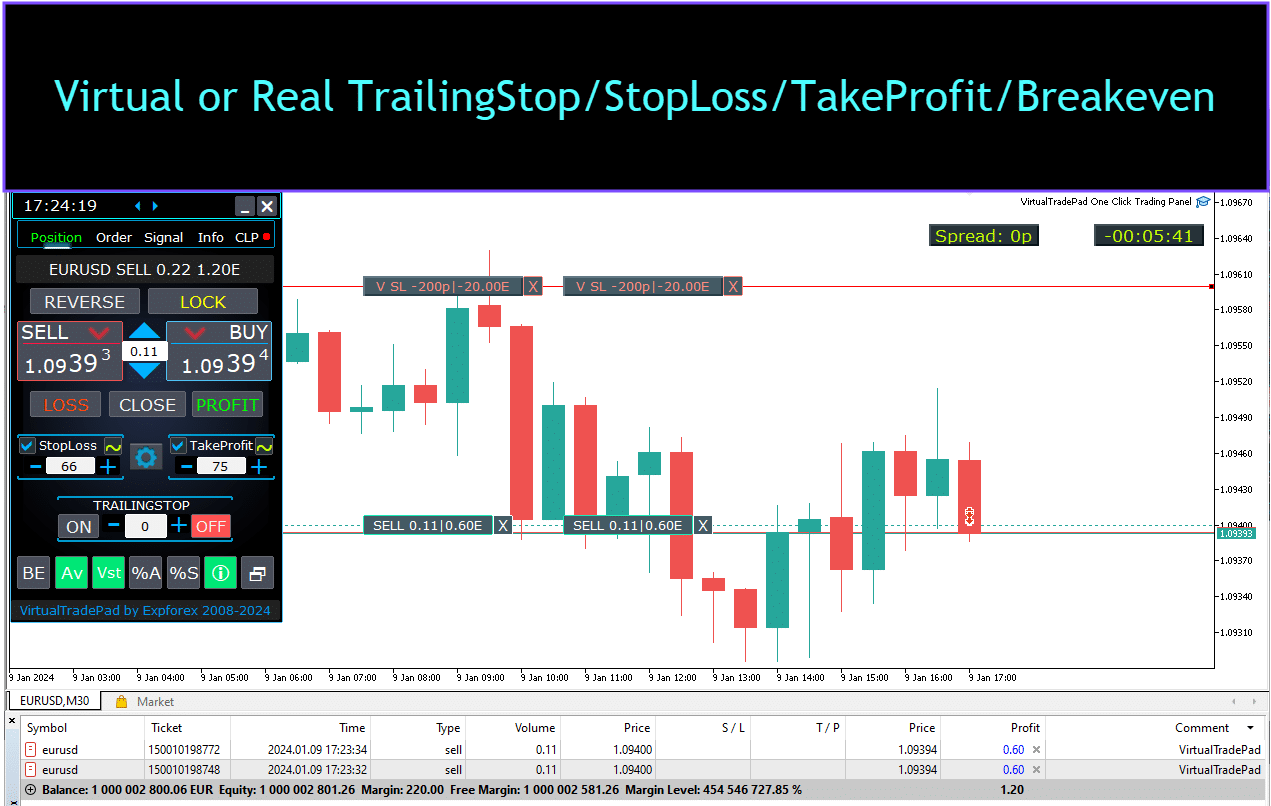
- Virtual and Real StopLoss/TakeProfit/TrailingStop/BreakEven
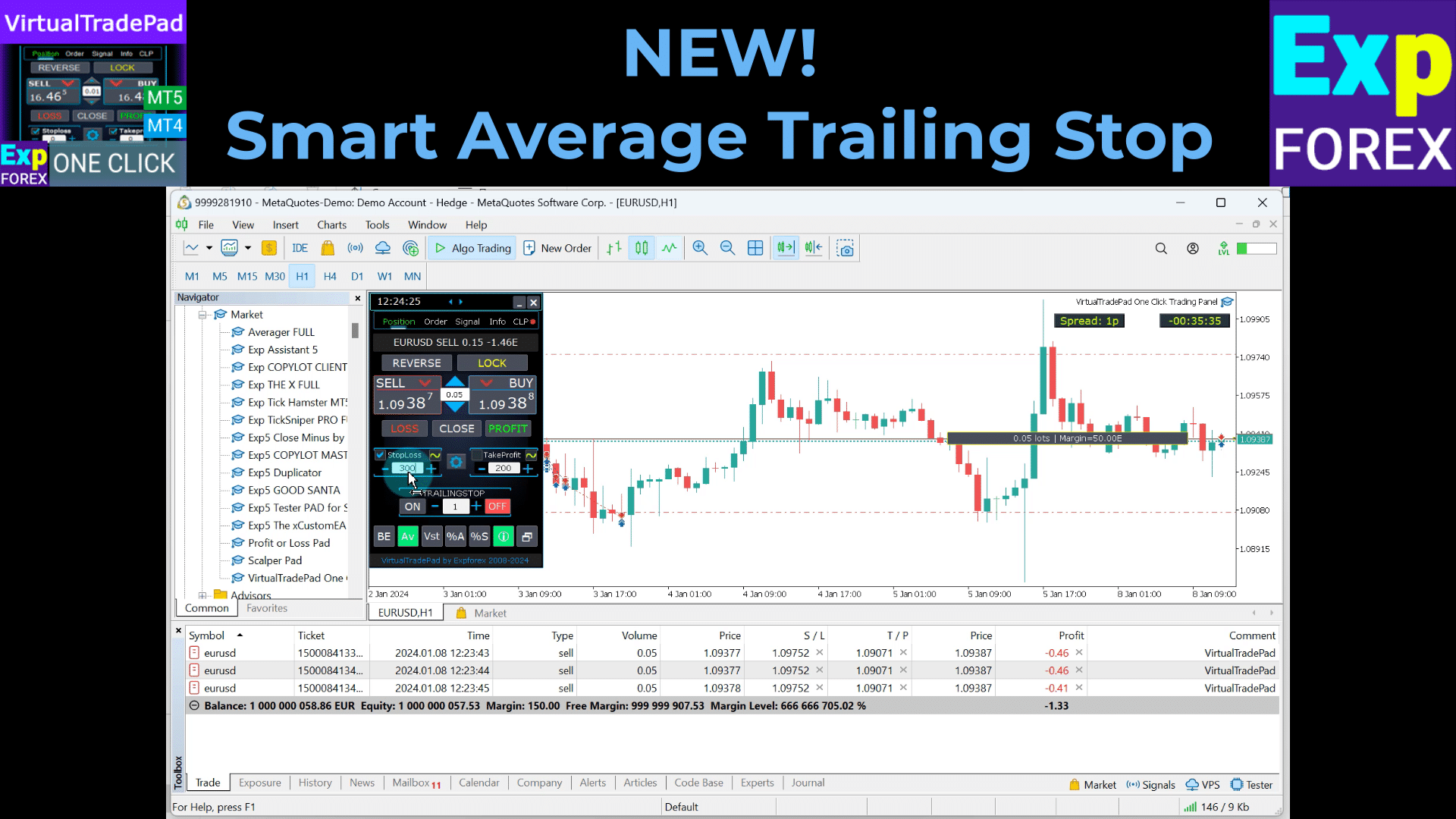
- Smart Average TrailingStop/StopLoss/TakeProfit
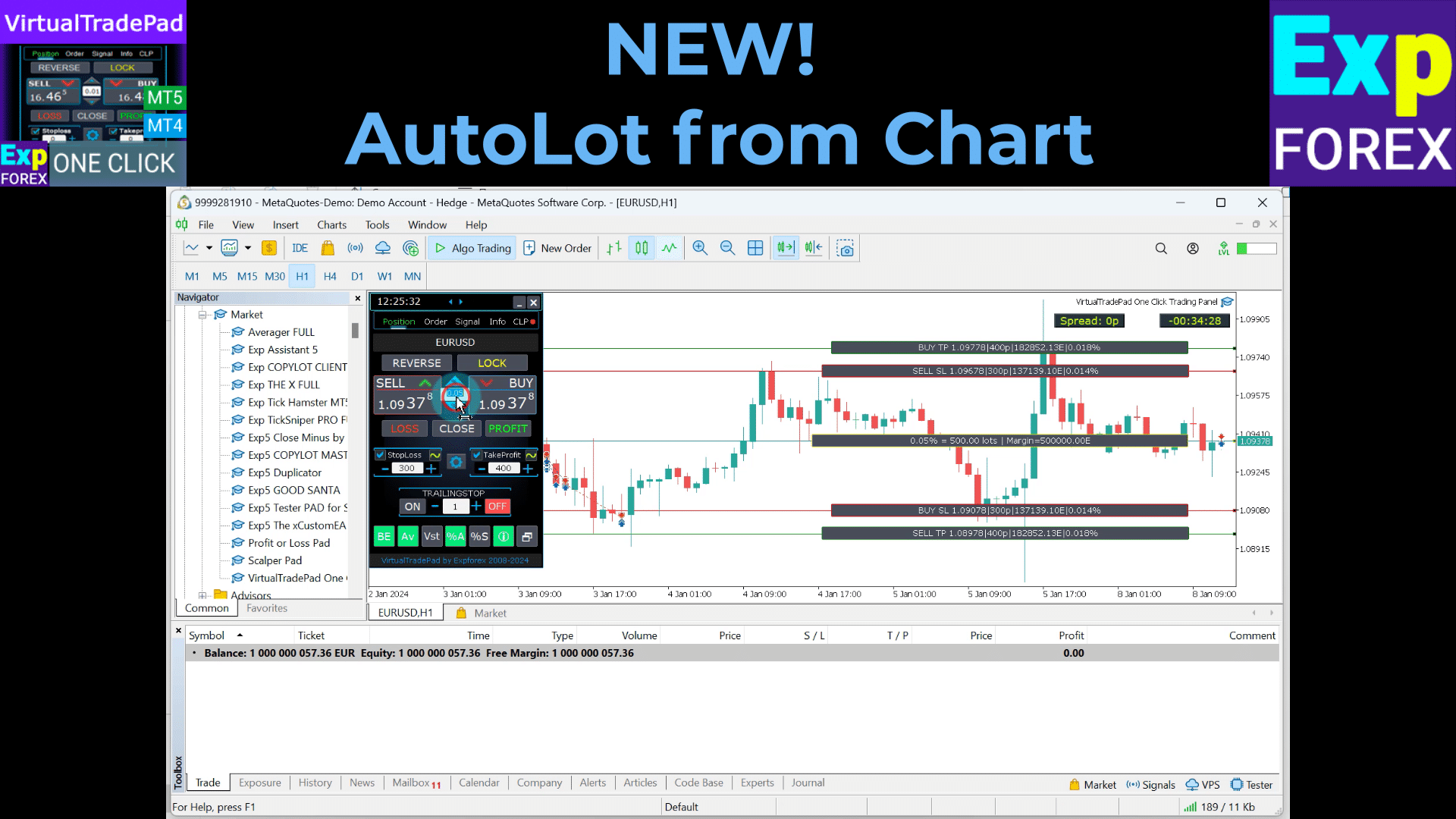
- Magic Target for direct setup deal from chart with trade levels.
- Set up order grids with customizable distances and lot sizes.
- Autolot and fixed lot options.
- Close by total profit/loss.
- Trailing profit options in points, percentages, and deposit currency.
- Signals from standard indicators.
- Full account information at your fingertips.
- Easy, intuitive interface for quick and hassle-free trading management.
- Screenshot functionality and more.
Optimize Your Trading Experience:
Take control of your trades in MetaTrader with the one-click Virtual Trade Pad. Boost your trading efficiency today.
Enhance your trading strategy with the Virtual Trade Pad at www.expforex.com now!
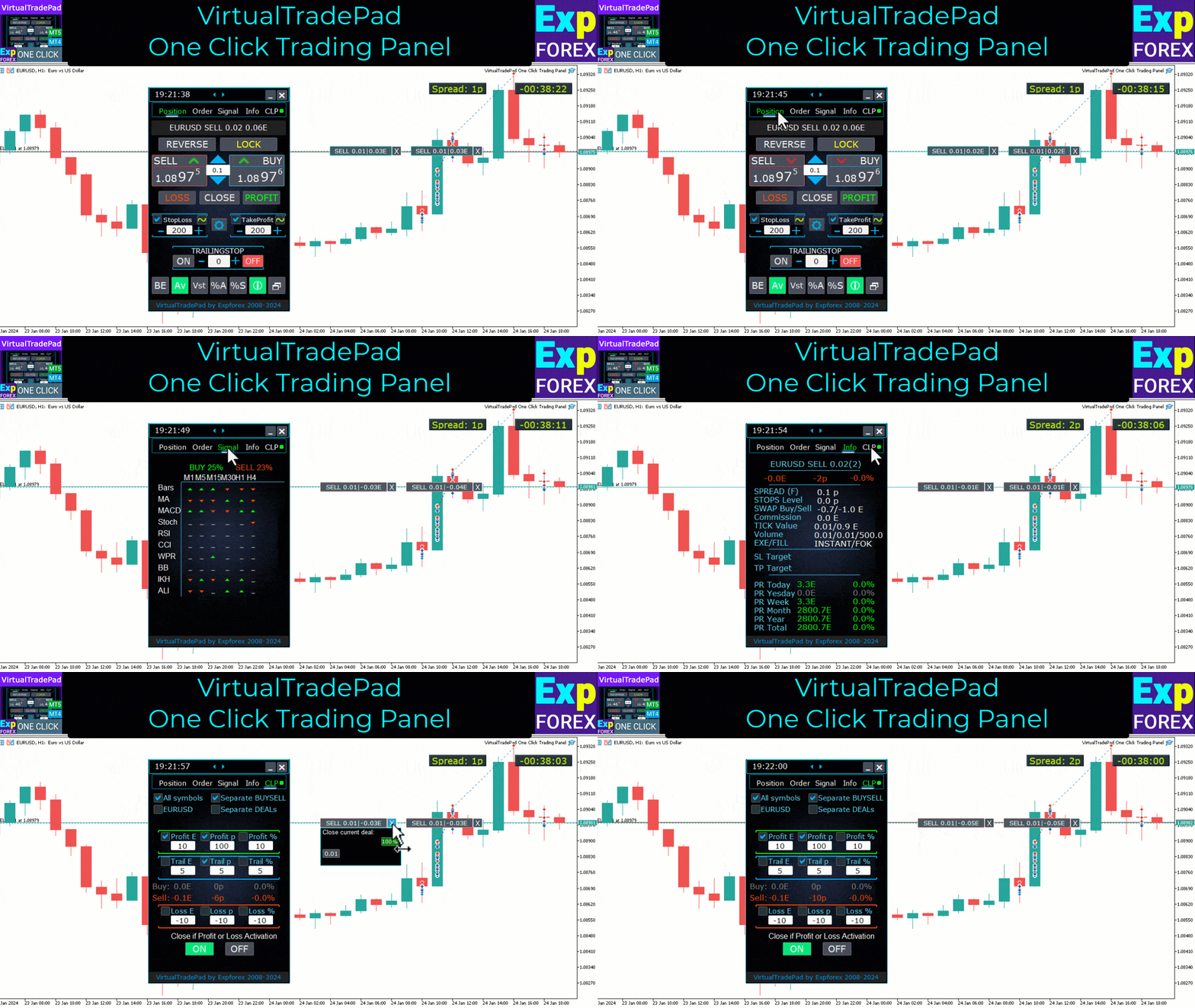
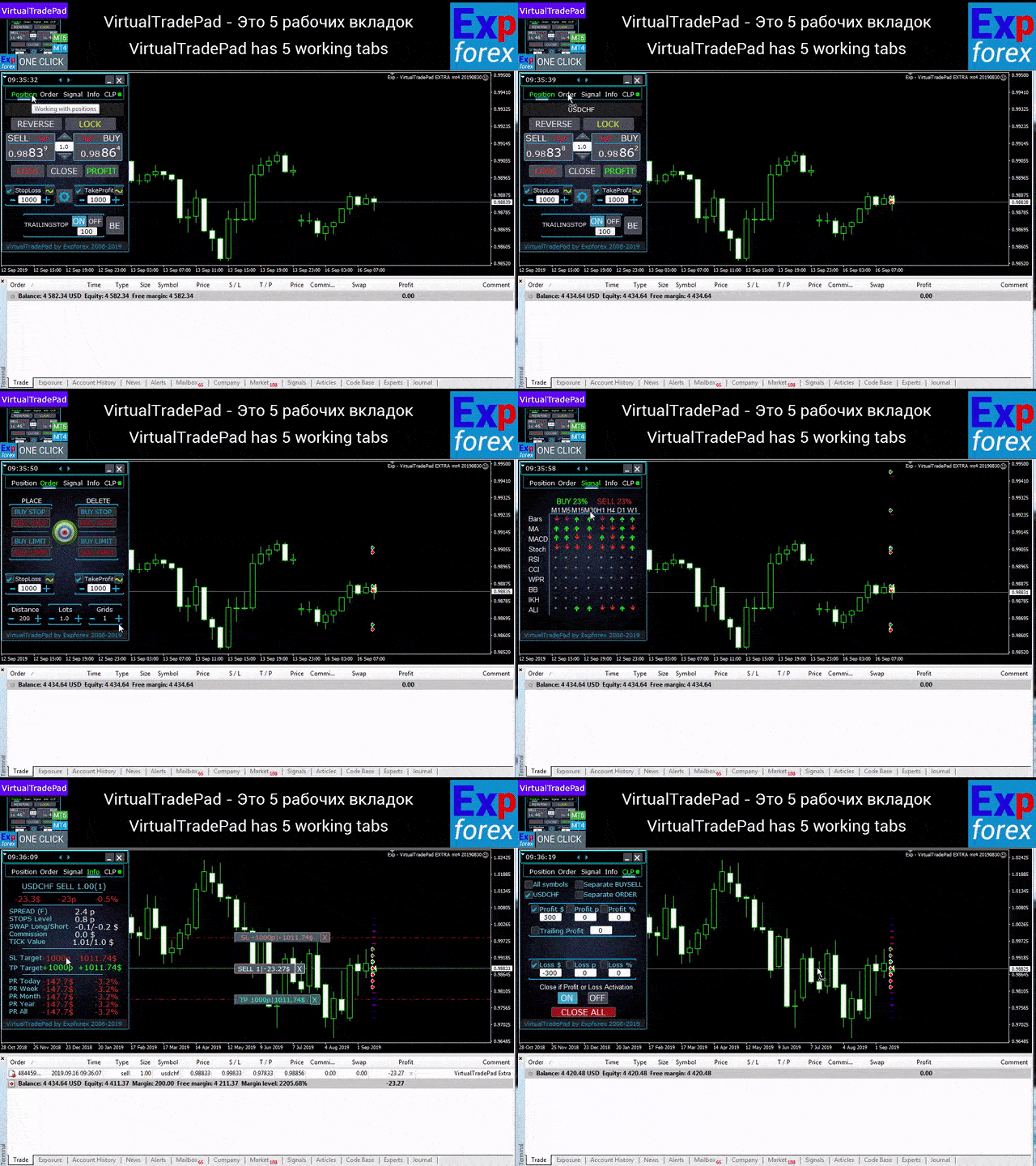
How does VirtualTradePad work?


What do people write about VirtualTradePad?

Mohamedshah
I have just purchased VirtualTradePad. I can see that the developer has put a huge effort and commitment to make the Virtual Tradepad perfect in all its parameters and functions available. I have checked many similar EA's in MQL5 and this the only EA I can recommend. Thank You! Vladislav Andruschenko for providing this robust EA at an affordable price.-
wilsonvivas32
I have been tradings since 2019 manually! and was looking for a tool to help me with my manual trades and must said , I am so greatful for this awesome tool! Is not for a beginner but if you have some experience you will greatly appreciate all the posibilities and freedom to place orders fast that left me speechless! 
kpt247
Hi, It's really good EA for manual trading. It's very helpful. Can you add the following functions: 1- Non-stop Auto trading: Buy / Sell / Buy and Sell (also has option to turn ON/OFF filters of some most popular indicators) 2- Auto averaging with: Distance Addition / Distance Martin / Lot Addition / Lot Martin / Max Lot / Max Orders Thank you !-
P_Morgan
It's a very good tool. The seller answers questions and solves problems clearly. -
klaus_bond
excellent tool. Nearly perfect. What I'm missing is the candle size, the candle body size display on the chart directly near the candle -
kumarmohit111
your work is really great, I salute you 1000 time for your great job, I am using VTP since long. I need your urgent help on below points, I have tried you to contact you many ways, I request everyone to use VTP if you want to be expert enough and very professional, dear vladislav, please look on below request urgent please, now i am requesting you to modify VTP for placing auto pending order once already placed CLP completed. i want four option to be added in CLP setting for placing auto pending order just after auto delete facility given there. the option should be there auto pending order for sell stop, buy stop, sell limit and buy limit separately, so that i can active one or more option simultaneously. note : Activation of auto pending order must start just after running CLP completed and existing pending order deleted, hoping for very positive reply, this is already set CLP for 10 usd profit and 10 % account loss, if this completed successfully there is good setting already given that all pending and active orders deleted self. i want to active pending in auto just after above statement completed, suppose below setting of pending orders i want to active in auto after CLP setting completed, i want to active sell stop and sell limit in auto after already running CLP finished. please do the setting below in CLP options to active pending orders after CLP cycle completed, you can mention four option below the red arrow indicated like 1. active sell stop after CLP 2. active buy stop after CLP 3. active sell limit after CLP 4. active buy limit after CLP i need this all, thanks, -
I've been using the MT4/MT5 versions for years now. I could not trade without this tool, its amazing. Otherwise it is a perfect app. Ok it also has a few formatting issues with previews and numbers on the chart, but cmon its an amazing EA and worth your money! One problem I'm having right now though is as follows: If I have my Stop loss set at 100, and my Take profit at 200, when I go to click the "Buy" button, and I show on the chart where my Take profit and Stop loss would be, they are reversed. So for a buy in this case, my Stop loss would show 200, and my Take profit 100, even though that is the opposit for what I have them set at. This goes for clicking the "Sell" button. Basically, the Take profit and Stop loss previews are backwards, which is very frustrating. -Edit: The issue is being worked on, and I'm sure will be fixed soon. Perfect product and great support from the developer 🙂
-
ANARCHITECTS
Excellent trading pad for trading with a lot of features. . . .with really quick and good customer help from the developer himself. -
Atila R Akdeniz
Excellent Tool, definitely the best on the market. All of Vladislav's products are of excellent quality, and he provides very good support. With the current prices it's a good time to buy all his products. -
Dave W
This is the best trading pad on the market. So many features, the value is ridiculously good. If you're a manual trader you need this tool. -
Jo nathan
A must have tool. Works great. -
Rogerio Costa
Hello, The program is a beast best tool to work that i have proved. I would like to know if it is possible to have one activation, in to the MT4 beacause instead of buying it for MT4 i bought for the MT5, is there any solution? -
COPYTRADER777
Купил панель, реверс и безубыток одной кнопкой определенно экономят время, авто процент тоже думаю вещь удобная( но если честно высчитываю уже на глазок). Что хочу сказать, спасибо что есть такой сайт и спасибо что есть люди у которых руки из нужного места. Собственно говоря не такие большие деньги чтобы сэкономить на нервах и удобно работать на быстром рынке.) -
Rudolf Strahm
Ein Hilfreiches Tool mit einfachen Handhabungen von Pendenten Handel -
marlowyip
This is really awesome. The stop loss control was effected by the magic number. Very frustrating to figure that out.
You can Download free VirtualTradePad
Get started for FREE!
You can download and install our program for free!
And you can test it on your DEMO account without time limits!
And you can also test our program for free on a REAL account using the USDJPY symbol!
You can Buy the full version of VirtualTradePad

Trade Accounts
Computers / Activations
Featured
FULL MT4 version
For MetaTrader 4
75 $
Featured
FULL MT5 version
For MetaTrader 5
75 $
RENT for 3 months
For MetaTrader 4
30 $
RENT for 3 months
For MetaTrader 5
30 $
Before making a purchase, we highly recommend reviewing our instructions and FAQ section to ensure a smooth experience.
Links
Useful links
Table of Contents (click to show)
List
- Description
- Features of the Program:
- How to Install it?
- Position tab
- Management Position tab :
- ShowInfo function on the chart
- Using Target StopLoss and Target TakeProfit:
- Positions management, closing, deleting Stop Loss, deleting Take Profit on the chart:
- Partial closing of deals
- Future levels and additional information on the Chart
- Real and Virtual Stop Loss and Take Profit with Trailing Stop:
- Order tab
- ProfitorLoss CLP tab
- Keyboard trading
- The Signal tab
- Info tab
Description
Features of the Program:
- Trading Panel works on any account, any broker.
- Multilanguage support in the Panel.
- Does not require special training skills.
- Easy and intuitive interface for user-friendly navigation.
- Includes only the most important functions.
- Quick response to any function.
Working Tabs:
Positions tab – Work with positions:
- Opening/Closing BUY and SELL positions.
- Reverse all open positions.
- Lock the total position using LOCK.
- Set Fixed Stop Loss and Take Profit.
- Configure Target Stop Loss/Take Profit for grid positions with Target SL and Target TP lines on the chart.
- Apply a Trailing Stop.
- Enable Breakeven feature.
- Select Virtual or Real Trailing Stop/Stop Loss/Take Profit/Breakeven options.
- Close only profitable or loss-making positions.
- Manage positions, Stop Loss, and Take Profit directly from the terminal chart.
- Execute partial closing of positions from the chart.
- Choose Autolot or Dynamic lot based on a percentage of balance or specified Stop Loss.
- Option for Fixed Lot for trades.
- Total Average Trailing Stop/Breakeven for grid positions from the average price.
Orders tab – Work with Pending and Limit orders:
- Pending/Delete BuyStop, SellStop, BuyLimit, SellLimit orders.
- Build a grid of orders with customizable lot sizes and grid distances.
- Set orders/positions with the mouse and lines on the chart.
- Set target Stop Loss and Take Profit for an entire series of orders.
- Manage pending orders directly from the chart – modify or delete orders with ease.
CLP tab – Manage the close function for total Profit or Loss:
- Close at total profit/loss in points, dollars, or percentage.
- Close BUY or SELL orders separately.
- Close individual deals as needed.
- Close all symbols or current symbol only.
- Enable virtual Stop Loss/Take Profit for specific/general positions.
- Apply Trailing Stop on total profit in points, dollars, or percentage.
Signals Tab – works with indicator signals:
- 10 standard indicators and 8 timeframes.
- Shows cumulative percentage of signals for BUY/SELL directions.
- Option to automatically open a position when the aggregate signal threshold is met.
INFO tab – provides essential information:
- Displays the current specifications for the selected symbol.
- Shows Current Total Deal and overall Profit.
- Displays current Stop Loss and Take Profit goals (Stop Levels).
- Summarizes profit for today, yesterday, week, and month.
Important Features:
- Plays a sound on successful trade opening and closing.
- Plays an error sound when issues occur.
- Prevents setting Stop Level below server minimum; automatically calculates valid levels.
- Arrows on BUY/SELL buttons indicate price changes.
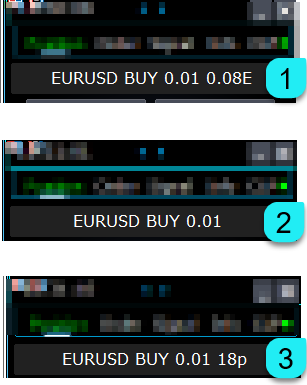
- Displays an information string with currency pair name, open position volume, and total profit.
- Close button (X) – closes the VirtualTradePad program.
- Collapse/Expand button to minimize or expand the panel on the chart.
- Panel is movable by dragging to a convenient location.
- Shows information in the deposit currency (Dollars, Euros, Cents).
- All field values are saved to global variables to restore upon terminal restart.
- Fields flash red to indicate errors.
- Point value as per broker specifications.
- 5/3 digit brokers: 1 point = 0.00001/0.001.
- 4/2 digit brokers: 1 point = 0.0001/0.01.
- MetaTrader 5 scrolling feature: use the mouse scroll to adjust lot, SL, TP, distance, and CLP values (MT5 only).
- If the cursor is over the field, scroll to adjust the parameter values in that field.
- Note: Only available for MetaTrader 5!
- Note: Chart scrolling is disabled when the cursor is within the VirtualTradePad area and re-enabled outside.
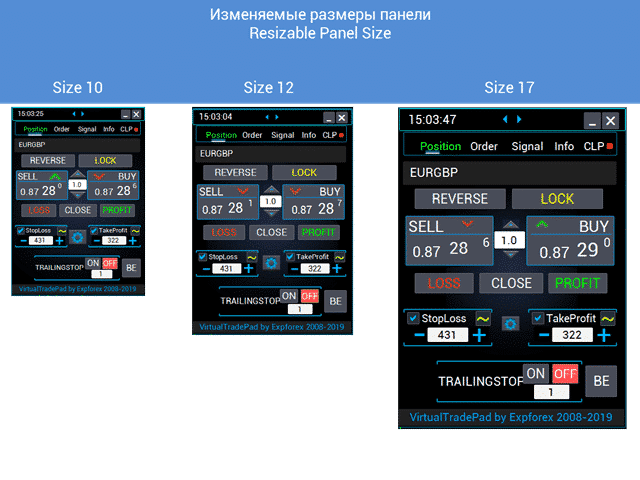
- Resizable Panel Size;
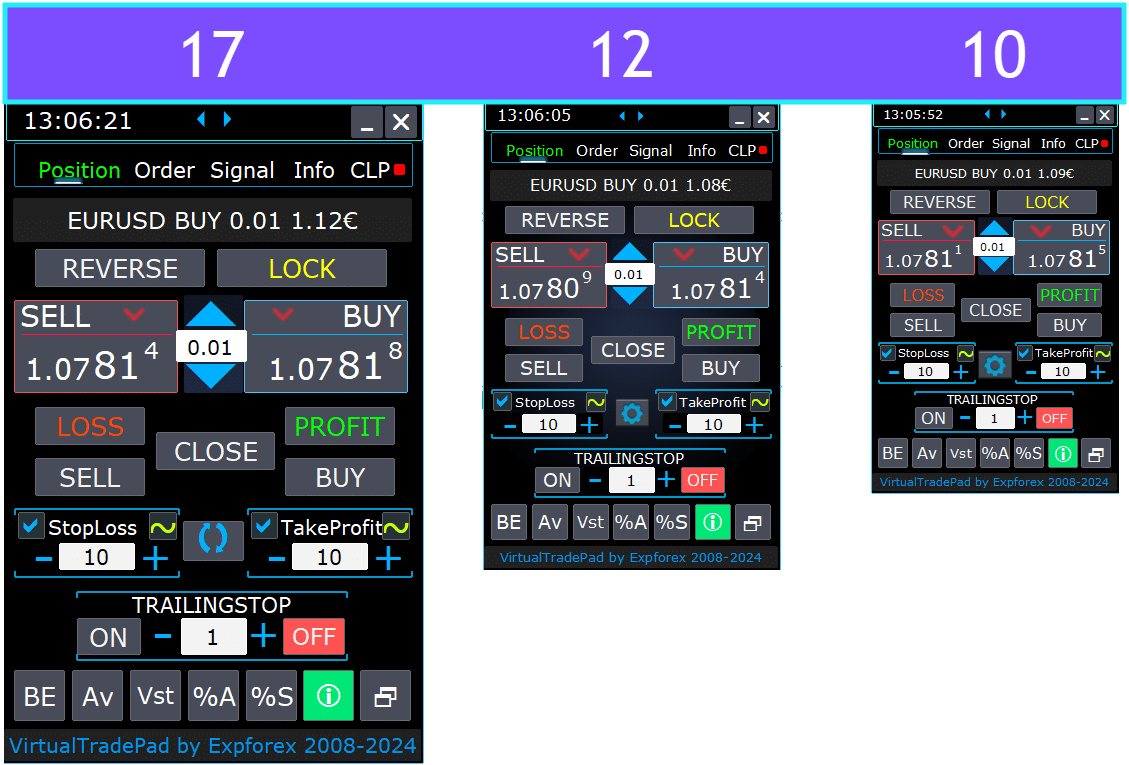
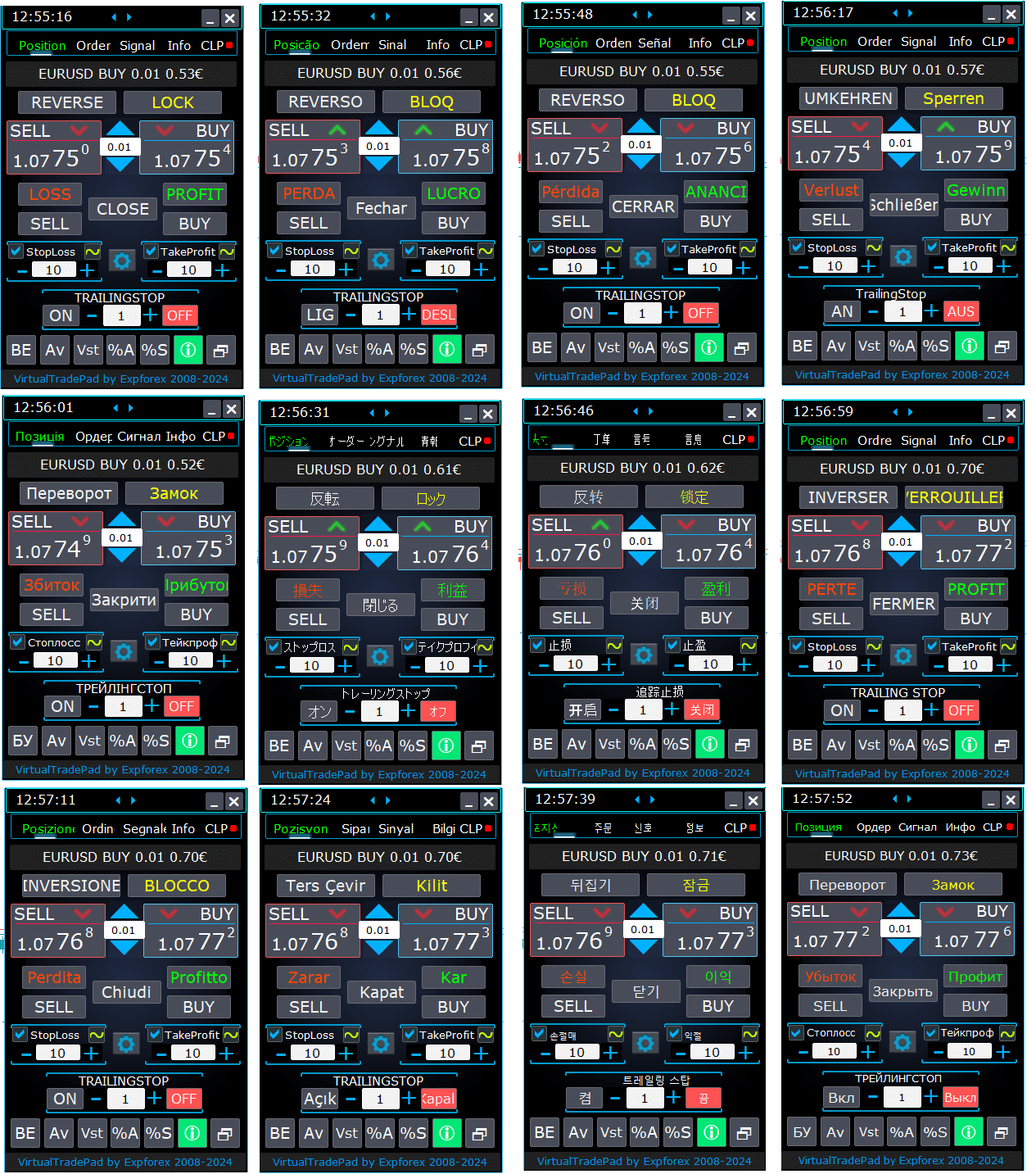
- Selecting the language of the text on the buttons.
How to Install it?
How to install Expert Advisor and indicators to the MetaTrader terminals
Position tab

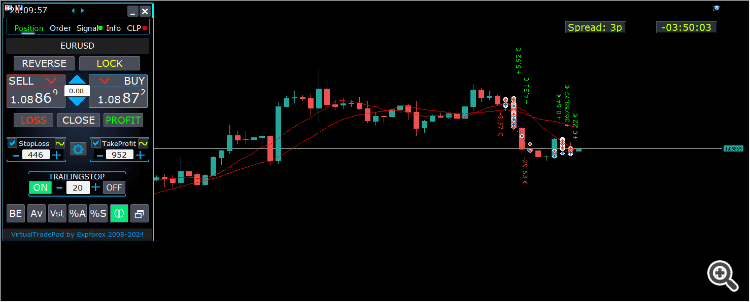
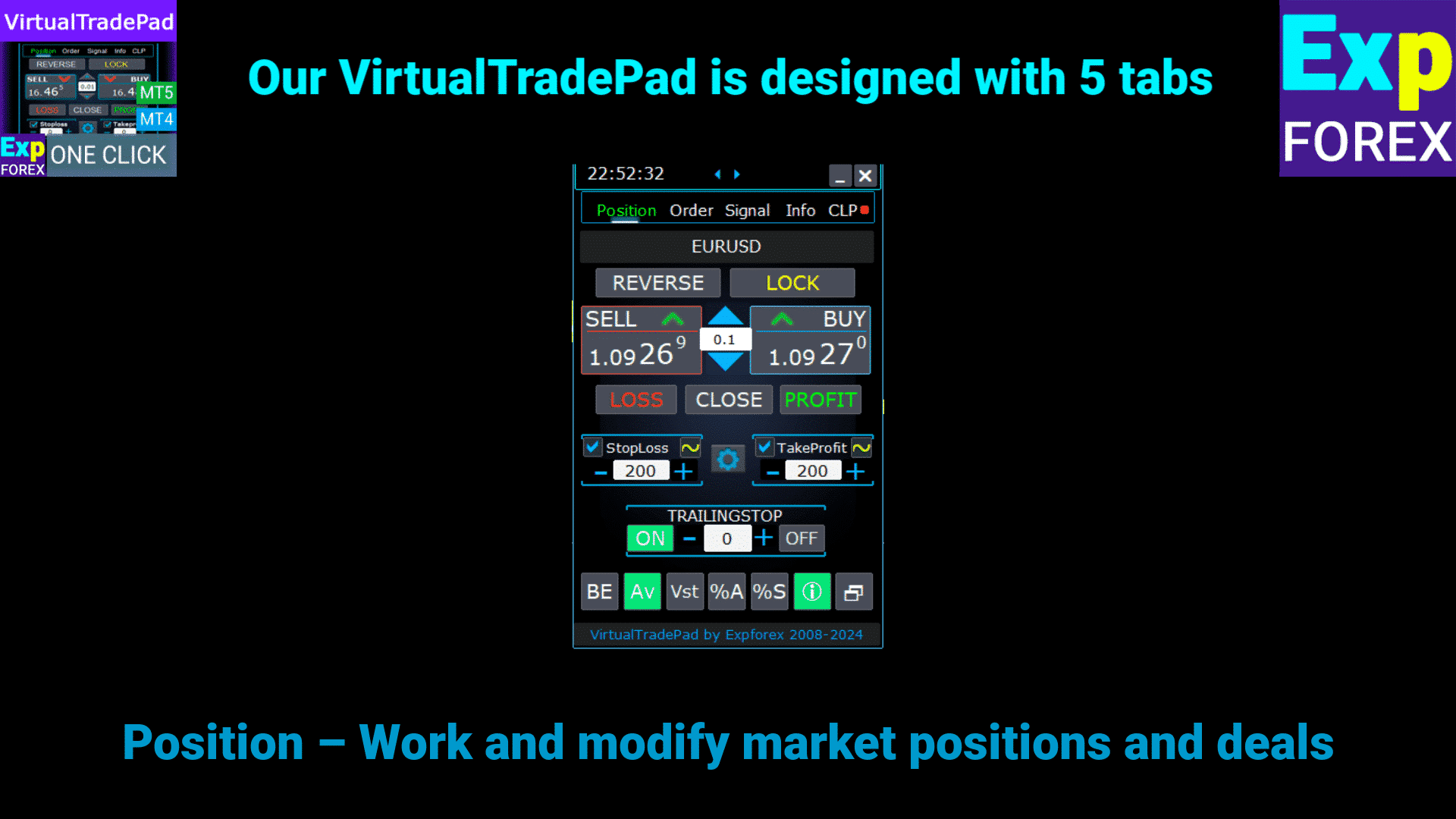
This version was developed to facilitate BUY and SELL trade operations.
It supports functions such as modification of real/virtual stop-loss, take-profit, trailing stop, reverse, lock, and closing positions.
Interface Position Tab:
- Overview at the Top: At the top of the tab, you can view the currency pair’s name, the current position type, the lot size of the aggregate position for this currency pair, the magic numbers, and the current total profit. This provides a quick snapshot of your trading position and performance.
- BUY Button: The BUY button displays the current ASK price, allowing you to purchase the specified lot at this price. It’s a convenient way to enter a long position instantly at the current market rate.
- SELL Button: The SELL button shows the current BID price, enabling you to sell the specified lot at this price. This feature allows you to quickly enter a short position at the prevailing market rate.
Management Position tab :
ControlsImage

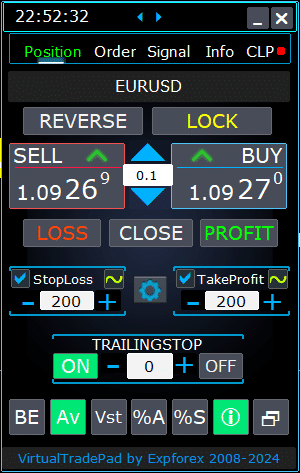
- Management Functions:
- When you press the “+” buttons, the lots will increase in increments of the minimum available lot on the server. The lot does not decrease below the lot minimum allowed on the server.
- The increment of the lot can be adjusted in the settings.
- You can also include a dynamic lot as a percentage of the balance, as well as from the StopLoss. Then, in the Lot field – you specify the Percent level;
- Lots Field Management:
- Adjusting Lot Size: Use the ‘+’ button to increase the lot size in increments of the minimum allowed by the server. The lot size won’t decrease below the server’s minimum. You can adjust the increment in the settings to match your trading strategy.
- Dynamic Lot Percentage: You can set a dynamic lot size based on a percentage of your balance or Stop Loss. Simply specify the percentage level in the ‘Lots’ field for automatic lot calculation.
- “% A” Button: Toggles the AutoLot function (DynamicLotAuto) directly from the chart. This allows you to enable or disable automatic lot sizing based on your account balance right from the panel.
- “% S” Button: Enables or disables the AutoLotStopLoss function from the chart. This feature lets you manage lot sizes based on your Stop Loss directly from the panel for better risk management.
- Note: To turn off autolot, press the green “% A” or “% S” button. The functions DynamicLotAuto and DynamicLotStopLoss in the EA settings now only regulate the method of calculating the autolot (free margin or current balance).
- Trade Execution Buttons:
- BUY: Opens a buy position at the current ASK price displayed at the top. It’s a straightforward way to enter a long position in the market.
- SELL: Opens a sell position at the current BID price displayed at the top. This provides an easy method to enter a short position in the market.
- Position Management:
- REVERSE: Reverses your current positions. It closes all existing positions and opens new ones in the opposite direction, with Stop Loss and Take Profit levels set based on your input fields. For example, clicking ‘Reverse’ on open BUY positions will close them and open equivalent SELL positions.
- LOCK: Locks your positions by neutralizing net exposure. For instance, if you have BUY positions totaling 0.3 lots and SELL positions totaling 0.1 lots, pressing ‘LOCK’ will open a SELL position of 0.2 lots and remove all Stop Loss and Take Profit levels.
- CLOSE: Closes all open positions on the current currency pair, providing a quick exit from all trades.
- LOSS: Closes all positions that are currently in loss (profit less than 0). This helps in swiftly cutting losses across all losing positions.
- PROFIT: Closes all positions that are currently in profit (profit greater than 0). It’s a convenient way to secure profits from all winning positions at once.
- Stop Loss and Take Profit:
- Setting Levels: Use the ‘+’ buttons to increase the Take Profit and Stop Loss levels in increments (adjustable in settings). Values won’t go below zero or the server’s minimum. From zero, clicking ‘+’ sets the Take Profit to the lowest possible value allowed.
- Visual Indicators: If Take Profit or Stop Loss is set to zero, the value is displayed in red. Non-zero values are displayed in green, providing a quick visual cue.
- Virtual Levels: You can opt to use virtual Stop Loss (SL) and Take Profit (TP) levels for enhanced flexibility.
- CheckBox Toggle: The Take Profit/Stop Loss checkbox allows you to quickly toggle these levels on or off for your positions.
- General Stop Levels:
- Target / STOPLOSS / TAKEPROFIT: Set a general Stop Loss or Take Profit for all positions in one direction. After clicking the ‘Target’ button, specify the price on the chart, and all Stop Loss or Take Profit levels will adjust to this price. In the CLP tab, you can also set these levels based on percentage, points, or deposit currency.
- MODIFY: Allows immediate modification of positions with the specified Take Profit/Stop Loss levels. You can reset stop levels to zero or adjust them as needed, ensuring your risk management parameters are always up to date.
- Trailing Stop Functions:
- Trailing Stop Activation:
- ON Button: Activates the Trailing Stop for the currently selected currency pair. It’s an easy way to start trailing your positions to lock in profits.
- OFF Button: Deactivates the Trailing Stop, giving you control over when to stop trailing your positions.
- Distance Field: Specify the trailing stop distance in points. This sets the threshold at which the trailing stop starts operating. For example, if set to 100, the Stop Loss moves to breakeven when profit reaches 100 points and continues to adjust as profit increases.
- Trailing Stop Activation:
- Advanced Functions:
- “Vst” Button: Toggles virtual Stop Loss, Take Profit, Trailing Stop, and Breakeven functions.
- Virtual Levels: All levels become virtual and are displayed as movable lines on the chart. You can drag these lines to adjust levels dynamically.
- Important Notes:
- Virtual closures depend on your terminal being connected and may experience slippage due to broker delays.
- In MT4, virtual levels work with both positions and orders. In MT5, they work only with positions; pending and limit orders use real stop levels.
- Broker restrictions on minimum stop levels may prevent modification of some Stop Loss and Take Profit levels.
- “Av” Button: Activates trailing stop and breakeven functions based on the Average Entry Price (middle line).
- Grid Management: This feature lets you manage a grid of positions with a unified trailing stop or breakeven, calculated from the average price of your open positions.
- Directional Control: You can apply this function separately to BUY and SELL directions.
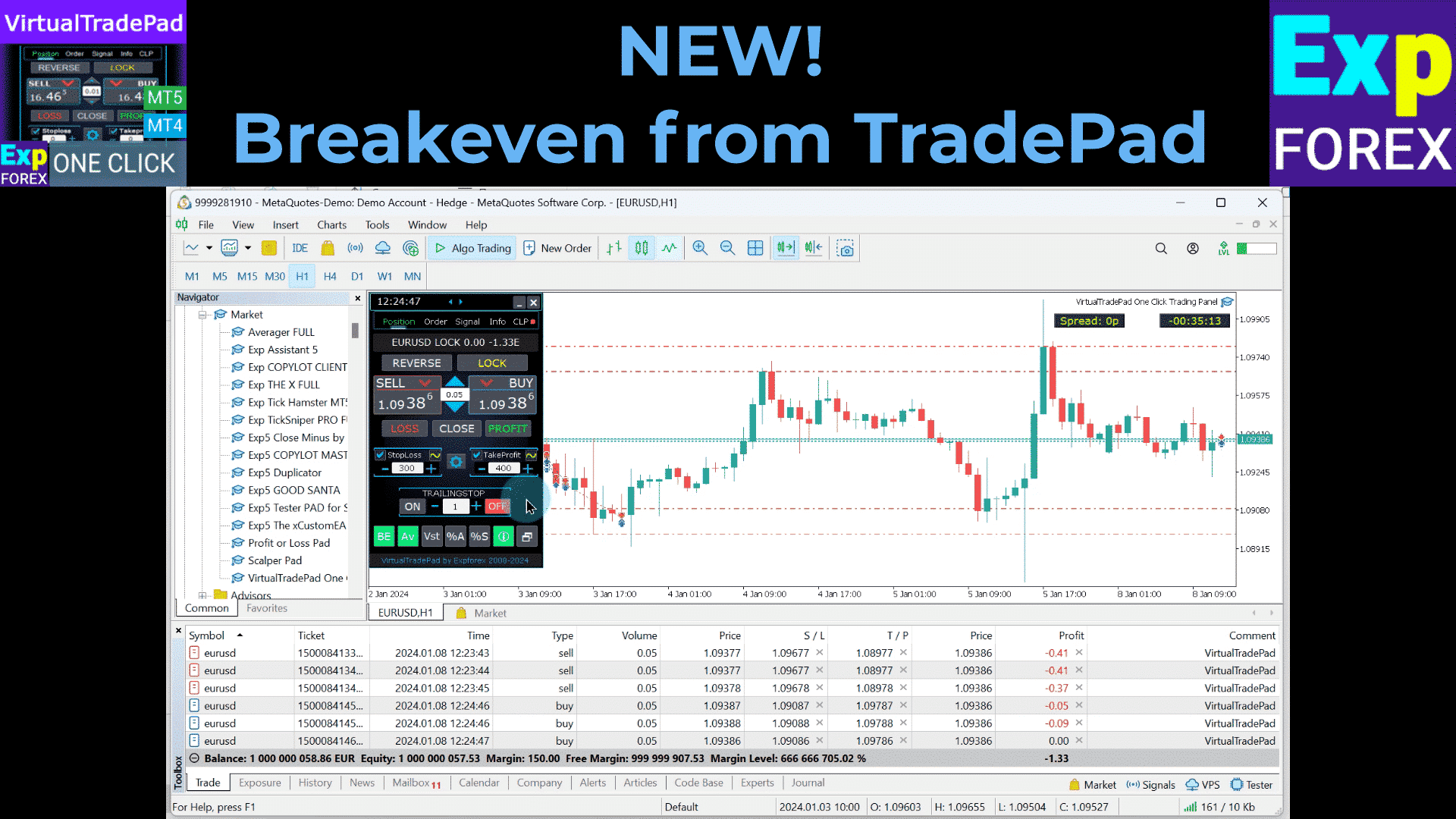
- “BE” Button: Sets Stop Loss to breakeven for all profitable positions.
- Continuous Breakeven: By turning on the BE button on the Position panel, breakeven will always be active.
- Configuration: Breakeven distance settings can be adjusted in the advisor’s external parameters.
- One-Time Use: To use the function once, toggle the BE button on and off.
- Trailing Stop Interaction: If Trailing Stop is enabled with a zero distance, it operates at the server’s minimum stop level.
- “Vst” Button: Toggles virtual Stop Loss, Take Profit, Trailing Stop, and Breakeven functions.
- Additional Tools:
- “ScreenShot” Button: Captures a snapshot of your current chart, including all indicators and objects, at its current size. Screenshots are saved in the folder:
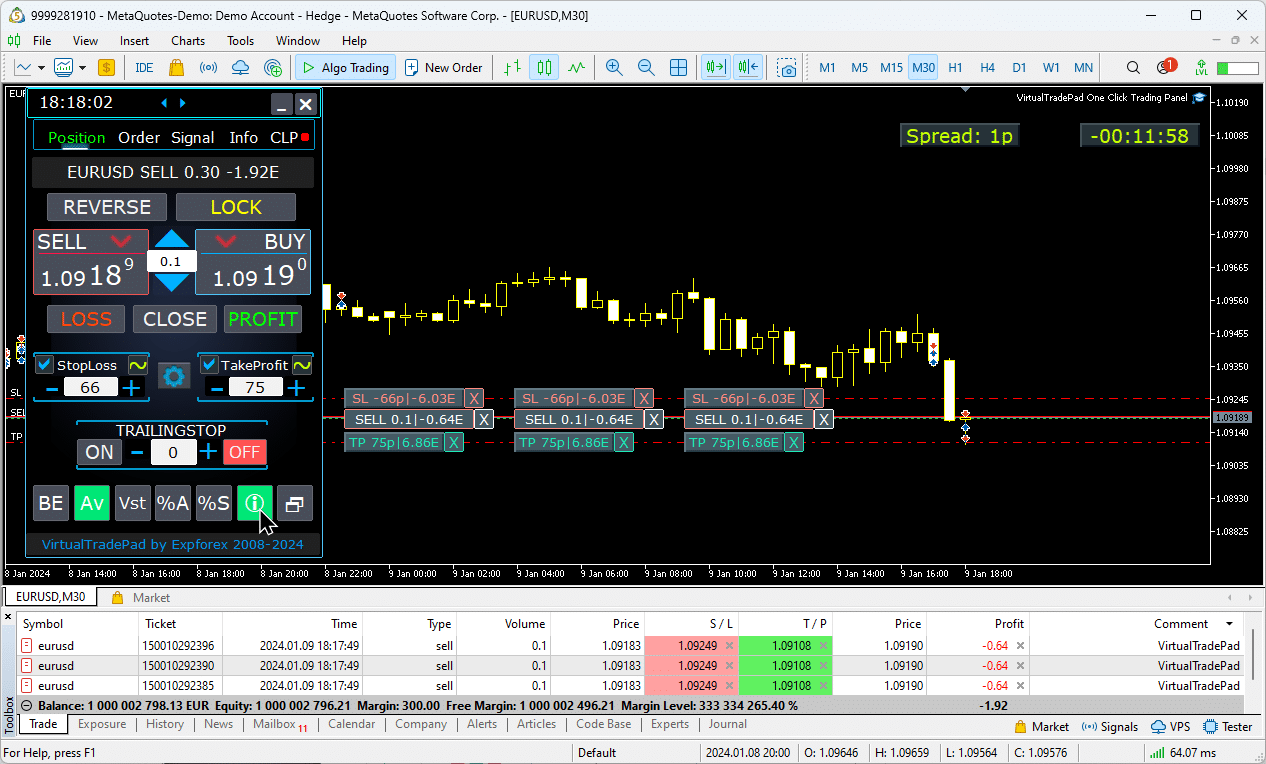
[Your Terminal]/MQL*/Files/VTP/. - “ShowInfo” Button: Hides or shows information labels from the chart. Use this to declutter your workspace when analyzing the chart.
- Information Display: To change the type of information displayed—such as profit in deposit currency, profit in points, or hiding profit altogether—simply click on the status bar. This allows you to customize the information according to your preferences.
- “ScreenShot” Button: Captures a snapshot of your current chart, including all indicators and objects, at its current size. Screenshots are saved in the folder:
ShowInfo function on the chart
Using Target StopLoss and Target TakeProfit:
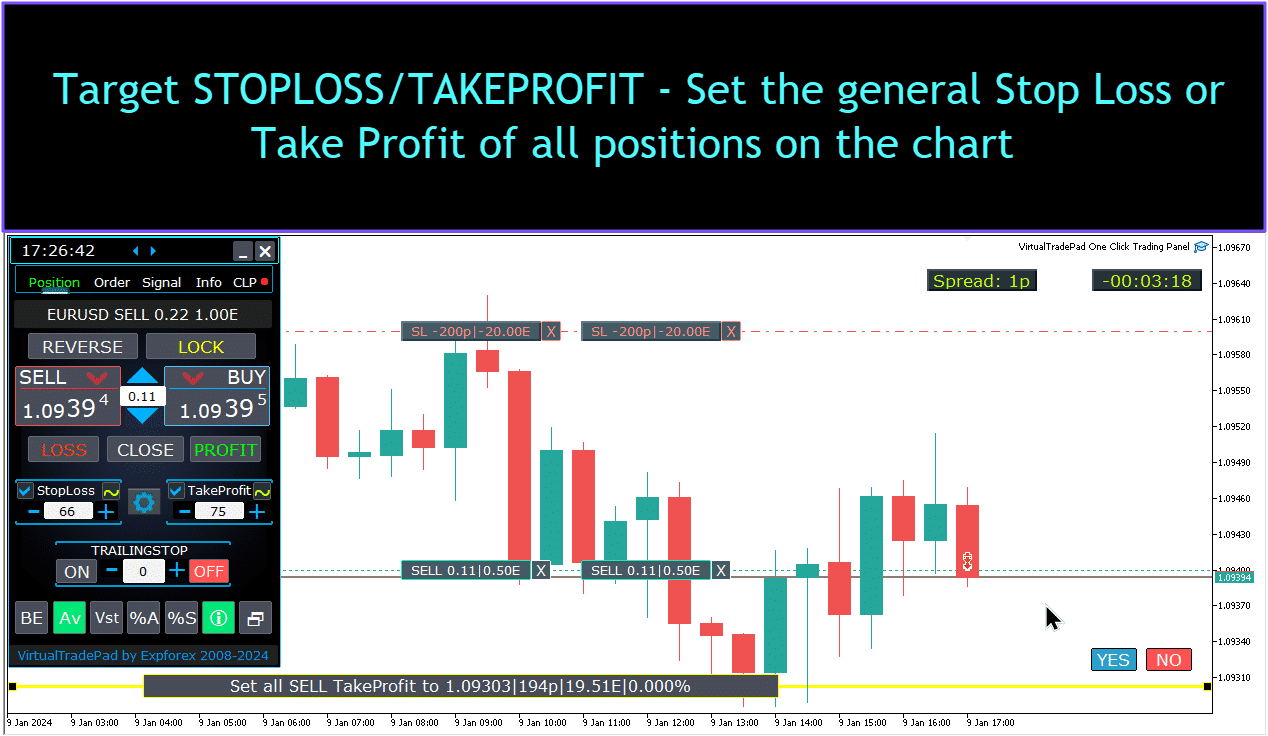
Target STOPLOSS/TAKEPROFIT allows setting a unified Stop Loss or Take Profit for all open positions on the chart.
This feature enables quick risk management by applying a single target level, streamlining control over potential profits or losses without adjusting each position individually.
Positions management, closing, deleting Stop Loss, deleting Take Profit on the chart:
For managing positions on the chart:
- Closing Positions: click on the position line Х and select “Close” to instantly close an active position.
- Deleting Stop Loss: Click and drag the Stop Loss line off the chart or click X and set it to zero in the order settings to remove it.
- Deleting Take Profit: Similar to Stop Loss, drag the Take Profit line off the chart or click X and adjust the settings to remove it.
This functionality allows flexible position management directly on the chart.

Partial closing of positions.
Moving and modifying Stoploss and Take Profit levels on the chart
To move and modify Stop Loss and Take Profit levels directly on the chart in MetaTrader, follow these steps:
- Enable Trade Levels Display:
- In the MetaTrader terminal, press
Ctrl + Oor go to the “Tools” menu and select “Options”. - Open the “Charts” tab.
- Check the box for “Show trade levels” to display trade levels on your chart.
- In the MetaTrader terminal, press
- Allow Dragging of Trade Levels:
- In the same “Charts” tab, check the box for “Allow dragging of trade levels”.
Once these settings are enabled, lines representing your open positions and Stop Loss/Take Profit levels will appear on the chart. You can then adjust these levels by simply dragging the lines to your desired price level.
If you don’t see the lines clearly, check the chart’s color settings to ensure that trade level lines are visible.

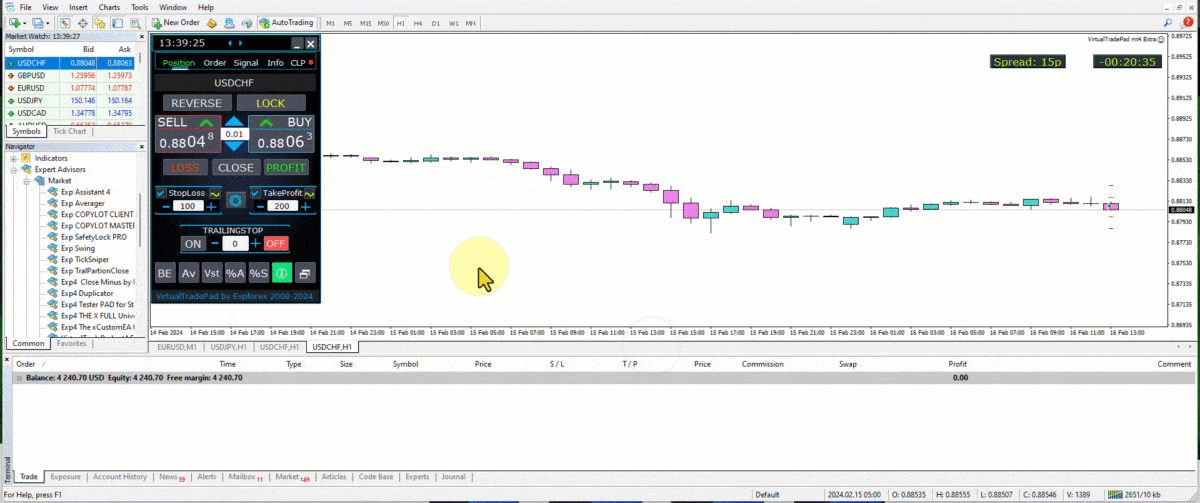
Partial closing of deals
Managing Positions and Partially Closing Positions from the Chart:
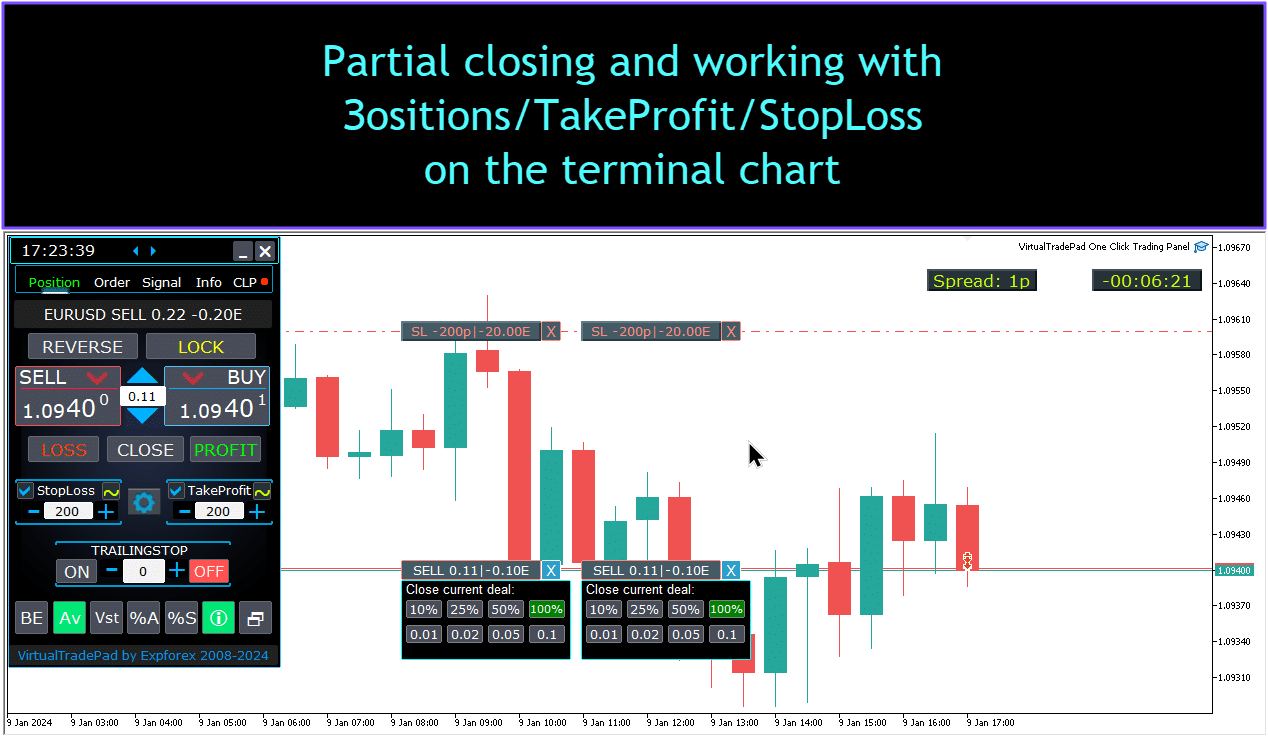
Partial Position Closure: To close part of a selected position, click the “Close” button, then choose the percentage or lot size you wish to close.
Modifying Stop Loss and Take Profit: Adjust the stop loss and take profit levels directly on the chart for any active position in your trading terminal.
Removing Stop Loss or Take Profit: You can delete the stop loss or take profit for a selected position, making adjustments as needed.

Future levels and additional information on the Chart
When the Show_Future_Line function is enabled and you hover over the BUY or SELL buttons, the chart will display projected future levels and provide additional information about the potential trade. This feature helps visualize expected entry and exit points, including target profit and stop loss levels, giving a clearer picture of the trade’s potential outcome before execution.

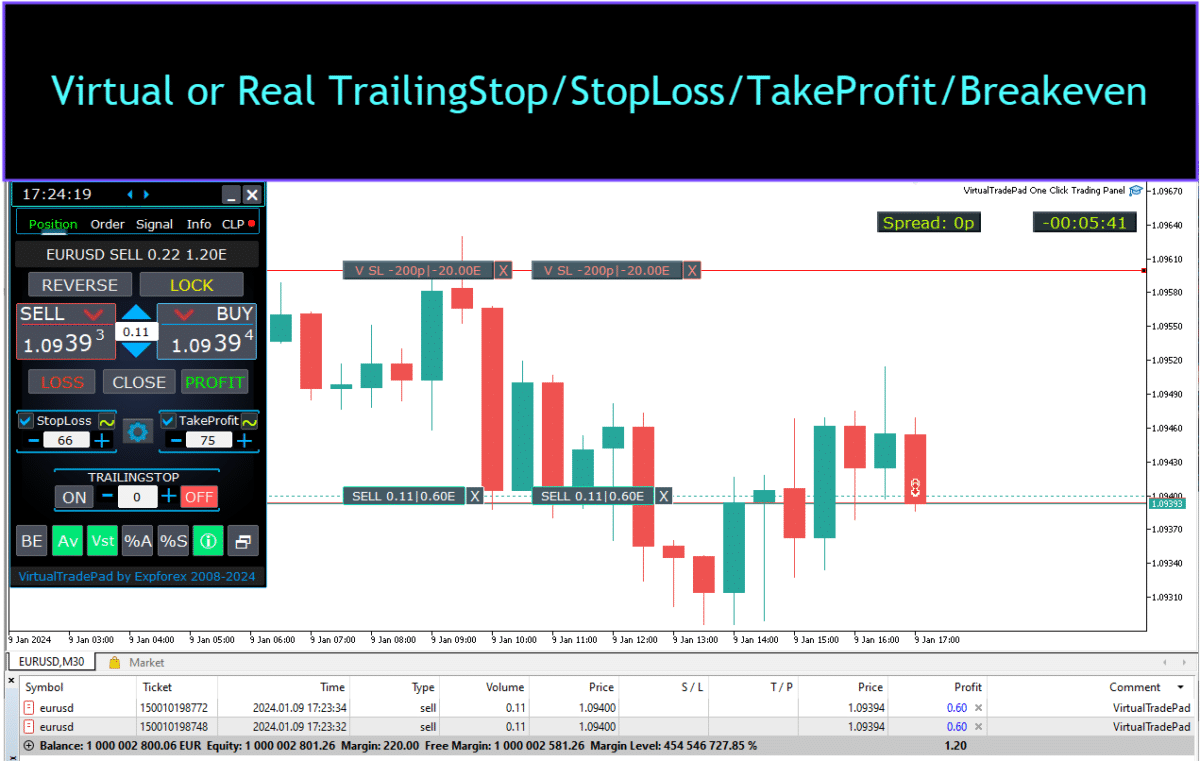
Real and Virtual Stop Loss and Take Profit with Trailing Stop:
Trailing Stop + Breakeven: This advanced feature sets the trailing stop after a certain profit threshold, securing a breakeven level first, then moving to lock in additional gains.
Real Stop Loss and Take Profit: These levels are set directly in the broker’s server, ensuring the position closes automatically when the target is reached, even if the terminal is offline.
Virtual Stop Loss and Take Profit: These are managed within the trading terminal itself. The position closes only when conditions are met while the terminal is active, offering flexibility but requiring the terminal to remain online.
Trailing Stop: This dynamic stop loss adjusts automatically as the trade moves in your favor, locking in profits by following price movements.


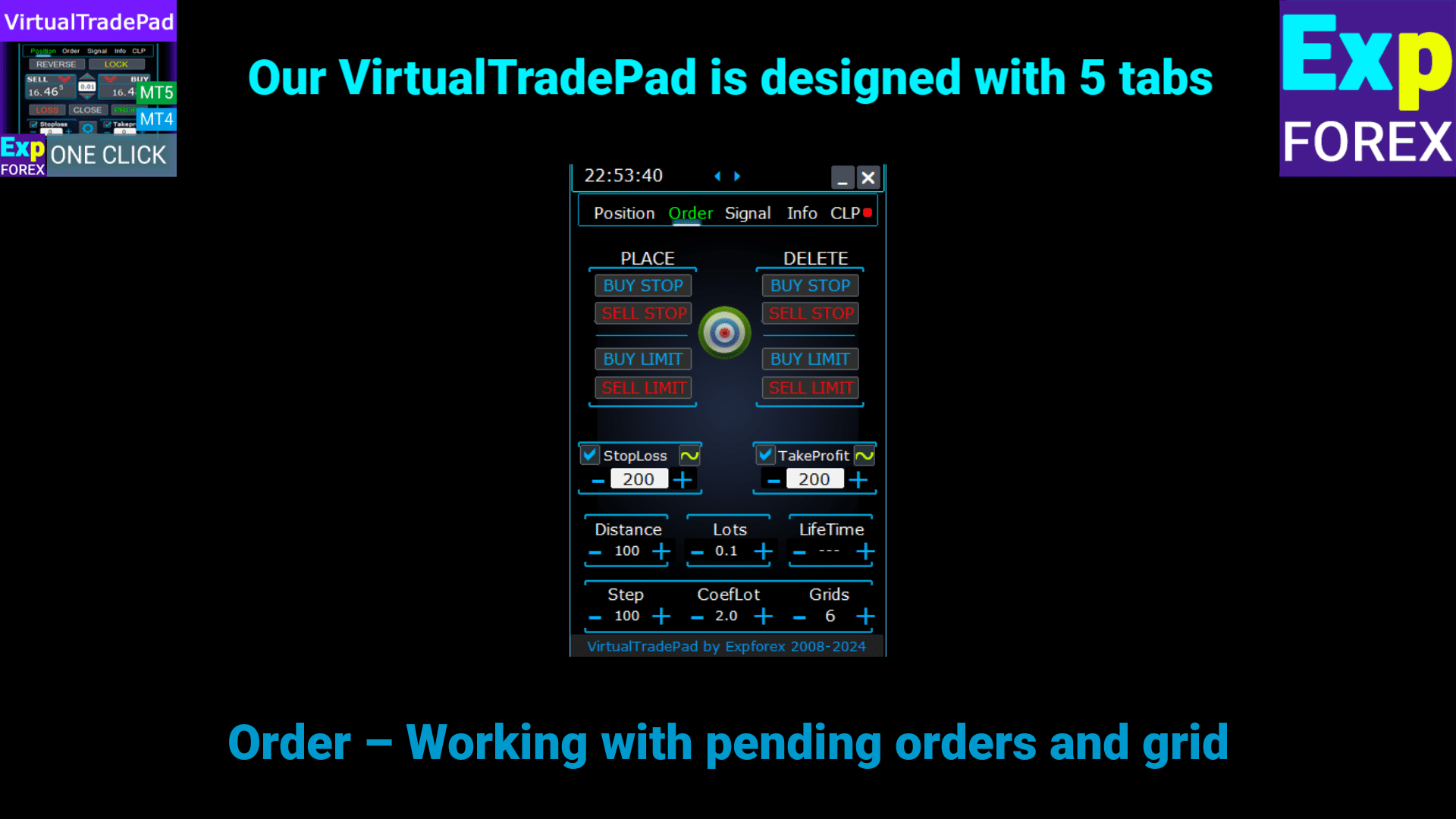
Order tab

This version is designed to trade using Buy Stop, Buy Limit, Sell Stop, and Sell Limit orders.
It includes support functions like Stop Loss, Take Profit, order distance configuration, setting up an order grid with a Lot (Volume) coefficient, and the ability to delete orders.
These features provide enhanced control over order management and risk management in trading.
Management Order tab:
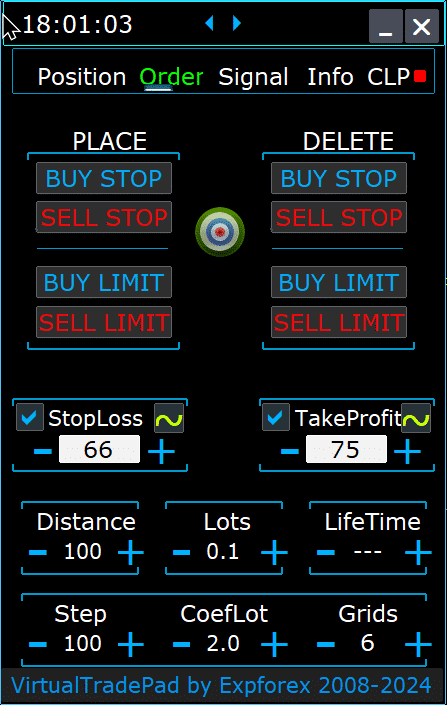
PLACE Block:
- Options for Opening Pending Orders:
- Buy Stop
- Sell Stop
- Buy Limit
- Sell Limit
DELETE Block:
- Options for Deleting Pending Orders:
- Buy Stop
- Sell Stop
- Buy Limit
- Sell Limit
Order Parameters:
- Distance:
- The distance in points for placing a pending order. This value cannot be less than the server’s minimum allowed distance for StopLoss/TakeProfit.
- You can adjust the increment step for changing the distance in the expert advisor’s settings, allowing for precise control over order placement relative to the current price.
- TakeProfit:
- Sets the Take Profit level for a pending order in points. This helps in automating profit-taking by closing the order once the specified price level is reached.
- StopLoss:
- Sets the Stop Loss level for a pending order in points. This is essential for risk management, as it limits potential losses by closing the order at a predetermined unfavorable price level.
- Lots:
- Specifies the trading volume for a pending order. Depending on external settings, this can be entered as fixed lots or as a percentage of your balance, offering flexibility in how you manage trade sizes.
- “LifeTime” Button:
- Sets the order’s lifetime in minutes. After the specified time expires, the pending order will be automatically deleted.
- This function works virtually for all pending orders and operates independently of the DayToExpiration option, which sets the expiration time in days.
GRIDs Functionality:
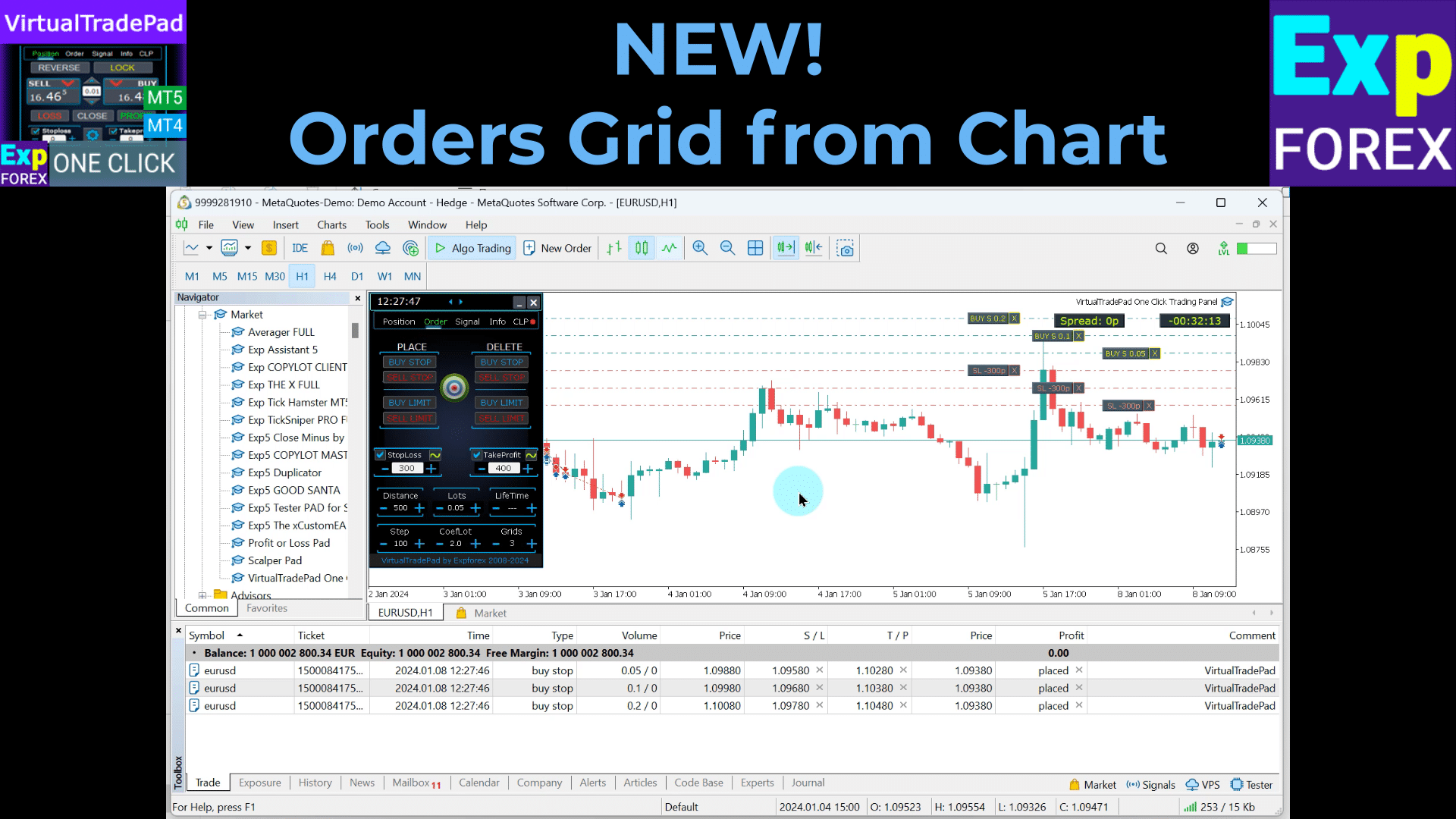
- GRIDs:
- Determines the number of pending orders to open. If set to more than one, a grid of pending orders is placed, each at a specified Distance apart.
- The lot size increment for each order in the grid can be adjusted in the external settings, allowing for strategies like scaling into positions.
- “Step” Button:
- Sets the step size between each subsequent order in the grid when used with the GRIDs parameter.
- This allows you to define the exact spacing from the first pending order, providing greater precision in grid placement.
- Attention: The Distance parameter specifies the distance from the current price to the first pending order.
- “CoefLot” Button:
- The CoefLotForGridOrders parameter has been moved to the panel for easier access.
- This is the multiplication factor for the lot size of each subsequent order in the grid when using the Orders tab.
- Example: If CoefLot = 2 and GRIDs = 5, the lots will be opened as follows: 0.1, 0.2, 0.4, 0.8, 1.6. This exponential increase allows for aggressive scaling strategies.
General Stop Levels:
- Target STOPLOSS / TAKEPROFIT:
- Allows you to set a general Stop Loss or Take Profit for all pending orders in one direction.
- After clicking the Target button, you can specify a price on the chart, and all the Stop Loss or Take Profit levels for all pending orders will be set to this price.
- This feature simplifies the process of managing risk and potential profit across multiple orders by centralizing control of exit levels.
Using Target StopLoss and Target TakeProfit:
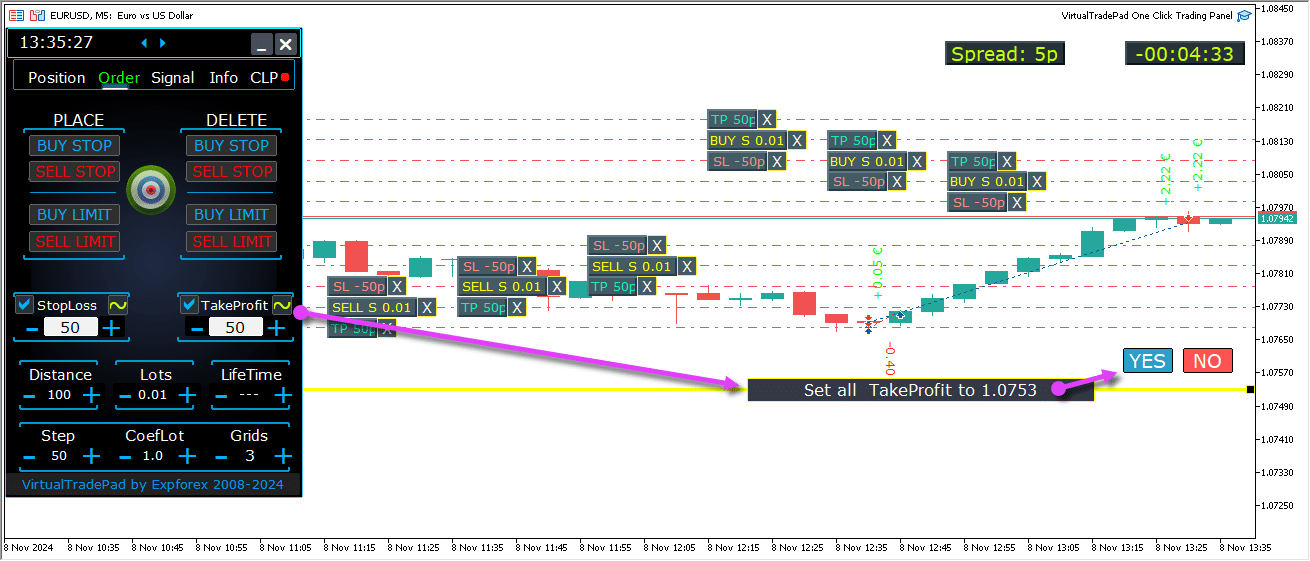
Future levels of pending orders
Future levels display the projected positions for pending orders like Buy Stop, Buy Limit, Sell Stop, and Sell Limit.
These levels indicate where new orders will be placed based on current strategy settings, including distance from the current price, grid structure, and order volume.
This helps traders visualize and plan the execution of pending orders directly on the chart, optimizing entry points for potential market moves.
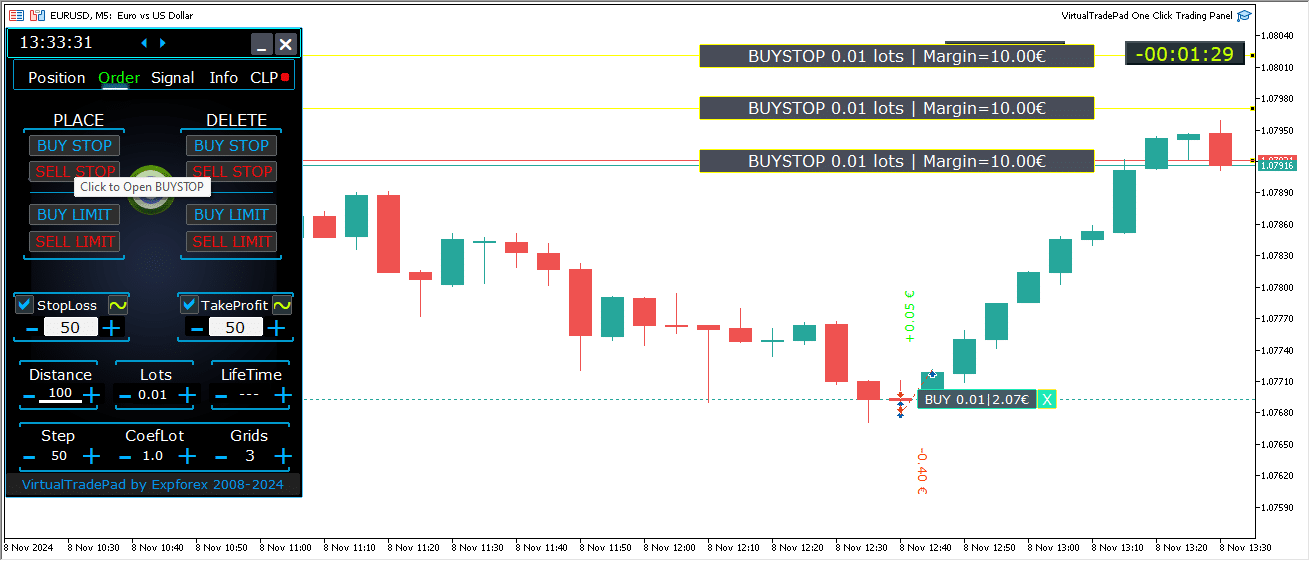
Comprehensive Order Management on the Chart
Full functionality for managing pending and limit orders directly on the chart has been added.
Order Information Display: Details about all placed orders are shown on the chart for easy monitoring.
Removing Orders and Levels: You can delete Stop Loss, Take Profit, and pending orders directly from the chart.
Note: Pending orders appear after active positions, meaning their display adjusts to the chart’s width, organizing orders based on available space.
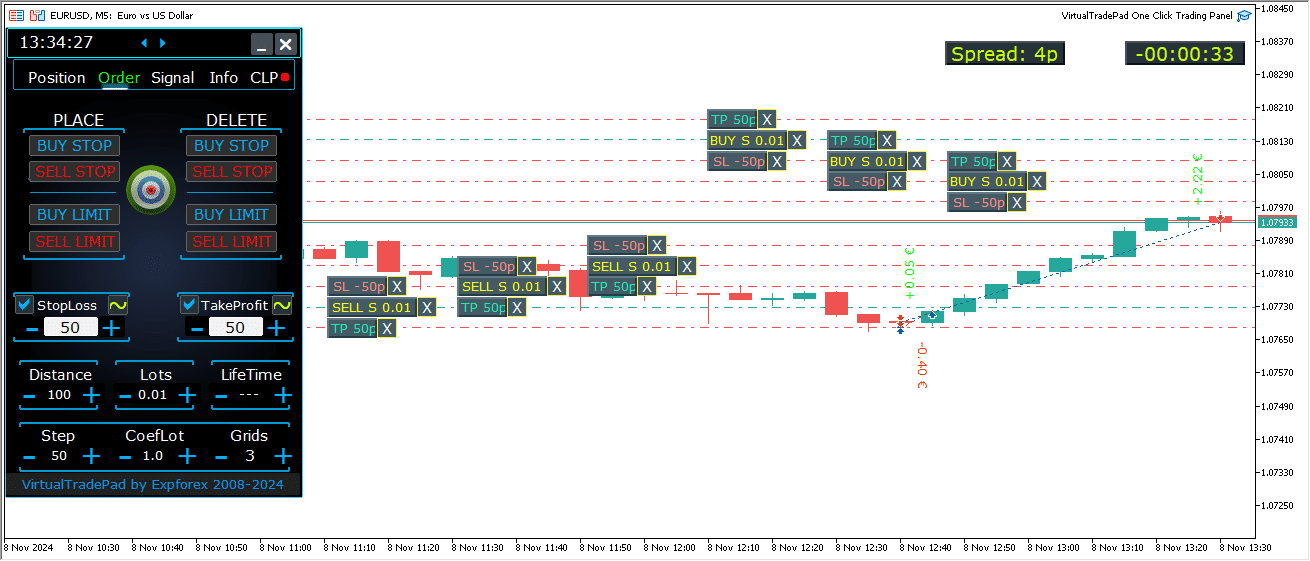
Additional Order Types in the MT5 Version:
- BUY LIMIT STOP: This hybrid order combines a stop order with a Buy Limit order.
- When the future Ask price reaches the specified stop level (in the Price field), a Buy Limit order is placed at the level set in the Stop Limit Price field.
- The stop level is set above the current Ask price, while the Stop Limit Price is below this stop level.
- Use the distance field to set the gap between the order and the stop limit. You can adjust these prices directly on the chart after placing the order.
- SELL LIMIT STOP: This is a stop order for setting a Sell Limit.
- When the future Bid price reaches the stop level specified (in the Price field), a Sell Limit order is placed at the level defined in the Stop Limit Price field.
- The stop level is below the current Bid price, with the Stop Limit Price above this stop level.
- Use the distance field to set the distance between the order and stop limit, and adjust prices on the chart with the mouse after order placement.
These order types provide greater control over entry points, combining the precision of limit orders with the strategic placement of stop levels.
MagicTarget button
The Magic Button allows for quick and intuitive placement of pending orders or positions directly on the chart by using the cursor.
Simply click the Magic Button, then position your cursor at the desired levels for entry, Stop Loss, and Take Profit, setting up orders or positions with precision.
This tool streamlines the order setup process, enabling traders to visually determine levels and place orders efficiently without manually entering prices.
Example BUYSTOP

Example Sell


Management of MagicTarget:
MagicTarget Button:
- Activate Function: Pressing the MagicTarget button activates the MagicTarget mode, allowing you to set pending orders or positions directly on the chart using lines.
- Exit MagicTarget Mode: To exit, simply press the MagicTarget button again.
Place:
- Set Orders via Lines: Activates and places the specified pending order or position on the chart by drawing lines at your desired levels.
Cancel:
- Remove All Lines: Cancels the current levels by deleting all lines from the chart, effectively resetting your setup.
Keyboard Shortcuts:
- Enable Keyboard Trading: To use keyboard shortcuts, ensure the
KeyBoardTrade = trueoption is enabled in the panel settings. - MagicTarget_Button_KEY = BUTTON_O:
- Default Activation Key: Press “O” on your keyboard to activate MagicTarget without clicking the button.
- MagicTarget_Place_KEY = BUTTON_P:
- Set Orders Key: Press “P” to place the order for the displayed levels.
- MagicTarget_Cancel_KEY = BUTTON_I:
- Cancel Orders Key: Press “I” to cancel the displayed levels and remove all lines.
Note:
- Automatic Tab Switch: When MagicTarget is activated, the tab automatically switches to the Orders panel for seamless order management.
Functions and Features:
- Drag and Modify Orders Directly on the Chart:
- Interactive Lines: After placing lines, you can adjust the levels by dragging them to new positions on the chart, offering intuitive control over your orders.
- Shift to Move Entire Order: Hold down the SHIFT key and drag the main opening price line to move the entire order to a new level, simplifying the repositioning process.
- Cursor Position Determines Order Type:
- Hovering Over Current Bars:
- Automatic Order Selection: The advisor sets a pending or limit order based on your Stop Loss and Take Profit settings when you hover over current bars.
- Cursor Above Current Price:
- Order Options: The Trading Panel can place a Buy Stop or Sell Limit order, depending on your Stop Loss/Take Profit setup.
- Cursor Below Current Price:
- Order Options: The Trading Panel can place a Sell Stop or Buy Limit order, based on the subsequent Stop Loss/Take Profit settings.
- No Stop Loss/Take Profit Set:
- Default Orders: If no Stop Loss or Take Profit is set, only Buy Stop (above current price) or Sell Stop (below current price) orders can be placed.
- Hovering Over Current Bars:
- Placing Positions Beyond Current Bars:
- Future Positions: Moving the cursor into the future (beyond current bars) allows the advisor to set a Buy or Sell position.
- Custom Stop Levels: Specify Stop Loss and Take Profit levels on the chart by placing lines where you want them, giving you precise control over risk management.
- Grid Orders with MagicTarget:
- Grids Parameter: When the Grids parameter is set higher than 1, the Trading Panel places a grid of pending orders.
- Initial Price Indication: The cursor indicates the initial price, and the grid is established according to your settings, enabling advanced grid trading strategies.
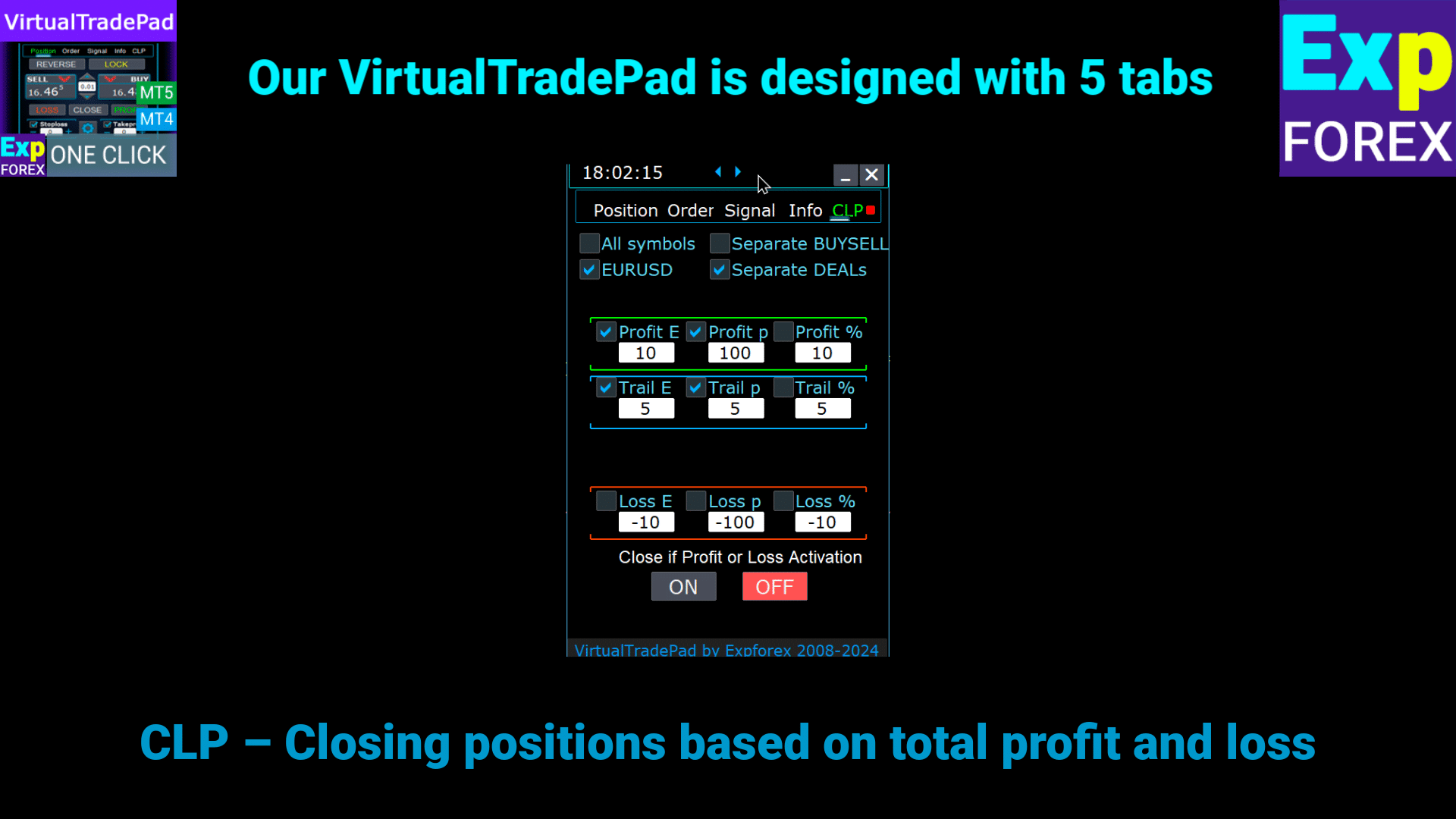
ProfitorLoss CLP tab
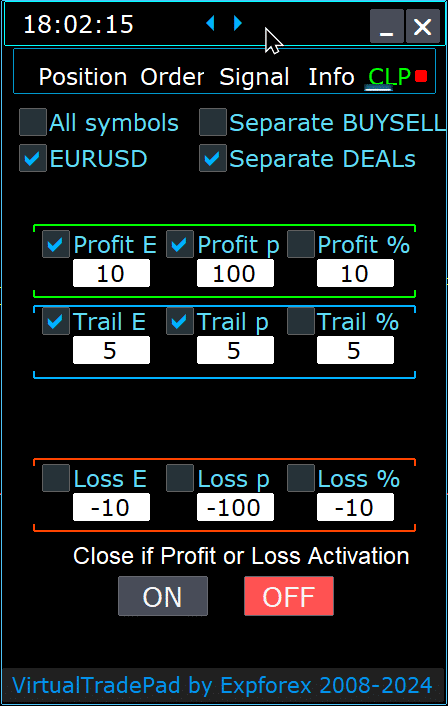
Control Panel Features:
- Automatic Closure by Profit or Loss: The control panel closes all positions once a specified profit or loss level is reached, measured in dollars, pips, or as a percentage of the balance. This can serve as a virtual Stop Loss or Take Profit.
- Emergency Button – Close ALL: An emergency Close ALL button can be activated in the input settings, allowing for an immediate shutdown of all open positions.
- Profit Trailing: The panel includes a profit trailing feature, automatically adjusting levels to secure gains as the trade moves in your favor.
- Status Indicators:
- Red Indicator: The function is off and not active.
- Green Indicator: The function is on and actively managing your positions.
These features enhance risk management and provide more flexible control over trading performance directly from the panel.
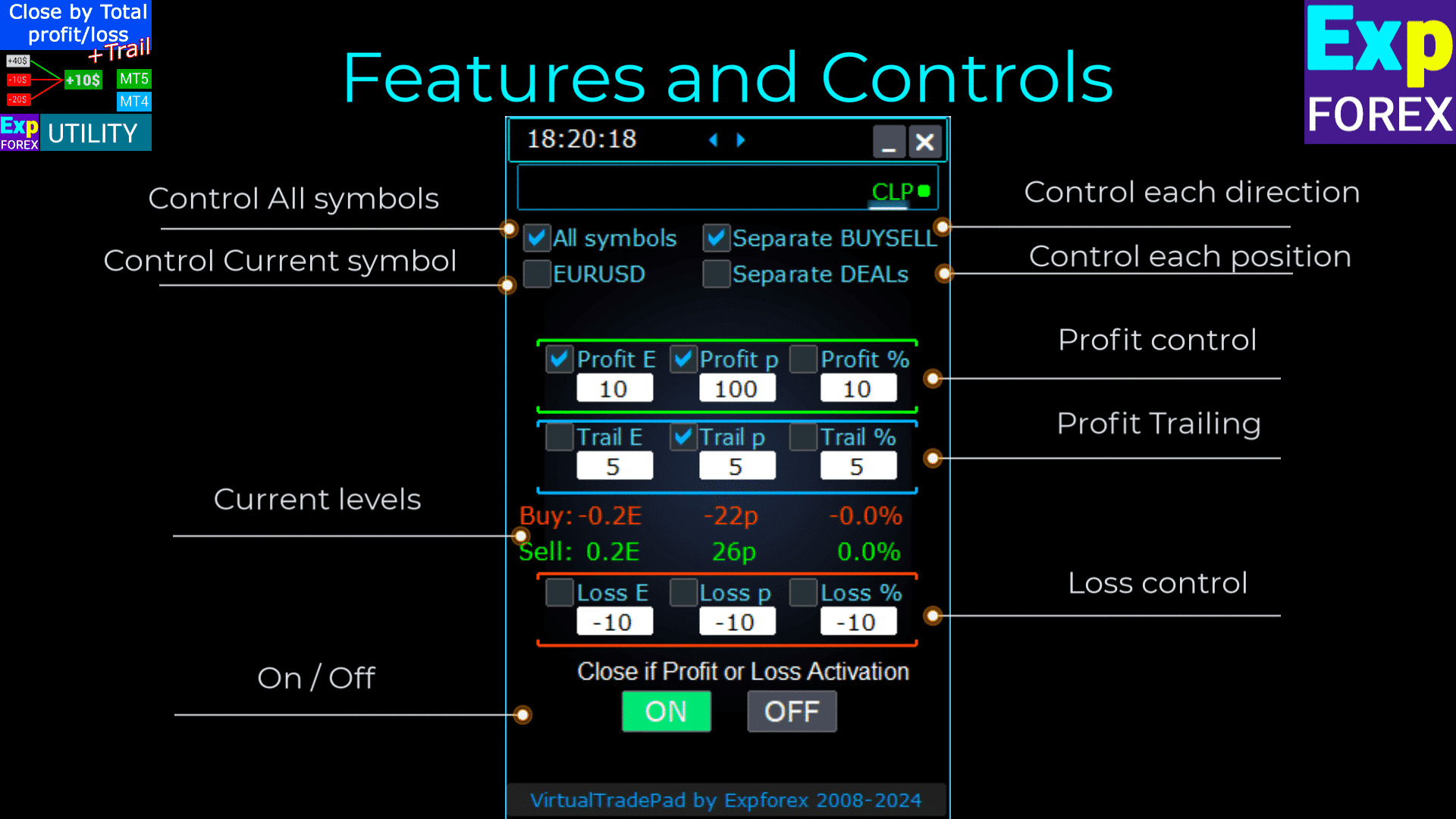
Control:
- All Symbols – Enables closing positions on all symbols.
- The utility monitors and closes all open trading symbols (currency pairs) in the terminal. This ensures comprehensive management of your entire portfolio across different currency pairs.

- [Current Symbol] Only – Closes positions only on the currency pair where the advisor is installed.
- The utility focuses exclusively on the current currency pair, monitoring and closing positions only for that specific symbol. This allows for targeted management of individual currency pairs.
- Separate Buy/Sell – Separately closes all BUY positions and all SELL positions for each direction.
- The utility independently monitors and closes BUY and SELL positions, calculating profit and loss separately for each. This feature lets you manage long and short positions individually.

- Separate Deals – Closes each individual deal or position separately.
- The utility monitors and closes each position independently at its own specified profit or loss level. This provides precise control over every single trade you have open.
- Profit $ – Toggles closing when the total profit reaches a specified amount in dollars or deposit currency.
- Profit p – Toggles closing when the total profit reaches a specified number of points.
- Profit % – Toggles closing when the total profit reaches a specified percentage of the current balance.
- Trail $ – Sets the trailing distance in dollars from the profit level at which profit trailing starts.
- Trail p – Sets the trailing distance in points from the profit level at which profit trailing starts.
- Trail % – Sets the trailing distance in percentage from the profit level at which profit trailing starts.
- Loss $ – Toggles closing when the total loss reaches a specified amount in dollars or deposit currency.
- Loss p – Toggles closing when the total loss reaches a specified number of points.
- Loss % – Toggles closing when the total loss reaches a specified percentage of the current balance.
- Close if Profit or Loss ON – Activates the closing function based on total profit or loss.
- Close if Profit or Loss OFF – Deactivates the closing function based on total profit or loss.
Main Characteristics:
- Symbol Selection: The panel operates on the selected symbol (Current Symbol) or can consider the total profit or loss across all symbols (All Symbols), providing flexibility in portfolio management.
- Virtual Stop Loss/Take Profit: Use the panel as a virtual stop loss or take profit by setting profit and loss values and checking Separate Deals. The utility will close positions individually based on specified criteria.
- Closing Types: Choose the type of closing—profit or loss in dollars, points, or percentage of balance—tailoring the tool to your risk management strategy.
- Instant Close: The CLOSE ALL button allows for immediate closure of all positions on the symbol or across all symbols, depending on your selection.
- Real-Time Information: The panel displays current information about your positions, including profit and loss metrics, keeping you informed at a glance.
- Profit Settings Validation: Profit values must be greater than zero. If set to zero or negative, the field will flash red, indicating an error that needs correction.
- Loss Settings Validation: Loss values must be less than zero. Setting zero or a positive value will cause the field to flash red, prompting you to enter a valid negative number.
Terms of Use:
- Installation: Attach the panel to your desired currency pair’s chart within your trading terminal.
- Symbol Selection: Decide whether to manage positions for all symbols or only the current one, and select the appropriate option on the panel.
- Set Profit and Loss Values: Input non-zero values for profit and loss—positive numbers for profit and negative numbers for loss (e.g., -100).
- Select Closing Units: Check the boxes for the units you wish to use when closing positions (Profit/Loss in points, dollars, or percentages).
- Activate Closing Function: Click the Close if Profit or Loss ON button, which should turn blue, indicating that the utility is active and monitoring your positions.
- Monitoring and Closure: The utility will close deals once your positions’ profit or loss exceeds the established levels, automating your exit strategy.
- Emergency Close: Use the CLOSE ALL button for an immediate shutdown of all positions, providing a quick exit in volatile market conditions.
Trailing Profit
Functionality:
- Purpose: The Trailing Profit function manages floating profits by trailing them instead of closing positions immediately when a profit target is reached.
- Operation: Once the profit reaches the specified level, the utility remembers this value and trails it, allowing profits to run while protecting gains.
Example Scenario:
- Settings:
- Profit $ (Checkbox): Enabled to activate profit closing.
- Profit $ (Field): Set to 10, indicating the profit level to start trailing.
- Trail $: Set to 5, establishing the trailing distance.
- Process:
- When profit reaches $10, the trailing profit function activates, setting a trailing line at $5.
- The utility trails the profit as it increases, maintaining the $5 distance.
- If the total profit falls below the last trailed level, the utility closes all deals to secure gains.
- Progress and adjustments are logged for transparency.
Applicability:
- The Trailing Profit option works with all closing types:
- All Symbols
- Current Symbol
- Separate Buy/Sell Directions
- Each Order Separately
This feature enhances profit management by allowing profits to grow while minimizing the risk of giving back gains, suitable for traders aiming to optimize their exit strategies.
By utilizing these features, you can effectively manage your trades, automate your exit strategies, and have greater control over your profit and loss thresholds. The utility provides a comprehensive toolset for both broad portfolio management and precise individual trade control.

Difference Between Trailing Stop Positions and Trailing Profit CLP
Trailing Stop:
- Definition: A trailing stop modifies the real stop loss to a breakeven level and then adjusts it into the profitable zone for each position individually. It’s a standard trailing stop applied separately to each open position.
- Operation Steps:
- Set to Breakeven: The first step is setting the stop loss to the breakeven point, ensuring that no loss will occur if the market reverses.
- Lock in Profit: The second step involves moving the stop loss further into profit territory, incrementally securing gains as the position moves favorably.
- Settings:
- Trailing stops can only be set in points, allowing for precise control over stop loss adjustments.
Trailing Profit:
- Definition: Trailing Profit modifies the virtual stop loss level for positions—either all positions or selected ones—in the profitable zone. It operates on the CLP (Close Loss and Profit) tab.
- Functionality:
- Close Based on Total Profit: Allows you to close a series of positions based on the total profit, setting and fixing the minimum profit level.
- Increase Closing Level: Enables you to increase the closing level for total profit as the market moves in your favor.
- Settings:
- Trailing Profit can be set in points, deposit currency, or percentage of the current balance, offering flexibility in how profits are managed.
Virtual Stop Loss/Take Profit Mode on CLP
- Activation:
- You can enable Virtual Stop Loss and Take Profit, as well as Virtual Trailing Profit, on the CLP tab.
- Functionality:
- Separate Monitoring: All positions are monitored and closed separately from each other.
- Adjustable Levels: You can move these levels by changing the values on the CLP control panel.
- Flexible Settings: Set virtual stop loss and take profit in points, deposit currency, or percentage.
- How It Works:
- The CLP tab manages closing based on the total profit and loss.
- Positions are closed after reaching the set Virtual Take Profit or Virtual Stop Loss levels.
- Virtual Levels: These are not set on the server but stored within the software using variables like objects and lines.
- Separate Deals:
- When Separate Deals is selected:
- Individual Levels: Each deal or position has its own virtual closing level based on profit/loss in deposit currency, pips, or percentage.
- Virtual Closure: Positions are closed at their set virtual profit or loss levels, without using real stop loss and take profit orders.
- Execution: Orders to close positions are created when the price crosses these virtual levels.
- When Separate Deals is selected:
- Why Virtual Stops?
- Discretion and Flexibility: Real stop loss and take profit are set on the server at specific prices. Virtual stops allow for more flexible and discreet management by handling levels within the software.
- No Server Dependency: Virtual stops do not rely on the broker’s server to execute stop loss or take profit orders.
How to Enable Virtual Take Profit/Stop Loss Mode
- Access CLP Tab:
- Navigate to the CLP tab in your trading panel.
- Select Separate Deals:
- Check the Separate Deals option to manage each position individually.
- Set Virtual Take Profit:
- Input your desired values in the fields:
- Profit $: Set profit target in deposit currency.
- Profit p: Set profit target in points.
- Profit %: Set profit target as a percentage of the balance.
- Input your desired values in the fields:
- Set Virtual Stop Loss:
- Input your desired values in the fields:
- Loss $: Set loss limit in deposit currency.
- Loss p: Set loss limit in points.
- Loss %: Set loss limit as a percentage of the balance.
- Input your desired values in the fields:
- Set Virtual Trailing Stop:
- Input values for trailing profit in:
- Trail $: Trailing distance in deposit currency.
- Trail p: Trailing distance in points.
- Trail %: Trailing distance as a percentage.
- Input values for trailing profit in:
- Activate CLP:
- Enable and activate CLP ON to start monitoring and managing positions with virtual stops.
By understanding and utilizing these features, you can enhance your trading strategy with more precise control over position management and risk mitigation. Virtual stops offer a flexible alternative to traditional stop loss and take profit orders, allowing for tailored adjustments without server-side limitations.

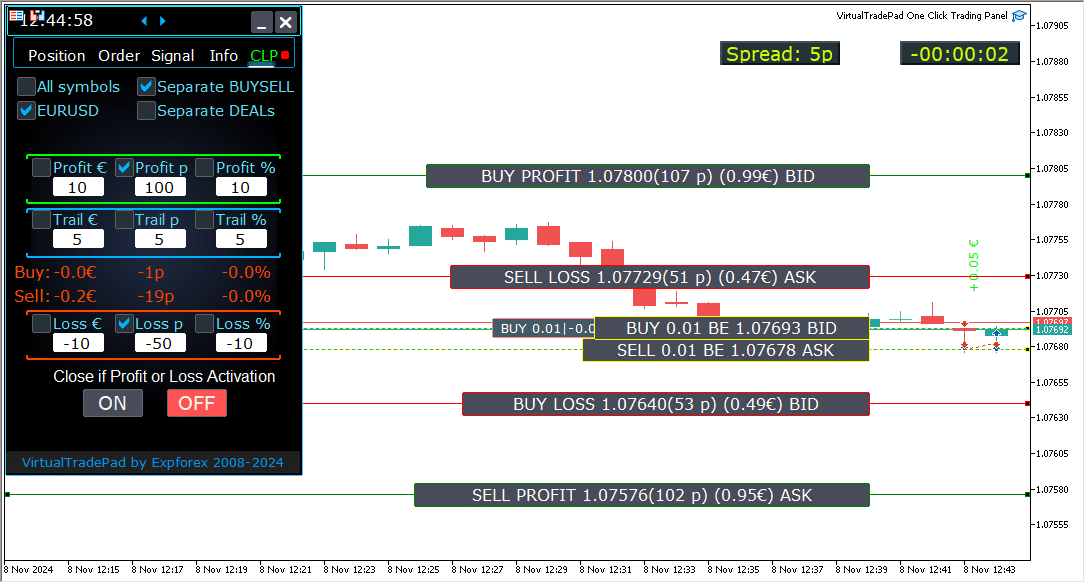
Displaying Future Closing Lines
- Visualize Potential Closing Levels:
- The Expert Advisor (EA) can display approximate lines on your chart indicating where positions might close based on total profit or loss. This visual aid helps you anticipate future trade closures and manage your positions more effectively.
- Activation Parameter:
- To enable this feature, set the parameter
Show_Future_BE_TP_SLto true. This will activate the display of future closing lines, giving you a visual forecast of potential closing points for your trades.
- To enable this feature, set the parameter
- Usage Note:
- This functionality operates only on the current symbol you’re trading and is effective only when the SEPARATE Orders mode is disabled. Ensure these conditions are met to utilize this feature properly.
- Line Visualization Details:
- The EA can display separate lines for Buy and Sell positions or a common line for both. If the lines are not visible, it indicates that your positions are in a locked state, making them ineligible for closure based on total profit or loss.
- Accuracy Disclaimer:
- Keep in mind that during periods of floating spreads, the lines and price data displayed may not be entirely accurate. Fluctuations in spreads can affect calculations, so use this information as a general guide rather than an exact prediction.
- Trading Reminder:
- Remember that SELL positions are closed at the ASK price, and BUY positions are closed at the BID price. This fundamental principle affects where the closing lines appear on your chart and is essential for accurate trade management.
Working with Closing by Total Profit and Loss on MetaQuotes VPS Server
Configuring CLP Tab Settings in Trade Pad External Parameters:
- VPS_CLP_Activation = false;
- Description: Set
VPS_CLP_Activationtotrueto activate the CLP (Close Loss and Profit) function on the VPS server.
- Description: Set
Important Notes:
- MetaQuotes Restrictions:
- MetaQuotes prohibits sending global variables from MQL to the VPS server. Due to this limitation, all buttons, checkboxes, edit fields, and controls on the Trade Pad panel will not function when using MetaQuotes VPS.
- Customizing via External Settings:
- You can configure the closing function by total profit or loss through the utility’s external settings. This allows you to adjust the feature despite the restrictions imposed by MetaQuotes on VPS environments.
- Activation Warning:
- Attention! If the
VPS_CLP_Activationparameter is enabled (true), all settings for the closing function will operate exclusively from external variables. In this mode, the objects on the CLP tab will be inactive and unresponsive.
- Attention! If the
By adjusting these settings, you can ensure that your utility functions correctly on the MetaQuotes VPS server, even with the imposed limitations. Remember to manage your configurations carefully to maintain optimal performance and functionality.

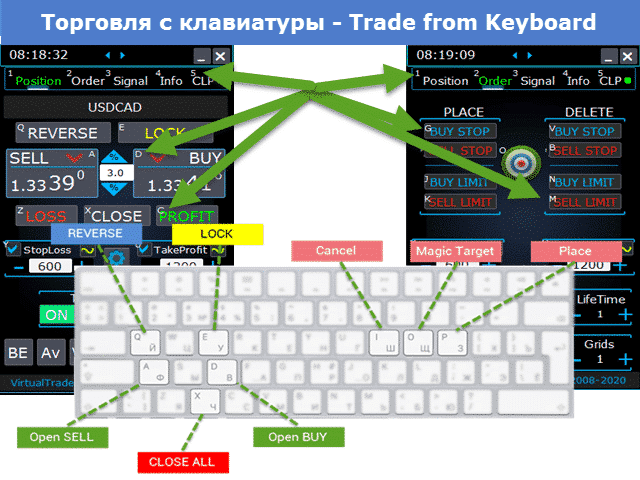
Keyboard trading
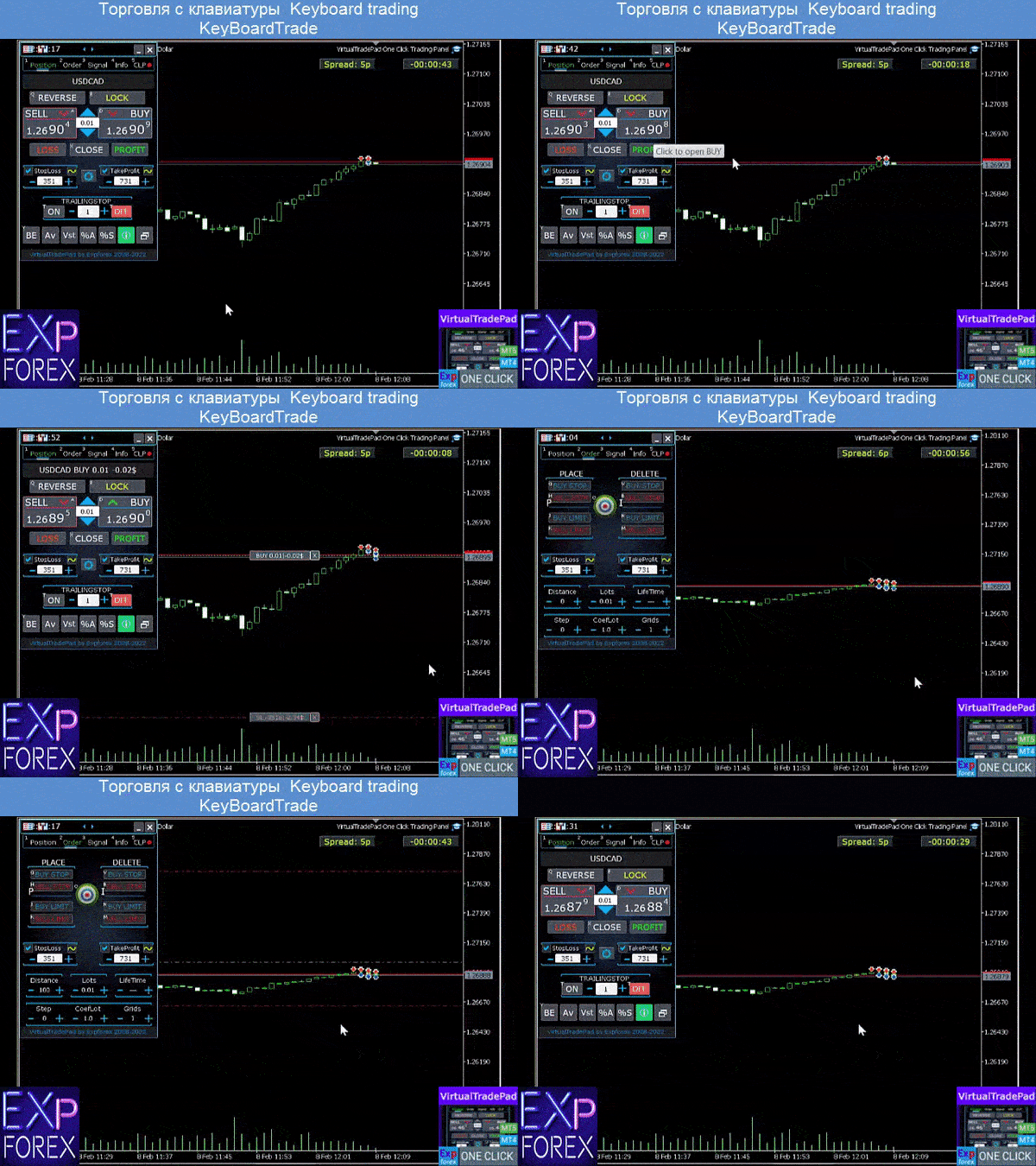
The window from which you will trade should be active!
For trade from the keyboard, you need to enable the option KeyBoardTrade = true in panel settings:

- Position keys
- Buy_KEY=BUTTON_D; //Buy_KEY – Button to open BUY
- Sell_KEY=BUTTON_A; //Sell_KEY – Button to open SELL
- Close_KEY=BUTTON_X; //Close_KEY – Button to Close positions
- LossCLOSE_KEY=NONE; //LossCLOSE_KEY – Button to Close all loss positions
- ProfitCLOSE_KEY=NONE; //ProfitCLOSE_KEY – Button to Close all Profit positions
- Reverse_KEY=BUTTON_Q; //Reverse_KEY – Button to Reverse all positions
- Lock_KEY=BUTTON_E; //Lock_KEY – Button to Lock all positions
- StopLoss_USE_KEY=NONE; //StopLoss_USE_KEY – Button to check/uncheck Stoploss
- TakeProfit_USE_KEY=NONE; //TakeProfit_USE_KEY – Button to check/uncheck TakeProfit
- MagicTarget keys
- MagicTarget_Button_KEY=BUTTON_O; //MagicTarget_Button_KEY – Button to start Magic Target
- MagicTarget_Place_KEY=BUTTON_P; //MagicTarget_Place_KEY – Button Place order by Magic Target
- MagicTarget_Cancel_KEY=BUTTON_I; //MagicTarget_Cancel_KEY – Button Cancel order by Magic Target
- Order keys
- BuyStop_Open_KEY=BUTTON_G; //BuyStop_Open_KEY – Button to Open BuyStop order
- SellStop_Open_KEY=BUTTON_H; //SellStop_Open_KEY – Button to Open SellStop order
- BuyLimit_Open_KEY=BUTTON_J; //BuyLimit_Open_KEY – Button to Open BuyLimit order
- SellLimit_Open_KEY=BUTTON_K; //SellLimit_Open_KEY – Button to Open SellLimit order
- BuyStop_Delete_KEY=BUTTON_V; //BuyStop_Delete_KEY – Button to Delete BuyStop order
- SellStop_Delete_KEY=BUTTON_B; //SellStop_Delete_KEY – Button to Delete SellStop order
- BuyLimit_Delete_KEY=BUTTON_N; //BuyLimit_Delete_KEY – Button to Delete BuyLimit order
- SellLimit_Delete_KEY=BUTTON_M; //SellLimit_Delete_KEY – Button to Delete SellLimit order
- Tabs keys
- Position_Tab_KEY=BUTTON_1; //Position_Tab_KEY – Button to select Position TAB
- Order_Tab_KEY=BUTTON_2; //Order_Tab_KEY – Button to select Order TAB
- Signal_Tab_KEY=BUTTON_3; //Signal_Tab_KEY – Button to select Signal TAB
- Info_Tab_KEY=BUTTON_4; //Info_Tab_KEY – Button to select Info TAB
- CLP_Tab_KEY=BUTTON_5; //CLP_Tab_KEY – Button to select CLP TAB
Attention! The deal will be opened from the panel whose chart window is now active!


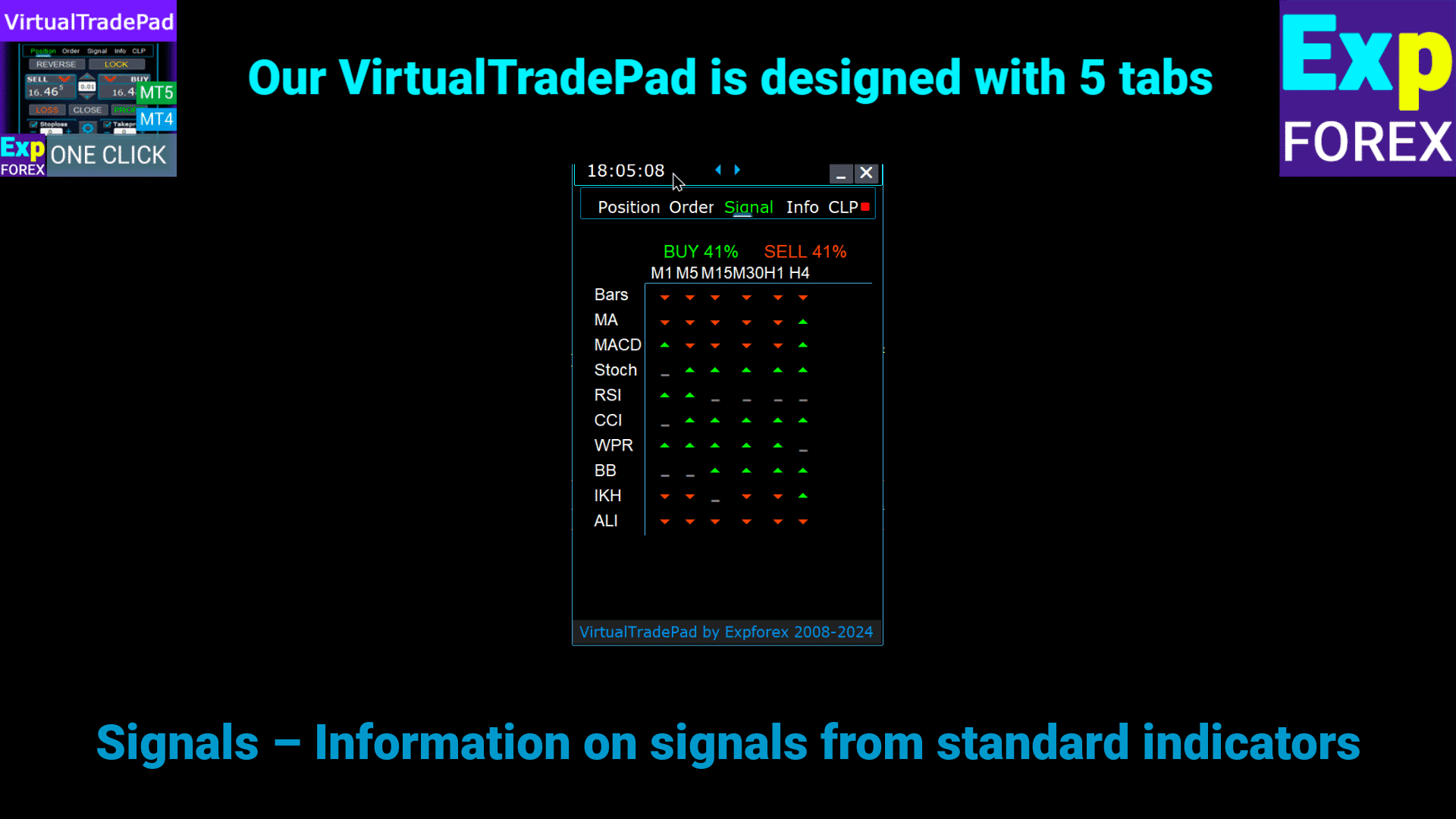
The Signal tab
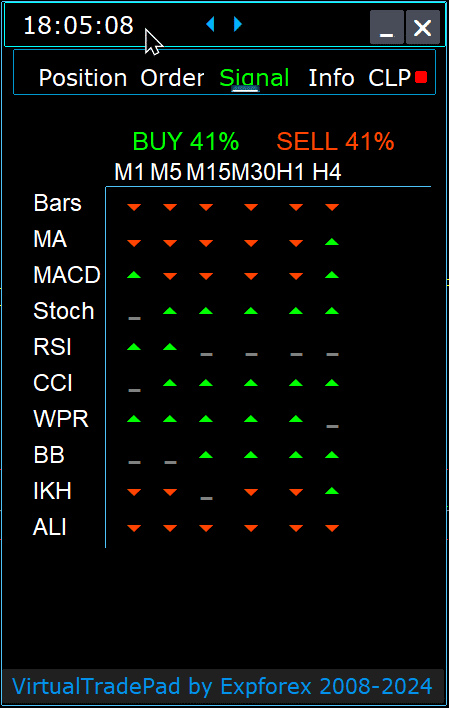

This tab provides an insightful overview of trading strategies by analyzing 10 key indicators across 8 time frames.
It graphically displays the direction of indicator signals and indicates the percentage strength for both BUY and SELL positions.
Key Features:
- Automatic Position Opening: Enable the automatic opening of positions when the signal strength exceeds a specified percentage. This threshold can be configured in the external settings.
- Customizable Parameters: All indicator parameters and the signal calculation period can be adjusted in the external settings to fit your trading strategy.
New Features Added:
- Change Time Frame by Clicking: Clicking on the name of a time frame applies that time frame to the current chart, allowing for quick adjustments.
- MT5 Exclusive Feature: In MetaTrader 5, clicking on an indicator’s name adds that indicator—with parameters from external settings—to the current chart window.
- Arrow Functionality: Clicking on the arrow will open the selected time frame and add the corresponding indicator to your chart.
Graphic Symbols:
- ‘x’: No signal is detected for the indicator.
- Up Arrow: Indicates a BUY signal, suggesting a potential upward market movement.
- Down Arrow: Indicates a SELL signal, suggesting a potential downward market movement.
Indicators Used in This Tab:
- Bars:
- Description: Displays the direction of the candle for the selected time frame.
- Signals:
- BUY: When the opening price is lower than the closing price, indicating bullish momentum.
- SELL: When the opening price is higher than the closing price, indicating bearish momentum.
- This simple yet effective indicator helps you gauge market sentiment based on candle movements.
- MA (Moving Average):
- Description: Shows the crossover between the fast and slow Moving Average lines.
- Signals:
- BUY: Fast MA crosses above the slow MA, signaling an upward trend.
- SELL: Fast MA crosses below the slow MA, signaling a downward trend.
- The MA crossover strategy is a classic method for identifying trend changes.
- MACD (Moving Average Convergence/Divergence):
- Description: Displays the relationship between the MACD main line and the signal line.
- Signals:
- BUY: MACD line is above the signal line, indicating positive momentum.
- SELL: MACD line is below the signal line, indicating negative momentum.
- MACD is a versatile indicator used to detect momentum and trend strength.
- Stoch (Stochastic Oscillator):
- Description: Shows the crossover between the main line and the signal line of the Stochastic Oscillator.
- Signals:
- BUY: Main line crosses above the signal line, suggesting a bullish reversal.
- SELL: Main line crosses below the signal line, suggesting a bearish reversal.
- Stochastic Oscillator helps identify overbought and oversold conditions.
- RSI (Relative Strength Index):
- Description: Indicates whether the RSI value is in overbought or oversold territory.
- Signals:
- BUY: RSI value falls below 30, indicating oversold conditions.
- SELL: RSI value rises above 70, indicating overbought conditions.
- RSI is commonly used to assess the strength of price movements.
- CCI (Commodity Channel Index):
- Description: Measures the variation of a security’s price from its statistical mean.
- Signals:
- BUY: CCI value drops below -100, suggesting a potential price increase.
- SELL: CCI value exceeds 100, suggesting a potential price decrease.
- CCI helps identify cyclical trends in commodity markets but is also applied to forex.
- WPR (Williams’ Percent Range):
- Description: Indicates overbought or oversold conditions based on recent highs and lows.
- Signals:
- BUY: WPR value falls below -80, signaling oversold conditions.
- SELL: WPR value rises above -20, signaling overbought conditions.
- WPR is useful for identifying potential reversal points in the market.
- BB (Bollinger Bands):
- Description: Shows the price relative to the Bollinger Bands to assess volatility.
- Signals:
- BUY: Closing price is below the lower band, indicating potential upside.
- SELL: Closing price is above the upper band, indicating potential downside.
- Bollinger Bands help assess market volatility and potential breakout points.
- IKh (Ichimoku Kinko Hyo):
- Description: Provides a comprehensive view of market trends and momentum.
- Signals:
- BUY: Tenkan-sen line crosses below Kijun-sen line, indicating bullish momentum.
- SELL: Tenkan-sen line crosses above Kijun-sen line, indicating bearish momentum.
- Ichimoku offers multiple data points for robust trend analysis.
- ALI (Alligator Indicator):
- Description: Uses three smoothed moving averages to identify trend absence, formation, and direction.
- Signals:
- BUY: Jaws are below the teeth, and teeth are below the lips, signaling an upward trend.
- SELL: Jaws are above the teeth, and teeth are above the lips, signaling a downward trend.
- The Alligator indicator helps identify trend directions and avoid ranging markets.
Important Note:
The signal algorithms are based on standard detection techniques from MetaTrader’s default indicators. If you wish to automate your trading based on these signals, consider using our Expert Advisor, xCustomEA.
EA The xCustomEA Universal trading advisor on icustom indicators.
Universal trading adviser on custom indicators for MetaTrader. Exp – The xCustomEA Universal trading advisor on custom indicators. The xCustomEA works on a custom indicator and can program its trading strategy for the MT5 and MT4 terminals. In other words: The xCustomEA has a connection with custom indicators that can be downloaded from the Internet or the mql5 market. Any custom indicator from the internet! Builder strategy. Read more
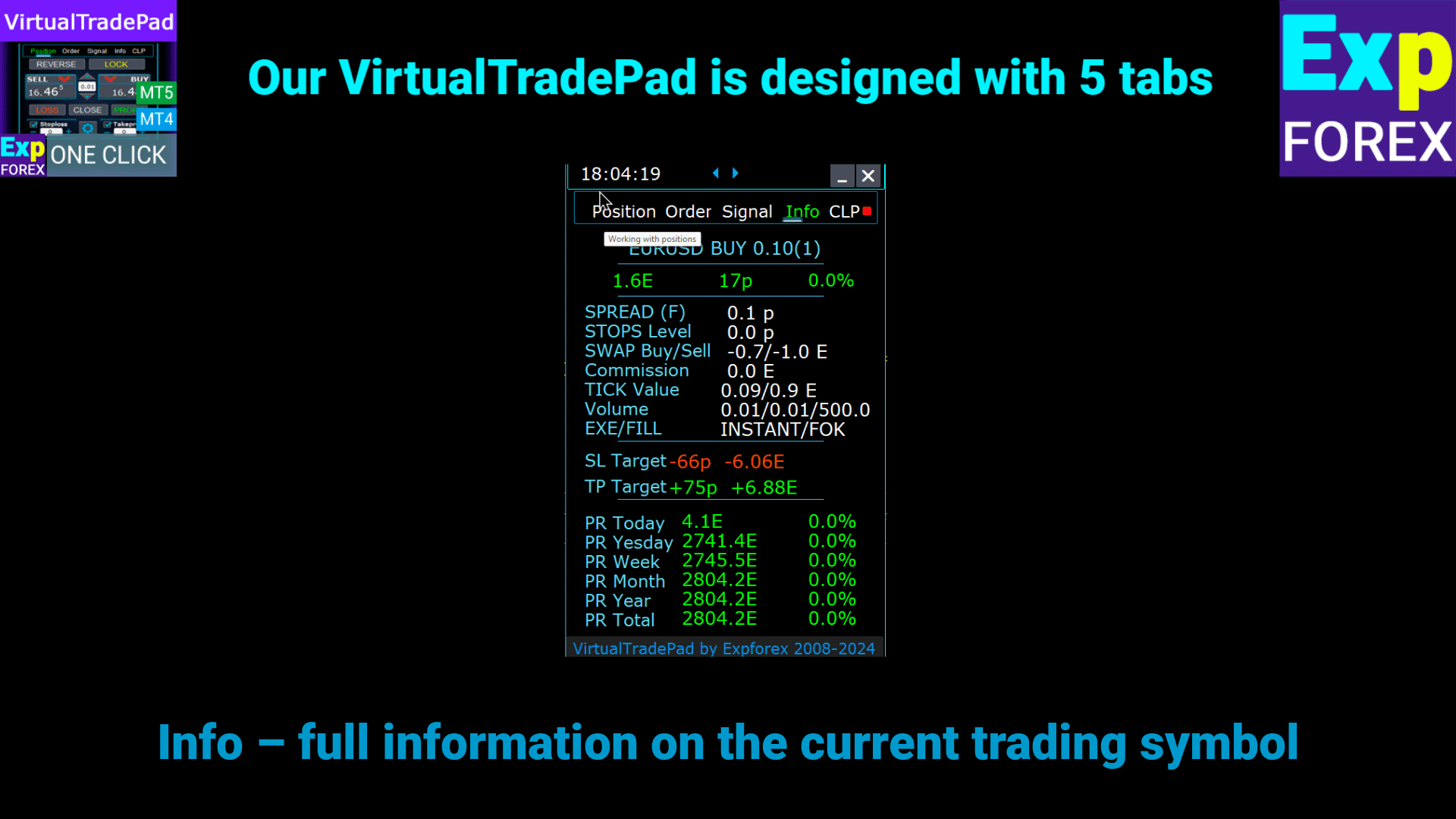
Info tab
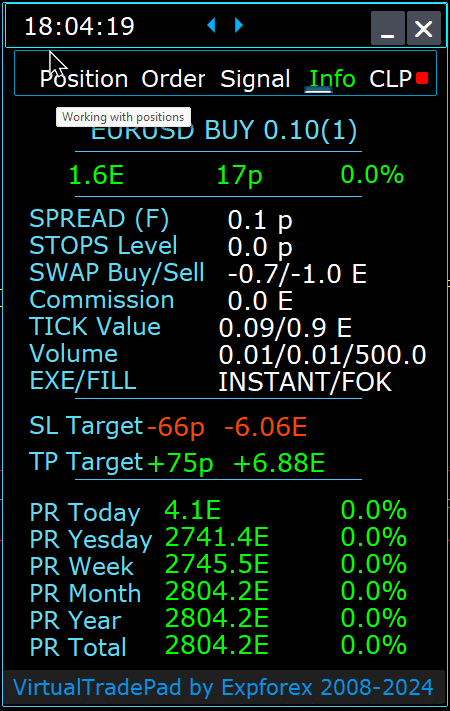

INFO Tab – This tab provides detailed information about the selected symbol in the MetaTrader terminal.
Main Features:
- Currency Pair Details:
- Displays the name of the currency pair.
- Indicates if there is an open position for this symbol.
- Specifies the type of position (BUY/SELL) and the lot size.
- Gives you an immediate overview of your current engagement with the currency pair.
- Current Position Profitability:
- Shows the profit or loss of your current position in dollars, points, and as a percentage of your current deposit.
- Helps you assess the performance of your trade relative to your account balance.
- Current Spread:
- Displays the current spread for the currency pair.
- If the spread is floating, it is indicated with an “(F)” next to the value.
- Understanding the spread is crucial for knowing your trading costs.
- Minimum Order Levels:
- Shows the current minimum distance allowed by the broker for placing stop orders and pending orders.
- Ensures you set your orders within acceptable limits to avoid rejections.
- Swap Rates:
- Provides the swap rates for both short and long positions.
- Informs you of the overnight financing costs or earnings associated with holding positions open.
- Execution Type:
- Indicates the execution type for positions (e.g., Market Execution or Instant Execution).
- Lets you know how orders are processed by your broker, affecting speed and slippage.
- Point Value:
- Calculates the monetary value of a one-point price movement in your deposit currency, based on the current lot size.
- Helps you understand the financial impact of price fluctuations on your position.
- Distance to Stop Loss (SL):
- Shows the distance to your stop loss in both points and dollars.
- Helps you gauge your risk exposure and potential loss if the market moves against you.
- Distance to Take Profit (TP):
- Displays the distance to your take profit level in points and dollars.
- Assists in visualizing your potential gains if the market moves in your favor.
- Daily Profit/Loss:
- Shows today’s profit or loss for this currency pair in dollars (your deposit currency) and as a percentage of your current balance.
- Provides a daily performance snapshot to keep you informed of short-term results.
- Weekly Profit/Loss:
- Displays the current week’s profit or loss for this currency pair in dollars and as a percentage of your balance.
- Gives you insight into your weekly trading performance and trends.
- Monthly Profit/Loss:
- Provides the profit or loss for this currency pair for the current month, shown in dollars and as a percentage of your balance.
- Helps you track monthly performance and assess longer-term strategies.
- Annual Profit/Loss:
- Presents the yearly profit or loss for this currency pair in dollars and as a percentage of your balance.
- Offers a long-term view of your trading results over the year.
- Total Historical Profit/Loss:
- Summarizes all historical profits or losses for this currency pair in dollars and as a percentage of your balance.
- Gives you a complete performance overview to evaluate overall success.
By utilizing the INFO tab, you gain comprehensive insights into your trading activities for each currency pair, enabling better decision-making and effective account management.
Table of Contents (click to show)
List
- Information options
- Trade options
- Trade from Keyboard options
- Lot options
- Step options
- Breakeven options
- Close by total profit or loss options
- Color options
- Signals options
- Risk Manager Limiting losses / profits / Lots / Numbers Limiting options
- Other MT5 options
- Description of external variables of indicators
Information options | |||
| GeneralSize | Size the panel GeneralSize default = 12. Increasing the size of the panel. The font scaling in your WINDOWS is taken into account. Minimum GeneralSize=9! | ||
| SymbolToTradeCustom | Variable indication of the currency pair for the panel operation: SymbolToTradeCustom This makes it possible to trade on offline charts (Ticks, Renko, etc.). Caution: Be careful when writing a NAME. The name must fully match the name in the Market Review! EurUSD – Wrong! EURUSD – That’s right! If this parameter is not set, the Expert Advisor works on the currency pair on which it is installed(Current Symbol)! | ||
| Sounds Push | Enables/disables sound alerts when opening/closing/modifying positions and orders You can turn on or off the notification of opening/closing/error on the phone or sound notification in the Notifications section. You can also change the file name for sound in WAV format without specifying a file extension (name only) Notice_Open_Push = false; Notice_Open_Sound = true; Notice_Close_Push = false; Notice_Close_Sound = true; Notice_Modify_Push = false; Notice_Modify_Sound = true; Notice_Error_Push = false; Notice_Error_Sound = true; Notice_Open_NameSoundFromEa = “ok”; Notice_Close_NameSoundFromEa = “alert2”; Notice_Modify_NameSoundFromEa = “stops”; Notice_Error_NameSoundFromEa = “timeout”; How to set up a terminal to send mail | ||
| HintShow | Turns on / off tooltips when hovering over buttons | ||
| Language | Language selection tips Language: Spanish, Portuguese (Brazil), German, Chinese, Japanese; By default, the language of prompts will be determined automatically by the language of your terminal. You can also choose your language; The translation was made using the GOOGLE Translator + MQL + Terminal site! Some words have been trimmed to save space (Maximum line length in tooltips = 255 characters) If you find a translation error, please write to us: Contact us | ||
| PrintToLog | Option to lock message output (Print) to the MetaTrader log file. Don’t turn off this option if you don’t know why. If you want to reduce the volume of terminal logs, turn off this option (false) All messages are logged to track the advisor’s actions and debug errors. If you have disabled this function, We will not be able to find an error in the program’s actions and will not be able to help you. Please do not turn off this feature. input bool PrintToLog = true; //PrintToLog –> Print to Logs (Don’t turn it false!) | ||
| ButtonLanguage | Use the ButtonLanguage parameter to select the language of the text on the buttons and the main language of the panel (information on the tabs)! Available languages: English, Português, Español, Deutsch, Francias, Italiano, Turke! Attention: This parameter affects only the text of buttons and tabs. The text of tooltips can be selected in the Language parameter! | ||
| Show_Future_Line | Turns on/off the display of the virtual lines of the future position. Works only on the Position tab. If this option is enabled on the terminal graph, the advisor will draw the opening price, stop loss, and take profit lines. It will show information about the lot, stop-loss, and take-profit in the deposit currency, and It will show the price levels of the installation of stop-loss and take-profit. 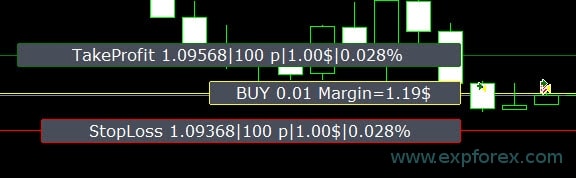 Options for the display of information: – false – do not show information; – true always – always show on the chart; – true cursor is on the pad – show only when the cursor is on the panel; – true cursor is not on the pad – show only when the cursor is outside the panel. – true cursor is only on BUY SELL – show only when the cursor on the BUY SELL buttons | ||
| Show_Future_Line_Orders | Turns on/off the display of the virtual lines of future orders. Works only on the Orders tab. If this option is enabled on the terminal graph, the advisor will draw the opening price, stop loss, and take profit lines. It will show information about the lot, stop loss, and take-profit in the deposit currency, and It will show the price levels of the stop loss and take-profit. 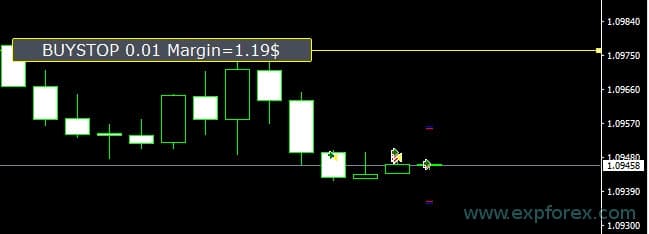 Options for the display of information: – false – do not show information; – true always – always show on the chart; – true cursor is on the pad – show only when the cursor is on the panel; – true cursor is not on the pad – show only when the cursor is outside the panel. – true cursor is only on BUY SELL – show only when the cursor on the BUY SELL buttons | ||
| Show_AveragePrice | It turns on/off and displays the virtual average price lines of all BUY SELL positions. Shows the average price (break-even point) of the BUY and SELL positions. Options for the display of information: – false – do not show information; – true always – always show on the chart; – true cursor is on the pad – show only when the cursor is on the panel; – true cursor is not on the pad – show only when the cursor is outside the panel. – true cursor is only on BUY SELL – show only when the cursor on the BUY SELL buttons 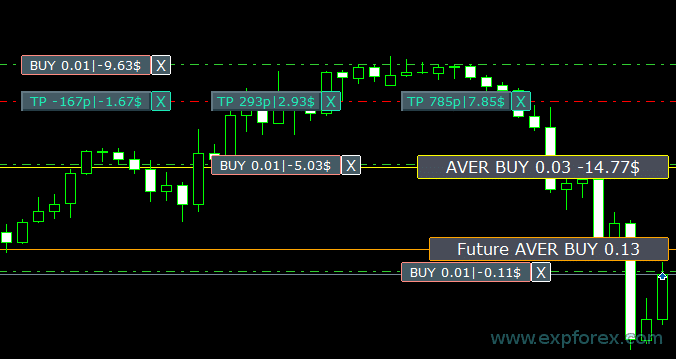 Future BUY / SELL – Shows the Future middle line (break-even point) and a lot if the user will now open the BUY / SELL position from the panel with the lot; It allows you to set the break-even line above/below the current midline. | ||
| ShowInfoPosition | Show/work on the chart information about open positions and their Stop Loss / Take Profits / Partial closing of deals. The information is shown in the form of text labels. Options for the display of information: – false – do not show information; – true always – always show on the chart; – true cursor is on the pad – show only when the cursor is on the panel; – true cursor is not on the pad – show only when the cursor is outside the panel. – true cursor is only on BUY SELL – show only when the cursor on the BUY SELL buttons 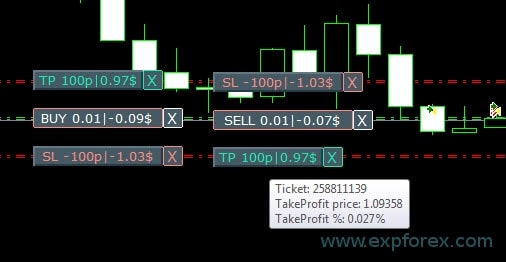 Move Stop Loss and Take Profit (Move the Stop Loss and Take Profit lines – this is a standard feature of the MetaTrader terminal) Delete Stoploss / Takeprofit: When you click on “X” near the SL or TP on the chart, you can delete this level; Close position partially or completely: When you click on “X” near the position on the chart, a window for choosing to close positions partially or completely will created: in percent: 10%, 25%, 50%, 100%; in lots: Lot step, Lot step * 2, Lot step * 5, Lot step * 10; 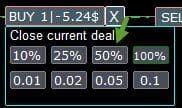 | ||
| Shift_from_Right | Parameter to shift text labels Shift_from_Right. The parameter in bars! By default, the value Shift_from_Right = 5 bars from the right price line is set in the VirtualTradePad panel (the shift of bars in the terminal is also taken into account) – Shift applied to all text labels on the chart! | ||
| ShowInfoClosedPositionSize | Added information about profit from closed positions to the chart. The information is displayed for each bar of the current timeframe. You can change the timeframe to see the result of trading on a certain bar of the current timeframe. If several positions/deals are closed on one bar of the current timeframe, the trading result is summarized, and the total information for a certain bar is displayed. The information is updated when the next position/deal is closed. Settings: ShowInfoClosedPositionSize = Size of text labels; If 0 – text labels are not shown for Default; PLUS_Color = Color of the plus value; MINUS_Color = Color of the minus value; 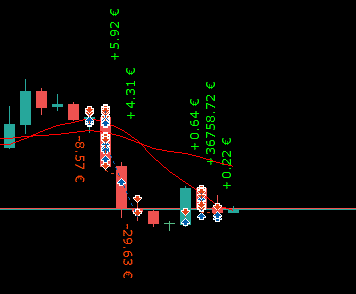 | ||
| Show_Prices_on_Tab_Position | Show information about price changes and direction of change on the BUY SELL buttons of the Positions tab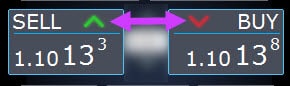 | ||
| Type_Profit_On_Position_Tab | Ea can Display profit information on the Positions tab. – in points of your broker. – in the currency of the deposit. -“Do not show” – turning off the profit display on the Positions page
| ||
| Show_Spread | Parameter for displaying the spread on the chart. Show_Spread. Show_Spread – This shows the spread in points of your broker on the chart! You can change the position of this mark by clicking on the spread button on the chart. The button has 4 positions on the chart. 
| ||
| Show_BuySell_LimitStop MetaTrader 5 | Show_BuySell_LimitStop – In MetaTrader 5. Additional buttons for opening Buy/Sell Stop Limit orders. You can enable the display of the Buy/Sell Stop Limit open buttons. It is turned off by default! 
| ||
| TypeofOrdersMagicTarget | TypeofOrdersMagicTarget – selection of the type of orders when using MagicTarget If stop loss and take profit are not used. BuyStop SellStop – When using Magic Target without stops, BuyStop / SellStop will be installed (by default, as in previous versions). BuyLimit SellLimit – When using the Magic Target without stops, BuyLimit / SellLimit will be installed. | ||
| Show_EndOfBar | Show_EndOfBar a text label on the chart with the end time of the current bar! It is possible to change the position of the information label with info about the end of the bar. If you click on this label, then the label will change the position on the chart! Time is shown every tick! This means that if there is no tick, then time stops! 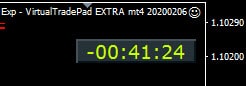 | ||
Trade options | |||
| Rounding | EA can be rounding all prices when opening and modifying orders and positions (deals). Options: No rounding, Rounding up to 1 digit, Rounding up to 2 digits. The function is created for Gold and Silver, as well as for brokers, where a specified accuracy of ticks is required. Example: Deal open price = 1.12345 Rounding to 1 digit = 1.12340 Rounding up to 2 digits = 1.12300 | ||
| MagicNumber | The magic number for positions and orders is Set when opening. Used in determining the positions and orders for My EA or someone else’s. 0 – Without a magic number, MultiMagic: Parameter MagicNumber updated: the first digit is intended to indicate the magic number for opening positions and modifying. You can also specify several magic numbers to accompany; e.g.: — MagicNumber = 777 UseAllMagicFromAllAccount = true: The Expert Advisor monitors all positions on the current symbol in the entire account; — MagicNumber = 777 UseAllMagicFromAllAccount = false: The Expert Advisor monitors positions with a magic number of 777 for the current symbol on the whole account; — MagicNumber = 777,888 UseAllMagicFromAllAccount = false: The Expert Advisor follows the positions with the magic numbers 777 and 888 (opens positions with the magic number 777) by the current symbol on the whole account; — MagicNumber = 777,888,999 UseAllMagicFromAllAccount = false: The Expert Advisor follows the positions with the magic numbers 777, 888, and 999 (opens positions with magic number 777) on the current symbol on the whole account; | ||
| UseAllMagicFromAllAccount | It allows you to take into account all positions opened in the terminal for this currency pair. Example: UseAllMagicFromAllAccount = true Then, all positions with any magic number will be taken into account when opening, closing, modifying, or calculating information. UseAllMagicFromAllAccount = false The expert advisor takes into account only those deals that have the MagicNumber. | ||
| MarketWatch | For opened positions with stop-loss / take-profit on an account with MARKET execution. First, an EA can open the position (Deal), and after the successful opening, the levels of StopLoss and TakeProfit are modified in this position (deal). True – for ECN brokers and accounts in which it is forbidden to set stops at the same time as opening a position. If your account is in the ECN or NDD group, you must set the option to true. | ||
| Slippage | The level of the maximum possible deviation in price when opening and closing positions (in Points). Example: Slippage = 1 Maximum deviation in price when opening a position = Opening price + -1 point(pips). Slippage = 100 Maximum deviation in price when opening a position = Opening price + -100 points(pips). For example, the price of opening a position when sending a deal to the server = 1.12345 But, if during the time of sending and opening a position (deal), the price has changed within 100 points (Requote), then the position (deal) will open with the price of within 1.12245 – 1.12445 | ||
| VirtualSLTPUse | Use virtual levels of stop loss/take profit when opening positions. When this option is enabled, the real stop loss and take profit will be hidden from the broker. The Expert Advisor will save the levels of stops in the array and chart. Attention: Virtual Stoploss and TakeProfit work only when the terminal is on. 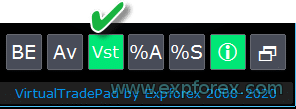 | ||
| Digitss | The number of decimal places in the display on the Position tab on the BUY SELL buttons Choices: Show_for_4_digits; Show_for_5_digits; | ||
| CommentOrders | A comment that will be added to the position or order comment when opened. Example: CommentOrders = “Super“, Position comment: Super; Added the ability to work with Binary Options BO: CommentOrders parameter updated. Now you can set the expiration time of the option, for example, 5 (Close after 5 minutes)! Unique comment support for brokers with BOs that require an individual comment. For example, CommentOrders = CLOSE31 (Close after 31 minutes) Specify the rules for writing a comment on the BO with your broker! | ||
Trade from Keyboard options | |||
| KeyBoardTrade | Using the keyboard as a trade one click For MAC users: To work with the panel on the keyboard, you need to use Control + key 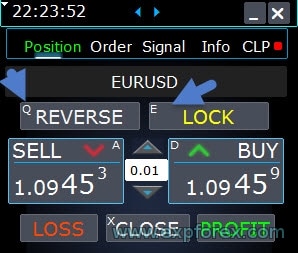 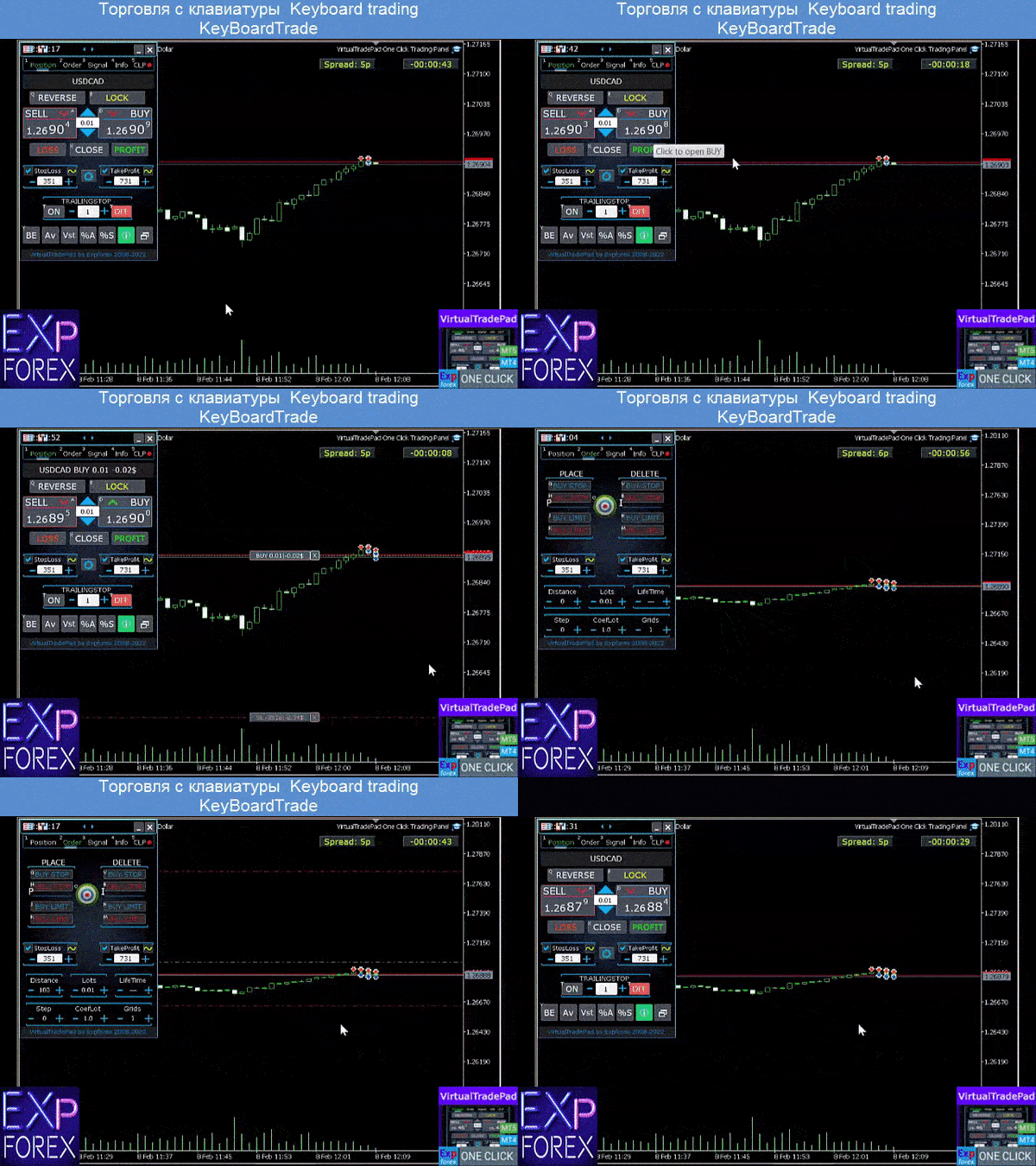 | ||
| Buy_KEY = BUTTON_D | Open the BUY position with the D key | ||
| Sell_KEY = BUTTON_A | Open the SELL position with the A key | ||
| Close_KEY = BUTTON_X | Closing positions with the X key | ||
| LossCLOSE_KEY = NONE | Closing only loss-making positions is not key | ||
| ProfitCLOSE_KEY = NONE | Closing only profitable positions is not key | ||
| Reverse_KEY = BUTTON_Q | Flipping positions with the Q button | ||
| Lock_KEY = BUTTON_E | Lock positions with the E button | ||
| MagicTarget | Working with MagicTarget: Hotkey to activate the MagicTarget / Cancel / Place button MagicTarget_Button_KEY = BUTTON_O – Activation of the Magic Target, by default, O. The tab on Orders automatically changes! MagicTarget_Place_KEY = BUTTON_P – Set the order by the set levels, by default P. MagicTarget_Cancel_KEY = BUTTON_I – Cancel by the displayed levels, by default I. Ability to drag an entire order on a chart using MagicTarget: When installing lines, you can change line levels by dragging lines on the chart. We have added the ability to drag the entire order, holding down the SHIFT button and dragging the main line of the opening price. | ||
| Orders | Ability to pending/delete stop/limit orders from the keyboard: BuyStop_Open_KEY = BUTTON_G; // BuyStop_Open_KEY -> Button to Open BuyStop order; SellStop_Open_KEY = BUTTON_H; // SellStop_Open_KEY -> Button to Open SellStop order; BuyLimit_Open_KEY = BUTTON_J; // BuyLimit_Open_KEY -> Button to Open BuyLimit order; SellLimit_Open_KEY = BUTTON_K; // SellLimit_Open_KEY -> Button to Open SellLimit order; BuyStop_Delete_KEY = BUTTON_V; // BuyStop_Delete_KEY -> Button to Delete BuyStop order; SellStop_Delete_KEY = BUTTON_B; // SellStop_Delete_KEY -> Button to Delete SellStop order; BuyLimit_Delete_KEY = BUTTON_N; // BuyLimit_Delete_KEY -> Button to Delete BuyLimit order; SellLimit_Delete_KEY = BUTTON_M; // SellLimit_Delete_KEY -> Button to Delete SellLimit order; | ||
|
| |||
| CloseConfirm ReverseConfirm LockConfirm BuySellConfirm | CloseConfirm function – user confirmation for closing positions. When you click on the buttons: Close, Loss, Profit. ReverseConfirm function – user confirmation for position reversal. When you click on the buttons: Reverse. LockConfirm function – user confirmation for blocking positions. When you press the buttons: Lock. BuySellConfirm – Confirmation of opening positions by clicking on BUY or SELL; CloseLOSSConfirm = false; // CloseLOSSConfirm -> Ask for permission when closing Loss positions ClosePROFConfirm = false; // ClosePROFConfirm -> Ask for permission when closing Profit positions 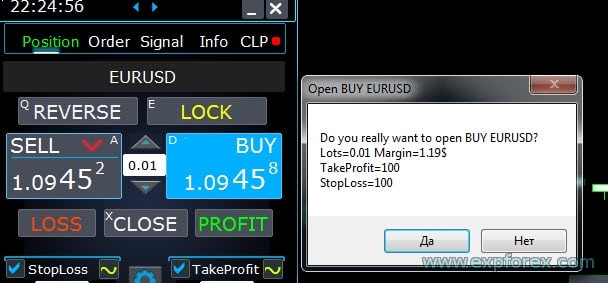 | ||
Lot options | |||
| DynamicLotStopLoss | You can Enable the dynamic calculation of the lot from the established stop loss as a percentage of the free margin. When the position is closed on the stop-loss, the loss of this position is equal to the fixed percentage of the free margin.  Example: DynamicLotStopLoss = true field Lots = 2 field Stoploss = 500 Free margin = 9999 Possible loss = $ 200 Calculated lot = 0.39 After enabling this function, the lot field on the panel will work as a percentage of the autolot. 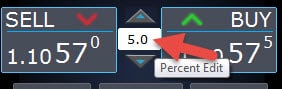 | ||
| DynamicLotAuto | You can enable dynamic lot calculation in percentage of free margin and other factors.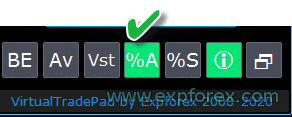 – calculate lots by percent of the balance; – calculate lots by percent of equity; After enabling this function, the lot field on the panel will work as a percentage of the autolot. To find out which lot will open, set the Percentage in the lot field and hover over the Buy or SELL buttons. On the chart, you will see the expected lot that opens with this Percentage.  AUTOLOT Calculation of our autolot. | ||
| RiskRate = 0 | The rate of your currency against the dollar. By default, RiskRate = 0, which means that the Expert Advisor will try to find the correct rate in the Market Review. For Autolot to work well with all currency pairs, you need to turn ON the “Show all currency pairs” in the Market Watch. | ||
| CoefLotForGridOrders= 1; | Multiply the next lot in the grid of pending orders when used on the Orders tab.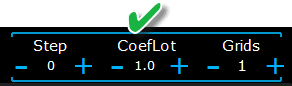 Example: CoefLotForGridOrders = 2, Grid = 5, Then the lots will open like this: 0.1, 0.2, 0.4, 0.8, 0.16; | ||
| AddLotForGridOrders= 0; | Additional lot for each element of the grid of pending orders when used on the Orders tab. Example: AddLotForGridOrders = 0.1, Grid = 5, Then the lots will open like this: 0.1, 0.2, 0.3, 0.4, 0.5; | ||
| MaxLotToOpen | A maximum lot that can be set when calculating functions DynamicLotStopLoss and DynamicLotAuto | ||
Step options | |||
| Only In MT5: Added the ability to change the value in the input field on the tabs of our panel using the mouse and scrolling (middle mouse wheel) When you hover over the input field and use the scroll, you can decrease or increase the values of this field! | |||
| Step_Lots = 0.01 | Step of changing the LOTS field when using + – | ||
| Step_StopLoss = 1 | Step of changing the StopLoss field when using + – | ||
| Step_TakeProfit = 1 | Step of changing the TakeProfit field when using + – | ||
| Step_Distance = 1 | Step of changing the Distance field when using + – | ||
| Step_TrailingStop | Step of changing the TrailingStop field when using + – | ||
| AutoCorrect_Distance | Automatic adjustment of the field “Distance” for pending orders. Now you can turn off this adjustment and open pending and limit orders at the current price with a distance of 0 (for brokers who allow you to do this.) | ||
| Step_CLP_TralOptions(Only for MT5) | The step of changing the Trailing Profit field on the CLP tab when using the Scrolling (Wheel) mouse. | ||
| TrailingStop options | |||
| StartPointsForTrailingStop | – The amount of additional profit in points when setting Stoploss. –When using the Trailing Stop, Our Expert Advisor will set an additional profit in points to the StopLoss. | ||
| Step_TrailingStep = 1 | The step of changing the Trailing Stop in the modification of positions. It is installed to work with the TrailingStop function. Example: Step_TrailingStep = 1 With a trailing stop, the stoploss changes in steps of 1 point: 1.12345, 1.12346, 1.12347, …… Step_TrailingStep = 15 With a trailing stop, the stoploss changes in 15-point increments: 1.12345, 1.12360, 1.12375, …… | ||
Breakeven options | |||
| MovingInWLUSE (Breakeven) in the PAD: BE | Enable the breakeven function. The function modified the stoploss in LevelWLoss points when the position reached the LevelProfit of the profit points. Functional features of experts from www.expforex.com Example: LevelWLoss = 50 LevelProfit = 200 As soon as the position accumulates 200 points of profit, the StopLoss of the position will be modified to the opening price of the position (+ spread) + 50 points. Example: LevelWLoss = 0 LevelProfit = 100 As soon as the position accumulates 100 points of profit, the StopLoss of the position will be modified to the opening price of the position (+ spread) How To Enable Breakeven. 1. In the EA settings (Press F7), 2. You can adjust parameters in Points(Pips). 3. Then please click BE in the VirtualTradePad panel. 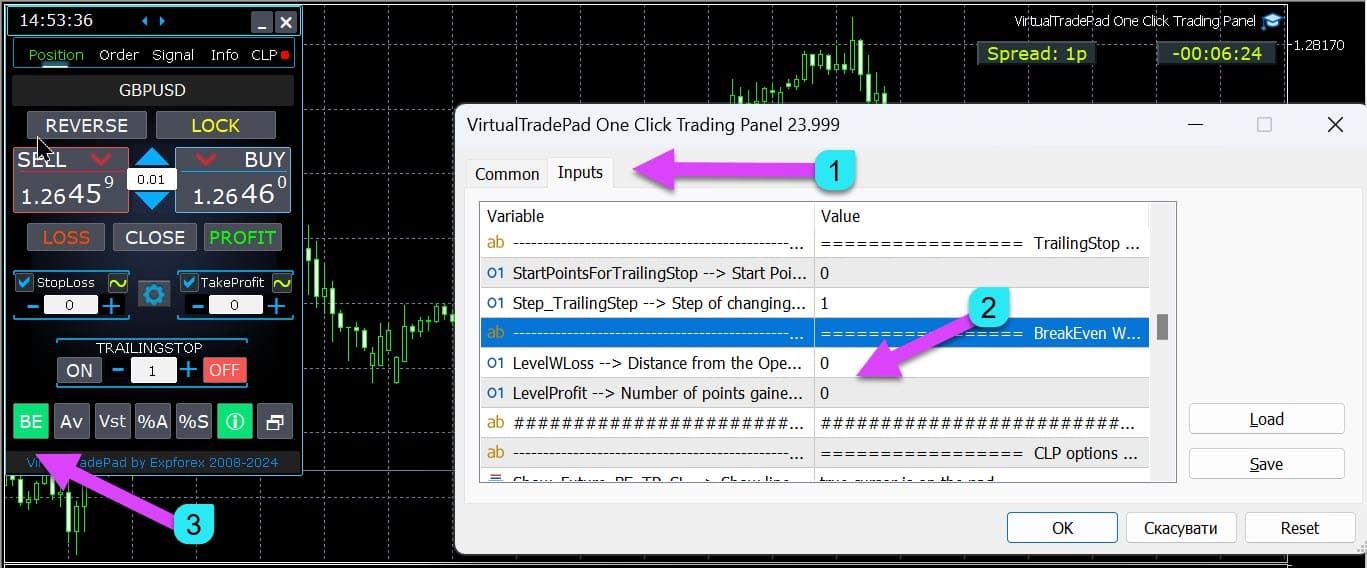
| ||
| LevelWLoss = 0 | The level of profit (LevelWLoss) in points on which the Stop Loss is set when this function is enabled. 1 = 1 point of profit; 0 = Automatic minimum profit mode. If it is 0, then the number of points of profit for the breakeven (stoploss on the breakeven point) = Spread of the current currency pair. | ||
| LevelProfit = 0 | The number of profit points (LevelProfit) gained by the position for setup a stop-loss in the LevelWLoss of profit points(Pips). LevelProfit must be greater than LevelWLoss | ||
Close by total profit or loss options | |||
| Show_Future_BE_TP_SL | Show break-even and profit and loss levels on the current chart. The price of lines is calculated based on the entered values in the fields Profit and Loss in points/dollars/percent. Caution: Only works on the current symbol and when the SEPARATE Orders mode is off. The lines are shown at the intersection of the function of “closing on profit or loss.” Lines are shown separately for Buy and Sell positions or an Average line. If the line is not shown, then the positions form a lock, which can not be closed by the total profit or loss. Note: Line and price data may not be accurate on the floating spreadsheet. Remember! SELL is closed by ASK, and BUY is closed by BID. It is important to remember that the price of one point can change with the quotations of other currency pairs. For example, if the price of 1 point of the EURJPY currency pair and the currency of the deposit is the dollar, the USDJPY rate changes effect. The cost of 1 point = 0.01 JPY. If your account is in dollars or rubles, then the cost of the symbol is continually changing. This means that the line of future profit or loss can change. And the exact level of closure can not be predicted.+ The level of future profit or loss can be influenced by commission and swaps. And also at closing. | ||
| CLP_TralOptionsStep=0 | The step of changing the level of profit when trailing profits are conventional units (points, deposit currency, percents). When the Trailing Profit function is in operation, the Expert Advisor remembers the profit level of each 1 unit(points, dollars, percent). Example: CLP_TralOptionsStep = 1 The fixation of the level of profit occurs every 1 unit(points, dollars, percent). CLP_TralOptionsStep = 15 The profit level is fixed every 15 units(points, dollars, percent). | ||
| CLP_DeleteStopOrders | Delete pending orders when “closing on the total profit or loss” | ||
| Use_Lots_in_CLP_Points | When calculating points of profit or loss, the advisor will also take into account the lot(Volume) of these positions. This option is useful when trading on a hedge account with different lots. Example: Open 2 positions SELL for EURUSD SELL 0.01 with a profit of 20 points and $ 0.2 SELL 0.02 with a loss of -12 points and -0.24 dollars. –When Use_Lots_in_CLP_Points = false, the Expert Advisor will calculate the “clean” points. In this case, the profit will be -0.04 dollars or 8 points. As we see, the position (Deal) gained profit, but in dollars, it is a loss. –When using_Lots_in_CLP_Points = true, the Expert Advisor will calculate the points taking into account the Lots. In this case, the profit will be -0.04 dollars or -4 points. When calculating the profit in points and including the option “Include lots in the calculation of profits,” the EA finds the minimum lot from the presented positions and, proceeding from this lot, calculates Points. e.g.: Minimum position 0.01, 1 “clean” point = 1 point, If a position with lot 0.02 is opened, then 1 net point = 2 points, including the lot. If the position with lot 0.05 is opened, then 1 net point = 5 points, including the lot. | ||
| Use_Commission_in_CLP | Use_Commission_in_CLP – Use the calculation of commission when closing positions. True – take into account the commission in the calculations. False – do not take into account the commission in the calculations. Attention: The commission is calculated from an open deal and multiplied by 2 (When closing a deal, a commission is also charged) This is the standard way to calculate commission! In MetaTrader 5, it is impossible to get the type of commission calculation from an adviser! If you do not want the adviser to calculate the commission automatically, you can turn off this feature! Attention! This function only affects the calculations on the CLP tab. All other tabs work in standard mode, taking into account commissions. | ||
| AutoCorrect_LevelCLP = true | In the loss field, you can now enter only minus values; if the user enters +10, then the system will automatically set it to -10. In the profit field, you can now enter only positive values; if the user enters -10, then the system will automatically set it to +10. CLP_TralOptions, you can enter only a positive value. Otherwise, the Expert Advisor will return an error. if AutoCorrect_LevelCLP =false you can set trailing profit to be triggered from the minus zone https://expforex.com/closeifprofitorloss/#faq | ||
| CPL_AlerT | Send a message on profit/loss on a terminal chart | ||
| CPL_Mail | Send a message on profit/loss on a Mail How to set up a terminal to send mail | ||
| CPL_Push | Send a message on profit/loss on a PUSH | ||
| CPL_CloseAllCharts_per CloseAllDeals | CPL_CloseAllCharts_per_CloseAllDeals = close charts / other charts before closing positions. — This parameter allows us to solve the problem when our panel begins to close positions upon reaching the total profit or loss. In the meantime, other experts simultaneously begin to open new positions. — The CPL_CloseAllCharts_per_CloseAllDeals parameter closes only those charts on which other Expert Advisors are installed (except for VirtualTradePad) only for MT5. — The CPL_CloseAllCharts_per_CloseAllDeals parameter closes All charts (When All Symbols are enabled) or only those with a chart symbol = VirtualTradePad symbol. — The CPL_CloseAllCharts_per_CloseAllDeals parameter saves chart templates before closing them! The template can be downloaded later. Template name: VTP_Symbol_Period_Name of the expert (only for MT5). Important: — In MT5: Only those charts on which the Expert Advisor is installed are closed in MT5 — In Мt4: there is no way to find out the name of the Expert Advisor, so all charts are closed. When this function is enabled, CPL_CloseAllCharts_per_CloseAllDeals = true, then VirtualTradePad (before closing positions) will first save the templates of all charts, close all charts, and close all positions. https://www.youtube.com/embed/AVSjDDitclE | ||
| CPL_CloseTerminalAfterClose | The terminal will be closed after all positions have been closed. | ||
| CPL_AUTOOFF_AfterClose | Automatically turn off the “Closing on the total profit or loss” button after the closing of all positions. The turn-off occurs only when ALL Positions are closed. The Magic number specified in the Expert Advisor is taken into account, as well as the symbol for closing. If you choose to close only 1 currency, in this case, the parameter CPL_AUTOOFF_AfterClose is enabled, then the EA waits until all positions for this currency are closed, and only after this can the EA turn off the button. | ||
| ClosingCurrentTicketOnly | ClosingCurrentTicketOnly – Close only the current list of tickets. This option will help to avoid problems when my program starts to close positions based on total profit and the user’s adviser starts to open new positions. ClosingCurrentTicketOnly = true. Then, the VirtualTradePad program, if the total profit conditions are met, will close the current list of positions. If new tickets are added to the list of positions, the VirtualTradePad program will ignore them. ClosingCurrentTicketOnly = false. Then, the VirtualTradePad program, if the total profit conditions are met, will close all positions, even if another adviser opens new positions. | ||
| e05vps=”================= VPS MQL5 CLP options VPS_CLP_Activation=false;//VPS_CLP_Activation –> CLP activation for VPS VPS_CLP_AllSymbols=false; VPS_CLP_CurrentSymbol=false; VPS_CLP_SeparateBUYSELL=false; VPS_CLP_SeparateDEALS=false; e060=”===================================”; VPS_CLP_Profit_Currency=false; VPS_CLP_Profit_Currency_amount=0; VPS_CLP_Profit_Pips=false; VPS_CLP_Profit_Pips_amount=0; VPS_CLP_Profit_Percent=false; VPS_CLP_Profit_Percent_amount=0; e061=”===================================”; VPS_CLP_Trailing_Profit_Currency=false; VPS_CLP_Trailing_Profit_Currency_amount=0; VPS_CLP_Trailing_Profit_Pips=false; VPS_CLP_Trailing_Profit_Pips_amount=0; VPS_CLP_Trailing_Profit_Percent=false; VPS_CLP_Trailing_Profit_Percent_amount=0; e062=”===================================”; VPS_CLP_Loss_Currency=false; VPS_CLP_Loss_Currency_amount=0; VPS_CLP_Loss_Pips=false; VPS_CLP_Loss_Pips_amount=0; VPS_CLP_Loss_Percent=false; VPS_CLP_Loss_Percent_amount=0; | CLP tab settings to the Trade Pad external parameters. Because MetaQuotes prohibits sending global variables to the VPS server from MQL (MetaQuotes), all buttons, checkboxes, edit fields, and controls on the Trade Pad panel no longer work on VPS from MQL (MetaQuotes). You can customize the function of closing by total profit or loss from the external settings of the Utility: Attention! If the VPS_CLP_Activation parameter is enabled (true), then All settings for this function will work from external variables! Objects on the CLP tab – will be inactive! | ||
Color options | |||
| MAGIC_FONTSIZE = 12 | The text size on the chart when using MagicTarget as well as Show_Future_BE_TP_SL and Show_Future_Line | ||
| MAGIC_ORDER = clrYellow | The color of the center line, the opening price of the position, and the order on the chart. | ||
| MAGIC_STOPLOSS = clrRed | The color of stoploss lines on the graph | ||
| MAGIC_TAKEPROFIT= clrGreen | The color of the takeprofit lines on the graph | ||
| NULLColor1 = clrGray | Color in the information in the panel | ||
| PLUS_Color = clrLime | The color of the plus value in the panel information | ||
| MINUS_Color = clrOrangeRed | The color of the minus value in the panel information | ||
| TEXTColor4 = clrAqua | The text color in the panel information | ||
Signals options | |||
| Signals_Percent = 0 | Signals Percent: If the total signal in the Signals tab is exceeded, the set value is expressed in percentage.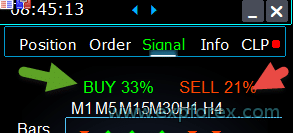 0 – disabled; | ||
| Percent_difference_Signals | The percentage difference between the two signals to act (Alert, Open Positions) For example: Signals_Percent = 40% Percent_difference_Signals = 10%: A signal to BUY can only be when the total signal for the direction BUY is> 40% and the total signal SELL <30% The signal on the SELL can only be when the total signal for the direction SELL is> 40%, the total signal BUY is <30% | ||
| AutoTrade_by_Signals | Automatically open a position when the aggregate signal level has exceeded Signals_Alert_After_Percent percent. Example: Signals_Alert_After_Percent = 70 AutoTrade_by_Signals = true When the level of the aggregate BUY signal exceeds 70%, then the EA will open the BUY position When the level of the aggregate SELL signal exceeds 70%, then the EA will open the SELL position – false; – true All Deals; – true Only Buy; – true Only Sell; | ||
| AutoClose_by_Signals | AutoClose_by_Signals = Close the opposite position when the main signal changes. — Allows VirtualTradePad to work in automatic Open / Close positions based on the aggregate signal as a percentage. | ||
| Alert_by_Signals | Separate variable to display a message on the screen when the conditions for the general signal are met. Alert_by_Signals – Turn ON or turn off the display of an alert on the screen. | ||
| Shift = 0 | Bar number for signal Article on signal bars | ||
| Signals_M1 – Signals_W1 | Turn on or off the display of information on the Signals Tab for the selected TF. | ||
| Signals_BARS – Signals_ALI | Turn on or off the display of information on the Signals Tab for the selected indicators. | ||
Risk Manager Limiting losses / profits / Lots / Numbers Limiting options | |||
| LimitFor = 3 | Added Risk Manager: Risk Manager Limiting losses/profits / Lots / Numbers If YOU decided to limit losses on the current client magic, then you can do this in a new block. Attention: This block does not close the deal! He brings up an alert! The next LimitFor, this parameter is reset to 0. Also, you can enable sending messages to mail and phone when reaching the limits of NotificationMailSend. Attention! This block only works to block the opening of positions from our VirtualTradePad panel! And it can not influence and block other advisors! Block Limiting updated and supplemented! This settings block allows users to limit Profit/loss/lots/number of deals/positions for a specified time. A risk manager who monitors your trading and notifies you that the time limit has been exceeded with Current positions/today/week/month / all the time. It is possible to turn off the operation of the BUY / SELL / LOCK / REVERSE / BUY STOP / BUYLIMIT / SELL STOP / SELLLIMIT buttons if the limit is exceeded. Disables the ability to open deals/positions on the current currency pair if the current value has exceeded your limit. Settings: CurrentOpenDeals – Take into account current open deals/positions; ClosedDeals – Take into account closed deals/positions over time: LimitFor – The time during which closed deals/positions in the history will be checked; LimitForLosses – The loss limit at which the EA will send a message must be specified with -; LimitForProfits – Profit limit at which the EA will send a message; LimitForLotsDeals – Limit of Lots of deals/positions, at which the adviser will send a message; LimitForCountDeals – Limit the number of deals/positions at which the EA will send a message; NotificationMailSend – Send a message to the phone (PUSH) and mail if the limit is exceeded; ProhibitOpeningNewDealsOrders – Disables the operation of the BUY / SELL / LOCK / REVERSE / BUYSTOP / BUYLIMIT / SELLSTOP / SELLLIMIT buttons if the limit is exceeded. Choices: DAY – take into account the profit and loss for the current day; WEEK– take into account the profit and loss for the current week; MONTH– take into account the profit and loss for the current month; ALLTIME– account for profit and loss for all time. Example: You need an expert to send you mail and display an alert on the screen when the total loss for open and closed deals within LimitFor will be less than -100 dollars: Your settings will be as follows: LimitFor = 0; LimitForLosses = -100; LimitForProfits = 0; After reaching a loss on the history of the day -100 dollars, the EA will give a message on the screen in the form of an Alert and send mail. | ||
| LimitForLosses | The loss value | ||
| LimitForProfits | The profit value | ||
| spread limitation (Min Max) to the Risk manager when opening a position. new parameters: LimitForSpreadMin = 0; -> Min Spread to trade LimitForSpreadMax = 0; -> Max Spread to trade | |||
| NotificationMailSend | Also, you can enable sending messages to mail and phone when reaching the limits of NotificationMailSend. How to set up a terminal to send mail | ||
Other MT5 options | |||
| TypeFilling = Auto | The type of fill positions and orders. It is used for the MT5 terminal. In AUTO mode, the Expert Advisor tries to determine the fill type automatically. But, in some situations, you need to set the fill type yourself. If you get an error when opening a position 10030 TRADE_RETCODE_INVALID_FILL, An unsupported type of execution of the remainder order is indicated. Set the type of fill that your broker rules. Example: FillOrKill This execution policy means that the order can be executed only in the specified amount. If the market currently does not have a sufficient amount of a financial instrument, then the order will not be executed. The required volume can be made up of several offers available at the moment in the market. ImmediateOrCancel It means the agreement to make a deal on the maximum available volume on the market within limits specified in the warrant. In case of impossibility of full execution, the order will be executed for an accessible volume, and the unexecuted order volume will be canceled. Return This mode is used for market, limit, and stop-limit orders and only in the modes “Market Execution” and “Stock Execution”. In case of partial execution, a market or limit order with a residual volume is not withdrawn but continues to operate. For stop-limit orders, the corresponding limit order with the execution type Return will be created upon activation. | ||
| DayToExpiration = 0 | DayToExpiration = number of days for the order expiration. – 0 – ORDER_TIME_GTC The order will be in the queue until it is removed ; – 1 – ORDER_TIME_DAY The order will be valid only for the current trading day; – X – ORDER_TIME_SPECIFIED The order will remain valid until the expiry date. If you get a Rejected error and when you hover over the order in the history, you see this: (incomplete FOK information of the order), If you have a BCS broker or Open broker, then you need to install: TypeFilling= ImmediateOrCancel or TypeFilling = Return DayToExpiration= 1 | ||
Description of external variables of indicators
Moving Average (MA)
- MAFastPeriod and MASlowPeriod – periods of MA;
- MAFastPrice and MASlowPrice – average prices;
- MAFastShift and MASlowShift – offset to the right bar;
- MAFastMethod and MASlowMethod – averaging method: simple, exponential, smoothed, linearly weighted.
Moving Average Convergence / Divergence (MACD)
- MACDFast – the period of fast MA;
- MACDSlow – the period of slow MA;
- MACDSignal – the period of the signal MA;
- MAPrice – the price of calculating the average.
Stochastic Oscillator
- StochK -% K-period;
- StochD -% D-period;
- StochSlowing – slowing the indicator;
- StochPrice – the settlement price;
- StochMethod is the averaging method.
RSI indicator
- RSIPeriod – Indicator period,
- RSIPrice – Calculation price
Commodity Channel Index (CCI)
- CCIPeriod – Indicator period,
- CCIPrice- Calculation price
Williams Percent Range (WPR)
- WPRPeriod- Indicator period,
Bollinger Band (BB)
- BandsPeriod – indicator period;
- BandsShift – offset to the right;
- BandsDeviation – deviation;
- BandsPrice – the price of the calculation.
Alligator (ALI)
- JawPeriod – the period of the jaws, the blue line;
- JawShift – shift the jaws to the right;
- TeethPeriod – the period of teeth;
- TeethShift – a shift of teeth to the right;
- LipsPeriod – the period of the lips;
- LipsShift – shift the lips to the right.
FAQ Question and Answer about Exp – VirtualTradePad

Our General FAQ
FAQ Answers to the most popular questions
Question: What are the values in the fields for editing in Points or pips?
In points()! The item is taken from the value of the Point () variable of the MQL language.
- If you have a 5 \ 3 digit broker, then 1 point = 0.00001 \ 0.001
- If you have a 4 \ 2 digit broker, then 1 point = 0.0001 \ 0.01
Question: Why, when switching TF from a chart from other indicators in MT4, the chart freezes for 10 seconds?
This is a specific feature of the ChartSetSymbolPeriod function in MT4.
In indicators, when using other panels and graphic objects, this leads to freezing.
We are unable to resolve this issue. To change TF, use the standard method.
Also, The Expert Advisor has the priority of performing actions from the chart.
Therefore, if you press the buttons on your indicator, the triggering of this button starts when the Expert Advisor has processed all chart actions.
Question: Does your program work on Renko charts or offline charts?
Answer: Yes, my VirtualTradePad program is compatible with offline charts, including Renko charts, provided that your Renko chart indicator generates real-time ticks for the offline chart.
In other words, if your indicator continuously sends live price data to the offline chart, then the VirtualTradePad Expert Advisor will be able to execute its functions on that chart without issue.
For example, here’s how VirtualTradePad works on an M2 offline chart:

You can also use this:
| SymbolToTradeCustom | Variable indication of the currency pair for the panel operation: SymbolToTradeCustomThis makes it possible to trade on offline charts (Ticks, Renko, etc.). Caution: Be careful when writing a NAME. The name must fully match the name in the Market Review!EurUSD – Wrong! EURUSD – That’s right!If this parameter is not set, the Expert Advisor works on the currency pair on which it is installed(Current Symbol)! |
What is VirtualTradePad?
VirtualTradePad is a versatile trading panel compatible with any account and broker.
It offers an intuitive interface for managing trades, positions, orders, and risk directly from your trading terminal, making it easier for traders of all levels to navigate the markets efficiently.
Which brokers are supported by VirtualTradePad?
VirtualTradePad works seamlessly with any broker that supports MetaTrader 4 (MT4) or MetaTrader 5 (MT5) platforms, ensuring broad compatibility and flexibility for traders using different brokerage services.
Does VirtualTradePad support multiple languages?
Yes, VirtualTradePad includes multi-language support within the panel, allowing traders from various regions to use the tool in their preferred language for enhanced usability.
Is special training required to use VirtualTradePad?
No special training is required.
VirtualTradePad is designed with an easy and intuitive interface, making it user-friendly for both novice and experienced traders without the need for extensive training.
What are the main features of VirtualTradePad?
VirtualTradePad offers key features such as position management (BUY/SELL), order management (Pending/Limit orders), risk management tools (Stop Loss, Take Profit, Trailing Stop, Breakeven), multi-timeframe indicator signals, and comprehensive information displays, all accessible through an intuitive interface.
How does VirtualTradePad handle position management?
VirtualTradePad allows traders to open and close BUY and SELL positions, reverse all open positions, lock total positions, set fixed and dynamic Stop Loss and Take Profit levels, apply Trailing Stops, enable Breakeven, and manage positions directly from the terminal chart.
Can VirtualTradePad manage both virtual and real Stop Loss levels?
Yes, VirtualTradePad provides options to select either virtual or real Stop Loss, Take Profit, Trailing Stop, and Breakeven levels, giving traders flexibility in how they manage their risk.
How do I install VirtualTradePad on MetaTrader?
To install VirtualTradePad, download the Expert Advisor (EA) and indicators, place them in the respective MetaTrader folders (usually under MQL4/MQL5), restart MetaTrader, and attach the VirtualTradePad panel to your desired chart.
What types of orders can I manage with VirtualTradePad?
VirtualTradePad supports managing Buy Stop, Sell Stop, Buy Limit, and Sell Limit orders.
It also allows building grids of orders with customizable lot sizes and distances, and managing these orders directly from the chart.
How does the Trailing Stop feature work in VirtualTradePad?
The Trailing Stop feature in VirtualTradePad automatically adjusts the Stop Loss level as the market price moves in favor of the trade.
You can set the trailing distance in points, dollars, or percentage, ensuring profits are secured as the trade progresses.
What is the Breakeven feature in VirtualTradePad?
The Breakeven feature automatically moves the Stop Loss to the entry price once a trade reaches a specified profit level.
This helps in eliminating potential losses by ensuring that the trade cannot result in a loss once the breakeven point is reached.
Can VirtualTradePad execute partial position closures?
Yes, VirtualTradePad allows for partial closures of positions directly from the chart.
Traders can specify the percentage or lot size to close a portion of their open positions, providing greater control over trade management.
How does VirtualTradePad integrate with trading indicators?
VirtualTradePad includes a Signals tab that works with 10 standard indicators across 8 timeframes.
It displays cumulative signal percentages for BUY and SELL directions and can automatically open positions when signal thresholds are met, enhancing trading strategies based on technical analysis.
What information is displayed in the INFO tab of VirtualTradePad?
The INFO tab provides detailed information about the selected currency pair, including current positions, total profit, spread, minimum order levels, swap rates, execution type, point value, distances to Stop Loss and Take Profit, and profit/loss statistics for daily, weekly, monthly, and annual periods.
Does VirtualTradePad support keyboard shortcuts for trading?
Yes, VirtualTradePad offers customizable keyboard shortcuts for various trading functions, such as opening BUY/SELL positions, managing orders, and switching between tabs.
This feature allows for faster and more efficient trading directly from the keyboard.
How does VirtualTradePad enhance risk management?
VirtualTradePad enhances risk management by providing tools to set and manage Stop Loss and Take Profit levels, apply Trailing Stops and Breakeven, lock positions to neutralize exposure, and automatically close positions based on total profit or loss thresholds.
Can I customize the lot size in VirtualTradePad?
Yes, VirtualTradePad offers options for Fixed Lot sizes, Autolot based on balance percentage or Stop Loss, and Dynamic Lot sizing.
Traders can adjust lot increments and set parameters to match their trading strategies and risk tolerance.
What are the system requirements for running VirtualTradePad?
VirtualTradePad requires the MetaTrader 4 or MetaTrader 5 platform to operate.
It is compatible with Windows operating systems where MetaTrader is supported.
Ensure your trading terminal is up to date for optimal performance.
How does VirtualTradePad handle multiple currency pairs?
VirtualTradePad can manage multiple currency pairs through its comprehensive panel, allowing traders to monitor and control positions, orders, and risk for all symbols from a single interface.
The INFO tab provides aggregated data for each currency pair.
Is VirtualTradePad compatible with MetaQuotes VPS?
Yes, VirtualTradePad can be used on MetaQuotes VPS servers.
However, some functions may be limited due to MetaQuotes restrictions on global variable transmission.
It’s recommended to configure closing functions through external settings for seamless operation on VPS.
What are MagicTarget buttons in VirtualTradePad?
MagicTarget buttons in VirtualTradePad allow traders to quickly place pending orders or positions directly on the chart by specifying entry, Stop Loss, and Take Profit levels using the cursor.
This feature streamlines the order setup process for precise trade management.
How does VirtualTradePad display trading signals?
Trading signals in VirtualTradePad are displayed in the Signals tab, which analyzes 10 standard indicators across 8 timeframes.
It visually represents BUY and SELL signals with arrows and percentage strengths, helping traders make informed decisions based on technical analysis.
Can VirtualTradePad capture and save chart screenshots?
Yes, VirtualTradePad includes a “ScreenShot” button that captures the current chart, including all indicators and objects, and saves the image in the designated folder within the MetaTrader directory for future reference or analysis.
How can I manage trailing profit in VirtualTradePad?
Trailing Profit in VirtualTradePad allows traders to manage floating profits by trailing them instead of closing positions immediately upon reaching a profit target.
Users can set trailing distances in points, dollars, or percentage, enabling profits to run while protecting gains.
What support options are available for VirtualTradePad users?
VirtualTradePad users can access support through comprehensive documentation, video tutorials, and dedicated customer service channels.
Additionally, users can benefit from community forums and updates to ensure they maximize the tool’s potential for their trading activities.
Changelog for VirtualTradePad
Reviews about VirtualTradePad
Thanks for feedback!

Nguyen Tho
⭐⭐⭐⭐⭐
When I change the time frame to view on the chart, the trading history still displays, even though I have turned off this feature on the chart. Please guide me on how to disable it on your software.Reply from ExpForex:
Xin chào! Với MT5, để tắt hiển thị lịch sử lệnh trên biểu đồ (và không bị bật lại khi đổi khung thời gian), bạn làm như sau: 1) Tắt hiển thị lịch sử lệnh trên chart Mở biểu đồ cần xem Nhấn F8 (Thuộc tính biểu đồ / Properties) Vào tab Common (Chung) Bỏ chọn Show trade history (Hiển thị lịch sử giao dịch) Nhấn OK
talavera.merced
⭐⭐⭐⭐⭐
He cambiado ordenador por rotura, trato de instalar en uno nuevo y dice que no quedan activaciones. Si el otro no funciona y no está en uso, no se puede usar el indicador en el nuevo? hay que comprarlo de nuevo?Reply from ExpForex:
Lamentablemente, no es posible transferir una activación del ordenador antiguo al nuevo. Sin embargo, el producto incluye 10 activaciones. ¿Has utilizado ya las 10 activaciones?
Chanon Chaichanachot
⭐⭐⭐⭐⭐
In the "Risk Manager/Prohibit Opening" please consider adding "deny trading during these time" "00:00-15:35, 22:55-24:00" for examples I'm currently using "AutoTrading Scheduler" as a work around. Thank You... Great Tool! ***I'm using autotrade/autoclose by signals(on VPS), so it would prevent EA from opening new trade during certain time while maintaining floating trade.Reply from ExpForex:
Hi, thank you. Do you mean to prevent opening from the panel?
Ivan Nedelko
⭐⭐⭐⭐⭐
Привет, почему при открытии позиции с мекджик баттон не видно на графике уровни стопов и тейка? И приходится потом вручную их добавлять! Раньше такого не было!Reply from ExpForex:
Приветствую. скорее всего стоплосс и тейкпрофит не включен в панели. нужно см отреть скриншот. Эти функции не изменялись
4131199
⭐⭐⭐⭐⭐
Hi, can please add me in friend list? I have some questions needed your support. ThanksReply from ExpForex:
Hello Yes. You can add questions about VTP on the Comments saction
Jose Antonio Camara Martinez
⭐⭐⭐⭐⭐
Buenas tardes, sobre el VirtualTradePad --¿ cuando se activa cierre por ganancias se podrían cerrar automáticamente tanto ordenes abiertas como ordenes pendientes?Reply from ExpForex:
¡Hola! Claro, puede habilitar la función para eliminar las órdenes pendientes una vez que se alcanza el beneficio total. Para ello, en la configuración del Asesor Experto (F7), establezca la opción en "true": CLP_DeleteStopOrders Eliminar órdenes pendientes cuando se cierra por “beneficio o pérdida total”. Esto garantizará que las órdenes pendientes se eliminen automáticamente al cerrarse la operación con ganancia o pérdida general.

Jose Antonio Camara Martinez
⭐⭐⭐⭐⭐
Jose Antonio Camara Martinez Buenas tardes, sobre el VirtualTradePad --¿ cuando se activa cierre por ganancias se podrían cerrar automáticamente tanto ordenes abiertas como ordenes pendientes?
Vladislav Andruschenko ¡Hola! Claro, puede habilitar la función para eliminar las órdenes pendientes una vez que se alcanza el beneficio total. Para ello, en la configuración del Asesor Experto (F7), establezca la opción en "true": CLP_DeleteStopOrders Eliminar órdenes pendientes cuando se cierra por “beneficio o pérdida total”. Esto garantizará que las órdenes pendientes se eliminen automáticamente al cerrarse la operación con ganancia o pérdida general.

Kalen
⭐⭐⭐⭐⭐
I've been using the MT4/MT5 versions for years now. I could not trade without this tool, its amazing. Otherwise it is a perfect app. Ok it also has a few formatting issues with previews and numbers on the chart, but cmon its an amazing EA and worth your money! One problem I'm having right now though is as follows: If I have my Stop loss set at 100, and my Take profit at 200, when I go to click the "Buy" button, and I show on the chart where my Take profit and Stop loss would be, they are reversed. So for a buy in this case, my Stop loss would show 200, and my Take profit 100, even though that is the opposit for what I have them set at. This goes for clicking the "Sell" button. Basically, the Take profit and Stop loss previews are backwards, which is very frustrating. -Edit: The issue is being worked on, and I'm sure will be fixed soon. Perfect product and great support from the developer 🙂

MarcieliRaimondi
⭐⭐⭐⭐⭐
Olá, uso o VTP já a bastante tempo, mas tem travado muito no meu PC, gostaria de instar ele na VPS, mas diz que não tenho mais licença para instalar, porém estou usando apenas em 3 MT5 e tenho disponivel 10 licenças, onde eu posso ver os locais em que estão sendo acessados minhas licenças? E, como instalar o VTP na VPS????? Olá! Você pode verificar quantas ativações ainda possui diretamente no seu perfil da MQL5.com. ???? Seu perfil:???? Vá até a aba “Mercado” e role a página para baixo para ver a lista dos produtos comprados e o número de ativações restantes.✅ Por favor, envie uma captura de tela dessa seção para confirmação.ℹ️ Informações adicionais:Você pode instalar o robô em até 10 computadores diferentes (PC pessoal, servidor VPS, notebook do trabalho, etc.).Não há limite para o número de contas ou terminais de negociação. No entanto, mudanças no hardware (como substituição do HD/SSD, processador ou até uma atualização do Windows) podem consumir uma nova ativação.Lembre-se de que cada instalação consome recursos do sistema (CPU/RAM), e executar muitos terminais ao mesmo tempo pode afetar o desempenho.
Kurt-
⭐⭐⭐⭐⭐
Отличный советник. Давно пользуюсь, с начало на мт 4, сейчас на мт 5. На мт 5 долго загружалось, были заедания, обязателен сд диск, сейчас работает, как на 4. Похоже это сам терминал доработали, это уже месяцев 10. Удобен расчитывает позицию, маржу, может еще своп можно сделать чтоб расчитывал и коммисию, все сразу видно, отличная программа.Reply from ExpForex:
Спасибо за отзыв. Идей очень много. Но не хватает времени на все. В план листе ещё много задач, которые хочется осуществить в этой панели.. главное вдохновение.

Marco
⭐⭐⭐⭐⭐
Marco 2024.08.15 18:07
Amazing trade assistant, It's just missing CLP loss fields to allow positive values, how to achieve it? When I input a positive value it automatically converts into negative, to allow positive values is important to lock profits on both sides, positive SL like a trailing stop which one adjust manually according to market conditions, specially useful when handling a basket of several positions. Thanks again 2024.08.15 19:14
Thank you. You can use positive value: AutoCorrect_LevelCLP = trueIn the loss field, you can now enter only minus values; if the user enters +10, then the system will automatically set it to -10. In the profit field, you can now enter only positive values; if the user enters -10, then the system will automatically set it to +10. CLP_TralOptions, you can enter only a positive value. Otherwise, the Expert Advisor will return an error. if AutoCorrect_LevelCLP =false you can set trailing profit to be triggered from the minus zone

wilsonvivas32
⭐⭐⭐⭐⭐
wilsonvivas32
I have been tradings since 2019 manually! and was looking for a tool to help me with my manual trades and must said , I am so greatful for this awesome tool! Is not for a beginner but if you have some experience you will greatly appreciate all the posibilities and freedom to place orders fast that left me speechless!
Comments about VirtualTradePad
Do you have a question?
39 responses to “VirtualTradePad (VTP) Trading Panel. Trade Pad for One Click Traiding from Chart and Keyboard”
-

Ukraine
-
I’m definitely switching to this — it has more features and a better interface. However, I noticed there’s still no partial profit option, where you can set it to, for example, close 50% of a trade after reaching 1000 pips, or desired percentage or number of pips.
Is it possible to include this feature? If I purchase now, will I receive this update when it’s released, or would I need to buy again?
Thanks in advance
-
Unfortunately, this panel does not have such a function due to the strict design. This function will not appear in this panel during updates.
-
-
I’m definitely switching to this — it has more features and a better interface. However, I noticed there’s still no partial profit option, where you can set it to, for example, close 50% of a trade after reaching 1000 pips, or desired percentage or number of pips.
Is it possible to include this feature? If I purchase now, will I receive this update when it’s released, or would I need to buy again?
Thanks in advance
-
I’m definitely switching to this — it has more features and a better interface. However, I noticed there’s still no partial profit option, where you can set it to, for example, close 50% of a trade after reaching 1000 pips, or desired percentage or number of pips.
Is it possible to include this feature? If I purchase now, will I receive this update when it’s released, or would I need to buy again?
Thanks in advance
-
I’m definitely switching to this — it has more features and a better interface. However, I noticed there’s still no partial profit option, where you can set it to, for example, close 50% of a trade after reaching 1000 pips, or desired percentage or number of pips.
Is it possible to include this feature? If I purchase now, will I receive this update when it’s released, or would I need to buy again?
Thanks in advance
-
Hello, I enjoy reading all of your post. I wanted to write a little comment to support you.
-
Thank you
-
-
Hello, I enjoy reading all of your post. I wanted to write a little comment to support you.
-
Hello, I enjoy reading all of your post. I wanted to write a little comment to support you.
-
Hello, I enjoy reading all of your post. I wanted to write a little comment to support you.
-
Thanks so much for sharing this.
-
Доброго времени суток! Было бы неплохо установить на панели виртуальные отложенные ордера. Я так понимаю, что на сегодняшний момент такая возможность отсутствует…
-
Здравствуйте. К сожалению такой функции в данный момент не предусмотренно.
По статистике моего xCustomEA виртуальными ордерами никто не пользуется.
-
-
Доброго времени суток! Было бы неплохо установить на панели виртуальные отложенные ордера. Я так понимаю, что на сегодняшний момент такая возможность отсутствует…
-
Доброго времени суток! Было бы неплохо установить на панели виртуальные отложенные ордера. Я так понимаю, что на сегодняшний момент такая возможность отсутствует…
-
Доброго времени суток! Было бы неплохо установить на панели виртуальные отложенные ордера. Я так понимаю, что на сегодняшний момент такая возможность отсутствует…
-
Baixei e instalei o VirtualTradePad, e fiquei impressionado com a facilidade e eficiência da ferramenta! Ela funciona perfeitamente e tornou meu dia a dia no trading muito mais prático. Obrigado ao autor por desenvolver algo tão útil e bem-feito. Recomendo a todos os traders!
Extra
Navigation by tabs
Related Posts

Trade Report of TickSniper and the best advisors from Expforex
Description We have summed the summary and detailed trading results of our experts TickSniper, Good Santa, Tick Hamster, The X, on our real trading accounts. Trade…

Duplicator – Duplication of deals/positions on the MetaTrader terminals
The Exp-Duplicator is an automatic Expert Advisor designed to duplicate trades and positions a preset number of times on your…

Close Minus by Plus, Closing unprofitable positions by searching and
Closing unprofitable positions by identifying and closing profitable ones. The Expert Advisor (EA) is designed to close unprofitable positions by identifying…

SafetyLOCK PRO Protect your positions by locking using the opening
SAFETYLOCK: Secure Your Trades Against Sharp Market Reversals Trading on financial markets involves high risks, particularly during sharp market reversals. SAFETYLOCK…

Templates MQL Open Source. Template for Creating Expert Advisor
Brief Creating Expert Advisors (EAs) to test your strategy using any indicator can indeed be simplified using templates and open-source resources….

TickSniper Automatic Expert Advisor for Metatrader. Tick scalper
Exp-TickSniper is a fast tick scalper that automatically selects parameters for each currency pair separately. The EA has been developed based on…

Tester Pad is a Forex trading simulator for strategy tester.
One-click trading on the Strategy Tester chart. The utility allows you to manually test your strategies in the strategy tester….

EAPadPRO – Information panel for our experts. Dashboard for Expert
Information panel for all our advisors and utilities for the MetaTrader terminal. Detailed instructions on the basics of managing and using…
Averager. Averaging trading positions. Opening deals against the trend and
Averaging positions. Opening of additional positions on the trend and against the trend with the function of the general trailing…
AI Sniper. Automatic Smart Expert Advisor for Metatrader.
AI Sniper is an intelligent, self-optimizing trading robot designed for both MT4 and MT5 terminals. It leverages a smart algorithm…

The X and The xCustomEA: Testing and Optimization
Description The X and The xCustomEA are two standout Expert Advisors (EAs) in the Forex trading community, gaining widespread popularity over…

Swing strategy (Pendulum). Automatic opening of 2 opposite pending orders,
The Pendulum or Swing strategy involves the sequential opening of pending orders with an increased lot size. The core principle…
Copylot – Forex copier for trade deals for MetaTrader. Copier
Trade copier for MetaTrader. It copies forex trades, positions, orders from any accounts. It is one of the best trade copiers MT4-MT4, MT5 – MT4 for…

Extra Report Pad – Trader’s Diary. Professionally analyzes your trading
Extra Report Pad – professional solution for analyzing your trading account Today, it is essential to trade at once for several…
โพสต์นี้มีให้บริการใน:
Leave a Reply