SAFETYLOCK: Secure Your Trades Against Sharp Market Reversals
Trading on financial markets involves high risks, particularly during sharp market reversals. SAFETYLOCK is a unique tool that helps traders minimize losses by automatically placing a counter order for an existing position. You can now trade with confidence, knowing that unexpected market movements won’t impact your trades.
Why Choose SAFETYLOCK PRO?
SafetyLOCK PRO is an advanced version that offers professional-level protection for your positions by utilizing hedging techniques with opposite pending orders. This solution assists both traders and automated systems (Expert Advisors) in managing risks effectively.
How Does SAFETYLOCK Work?
Automatic Placement of Opposite Orders. As soon as you or your EA (Expert Advisor) opens a trade, SAFETYLOCK immediately sets an opposite pending order (Buy Stop or Sell Stop) for that position.
Locking Loss Positions. If the market moves against your position, the pending order will activate, creating a protective LOCK to limit potential losses.
Trade Management Flexibility. To maximize profitability, you can choose to close the initial position, use a trailing stop, or increase your lot size.
Adjustable Settings. You can modify the entry price of the pending order to follow the price movement of the open position, giving you full control.
Benefits of Using SAFETYLOCK PRO
Supports All Trading Strategies. SAFETYLOCK adapts to any trading strategy, fitting your personal style and preferences.
Protection Against Unforeseen Losses. No need to worry about sudden market shifts—SAFETYLOCK will automatically shield your trades.
Ease of Use. Set up the system once, and it will work for you, allowing you to focus on making strategic trading decisions.
Boost Profit Potential. Effective risk management with SAFETYLOCK not only protects your capital but also allows you to capitalize on unexpected market fluctuations.
How does SafetyLOCK work?
SafetyLock Protect your Deals
SafetyLock Step 1
SafetyLock Step 1
SafetyLock Step 2
SafetyLock Step 2
SafetyLock Step 3
SafetyLock Gif
What do people write about SafetyLOCK?
sidneif
Excellent EA! It has functions for different types of strategy and works very well. Developer is very attentive and provides the necessary support. Congratulations!
eriva
I use many products from Vladislav, the utilities are exceptional even if they require a bit of patience to find the right settings based on their use. Each reviewed utility is used in my real account. Vladislav is a kind and helpful person for any help required. Great Vladislav !!
Cyranc
This EA is excellent, it can really save and protect the trade.
Author is very helpful
after a few months of trial, Safety Lock can really help to protect the positions
However, sometimes the recovery zone will have problem in range market.
may I request a parameter that can control the Max Hedge Cycle? Safety Lock is great, but sometimes the swing market will cause unlimited hedging orders and big max drawdown. I hope the hedging order number is under control. For example, if I set Max 3 Hedge orders, the original position is buy, then there will be max sell, buy, sell, no more. After that, Safety Lock will disable the pending order function. Is it possible to add this in next update? Safety Lock will become perfect if this para is included. Thanks in advance.
burak Güçükdere
Thrust me nothing can protect you better than this product.
Every traders must have protection like this manuel or Auto not important everybody or every EA can make wrong chose.
And youre Wrong chose protection is waiting 🙂
Joe Wolfen
Good EA highly recommend, settings can be configured to suit your trading style. Takes time to backrest to get a settings to work with your trading strategy. This tool is important
Joe Wolfen
Good EA highly recommend, settings can be configured to suit your trading style. Takes time to backrest to get a settings to work with your trading strategy. This tool is important
“The greatest fortification of the fortress is its defenders ….” Silovan Ramishvili
How many times have you faced losses because you weren’t watching the market at the right moment?
How often do you sacrifice more important things just to keep an eye on the quotes and charts?
Probably every second reader has found themselves in a situation where, while waiting for a trend to continue, they remove their Stop Loss order, hoping that the trade will yield more profit than originally expected.
This is where I want to begin my article.
The Forex market is highly unpredictable, and relying solely on a single trading strategy or Expert Advisor (EA) can be extremely risky.
There are countless Forex advisors available online, with their creators assuring you that their working strategy or EA will consistently bring you profit.
However, more often than not, these Expert Advisors eventually make calculation errors, and you run the risk of losing your capital.
Some traders attempt to safeguard their positions with hedge orders or opposite trades, aiming to minimize losses.
But in reality, using a SafetyLOCK or similar solution is often not a long-term fix, but rather a temporary comfort that doesn’t fully address the risk.
Main Functions
The Expert Advisor (EA)Exp – SafetyLock PRO was developed to protect such systems not by blocking positions but by placing oppositely directed pending orders.
SafetyLOCK PRO helps traders avoid sharp market turns by placing an opposite pending order for an already open position (Deal).
If a trader or Expert Advisor (EA) opens a position (Deal), our defender, EA SAFETYLOCK, places a counter pending order (Buy Stop or Sell Stop) for this position.
If the trader’s position goes into a loss, the pending protective order triggers, thereby creating a LOCK.
In the functions of the Expert Advisor, it is possible to close the original (source) position, use a trailing stop, or increase the lot size.
There is also a function to adjust the entry price of a pending order in accordance with the position’s price movement.
Example
You or another Expert Advisor (EA) opens a BUY position (DEAL).
If the price rises, then our Expert Advisor (EA) adjusts the entry price of the pending order (trailing) in line with the price movement.
When the price reverses (Rollback), the pending Order is activated.
A Lock is created from two positions:
No. 1 Your position
No. 2 SAFETYLOCK position.
The Algorithm of This Expert Advisor:
The Expert Advisor (EA) begins by checking all open positions for any existing pending orders.
MagicToMonitor – The magic numbers of the positions to be monitored. This option is designed to restrict the Expert Advisor’s operations to specific systems.
For example, if you want the system to follow the positions of a particular Expert Advisor (EA), you must replace this parameter with the magic number of that Expert Advisor (EA).
If you want an Expert Advisor (EA) to follow all positions, including those that have been opened manually, this parameter should be set to 0.
SymbolToMonitor – The name of the instrument for which positions should be monitored. This option is designed to limit the Expert Advisor’s operations to specific symbols.
For example, suppose you want the system to track the positions of a particular symbol.
In that case, you must replace this parameter with the exact name of the instrument (for example, EURUSD, USDCHF, USDRUR).
If you want an Expert Advisor (EA) to follow all positions, including those that have been opened manually, this parameter should be set to 0.
If there is no pending order for the monitored position, SafetyLOCK PRO places a pending order at a delta distance from the current price (since not all orders are placed at a sufficient distance from the price).
It should be noted that if positions are opened through the Exp – SafetyLock PRO, the pending order prices will be placed at a delta distance from the position’s opening price.
A pending order can be set with the parameters Stop Loss and Take Profit.
Additionally, a pending order can be placed with a lot size multiplied by MNLot.
For example, if a position is opened with a lot size of 0.5 and the parameter MNLot = 2, then the pending order will be opened with a lot size of 1.0.
Furthermore, the Exp – SafetyLock PRO system checks for any existing pending orders.
If the price moves beyond the distance specified by StopOrderDeltaifUSE from the order, the system adjusts the pending order, thereby trailing the order behind the price.
If the main position is closed (by stop-loss, take-profit, manually, or by another system), the pending order placed on this position is also canceled.
OrderSafetyMonitor – Regulates the ability to check the orders opened by SAFETYLOCK.
In other words, this parameter enables (true) or disables (false) the setting of pending orders on positions that were opened by the Exp – SafetyLock PRO system.
Three other important parameters should be mentioned in this article: TrailingIfProfit, TrailingStop, and Prchoose.
Sometimes, it is necessary to include a trailing stop on positions.
And when discussing an automated system, we add an automatic trailing stop to the system.
To enable the Automatic Trailing Stop, the parameter TrailingIfProfit should be set to “true”.
It should be noted that when this function is active, the Stop Loss and Take Profit parameters are set to 0 during the initial operation of the function.
Parameter TrailingStop refers to the trailing stop.
Parameter Prchoose specifies the profit in points (pips) at which the automatic trailing stop will begin to work.
Result: With specific settings and thorough system verification, I found that this tool is a kind of goldmine for all systems available on the Internet.
This tool can rightfully claim the title of “Full-fledged system defender.”
But note that the market is unpredictable, and no one, not even the most experienced traders, can provide 100% accurate market analysis with certainty.
The system monitors open orders for all currency pairs or those specified in the Expert Advisor (EA) settings through the parameter Symbol_Monitor.
The system tracks positions specified in the Expert Advisor (EA) under Type_Monitor.
The system monitors magic numbers specified in the Expert Advisor (EA) via Magic_Monitor.
A pending order is placed with a stop order at a distance specified by StopOrderDeltaifUSE from the current price.
Additionally, the pending order is monitored.
If the price moves beyond the distance specified by StopOrderDeltaifUSE from the order and the parameter ModifyOrdPend is set to true, the pending order’s price is adjusted to breakeven.
Once the pending order is triggered, the system begins to trail it.
The system can disable order monitoring through the parameter SafetyPosMonitor. Setting SafetyPosMonitor to false disables monitoring of positions created by this Expert Advisor. If set to true, the system will monitor its pending orders.
Additionally, if the pending order fails and the deal from which it was opened has been closed by the user or otherwise, the pending order is automatically deleted.
The system allows for the multiplication of pending order lot sizes using the parameter MNLOT. For example, if a deal is opened with a lot size of 0.2, the pending order will be opened with a lot size of 0.2 * MNLOT.
If CloseOneifStopsActive is set to true, the position on which the pending order was opened is closed, leaving only the position created by this Expert Advisor active.
Additionally, the system allows setting Stop Loss and Take Profit levels for pending orders.
It is possible to include a trailing stop on the position using TrailingStop.
When the terminal is restarted, the system does not place new pending orders. It continues to monitor existing pending orders.
Warning: Calculation of Data on the EAPADPRO Panel: As soon as there is a position for which the algorithm is applicable, the data will be updated. Since the utility monitors all currency pairs, the parameters are calculated separately for each currency pair when a pending order can be placed.
Examples of use SafetyLock
Scenario 1: Manual Position Opening with SafetyLock PRO Protection
Description: A trader manually opens a position, and SafetyLock PRO automatically places an opposite pending order for protection.
Steps:
Manual Position Opening:
The trader opens a BUY position on the EUR/USD currency pair with a volume of 0.1 lots.
Activating SafetyLock PRO:
By setting SymbolMonitoring = Current_Symbol, the EA will monitor only positions on EUR/USD.
The Magic_Monitoring parameter is set to 0 to monitor manually opened trades.
Placing a Protective Order:
SafetyLock PRO automatically places a Sell Stop order at a specified distance (e.g., StopOrderDeltaifUSEe = 100 pips) from the current price.
Market Movement Action:
If the price starts to decline and reaches the Sell Stop level, the order is triggered, creating an opposite SELL position.
This results in a LOCK comprising both BUY and SELL positions.
Managing Positions:
Upon triggering the protective order, the trader can configure parameters such as Trailing Stop or LockOnlyLossPosPoint to optimize risk management.
Advantages:
Automatic protection against sudden market movements.
Scenario 2: Using SafetyLock PRO in Conjunction with a Trading Expert Advisor (EA)
Description: SafetyLock PRO is used alongside another EA that automatically opens positions based on its trading strategy.
Steps:
Installing Two EAs:
On the EUR/USD chart, a trading EA (e.g., AI Sniper) is installed with a magic number of 1001.
SafetyLock PRO is configured with Magic_Monitoring = 1001 to monitor positions opened by AI Sniper.
Automatic Position Opening by Trading EA:
AI Sniper opens a BUY position with a volume of 0.2 lots and a magic number of 1001.
SafetyLock PRO Placing a Protective Order:
SafetyLock PRO automatically places a Sell Stop order at a distance specified by StopOrderDeltaifUSEe (e.g., 150 pips).
The MNLOT = 2 parameter sets the volume of the protective order to 0.4 lots.
Market Movement Action:
If the market moves against the BUY position and reaches the Sell Stop level, the order is triggered, creating a SELL position with a volume of 0.4 lots.
A LOCK is formed comprising BUY and SELL positions.
Managing Positions:
SafetyLock PRO automatically manages Stop Loss and Take Profit for both positions.
Upon reaching a certain profit level, Trailing Stop is activated to protect profits.
Advantages:
Combines trading strategies to enhance protection.
Automatic scaling of protective order volumes to offset risks.
Scenario 3: Protecting Manual Positions Using Filters
Description: A trader opens multiple manual positions across different currency pairs, and SafetyLock PRO provides protection only for specific positions with designated comments.
Steps:
Opening Multiple Manual Positions:
The trader opens BUY and SELL positions on EUR/USD, USD/CHF, and GBP/USD with various comments (e.g., “VirtualTradePad”).
Configuring SafetyLock PRO:
SymbolMonitoring = SPECIFIC_SYMBOL and SPECIFIC_Symbol_Monitoring = EURUSD,USDCHF to monitor only these pairs.
Comment_Monitoring = “VirtualTradePad” to monitor only positions with this comment.
Placing Protective Orders:
SafetyLock PRO places opposite pending orders only for positions that match the specified filters.
Market Movement Action:
If the price moves against one of the protected positions and reaches the pending order level, the order is triggered, creating a LOCK.
Managing and Monitoring:
Utilize Min_Lot_Monitoring and Max_Lot_Monitoring parameters to control the volumes of protected positions.
The trader can manually adjust safety parameters through the EA panel as needed.
Advantages:
Flexible protection tailored to important positions only.
Minimizes impact on less significant or random positions.
Scenario 4: Scaling Positions Using the MNLOT Parameter
Description: SafetyLock PRO is utilized to scale protective orders based on the volume of the main position.
Steps:
Opening a Large Position Manually or via Trading EA:
A SELL position is opened on GBP/USD with a volume of 0.5 lots.
Configuring SafetyLock PRO:
Set MNLOT = 3 to increase the volume of the protective order by three times.
Placing a Protective Order:
SafetyLock PRO places a Buy Stop order with a volume of 1.5 lots (0.5 * 3).
Market Movement Action:
If the price moves against the SELL position and reaches the Buy Stop level, the order is triggered, creating a BUY position with a volume of 1.5 lots.
A LOCK is formed, covering significant market movements due to the increased volume of the protective order.
Risk Management:
Use NumberofStopOrder and DistancefromStopOrders parameters to create a grid of protective orders, enhancing coverage during strong market movements.
Advantages:
Effective coverage for large positions.
Enhanced protection against significant market fluctuations.
Scenario 5: Utilizing TPWCM EXTRA SETS for Additional Protection
Description: SafetyLock PRO employs extended TPWCM settings to manage protective positions after the main position is closed.
Steps:
Opening a Position Manually or via Trading EA:
A BUY position is opened on USD/JPY with a volume of 0.2 lots.
Configuring SafetyLock PRO:
Set TPWCM_Use = true to activate extended TPWCM settings.
Set TPWCM_TakeProfitWhenCloseSource = 100 and TPWCM_TakeProfitOnlyToProfitZone = true.
Placing a Protective Order:
SafetyLock PRO places a Sell Stop order at a distance (e.g., 100 pips).
Closing the Main Position:
The main BUY position is closed via Stop Loss or Take Profit.
TPWCM Action:
Instead of closing the protective order, SafetyLock PRO activates Trailing Stop or BreakEven for the remaining position.
If the Sell Stop order is triggered and the SELL position becomes profitable, Trailing Stop begins to protect the profit.
Profit Fixation and Protection Management:
SafetyLock PRO continues to follow price movements, fixing profits and protecting against reverse market movements.
Advantages:
Additional protection after the main position is closed.
Automatic management of protective positions for maximum effectiveness.
Scenario 6: Automatic Position Closure Upon Profit Conditions
Description: SafetyLock PRO automatically closes the main position when the protective position reaches a specified profit level, offsetting the current loss of the main position.
Steps:
Opening a Position Manually or via Trading EA:
A SELL position is opened on GBP/USD with a volume of 0.2 lots.
Configuring SafetyLock PRO:
Set Close_One_if_Safety_Closed_In_Profit = true.
Set Close_One_if_Safety_Closed_In_Profit_Dollars = 10.
Set MNLOT = 2.
Placing a Protective Order:
SafetyLock PRO places a Buy Stop order with a volume of 0.4 lots.
Market Movement Action:
The price moves against the SELL position, reaching the Buy Stop level and triggering the order, creating a BUY position with a volume of 0.4 lots.
A LOCK is formed.
Meeting Closure Conditions:
The BUY position starts generating profit.
When the profit from the BUY position reaches or exceeds $10, SafetyLock PRO closes both positions (SELL and BUY), locking in the total profit.
Profit Fixation:
This mechanism protects the initial position and locks in profit upon reaching the specified level without requiring constant monitoring.
Advantages:
Automatic closure of positions upon reaching profit targets.
Effective risk management and profit locking without manual intervention.
Scenario 7: Closing Original Position When SafetyLock Position Becomes More Profitable
Description: SafetyLock PRO closes the original position if the protective SafetyLock position becomes more profitable, thereby offsetting the current loss of the original position.
Steps:
Opening a Position Manually or via Trading EA:
A BUY position is opened on EUR/USD with a volume of 0.1 lots.
Configuring SafetyLock PRO:
Set Close_One_if_Safety_More_profitable = true.
Set Close_One_if_Safety_More_profitable_Dollars = 10.
Set MNLOT = 2.
Placing a Protective Order:
SafetyLock PRO places a Sell Stop order with a volume of 0.3 lots (0.1 * 3).
Market Movement Action:
The price moves against the BUY position, reaching the Sell Stop level and triggering the order, creating a SELL position with a volume of 0.3 lots.
A LOCK is formed comprising BUY and SELL positions.
Profit Condition Achievement:
The SELL position becomes profitable with a profit of $30.
The BUY position incurs a loss of $20.
Closing Positions:
Since Close_One_if_Safety_More_profitable = true, and the SELL position’s profit ($30) offsets the BUY position’s loss (-$20), the total profit is $10.
Both the SELL (SafetyLock) and BUY (original) positions are closed.
The total profit from both positions (BUY + SELL) is $10.
Configuration Settings:
Close_One_if_Safety_More_profitable = true
Close_One_if_Safety_More_profitable_Dollars = 10
StopOrderDeltaifReopens = 10
MNLOT = 3
Example Breakdown:
Original BUY Position: 0.1 lots
SAFETYLOCK SELLSTOP Order: 0.3 lots
Market Movement:
BUY position loss: -$20
SELL position profit: +$30
Total Profit: -$20 + $30 = +$10
Result: Both positions are closed, securing a total profit of $10.
Advantages:
Automatically offsets losses of the original position with profits from the SafetyLock position.
Ensures that overall profit conditions are met before closing positions, enhancing risk management.
Scenario 8: Creating a Clean Lock by Removing TakeProfit and StopLoss of the Original Position
Description: SafetyLock PRO deletes the TakeProfit and StopLoss of the original position when the protective pending order is activated, creating a “Safe Lock” that remains fixed without unlocking.
Steps:
Opening a Position Manually or via Trading EA:
A SELL position is opened on USD/CHF with a volume of 0.2 lots.
Configuring SafetyLock PRO:
Set Remove_TAKEPROFIT_ofOriginalifStopsActive = true.
Set Remove_STOPLOSS_ofOriginalifStopsActive = true.
Placing a Protective Order:
SafetyLock PRO places a Buy Stop order at a specified distance (e.g., 100 pips).
Market Movement Action:
The price moves against the SELL position, reaching the Buy Stop level and triggering the order, creating a BUY position.
A LOCK is formed comprising both SELL and BUY positions.
Modifying Original Position:
Upon activation of the protective order, SafetyLock PRO deletes the TakeProfit and StopLoss levels of the original SELL position.
This action “hard” fixes the LOCK between the two positions, preventing the TakeProfit and StopLoss from unlocking the LOCK.
Creating a “Safe Lock”:
By removing the TakeProfit and StopLoss, the LOCK remains fixed, ensuring that neither position can be easily closed by reaching predefined profit or loss levels.
This setup provides a robust defense against unpredictable market movements.
Configuration Settings:
Remove_TAKEPROFIT_ofOriginalifStopsActive = true
Remove_STOPLOSS_ofOriginalifStopsActive = true
Advantages:
Establishes a “Safe Lock” that cannot be easily undone through TakeProfit or StopLoss triggers.
Provides a secure mechanism to maintain protective positions without unintended closures.
Number of milliseconds for algorithm execution
(default 1000 = 1 second)
Monitoring and Filter Settings
Symbol Monitoring
SymbolMonitoring=ALL_SYMBOL – Check all symbols;
All deals from all currency pairs on the account.
If you installed an advisor on a chart of any currency pair, it will monitor all currency pairs on the account;
SymbolMonitoring=Current_Symbol – Check only the current symbol;
The advisor will only monitor and accompany deals with the symbol on which the expert is installed;
SymbolMonitoring=SPECIFIC_SYMBOL;
Check only deals as specified in the SPECIFIC_Symbol_Monitor symbol. For example, EURUSD – then the advisor will accompany deals only on the EURUSD symbol;
SPECIFIC_Symbol_Monitoring
List of symbols separated by commas for monitoring.
You can specify symbols for monitoring: SymbolMonitoring=SPECIFIC_SYMBOL SPECIFIC_Symbol_Monitoring=EURUSD, USDCHF, USDJPY Then, the advisor will monitor 3 currency pairs. Warning: You must specify the symbols as they appear in the “Market Watch”. If it is written EURUSD.c, you need to write EURUSD.c instead of eurusd.c or EURUSD.C.
Type_Monitoring
Type of deals for monitoring.
BUY
SELL
ALL
Magic_Monitoring
The magic number of deals for monitoring.
Now you can specify a list of magic numbers separated by commas to check.
For example: Magic_Monitoring = -1 means that all magic numbers will be checked; Magic_Monitoring = 0 means that manual deals will be monitored (without Magic Number); Magic_Monitoring = 555,777 means that magic numbers 555 and 777 will be monitored;
Comment_Monitoring
This option filters transactions to place a LOCK on positions whose comments coincide with Comment_Monitoring.
For example: Comment_Monitoring = “” – monitors all positions (deals), regardless of their comments;
Comment_Monitoring = “VirtualTradePad” – monitors all deals with comments containing “VirtualTradePad”, even if the comment includes “VirtualTradePad-1”, “VirtualTradePadEXTRA”, or “TickVirtualTradePadEXTRA”.
Min_Lot_Monitoring
The minimum lot size for monitoring by the Expert Advisor,
if 0 – the parameter is disabled;
Max_Lot_Monitoring
The maximum lot size for monitoring by the Expert Advisor,
if 0 – the parameter is disabled;
SafetyPosMonitoring
Enable monitoring of positions opened by the SafetyLock Expert Advisor (EA).
If SafetyLock has locked your position by placing a pending order and this pending order was activated and converted into a position, then SafetyLock will install a new pending order for this position.
This algorithm is similar to the Swing algorithm.
LockOnlyLossPosPoint
Lock only those positions where the current loss is less than the specified loss in Points (Pips) (indicated with a minus), 0 – disabled.
LockOnlyProfPosPoint
Lock only those positions where the current profit is greater than the set profit in Points (Pips), 0 – disabled.
LockOnlyLossPosPoint + LockOnlyProfPosPoint
Combined Condition (Both Parameters Set)
When both LockOnlyLossPosPoint and LockOnlyProfPosPoint are set (i.e., not 0), the locking will be applied to positions that meet either condition:
– Positions with a loss greater than or equal to LockOnlyLossPosPoint.
– Positions with a profit greater than or equal to LockOnlyProfPosPoint.
This provides flexibility for managing positions based on both potential losses and profits.
General Settings
Stop Loss
StopLoss of SafetyLock Pending Orders
TakeProfit
TakeProfit of SafetyLock Pending Orders
MNLOT
Lot multiplier for pending orders
If, for example, the order is opened with a lot size of 0.2, then the pending order will be opened with a lot size of 0.2 * MNLOT;
StopOrderDeltaifUSEe
Distance for SafetyLock Pending Orders
DynamicStopOrderDelta
Dynamic distance parameter:
It allows you to set different distances for pending orders depending on the lot size of the protected position.
With DynamicStopOrderDelta > 0: The higher the lot, the closer the pending order distance!
With DynamicStopOrderDelta < 0: The higher the lot, the further the pending order distance!
DynamicStopOrderDelta is set based on a position with a volume of 1 lot. For example:
With DynamicStopOrderDelta = 100:
– If the lot (volume) of your position is 1 lot, then the StopOrderDeltaifUSEe distance will be = 100 Points (Pips);
– If the lot (volume) of your position is 0.1 lot, then the StopOrderDeltaifUSEe distance will be = 1000 Points (Pips);
– If the lot (volume) of your position is 0.01 lot, then the StopOrderDeltaifUSEe distance will be = 10,000 Points;
With DynamicStopOrderDelta = -100:
– If the lot (volume) of your position is 1 lot, then the StopOrderDeltaifUSEe distance will be = 100 Points (Pips);
– If the lot (volume) of your position is 0.1 lot, then the StopOrderDeltaifUSEe distance will be = 10 Points (Pips);
– If the lot (volume) of your position is 0.01 lot, then the StopOrderDeltaifUSEe distance will be = 1 Point (Pip);
NumberofStopOrder
The number of SafetyLock pending orders for one position.
You can set NumberofStopOrder = 5, then 5 pending LOCK orders will be opened for each position.
Allows you to build a grid of pending orders.
DistancefromStopOrders
The grid spacing in Points (Pips) when using NumberofStopOrder.
ModifyOrdPend
Enable modification of the opening price of pending orders when the price moves.
Allows trailing pending orders to follow the price.
The price of a Pending BuyStop Order will be modified if the SELL position (main) is profitable and continues to gain profit, and the current price is moving downward.
The price of a Pending SellStop Order will be modified if the BUY position (main) is profitable and continues to gain profit, and the current price is moving upward.
The logic of this function is to bring the pending order closer to the main position in order to reduce the distance between the pending order and the main position.
ModifyOrdPend_STEP
Step of modification in Points (Pips)
ModifyOrdPend_onlytoOpenPrice
true – the ability to change a pending order only up to the opening price of the position (old version) false – continue to modify the opening price of pending orders based on price movement
Additional Close Settings
ReopenClosedSafetyOrders
Reopen closed SafetyLock pending orders if they were closed with a stop while the protected position is still open.
For example:
A pending order, SafetyLock has worked and was activated into a position. This position has a stop loss, take profit, or Trailing stop.
When the price moves, this position is closed by its StopLoss or TakeProfit.
When this option is enabled, the SafetyLock advisor will set up a new pending order for the main position.
StopOrderDeltaifReopens
The distance to set the SAFETYLOCK pending order after reopening the order.
If StopOrderDeltaifReopens = 0, then the distance is equal to StopOrderDeltaifUSEe (old version).
The price for setting a pending order will be calculated based on the current price.
Close_One_if_Safety_Closed_In_Profit
Closes the original position if the SafetyLock position has been closed with profits that cover the current loss of the original position.
For example, Close_One_if_Safety_Closed_In_Profit = true and MNLOT = 2.
As soon as the LOCK is triggered and the Safety position is closed by TakeProfit, the original position will be closed.
When using NumberofStopOrder > 1, the profit of SafetyLock positions is calculated based on the total profit of all positions under the main position’s ticket.
Now, the closing of the main position occurs only when the total profit of the closed SafetyLock positions and the main position is greater than or equal to Close_One_if_Safety_Closed_In_Profit_Dollars.
All orders and positions of SAFETYLOCK are closed.
Close_One_if_Safety_Closed_In_Profit_Dollars takes into account all profit or loss + Commission + swap on the main position + Profit or loss of all SafetyLock positions (activated pending orders) + Commission + swap that were opened on the main position (by the main position’s ticket).
All SafetyLock positions on the main position’s ticket.
If the total profit is greater than Close_One_if_Safety_Closed_In_Profit_Dollars (in Deposit Currency), then the main position will be closed.
For example: Close_One_if_Safety_Closed_In_Profit = true and Close_One_if_Safety_Closed_In_Profit_Dollars = 10 and StopOrderDeltaifReopens = 10;
Original BUY position and SAFETYLOCK SELLSTOP order;
The price goes down, BUY closes at a loss of -10 $ and the pending order SELLSTOP is activated;
The price continues to go down, and SELL becomes a profitable position with a profit of $ 20;
According to the terms of this function: Loss from the original position BUY -10 $ + current position SAFETYLOCK SELL with a profit of + 20 $ = 10 $ total profit;
The SAFETYLOCK SELL position is closed, and the total profit from both positions (BUY + SAFETYLOCK_SELL) = 10 $.
Close_One_if_Safety_More_profitable
Closes the original position if the SafetyLock position is more profitable, offsetting the current loss of the original position.
For example, Close_One_if_Safety_More_profitable = true and MNLOT = 2.
As soon as the LOCK is triggered and the Safety position is more profitable, both the Safety position and the original position will be closed.
When using NumberofStopOrder > 1, the profit of SafetyLock positions is calculated based on the total profit of all positions under the main position’s ticket.
Now, the closing of the main position and SafetyLock positions occurs only when the total profit of these positions is greater than or equal. Close_One_if_Safety_More_profitable_Dollars (with NumberofStopOrder > 1)
To achieve the results of previous versions, set Close_One_if_Safety_More_profitable_Dollars = 0.
For example: Close_One_if_Safety_More_profitable = true, Close_One_if_Safety_More_profitable_Dollars = 10, StopOrderDeltaifReopens = 10, and MNLOT = 3;
Original BUY position with lot size 0.1 and SAFETYLOCK SELLSTOP order with lot size 0.3;
The price goes down, and the current loss on BUY is -10 $, then the pending order SELLSTOP is activated;
The price continues to go down, and SELL becomes a profitable position with a profit of $ 30, resulting in a loss on the original BUY position of -20 $;
According to the conditions of this function: Loss from the original position BUY -20 $ + current position SAFETYLOCK SELL with a profit of + 30 $ = 10 $ total profit;
The SAFETYLOCK SELL position and the original BUY position are closed, and the total profit from both positions (BUY + SAFETYLOCK_SELL) = 10 $!
CloseOneifStopsActive
Close the position if the SafetyLock pending order has been triggered.
If the pending order is activated and converted into a position, then if this option is enabled, the main position will be closed.
CloseSafetyPositionsifclosed
Close SafetyLock positions that have been activated when the main position is closed.
If the main position has been closed, then the SafetyLock position will also be closed.
Close_One_if_Safety_Closed
If the SAFETYLOCK position was closed for any reason (manual close, TakeProfit, Trailing Stop), then the main position will also be closed.
Remove_TAKEPROFIT_ofOriginalifStopsActive
Delete the TakeProfit of the original position if the SafetyLock pending order has been activated;
Remove_STOPLOSS_ofOriginalifStopsActive
Delete StopLoss of the original position if the SafetyLock pending order has been activated;
This allows you to “hard” fix LOCK on two positions while deleting StopLoss and TakeProfit.
Creates a “Safe Lock,” which will not be unlocked.
Trailing Stop Settings
TrailingStopUSE
Enable Trailing Stop for SafetyLock positions (PRO).
When turned ON (true), a trailing stop is enabled for positions that have been activated and opened by an Expert Advisor (EA).
If “true” – the Expert Advisor starts modifying only from the moment the position reaches Breakeven (StopLoss at the breakeven point) plus the TrailingStop profit Points (Pips).
If “false” – the TrailingStop works immediately after the position is opened, and the position is moved into profit and trailing follows the price.
TrailingStart
Number of profit Points (Pips) to start the trailing stop function
TrailingStop
Distance in Points (Pips) from the current price to the StopLoss.
If the current profit is 200 Points (Pips) and TrailingStop = 100, then the StopLoss will be set at +100 points.
Thus, the price has the possibility of a rollback of up to 100 Points (Pips).
Otherwise, StopLoss will be triggered, and the position will be closed at +100 Points (Pips).
TrailingStep
Step size for StopLoss when the trailing stop function is enabled.
Example: LevelWLoss = 50, LevelProfit = 200
As soon as the position accumulates 200 points of profit, the StopLoss of the position will be modified to the opening price of the position (+ spread) + 50 points.
Example: LevelWLoss = 0, LevelProfit = 100
As soon as the position accumulates 100 points of profit, the StopLoss of the position will be modified to the opening price of the position (+ spread).
LevelWLoss
The profit level (LevelWLoss) in Points on which the StopLoss is set when this function is enabled.
– 1 = 1 Point of profit;
– 0 = Automatic minimum profit mode.
If set to 0, then the number of Points for breakeven (StopLoss at the breakeven point) equals the Spread of the current currency pair.
LevelProfit
The number of profit Points (LevelProfit) gained by the position to set up a StopLoss at LevelWLoss profit Points (Pips). LevelProfit must be greater than LevelWLoss.
TPWCM EXTRA SETS Settings
TPWCM EXTRA SETS: Stop when Source Position Closes When the block is turned on: If the source is closed, then the SAFETYLOCK position will not be closed. Instead, a trailing stop or BreakEven is activated. Instead of closing a SAFETYLOCK position, you have the option to enable a trailing stop and continue to follow the position.aaaaaaaaaaaaaa Trailing stop settings are separate in this case. It is enabled only when the source position is closed. Attention: Pending orders that are not activated will be deleted! The TPWCM block works after the initial position is closed, but the SAFETYLOCK position will not be closed, and a StopLoss / TakeProfit / TrailingStop will be set on it.
TPWCM_Use
TPWCM EXTRA SETS: Stop when Master Position Closes When the block is turned ON (TRUE): If the source position closes, the SAFETYLOCK position will not be closed. Instead, the SAFETYLOCK position can utilize a Trailing Stop or BreakEven function.
Instead of closing the SAFETYLOCK position (Deal), you have the option to turn ON a Trailing Stop function and continue to follow the position.
Trailing Stop settings, in this case, are separate from the standard TrailingStopUSE.
This function works when the source position is closed.
TPWCM_TakeProfitWhenCloseSource
Parameter for setting the TakeProfit for SAFETYLOCK positions (deals) that remain after the source position (deal) is closed;
After closing the source deal – there is an option, without closing the SAFETYLOCK deal, to set a TakeProfit from the closing price of the source deal. For Example: TakeProfitWhenCloseSource = 100: Close price of Source Position (Deal) BUY = 1.2345, Open price of SAFETYLOCK Position (Deal) BUY = 1.2370, Take Profit of SAFETYLOCK Position (Deal) BUY = (1.2345 + 100) = 1.2445;
TPWCM_TakeProfitOnlyToProfitZone
When turned on (true), the Expert Advisor sets the TakeProfit, after closing the source deal, only in the positive (profit) zone.
If TPWCM_TakeProfitOnlyToProfitZone = true, this function sets TakeProfit only when the TakeProfit level is in profit. For Example: TPWCM_TakeProfitWhenCloseMaster = 100 and TPWCM_TakeProfitOnlyToProfitZone = true:
Close price of Source Position (Deal) BUY = 1.2345, Open price of SAFETYLOCK Position (Deal) BUY = 1.2370, Take Profit of SAFETYLOCK Position (Deal) BUY = (1.2345 + 100) = 1.2445;
Close price of Source Position (Deal) BUY = 1.2345, Open price of SAFETYLOCK Position (Deal) BUY = 1.2470, Take Profit of SAFETYLOCK Position (Deal) BUY = (1.2345 + 100) = 1.2445; because 1.2445 < 1.2470!
If you turn off TPWCM_TakeProfitOnlyToProfitZone = false, the Expert Advisor will set the TakeProfit in any case, even in the negative zone.
For example, a SAFETYLOCK position at a loss of -30 points and you set TakeProfit = 10 points and TPWCM_TakeProfitOnlyToProfitZone = false,
then when you close the source position (Deal), the TakeProfit will be set to the level of -20 points (loss).
Close price of Source Position (Deal) BUY = 1.2345, Open price of SAFETYLOCK Position (Deal) BUY = 1.2470, Take Profit of SAFETYLOCK Position (Deal) BUY = (1.2345 + 100) = 1.2445!
TPWCM_StopLossWhenCloseSource
Parameter for setting the StopLoss for SAFETYLOCK positions (deals) that remain after the source position (deal) is closed;
After closing the source deal, there is an option, without closing the SAFETYLOCK deal, to set a StopLoss based on the closing price of the source deal. For Example: TPWCM_StopLossWhenCloseMaster = 100: Close price of Source Position (Deal) BUY = 1.2345, Open price of SAFETYLOCK Position (Deal) BUY = 1.2370, Stop Loss of SAFETYLOCK Position (Deal) BUY = (1.2345 – 100) = 1.2245;
TPWCM_TrailingStopUSE
Enable Trailing Stop / BreakEven on the SAFETYLOCK position after the closing of the source deals;
Difference between: TrailingStopUSE and TPWCM_TrailingStopUSE:
1. TrailingStopUSE (true) is always enabled.
This means it works continuously for all open positions.
If enabled (TrailingStopUSE = true), SAFETYLOCK deals will always have a trailing stop.
2. TPWCM_TrailingStopUSE (true) works only when the source position is closed.
Only then will the SAFETYLOCK position start using a trailing stop.
Trailing Stop works only in the positive (Profit) zone.
This means that the Trailing Stop function starts to work only when the SAFETYLOCK position already has a profit of TPWCM_TrailingStop points (Pips).
TPWCM_BreakEven
Enable BreakEven on SAFETYLOCK positions after closing trades in the source. TPWCM_LevelWLoss – Set StopLoss at the open price plus TPWCM_LevelWLoss Points (Pips); TPWCM_LevelProfit – Set the BreakEven when the position is in profit by TPWCM_LevelProfit Points (Pips).
Other Settings
SetMinStops
Automatically normalizes all parameters in Points to the lowest possible stop levels on the server.
If you specified StopLoss or distance = 10 Points, and the minimum stop level on your server = 20 Points, then the Expert Advisor automatically normalizes StopLoss and distance values to 20 Points.
If you turn this option off (false), then when the server returns error 130, the Expert Advisor cannot install a pending order or StopLoss.
Automatically normalize all parameters of the Expert Advisor to the minimum acceptable stop levels.
With virtual stops – this parameter does not affect.
With AutoSetMinLevel, stop levels will be set to the lowest possible levels allowed on the server;
With ManualSet, the user will receive a message stating that the stop levels in the Expert Advisor are below the minimum, and the Expert Advisor will stop trading.
Magic
The magic number of pending orders opened by the EA.
Slippage
The maximum allowable price deviation (in Points) when opening and closing positions.
Example: Slippage = 1
Maximum price deviation when opening a position = Opening price ± 1 Point (Pip). Slippage = 100
Maximum price deviation when opening a position = Opening price ± 100 Points (Pips).
For example, the price of opening a position when sending a deal to the server = 1.12345
But if, during the time of sending and opening a position (deal), the price changes by 100 Points (Requote), then the position (deal) will open at a price within 1.12245 – 1.12445.
MarketWatch
For opened positions with StopLoss / TakeProfit on an account with MARKET execution.
First, the EA can open the position (Deal), and after successful opening, the StopLoss and TakeProfit levels are modified in this position (Deal).
True – for ECN brokers and accounts in which it is forbidden to set stops at the same time as opening a position.
If your account is in the ECN or NDD group, you must set this option to true.
It’s a utility! All settings are individual for each user. You can customize this utility according to your requirements.
I cannot recommend my settings to you because I do not know your requirements.
Please download the demo version and find your settings that suit your requirements!
Unfortunately, I have no recommendations for settings.
How to set a pending order for minimum distance? Is it possible to set StopOrderDeltaifUSE = 0?
A pending order is an order that is placed at a specific distance from the current market price or from the price of the position you are protecting. Therefore, a pending order is not executed immediately upon placement.
In the MetaTrader terminal (as well as in other trading platforms), there are specific rules for placing pending orders, StopLosses, or TakeProfits—this is known as the minimum stop level, which is determined by your broker.
If you attempt to place a pending order or StopLoss at a distance less than the minimum stop level allowed by your broker, the broker will return an error, and the placement of the pending order will be canceled.
The primary function of this Expert Advisor is to facilitate the placement of protective pending orders.
What is SafetyLOCK PRO?
SafetyLOCK PRO is an Expert Advisor (EA) designed to protect your Forex trading positions by placing opposite pending orders (HEDGE) to minimize potential losses and manage risks effectively.
How does SafetyLOCK PRO protect my positions?
SafetyLOCK PRO protects your positions by opening opposite pending orders such as Buy Stop or Sell Stop. If the market moves against your original position, the pending order triggers to create a lock, thereby minimizing losses.
Can SafetyLOCK PRO work with any trading strategy?
Yes, SafetyLOCK PRO is designed to integrate with various trading strategies and Expert Advisors (EAs), enhancing their ability to manage risk by adding protective measures through opposite pending orders.
What are the main functions of SafetyLOCK PRO?
SafetyLOCK PRO offers functions like placing opposite pending orders, modifying order prices with trailing stops, multiplying lot sizes, setting Stop Loss and Take Profit levels, and monitoring specific symbols and magic numbers to protect your trades effectively.
How does SafetyLOCK PRO handle Stop Loss and Take Profit?
SafetyLOCK PRO allows you to set Stop Loss and Take Profit levels for pending orders. Additionally, it can modify these levels dynamically based on market movements to ensure optimal protection and potential profit maximization.
What is the purpose of the MagictoMonitor parameter?
MagictoMonitor is used to specify the magic numbers of positions that SafetyLOCK PRO should monitor. This ensures that the EA only manages positions associated with particular strategies or Expert Advisors, enhancing selective protection.
How do I set the SymbolToMonitor parameter?
SymbolToMonitor allows you to specify which currency pairs or instruments the EA should monitor. You can set it to specific symbols like EURUSD, USDCHF, or use 0 to monitor all symbols.
What happens when a pending order is triggered?
When a pending order is triggered, SafetyLOCK PRO creates a LOCK by activating both the original position and the opposite position. This helps in balancing the trade and minimizing potential losses.
Can SafetyLOCK PRO modify pending orders?
Yes, SafetyLOCK PRO can modify the price of pending orders using the TrailingStop feature. This ensures that pending orders follow the market price, maintaining effective protection as the market moves.
How does the lot multiplier (MNLOT) work?
MNLOT allows you to multiply the lot size of pending orders based on the original position’s lot. For example, if the original lot is 0.5 and MNLOT is set to 2, the pending order will open with a lot size of 1.0.
What is the TrailingStop feature?
TrailingStop is a feature that automatically adjusts the Stop Loss level as the market price moves in your favor. This helps in locking in profits and reducing potential losses by trailing the stop at a specified distance from the current price.
How does the BreakEven function work?
The BreakEven function modifies the Stop Loss to the opening price plus a specified number of points once the position reaches a certain profit level. This ensures that the trade can no longer result in a loss.
Can SafetyLOCK PRO handle multiple pending orders?
Yes, you can set the NumberofStopOrder to open multiple pending orders for each position. This allows you to create a grid of pending orders with specified spacing using the DistancefromStopOrders parameter.
What is the purpose of the OrderSafetyMonitor parameter?
OrderSafetyMonitor controls whether SafetyLOCK PRO should monitor and manage the pending orders it has placed. Setting it to true enables monitoring, while false disables it.
How does SafetyLOCK PRO handle server minimum stop levels?
SafetyLOCK PRO can automatically adjust all stop-related parameters to meet the server’s minimum stop levels using the SetMinStops feature. This ensures that your orders comply with broker requirements and prevents errors.
What is the Slippage parameter?
Slippage defines the maximum allowed deviation in price when opening or closing positions. It is measured in points (pips) and helps manage the risk of price changes during order execution.
Can SafetyLOCK PRO monitor specific types of deals?
Yes, using the Type_Monitoring parameter, you can specify the types of deals to monitor, such as BUY, SELL, or ALL, allowing for targeted protection based on your trading strategy.
How does SafetyLOCK PRO handle position comments?
With the Comment_Monitoring parameter, SafetyLOCK PRO can filter and manage positions based on their comments. This allows the EA to target specific trades for protection, enhancing its selective management capabilities.
What happens if the main position is closed?
If the main position is closed due to stop-loss, take-profit, or manually, SafetyLOCK PRO will automatically delete the associated pending orders to prevent unnecessary actions and maintain account integrity.
Is it possible to reopen SafetyLock pending orders?
Yes, the ReopenClosedSafetyOrders feature allows SafetyLOCK PRO to reopen pending orders if they were closed while the original position remains open, ensuring continuous protection.
How does SafetyLOCK PRO manage trailing stops after source position closure?
After the source position is closed, SafetyLOCK PRO can activate trailing stops or break-even functions on the remaining SAFETYLOCK positions using the TPWCM_TrailingStopUSE parameter, allowing for further profit management.
Can SafetyLOCK PRO handle different symbols simultaneously?
Yes, SafetyLOCK PRO can monitor and manage positions across multiple symbols simultaneously, as specified in the SPECIFID_Symbol_Monitoring parameter, enhancing its versatility in diverse trading environments.
What is the LockOnlyLossPosPoint parameter?
LockOnlyLossPosPoint ensures that SafetyLOCK PRO only locks positions that have a current loss exceeding the specified number of points (pips), allowing for selective risk management based on loss thresholds.
How does the system handle positions with both loss and profit conditions?
When both LockOnlyLossPosPoint and LockOnlyProfPosPoint are set, SafetyLOCK PRO locks positions that meet either condition: positions with losses greater than or equal to LockOnlyLossPosPoint or profits greater than or equal to LockOnlyProfPosPoint.
What are the benefits of using SafetyLOCK PRO?
SafetyLOCK PRO offers enhanced risk management, automatic protection of trades, dynamic adjustment of pending orders, and integration with various trading strategies, making it a comprehensive tool for safeguarding your Forex investments.
Changelog
🔥 RELEASE: SAFETYLOCK for MetaTrader 5 | Premium Risk Management Utility
The wait is over. The highly anticipated SAFETYLOCK algorithm is now fully optimized and available for MetaTrader 5.
SAFETYLOCK for MT5 is a premium risk-management utility designed to protect your open positions from sudden market reversals by automatically deploying advanced hedging and locking mechanics.
🛡️ Core Mechanics: How It Protects Your Equity
When you or your Expert Advisor (EA) opens a position, SAFETYLOCK instantly creates a corresponding pending order (Buy Stop or Sell Stop) at a predefined distance.
If the market turns against you and the original position moves into drawdown, the pending order is activated. This forms a strict protective safety lock, immediately stopping further equity loss and stabilizing your account margin.
⚙️ Premium 2026 Features & Trading Logic
We have engineered this utility to provide flexible, professional-grade trade control:
Dynamic Order Trailing: The EA dynamically moves the pending order price in real-time, keeping the safety structure perfectly aligned with live market conditions and volatility.
Smart Recovery Scenarios: You can automatically close the original position, trail the activated safety position to capture counter-trend movement, or manage profits more efficiently.
Lot Multipliers: Apply lot scaling to the safety order to strengthen your recovery scenario and exit drawdowns faster.
Flawless Execution: Optimized for MT5 architecture, ensuring zero-latency order placement and robust handling of slippage during high-impact news.
-- Premium 2026 look & feel ✨: SafetyLock has been upgraded with the Expforex 2026 design language (inspired by our new 2026 website) + the main panel and controls are now cleaner, sharper, and more “pro-grade”.
-- Smoother control feedback 🎯: added refined hover/cursor-target effects on buttons and interactive elements + quicker, clearer visual response during protection actions.
-- Better Lot editing 💎: improved the Lot input field for easier adjustments + higher readability and a more obvious focus state when you edit values.
-- Tablet-friendly input 📱: integrated an on-screen numeric keypad for the Lot field + enter lot size directly from the keypad without relying on a physical keyboard.
-- Backtesting convenience 🧪: streamlined the interaction flow for tests where typing is inconvenient + faster lot adjustments while running scenarios.
-- Updated build compatibility ✅: compiled with the latest MetaTrader terminal build 5640.
-- Cleaner, stronger codebase 🛠️: refactored and cleaned up internal logic to improve stability, maintainability, and future updates.
-- Final UI polish 🎨: improved spacing, alignment, and consistency across the interface to reduce visual noise and keep SafetyLock focused on protection.
Version 25.9772025.12.03
🛠 MetaQuotes VPS — Panel Functionality Restored
-Complete recovery of panel operation on MetaQuotes VPS.
-The following controls are fully working again:
Stop Trading, Modify Only, Telegram Notifications, Push Alerts.
🎨 Improved MT5 Graphics Compatibility
-Enhanced visual rendering and UI stability on MetaTrader 5.
-Preparatory optimizations completed for the upcoming new MT5 graphical engine.
🔤 Universal Font Upgrade (Maximum Compatibility)
-Roboto font replaced with Tahoma for consistent display.
-Tahoma is supported across all Windows versions for stable text rendering.
📏 Strategy Tester Support — Auto-Resize Enabled
-Auto-Resize panel feature is now supported inside the Strategy Tester.
-More удобная работа с панелью во время backtesting.
🐞 Minor Fixes & Technical Improvements
-Numerous small bug fixes and UI consistency improvements.
-Internal code optimizations for better stability and performance.
-Fully recompiled with the latest terminal build for maximum compatibility.
Version 25.2062025.02.06
???? Added support for the Expforex AI chatbot!
A built-in technical support chat is now available in the terminal for urgent program-related questions.???? How does it work?
The chat connects to the main module on our website. For a more detailed response from Expforex AI, please visit our website.⚠ Attention! Beta version! Some functionality may be temporarily limited.⚠ Attention! It takes about 5 seconds to connect to the server and receive a response (depending on the quality of your internet connection). If the connection fails, please try again later.⚠ Attention! In Beta Testing, there are limits on the use of the Expforex AI assistant???? How to set it up?
To ensure the chat works correctly, you need to allow WebRequest for the following URL in the terminal settings:Open terminal settings → go to the Expert Advisors tab
Enable the option Allow WebRequest for listed URL:
Add the following URL
FULL GUIDE: https://www.mql5.com/en/blogs/post/760820
https://expforex.com/eapadpro/#Documentation/expforex-ai-chatbot
???? See the image above for a setup example.???? Language Updates
Several translations have been corrected.
Arabic language: text and symbol direction are now displayed correctly.
If you find any issues, please let us know!EAPADPRO v61We are excited to introduce new languages to our functionality. Users can now enjoy an even wider range of language options for their convenience and comfort. Here’s the list of newly added languages:
THAI=12 — Thai
INDI=13 — Hindi
MALAY=14 — Malay
INDONEZIA=15 — Indonesian
ARAB=16 — Arabic
VETNAM=17 — Vietnamese
BALKAN=20 — Balkan
POLAND=21 — Polish
CHEZH=22 — Czech
Update your application and enjoy working in your native language! ????
-Fixed the error excessive use of disk space when optimizing Expert in MQL5 CLOUD NETWORK
-Performance improvements and fixes based on crash logs.
Version 24.9792024.12.14
ArrowDraw=true; //ArrowDraw --> Draw arrows on a chart
Version 24.9782024.11.04
--EAPADPRO v60
--Added Language for links;
--Recompiled in last build of MetaTrader;
--Solution to the problem with downloading advisors from the market. MQL4 Market: failed download product ' ' [500]
Version 24.9772024.11.04
EAPADPRO v60
Added Language for links;
Recompiled in last build of MetaTrader;
Version 24.9602024.10.30
ReVision: -Combined Condition (Both Parameters Set)
When both LockOnlyLossPosPoint and LockOnlyProfPosPoint are set (i.e., not 0), the locking will be applied to positions that meet either condition:
Version 24.9442024.10.14
-Combined Condition (Both Parameters Set)
When both LockOnlyLossPosPoint and LockOnlyProfPosPoint are set (i.e., not 0), the locking will be applied to positions that meet either condition:
Positions with a loss greater than or equal to LockOnlyLossPosPoint.
Positions with a profit greater than or equal to LockOnlyProfPosPoint.
This provides flexibility for managing positions based on both potential losses and profits.
====================================================================================================================================================
-LockOnlyLossPosPoint
Locking only those positions for which the current loss is less than or equal to the specified loss in Points (Pips) (indicated with a minus).
0 – disabled.
This parameter allows you to automatically lock positions that are currently in loss.
The position will be locked when the loss reaches the specified number of pips.
-LockOnlyProfPosPoint
Locking only those positions for which the current profit is greater than or equal to the set profit in Points (Pips).
0 – disabled.
This parameter allows you to automatically lock positions that have reached a certain profit level.
The position will be locked when the profit reaches the specified number of pips.
Version 24.9182024.09.18
EAPADPRO v59
--Enhanced Graphical Interface Translation
We have completely revamped and updated the translations across all elements of the graphical interface. This ensures a more accurate and natural localization, allowing the interface to better reflect the linguistic and cultural nuances of our diverse user base. As a result, interacting with the application is now even more seamless and intuitive, providing a more personalized and comfortable user experience.
--Introduced Informative Tooltips for Panel Elements
To elevate user convenience, we've added descriptive tooltips to various panel components. When you hover over buttons and icons, informative explanations about each element's functionality will appear instantly. This enhancement significantly simplifies navigation and interaction within the application, making it easier for both new and experienced users to utilize all features effectively.
--Resolved Minor Bugs and Boosted Stability
In this update, we've addressed and fixed several minor bugs that were affecting the application's performance. These corrections enhance the overall stability and reliability of the program, ensuring a smoother and more consistent user experience. By eliminating these small issues, we've laid the groundwork for a more robust and efficient application.
Version 24.8242024.08.24
Last build compilation
EAPADPRO v58
v24.4042024.04.04
Global Update EAPADPRO v55
-Added: information about profit from closed positions to the chart.
The information is displayed for each bar of the current timeframe.
You can change the timeframe to see the result of trading on a certain bar of the current timeframe.
If several positions/deals are closed on one bar of the current timeframe, the trading result is summarized, and the total information for a certain bar is displayed.
The information is updated when the next position/deal is closed.
You can turn off showing history in the panel settings.
-Added: The status of the Expert Advisor operation if it was launched on the server from "VPS MQL MetaQuotes".
When Expert Advisor is running on the server from MetaQuotes, a message will be created on the home computer that Expert Advisors are running on the server "VPS MQL MetaQuotes". The smiley face is blue.
Attention: If an Expert Advisor is launched on both the server and the home computer, it can trade in parallel on 2 terminals (server "VPS MQL MetaQuotes" + home computer); there may be conflicts.
Attention: If the Expert Advisor is launched on the server "VPS MQL MetaQuotes", do not Turn it on work on the home computer to avoid conflicts.
Frequency of polling the status of work on the server = 1 day.
After deinitialization of the Expert Advisor on the server - It will get the status - stopped.
To test the work on the server from "VPS MQL MetaQuotes", pending orders are created!
-Added: The error status of the Expert Advisor operation can now be read on the EAPADPRO panel.
You can click on the Smile or the Expert Advisor operation status bar and you will be shown a message about current errors of Expert Advisor operation.
If you click on the Smile button on the panel, you will be shown the causes and errors and their solutions with pictures.
==TG_PRIORITY=TG_HOME_VPS --> Priority of work. This is the priority mode when the Telegram bot works on the MetaQuotes VPS server and your home computer.
TG_HOME_ONLY=1, // Only the HOME bot. The Telegram bot works only on the home computer.
TG_VPS_ONLY=2, // Only the VPS bot. The Telegram bot works only on the MetaQuotes VPS server.
TG_VPS_HOME=3, // First VPS bot, second HOME bot. The Telegram bot works on the MetaQuotes VPS server if you upload it to the server. If not, it will work on your home terminal. Check the work on the VPS server every 10 minutes.
TG_HOME_VPS=4, // First HOME bot, second VPS bot. The Telegram bot works on a home computer, but if the home computer/terminal is turned off, it will work on the VPS server from MetaQuotes. Check the VPS server's work every 10 minutes.
Attention! Screenshots are not available on the VPS server from MetaQuotes!
==TG_Token="" --> Token bot. Token (unique code) of the bot that will send notifications and receive commands
==TG_ChannelName="" --> --> Public Channel Name @. Or "private" ID starts -100 of the private channel. That will send notifications about opening/closing/modification/errors and screenshots from the terminal.
New notification type added to EAPADPRO panel settings:
==Notice Open TG - Send a notification to the Telegram channel if a trade is open;
==Notice Close TG - Send a notification to the Telegram channel if a trade is closed;
==Notice Modify TG - Send a notification to the Telegram channel if a trade is modified;
==Notice Error TG - Send a notification to the Telegram channel if an error is received;
==ScreenShot TG - Send a screenshot to the Telegram channel if a trade is opened or closed;
Attention! This is a beta version of working with the Telegram bot. We are working on improving and adding new features.
If you have any suggestions, please write in the "Comments" section.
-Improvement: Code optimization to increase speed.
-Improvement: The speed of the panel update in the strategy tester is now calculated automatically depending on the speed of quotes arrival.
This is done to increase the speed of the program in the strategy tester.
Information update is now equal to 1 real second.
-Improvement: The speed of the program running EAPADPRO in the strategy tester.
Attention! Events in the strategy tester are processed only when a new tick is created.
If a new tick (minimum price movement) is not created, then the panel waits for the next tick.
With Visualization:
v48: 390sec (TickSniper 2024-2024)
v55: 244sec >>159% (TickSniper 2024-2024)
w/o Visualization:
v48: 363sec (TickSniper 2020-2024)
v55: 220sec >>165% (TickSniper 2020-2024)
with Visualization:
v48: 15750sec (TickSniper 2020-2024)
v55: 6220sec >>253% (TickSniper 2020-2024)
-Improvement: The color of the button to close a position on the chart changes depending on the current profit of this position.
-Improvement: Graphic improvements to optimize the Expert Advisor's performance
-Improvement: The account deposit Symbol is cent ¢, USD $, or eur €. All others are the first letter of the deposit currency name.
-Improvement: When visual testing is completed, objects are not removed from the graph.
-Improvement: When creating screenshots after opening/closing positions, the EAPAPDPRO Control Panel will be expanded to show full information.
This is done in order to study the trading history of Expert Advisor on the visualization graph after testing is completed.
-Fixed: Managing positions and orders from the chart when the panel is minimized.
-Fixed: Corrected the error of clearing the chart from unused order labels.
-Fixed: AutoSize when switching charts.
-Fixed: Drawing errors to Print when the Expert Advisor runs on "VPS MQL MetaQuotes"
v24.2022024.02.02
changed the variable type from int to long for some brokers.
v24.1272024.01.27
+Added full control from the chart. Closing positions/orders, removing stop loss / take profit.
For full management and testing of Expert Advisor in the strategy tester.
+Added languages Chinese, Japanese, Korean, Turkish.
v24.1252024.01.25
EaPadPro v47
v24.1232024.01.23
+BugFix with TrailingStarte=0!
+Changed Default Settings:
Close_One_if_Safety_Closed_In_Profit=true;
StopOrderDeltaifUSEe=100;
MNLOT=2;
v23.9992023.12.27
EAPADPRO v46
v23.9132023.09.18
-Last Build Compilation
-EAPADPRO v44
v23.4012023.03.30
EAPADPRO v43
v21.9482021.10.18
Updating the ModifyOrdPend function
v21.9462021.10.16
EAPADPRO v41
Вывод записи о открытии отложенном ордере удалено для экономии физической памяти.
v21.6122021.06.12
EAPADPRO v40 update, according to the new rules for using the MQL5 Market
v21.2242021.02.24
UPDATE EAPADPRO
v21.2232021.02.23
--EAPADPRO v38: Added tags of pending orders to the chart
- Added a new block of work:
TPWCM EXTRA SETS Actions when the Source position is closed
TPWCM_Use = false; // TPWCM_Use -> Use this block
TPWCM_StopLossWhenCloseSource = 0; // TPWCM_StopLossWhenCloseSource -> Setup StopLoss after close Source
TPWCM_TakeProfitWhenCloseSource = 0; // TPWCM_TakeProfitWhenCloseSource -> Setup TakeProfit after close Source
TPWCM_TakeProfitOnlyToProfitZone = true; // TPWCM_TakeProfitOnlyToProfitZone -> Takeprofit only in Profit
TPWCM_TrailingStopUSE = false; // TPWCM_TrailingStopUSE -> Use TrailingStop after close Source
TPWCM_TrailingStop = 0; // TPWCM_TrailingStop -> Distance of TrailingStop
TPWCM_TrailingStep = 1; // TPWCM_TrailingStep -> Step of TrailingStop
TPWCM_BreakEven = false; // TPWCM_BreakEven -> Setup Breakeven after close Source
TPWCM_LevelWLoss = 0; // TPWCM_LevelWLoss -> Distance from OpenPrice to profitable SL
TPWCM_LevelProfit = 0; // TPWCM_LevelProfit -> Number of points gained by pos to use BE
- Added new filter block:
LockOnlyLossPosPoint = 0; // LockOnlyLossPosPoint -> Min loss for open Pending Order
LockOnlyProfPosPoint = 0; // LockOnlyProfPosPoint -> Min profit for open Pending Order
TPWCM EXTRA SETS Stops when Source Close Pos
When the block is turned on: If the source is closed, then the SAFETYLOCK position will not be closed.
Instead, a trailing stop or breakeven is activated.
Those. instead of closing a SAFETYLOCK position, you have the opportunity to enable a trailing stop and follow the position further.
Trailing stop settings are separate in this case. And it turns on only when this position source is closed.
Attention: Pending orders that are not activated will be deleted!
The TPWCM block works after the initial position is closed, but the SAFETYLOCK position will not be closed and a stop loss / take profit / trailing stop will be set on it
TPWCM_TakeProfitWhenCloseSource
parameter for setting the take-profit for SAFETYLOCK positions that remain after the source is closed;
After closing the source position, it is possible, without closing the SAFETYLOCK position, to set a take profit for it from the closing price of the source;
TPWCM_TakeProfitOnlyToProfitZone
When enabled, true - the advisor sets take profit, after closing the source - only in the profitable zone.
If, after closing the source position, the SAFETYLOCK position is at a loss, then the take profit will not be set until it is in profit;
If disabled, false - the advisor will place a take profit in any case, even in a losing zone.
TPWCM_TakeProfitOnlyToProfitZone = true means that the take profit will be set only when the SAFETYLOCK position is in profit.
TakeProfit (when installed) will be in profit.
For instance:
If the SAFETYLOCK position is at a loss of -30 points and you set take profit = 10 points, then when you close the source position, the take profit will be set at the level of -20 points (loss).
This function sets the take profit only when the take profit level is in profit.
TPWCM_StopLossWhenCloseSource
the parameter for setting the stop loss for SAFETYLOCK positions that remain after the source is closed;
TPWCM_TrailingStopUSE
Enable trailing stop Breakeven on SAFETYLOCK positions after closing trades in the source;
difference between TrailingStopUSE and TPWCM_TrailingStopUSE
TrailingStopUSE is always used. that is, it works constantly.
If you enable it TrailingStopUSE = true, then SAFETYLOCK positions will always be with a trailing stop.
If TPWCM_TrailingStopUSE = true, then trailing stop is enabled only when the original position is closed.
Only then will the SAFETYLOCK position include a trailing stop.
Trailing stop works only in the profitable zone.
This means that the trailing stop starts working only when the position already has a profit in TPWCM_TrailingStop points.
TPWCM_TrailingStop
Trailing stop distance;
TPWCM_TrailingStep
Trailing stop step;
TPWCM_BreakEven
Enable breakeven on SAFETYLOCK positions after closing trades in the source
TPWCM_LevelWLoss
Set stop loss at the open price + - TPWCM_LevelWLoss points;
TPWCM_LevelProfit
Set the breakeven when the position is in profit TPWCM_LevelProfit points;
LockOnlyLossPosPoint
Locking only those positions for which the current loss is less than the specified loss in points (indicated with a minus),
0 - disabled.
LockOnlyProfPosPoint
Locking only those positions for which the current profit is greater than the set profit in points,
0 - disabled.
v20.6042020.06.04
The error of the SafetyPosMonitoring function when using Magic_Monitoring with several values is fixed.
v19.9152019.09.15
Исправлена ошибка отображения StopOrderDeltaifUSEe в панели EAPADPRO
v19.9032019.09.03
EAPADPRO v33
Change when using Max_Lot_Monitoring / Min_Lot_Monitoring and SafetyPosMonitoring.
Advisor takes into account Max_Lot_Monitoring / Min_Lot_Monitoring in its positions, opened by SAFETYLOCK.
v19.8042019.08.04
EAPADPRO v31
v19.6062019.06.09
- Update EAPADPRO v 28
- Added DynamicStopOrderDelta = dynamic distance parameter:
Allows you to set a different distance of pending order, depending on the lot of the protected position.
With DynamicStopOrderDelta >0: The Higher the lot, the closer the pending order distance!
With DynamicStopOrderDelta <0: The higher the lot, the further the pending order distance!
DynamicStopOrderDelta is set to a position with a volume of 1 lot.
For example:
With DynamicStopOrderDelta = 100:
If the lot (volume) of your position is 1 lot, then the StopOrderDeltaifUSEe distance will be = 100 points;
If the lot (volume) of your position is 0.1 lot, then the StopOrderDeltaifUSEe distance will be = 1000 points;
If the lot (volume) of your position will be 0.01 lot, then the StopOrderDeltaifUSEe distance will be = 10,000 points;
With DynamicStopOrderDelta = -100:
If the lot (volume) of your position is 1 lot, then the StopOrderDeltaifUSEe distance will be = 100 points;
If the lot (volume) of your position is 0.1 lot, then the StopOrderDeltaifUSEe distance will be = 10 points;
If the lot (volume) of your position is 0.01 lot, then the StopOrderDeltaifUSEe distance will be = 1 point;
v19.1072019.01.07
- Update EAPADPRO v25;
- Additional languages added to the panel: Spanish, Portuguese (Brazil), German, Chinese, Japanese;
The translation was made using the GOOGLE Translator + MQL + Terminal site!
if you find an error in your language, please report it in messages. Thank!
- Increase the speed of the panel;
v18.9912018.12.21
- Update EAPADPRO panel to v23 version
- Added a control unit and control the speed of the quotes and the speed of testing.
- Added block output table open deals and positions.
v18.9662018.11.06
Update panel EAPAPDPRO v21
Added hints to external variables
Added variable ModifyOrdPend_onlytoOpenPrice -
true - the ability to modify a pending order only up to the opening price of the position (old version)
false - continue to modify the opening price of pending orders by price movement.
v18.8302018.08.30
Update EAPADPRO v20
v18.7182018.07.30
The functions Close_One_if_Safety_More_profitable and Close_One_if_Safety_Closed_In_Profit have been updated.
When using NumberofStopOrder> 1, the profit of SafetyLock positions is calculated from the amount of the profit of all positions according to the ticket of the main position.
The function Close_One_if_Safety_More_profitable is imenen.
Now the closing of the main position and SAFETYLOCK positions occurs only when the amount of profit of these positions is greater or equal to Close_One_if_Safety_More_profitable_Dollars (With NumberofStopOrder> 1)
To get the results of previous versions, set Close_One_if_Safety_More_profitable_Dollars = 0.
The function Close_One_if_Safety_Closed_In_Profit is changed.
Now the closing of the main position occurs only when the amount of profit of the closed positions SAFETYLOCK and the main position is greater than or equal to Close_One_if_Safety_Closed_In_Profit_Dollars.
All orders and positions of SAFETYLOCK are closed.
If both Close_One_if_Safety_More_profitable and Close_One_if_Safety_Closed_In_Profit functions are enabled,
then the total profit is calculated from the closed positions SAFETYLOCK and positions SAFETYLOCK, which are still open. (Actual for NumberofStopOrder> 1)
The profit amount of SAFETYLOCK must be greater than or equal to Close_One_if_Safety_More_profitable_Dollars + Close_One_if_Safety_Closed_In_Profit_Dollars., Than the main position.
Added function Close_One_if_Safety_Closed
If the position SAFETYLOCK was closed for any reason (manual close, takeprofit, trailing stop), then the main position will also be closed.
The variable StopOrderDeltaifReopen is added to the ReopenClosedSafetyOrders block
StopOrderDeltaifReopens - The distance to set the pending order SAFETYLOCK after reopening the order.
If StopOrderDeltaifReopens = 0, then the distance = StopOrderDeltaifUSEe (old version)
The price for setting a pending order will be calculated from the current price.
v18.62018.04.24
- Update for the information panel EAPADPRO v2.0;
- If the SPECIFID_Symbol_Monitoring parameter is not set and SymbolMonitoring = SPECIFID_SYMBOLs, then the EA monitors the currency pair it is attached to.
- Changed the conditions for closing Safety positions, if they are more profitable.
Close_One_if_Safety_Closed_In_Profit - close the original position if the SafetyLock position was closed with profit covering the current loss of the original position;
Close_One_if_Safety_Closed_In_Profit_Dollars - profit in USD to cover the original position;
Close_One_if_Safety_More_profitable - close the original position if the profitable SafetyLock position covers the current loss of the original position;
Close_One_if_Safety_More_profitable_Dollars - profit in USD to cover the original position;
v17.9662017.11.10
Fixed error in Buy Stop order modification
v17.9582017.11.01
Updated Remove_TAKEPROFIT_ofOriginalifStopsActive and Remove_STOPLOSS_ofOriginalifStopsActive.
Fixed an error than caused repeated modification of stop loss/take profit of the original position.
Updated the timer function. In case the timer does not start, the EA operates based on ticks.
v17.9462017.10.19
Fixed an error related to the list of magic numbers.
SPECIFID_Symbol_Monitoring - added the ability to create a comma-separated list of symbols to be monitored.
v17.3242017.04.10
- Added the Close_One_if_Safety_Closed_In_Profit parameter, which closes the original position, if the Safety position was closed in profit covering the current loss of the original position.
For example, Close_One_if_Safety_Closed_In_Profit=true MNLOT=2.
As soon as the LOCK triggers and the Safety position closes by take profit, the original position will be closed.
- Added the Close_One_if_Safety_More_profitable parameter, which closes the original position, if the Safety position is more profitable, covering the current loss of the original position.
For example, Close_One_if_Safety_More_profitable=true MNLOT=2.
As soon as the LOCK triggers and the Safety position is more profitable, both the Safety and the original positions will be closed.
- Added the ModifyOrdPend_STEP pending - trailing step for pending orders when the ModifyOrdPend function is enabled
- Added the MilliSecondsTimerForMonitoring parameter - the number of milliseconds of the algorithm execution (by default, 1000 = 1 second)
- The Magic_Monitoring parameter has been updated. It is now possible to specify a list of magic numbers (separated by a comma) to be monitored.
For example:
Magic_Monitoring= -1 means that all magic numbers will be monitored
Magic_Monitoring= 0 means that manual trades will be monitored
Magic_Monitoring= 555,777 means that magic numbers 555 and 777 will be monitored
- Added monitoring filtering by the Comment_Monitoring comment. This option filters deal for placing locks for positions with the comment matching Comment_Monitoring
For example:
Comment_Monitoring="" - monitors all trades, regardless of the comment
Comment_Monitoring="VirtualTRadePad" - monitors all trades with the VirtualTRadePad comment, even if the comments contain VirtualTRadePad-1 or VirtualTRadePadEXTRA or TickVirtualTRadePadEXTRA
- Added a breakeven function
MovingInWLUSE - transfer the position to breakeven;
LevelWLoss - transfer the stop loss to +LevelWLoss points;
LevelProfit - when the trade gains LevelProfit points of profit;
- Fixed the error with placing pending orders on their positions when the SafetyPosMonitoring is enabled and more than 1 position in different directions are present in the market.
- Fixed the error with Magic_Monitoring, when setting a Magic_Monitoring value other than "-1"
The EA made this error in such functions as: CloseOneifStopsActive, Remove_TAKEPROFIT_ofOriginalifStopsActive, Remove_STOPLOSS_ofOriginalifStopsActive
- Fixed the error with modification of Take Profit when using the ModifyOrdPend parameter
v17.2122017.02.20
Improved EAPADPRO
- Added two options:
Remove_TAKEPROFIT_ofOriginalifStopsActive - remove the take profit of the original position, if the SafetyLock pending order was triggered;
Remove_STOPLOSS_ofOriginalifStopsActive - remove the stop loss of the original position, if the SafetyLock pending order was triggered;
It allows to "hard" lock two positions by removing the stop loss and take profit. It creates a "safe lock", which will not be unlocked if the original position was closed by its stop loss or take profit.
v17.1232017.01.27
- Added the EAPADPRO information panel
Details on the panel in our blog: https://www.mql5.com/en/blogs/post/687140
v16.9192016.10.11
Added two new options for filtering trades, where safety stop orders need to be placed
Min_Lot_Monitoring - minimum lot for the EA to monitor, if 0 - parameter is disabled;
Max_Lot_Monitoring - maximum lot for the EA to monitor, if 0 - parameter is disabled;
For example, you need to use the current SafetyLock EA for protecting positions which accumulated a large lot, such as after using martingale. The lot for which an opposite stop order should be placed = 0.16, at the same time the EA must not touch the positions less than 0.16. To do that, set the parameter to: Min_Lot_Monitoring =0.16;
For example, you need to lock all positions with lot sizes from 0.1 to 0.25, to do that, set the parameters to:
Min_Lot_Monitoring = 0.1;
Max_Lot_Monitoring = 0.25;
Added the SetMinStops variable:
In case of AutoSetMinLevel, the stop levels are reduced to the minimum possible levels, allowed on the server;
In case of ManualSet, user receives a message that the stop levels in the EA are less than the minimum allowed ones, and the EA stops operation.
Added the CloseSafetyPositionsifclosed variable:
Close SAFETY positions that have been activated, if the main position was closed.
v16.3132016.03.16
Added variables:
ReopenClosedSafetyOrders - reopen the 'Safety' pending orders, if they were closed by a stop order, while the protected position is still open.
NumberofStopOrder - the number of pending orders placed for a position.
DistancefromStopOrders - the distance between the 'Safety' orders
CloseOneifStopsActive - Close the position if the 'Safety' pending orders was triggered
v16.2132016.02.16
Added the parameters
SymbolMonitoring
SPECIFID_Symbol_Monitor
SymbolMonitoring = ALL_SYMBOL = Monitor all symbols, all trades on the account. If you placed the EA on 1 chart of any currency pair, then it will monitor every currency pair on the account;
SymbolMonitoring = ONLY_CURRENT_SYMBOL = Monitor only the current symbol. The EA will monitor and maintain only trades on the symbol the EA is set on;
SymbolMonitoring = SPECIFID_SYMBOL = Monitor only the trades on the symbol specified in SPECIFID_Symbol_Monitor. For example, EURUSD - then the EA will only maintain the trades on the EURUSD symbol;
This tool is really very useful for protecting your account from bursting. You must tweak continuously to understand all it's function. Patience is the key to fully understand it. To the author, please consider making the Pending order in virtual mode as this would prevent on some brokers to flag this EA having hyperactivity due to the constant of modifying it's price due to trailing activity. Also if possible make this EA have TP and SL points all is in virtual mode and will hide from some unscrupulous broker's manipulation during high news impact. Just my 2 cents of advice.
Reply from ExpForex: Hello. Thank you for the review and suggestions. These may be virtual positions. I agree that many brokers interfere with the work of advisors. But I want to say that at the time of the news release, even a position may not open due to requotes. (This often happens with both stop loss and take profit). I have a mechanism for virtual orders. I need to think about it.
Joe Wolfen
Good EA highly recommend, settings can be configured to suit your trading style. Takes time to backrest to get a settings to work with your trading strategy. This tool is important
Joe Wolfen
Good EA highly recommend, settings can be configured to suit your trading style. Takes time to backrest to get a settings to work with your trading strategy. This tool is important
Luis Leal 2021.10.13 22:18
I haven't enough experience yet with all functions, but IS A SERIOUS TOOL! If you know about lock and hedging /covering positions, you will test the cost difference between the stop loss and a well configured lock. I bet on the lock. It's all about RRR, this is the tool for you.
sidneif
Excellent EA! It has functions for different types of strategy and works very well. Developer is very attentive and provides the necessary support. Congratulations!
Alexandre Jean Besnard 2020.12.29 20:22
Interesting idea ,but in fact it doesnt works , ICmarkets send me emails because they wanna ban my account if i use this ea .Tried several times , but the eea seems to send to much messages .
*No ideas about the messages the server receive , i just have emails from the broker that will ban me for hyperactivity
106 responses to “SafetyLOCK PRO Protect your positions by locking using the opening of opposite pending orders. Lock Hedge”
Alvaro
Hi,
I have a pending order already in place. If I delete it, Safetylock reopen it inmediatly, no matter the value I set on MillisecondsTimerForMonitoring.
I hace tried even 50.000 miliseconds but it remains opening inmediatly. Any way to delay the stablish of the pending order? I thought that was the purpose of MillisecondsTimerForMonitoring.
The MillisecondsTimerForMonitoring parameter controls how often the EA checks for changes, but it doesn’t delay the reopening of a deleted pending order — that action is immediate by design.
I am testing SafetyPosMonitoring, but I am not getting the logic the distance for the new pending order. I would like to be set the same distance than StopOrderDeltaifUSEe from the actual opened position.
However, it aparently is considering twice that distance. Maybe because Mnlot in my case is x2?
Is there a way to set the distance for StopOrderDeltaifUSEe?
I am testing SafetyPosMonitoring, but I am not getting the logic the distance for the new pending order. I would like to be set the same distance than StopOrderDeltaifUSEe from the actual opened position.
However, it aparently is considering twice that distance. Maybe because Mnlot in my case is x2?
Is there a way to set the distance for StopOrderDeltaifUSEe?
I am testing SafetyPosMonitoring, but I am not getting the logic the distance for the new pending order. I would like to be set the same distance than StopOrderDeltaifUSEe from the actual opened position.
However, it aparently is considering twice that distance. Maybe because Mnlot in my case is x2?
Is there a way to set the distance for StopOrderDeltaifUSEe?
I am testing SafetyPosMonitoring, but I am not getting the logic the distance for the new pending order. I would like to be set the same distance than StopOrderDeltaifUSEe from the actual opened position.
However, it aparently is considering twice that distance. Maybe because Mnlot in my case is x2?
Is there a way to set the distance for StopOrderDeltaifUSEe?
I am testing SafetyPosMonitoring, but I am not getting the logic the distance for the new pending order. I would like to be set the same distance than StopOrderDeltaifUSEe from the actual opened position.
However, it aparently is considering twice that distance. Maybe because Mnlot in my case is x2?
Is there a way to set the distance for StopOrderDeltaifUSEe?
I am testing SafetyPosMonitoring, but I am not getting the logic the distance for the new pending order. I would like to be set the same distance than StopOrderDeltaifUSEe from the actual opened position.
However, it aparently is considering twice that distance. Maybe because Mnlot in my case is x2?
Is there a way to set the distance for StopOrderDeltaifUSEe?
Thank you for reaching out and for your detailed understanding of the SafetyLock logic.
You’re absolutely correct in your summary:
Close_One_if_Safety_Closed_In_Profit closes the original position if the realized profit from closed SafetyLock positions offsets the loss of the original position, based on the setting Close_One_if_Safety_Closed_In_Profit_Dollars. It includes all relevant values: profit/loss, commission, and swap for both the main and SafetyLock positions.
Close_One_if_Safety_More_profitable closes the original position and the active SafetyLock position if the open SafetyLock position becomes more profitable, and the combined profit (including main trade loss) reaches the target set in Close_One_if_Safety_More_profitable_Dollars.
???? Regarding your question:
Is there a way to combine both — checking total profit from closed + open SafetyLock positions?
Currently, these two options operate independently. There is no built-in mechanism to simultaneously sum realized profit from closed SafetyLock positions and floating profit from active ones as a combined trigger condition.
However, your suggestion makes sense from a trading logic perspective — combining both realized and floating results to determine the right moment to close the main position could improve flexibility and responsiveness.
We appreciate this idea and will consider implementing such a hybrid logic in a future update.
???? MT5 Version:
Yes, we do plan to release SafetyLock for MetaTrader 5. Development is already in progress, and we’ll notify users once it becomes available on the MQL5 Market.
Thank you once again for your insightful question and for using our tool!
I purchased the SafetyLock, and I have a couple of questions about the closing logic. Here’s my understanding:
Close_One_if_Safety_Closed_in_Profit: This takes into account the profit from SafetyLock orders that have already closed, so that when this profit exceeds the floating loss of the main trade by the specified amount, the main trade is closed.
Close_One_if_Safety_More_Profitable: This looks at open SafetyLock trades so that when their profit exceeds the profit/loss of the main trade, the main trade is closed.
My question is whether there is a way to check both closed and open SafetyLock trades together. In other words, so that when the sum of (profits already realized by closed SafetyLock trades) + (profits of open SafetyLock trades) exceeds a certain value, the main trade is closed. So a combination of the two options.
On another note, do you plan to release SafetyLock for MT5?
I purchased the SafetyLock, and I have a couple of questions about the closing logic. Here’s my understanding:
Close_One_if_Safety_Closed_in_Profit: This takes into account the profit from SafetyLock orders that have already closed, so that when this profit exceeds the floating loss of the main trade by the specified amount, the main trade is closed.
Close_One_if_Safety_More_Profitable: This looks at open SafetyLock trades so that when their profit exceeds the profit/loss of the main trade, the main trade is closed.
My question is whether there is a way to check both closed and open SafetyLock trades together. In other words, so that when the sum of (profits already realized by closed SafetyLock trades) + (profits of open SafetyLock trades) exceeds a certain value, the main trade is closed. So a combination of the two options.
On another note, do you plan to release SafetyLock for MT5?
I purchased the SafetyLock, and I have a couple of questions about the closing logic. Here’s my understanding:
Close_One_if_Safety_Closed_in_Profit: This takes into account the profit from SafetyLock orders that have already closed, so that when this profit exceeds the floating loss of the main trade by the specified amount, the main trade is closed.
Close_One_if_Safety_More_Profitable: This looks at open SafetyLock trades so that when their profit exceeds the profit/loss of the main trade, the main trade is closed.
My question is whether there is a way to check both closed and open SafetyLock trades together. In other words, so that when the sum of (profits already realized by closed SafetyLock trades) + (profits of open SafetyLock trades) exceeds a certain value, the main trade is closed. So a combination of the two options.
On another note, do you plan to release SafetyLock for MT5?
I purchased the SafetyLock, and I have a couple of questions about the closing logic. Here’s my understanding:
Close_One_if_Safety_Closed_in_Profit: This takes into account the profit from SafetyLock orders that have already closed, so that when this profit exceeds the floating loss of the main trade by the specified amount, the main trade is closed.
Close_One_if_Safety_More_Profitable: This looks at open SafetyLock trades so that when their profit exceeds the profit/loss of the main trade, the main trade is closed.
My question is whether there is a way to check both closed and open SafetyLock trades together. In other words, so that when the sum of (profits already realized by closed SafetyLock trades) + (profits of open SafetyLock trades) exceeds a certain value, the main trade is closed. So a combination of the two options.
On another note, do you plan to release SafetyLock for MT5?
I purchased the SafetyLock, and I have a couple of questions about the closing logic. Here’s my understanding:
Close_One_if_Safety_Closed_in_Profit: This takes into account the profit from SafetyLock orders that have already closed, so that when this profit exceeds the floating loss of the main trade by the specified amount, the main trade is closed.
Close_One_if_Safety_More_Profitable: This looks at open SafetyLock trades so that when their profit exceeds the profit/loss of the main trade, the main trade is closed.
My question is whether there is a way to check both closed and open SafetyLock trades together. In other words, so that when the sum of (profits already realized by closed SafetyLock trades) + (profits of open SafetyLock trades) exceeds a certain value, the main trade is closed. So a combination of the two options.
On another note, do you plan to release SafetyLock for MT5?
Auto Setting stop loss, take profit, trailing stop, breakeven levels, enabling virtual stops.
Exp Assistant will help you organize maintenance of your…
Lorem ipsum dolor sit amet, consectetur adipiscing elit, sed do eiusmod tempor incididunt ut labore et dolore magna aliqua. Ut enim ad minim veniam, quis nostrud exercitation ullamco laboris nisi ut aliquip ex ea commodo consequat. Duis aute irure dolor in reprehenderit in voluptate velit esse cillum dolore eu fugiat nulla pariatur. Excepteur sint occaecat cupidatat non proident, sunt in culpa qui officia deserunt mollit anim id est laborum.











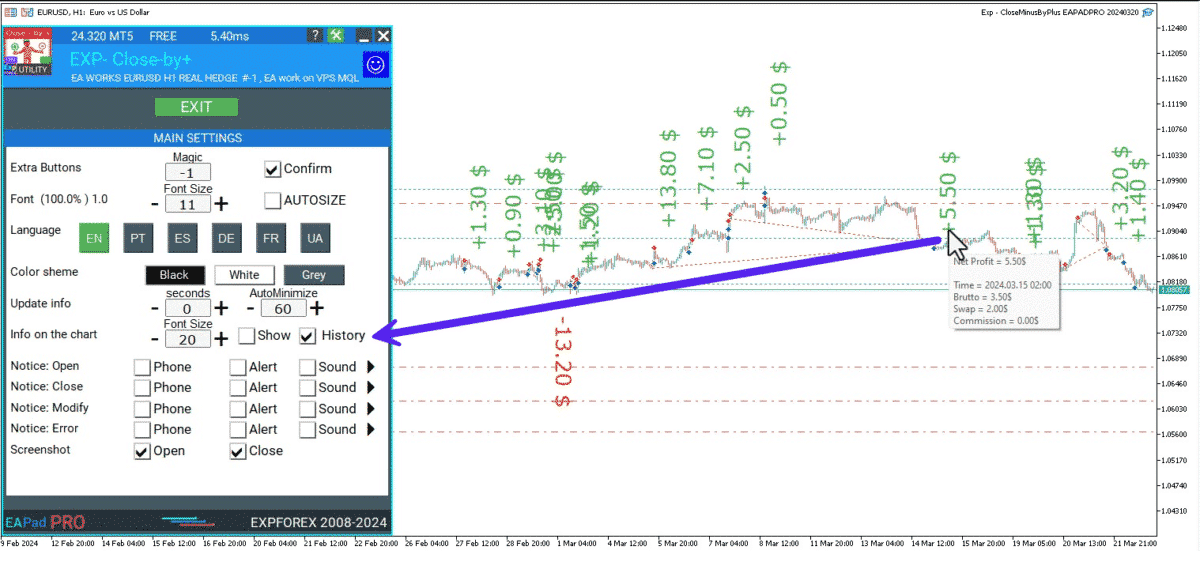

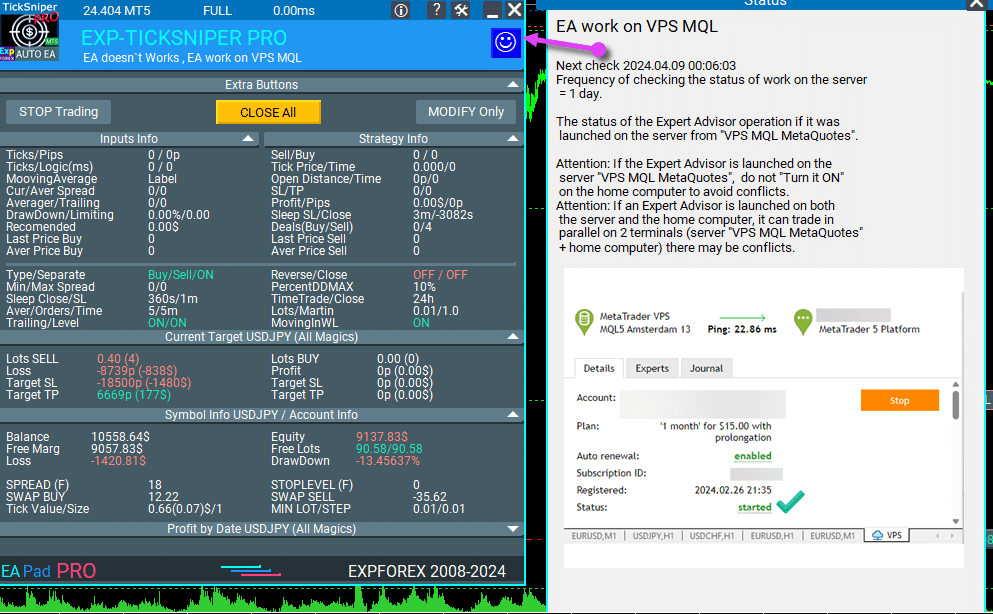
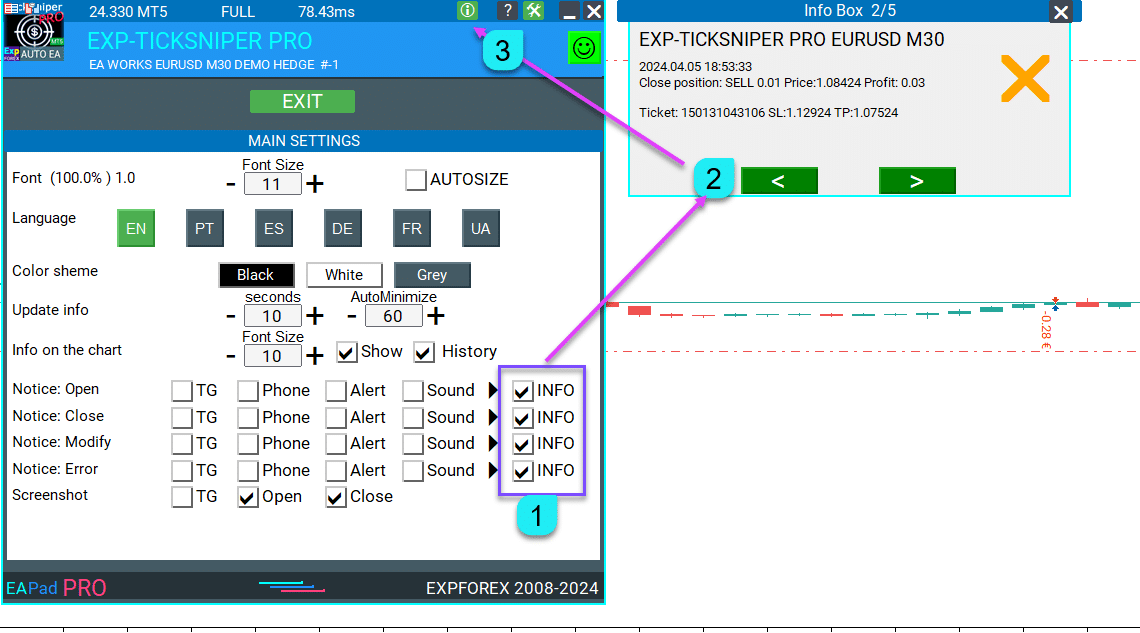
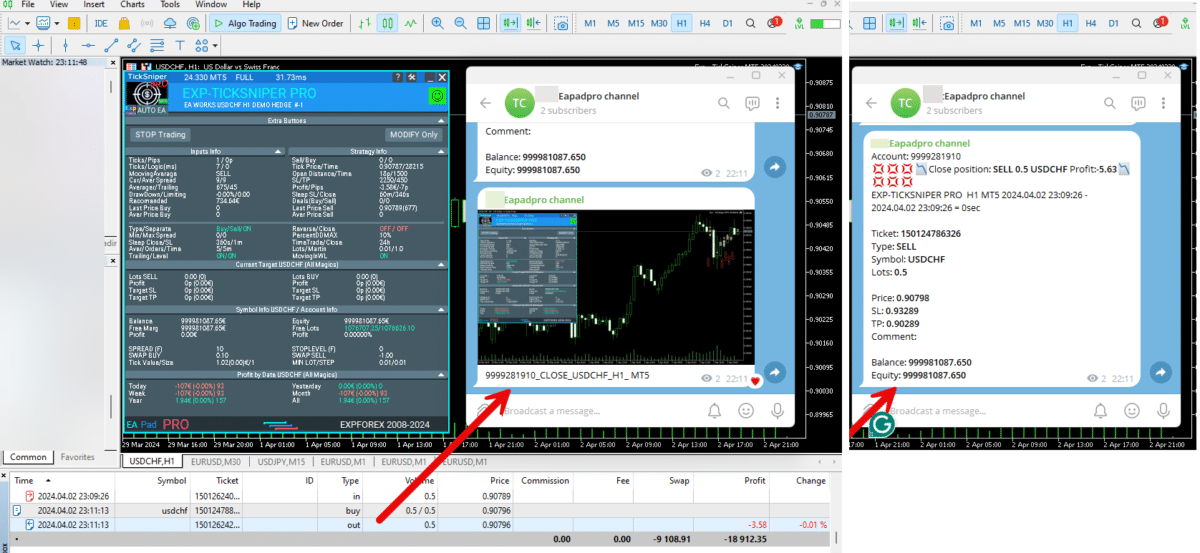
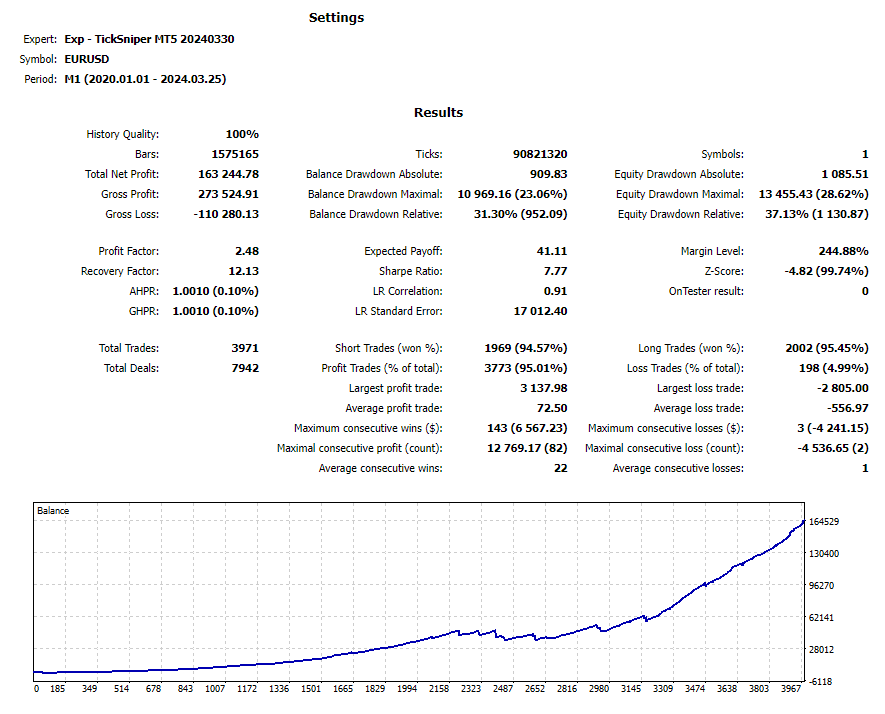







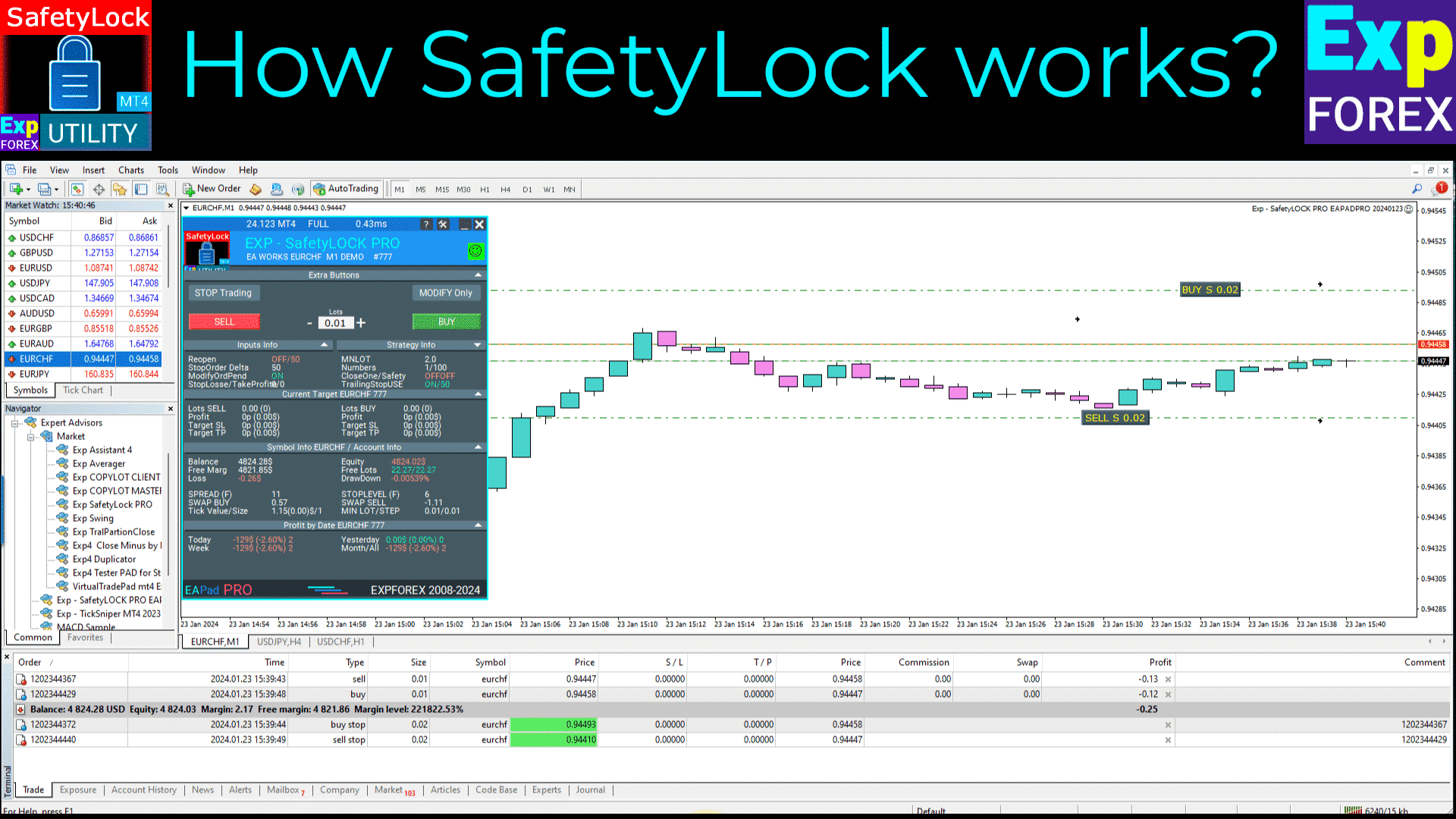
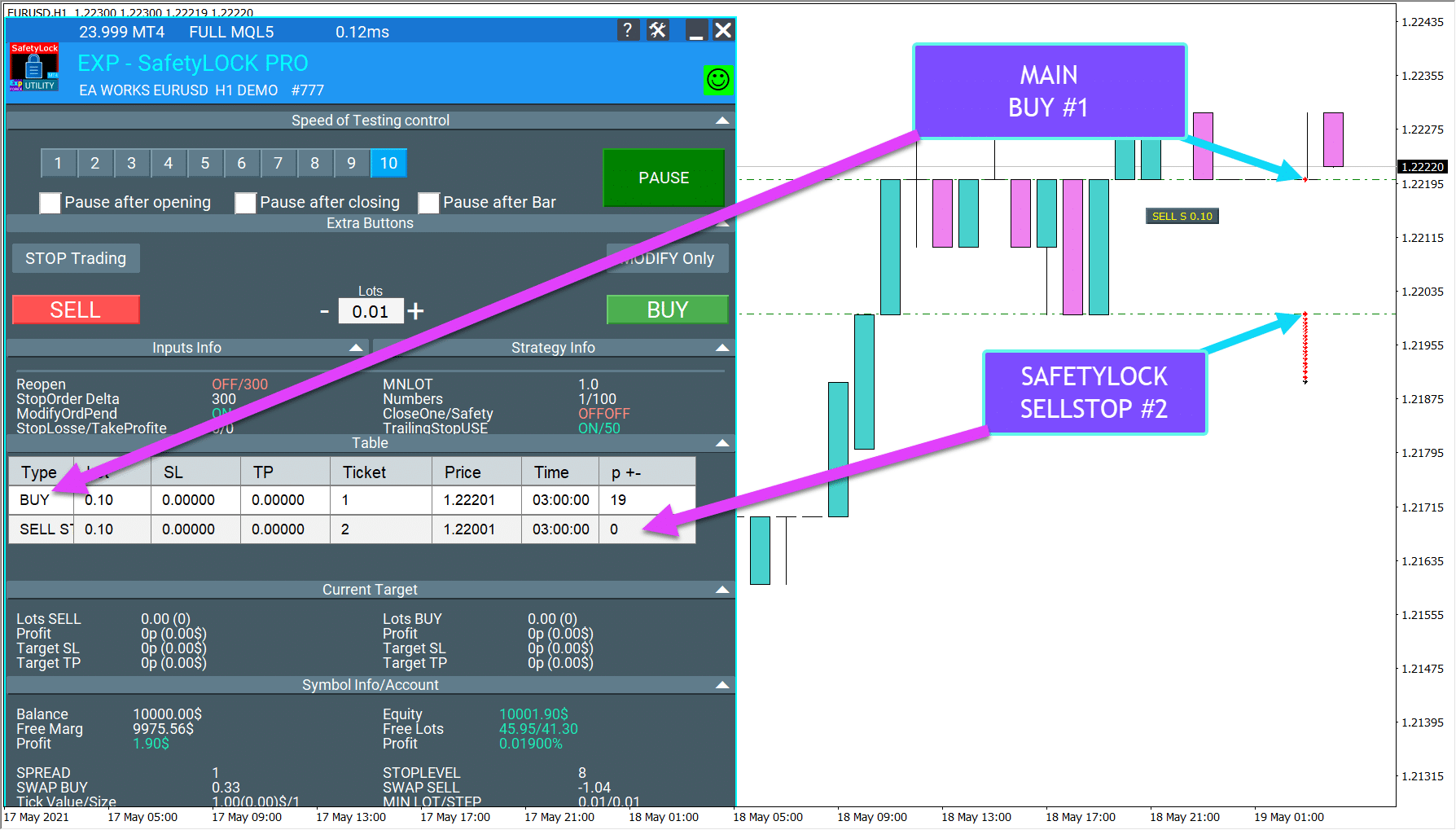
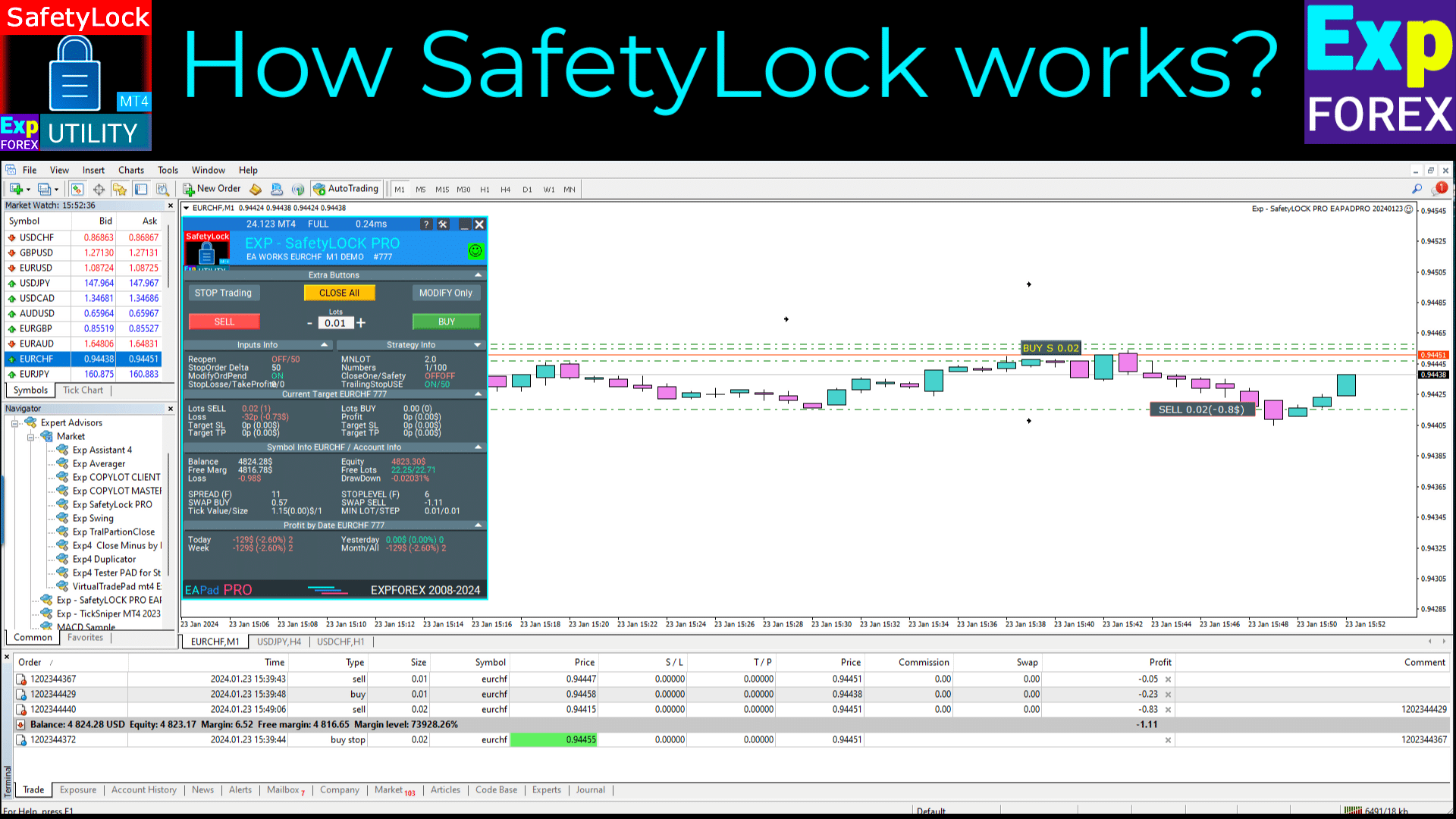
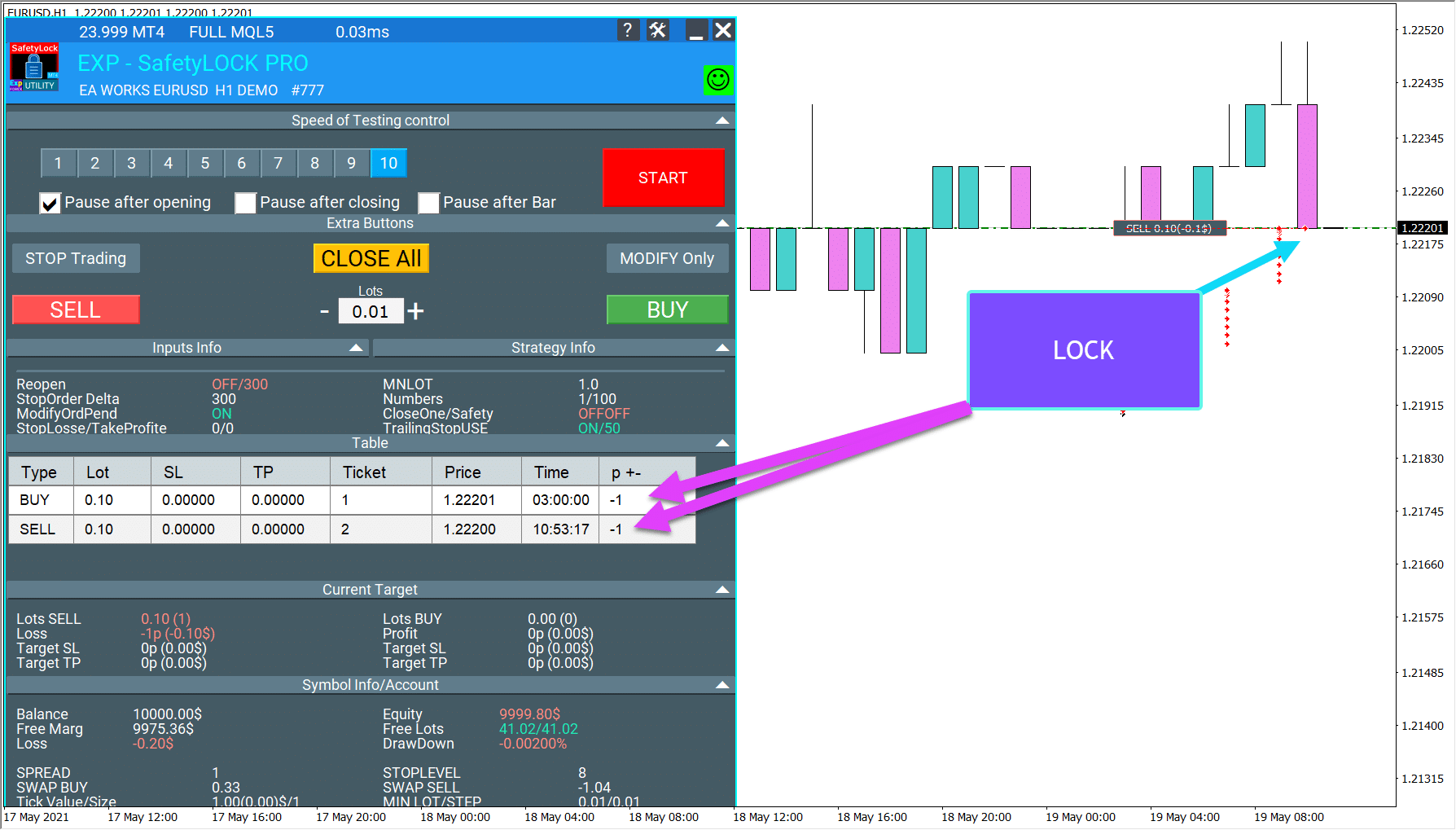
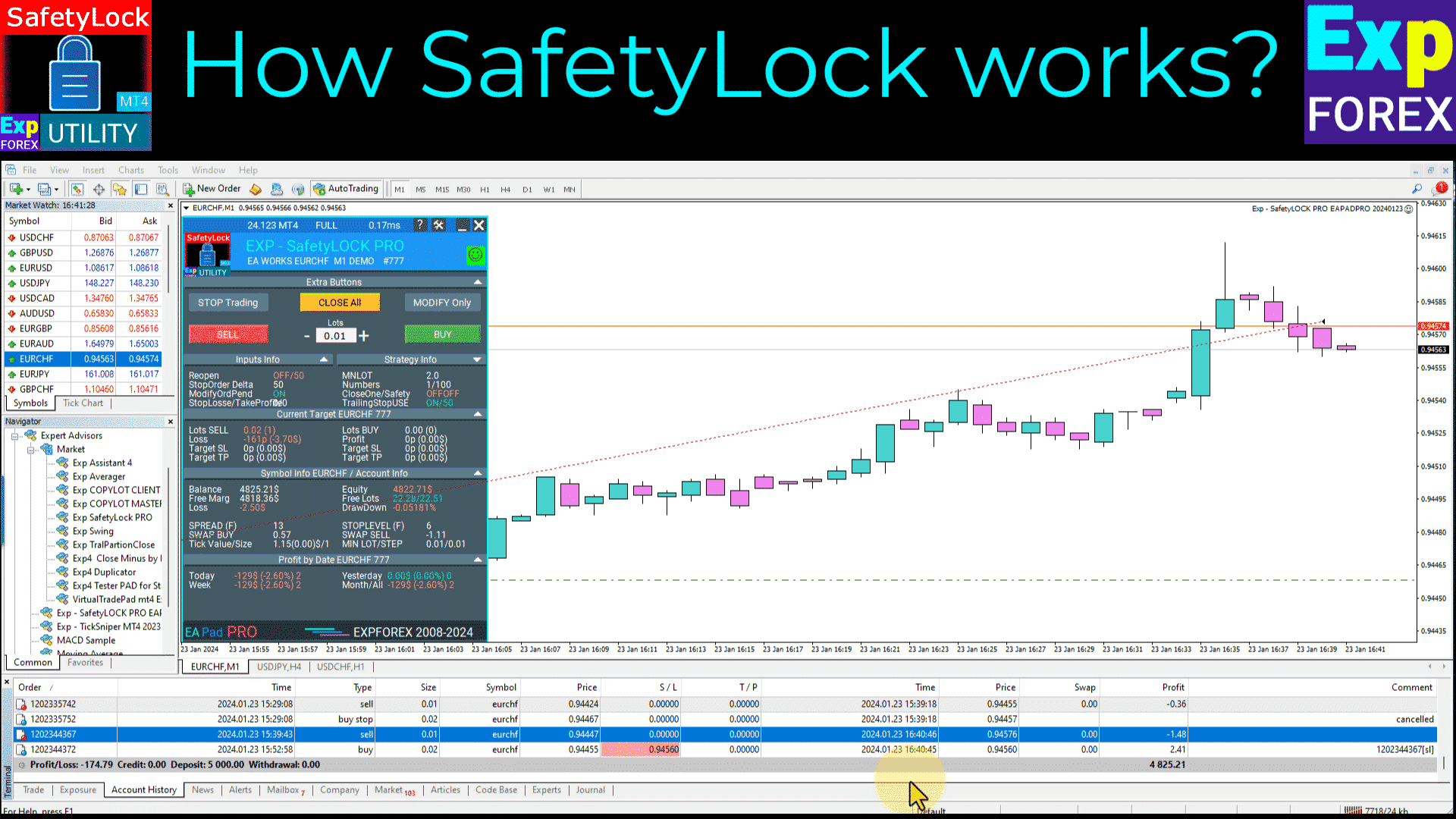
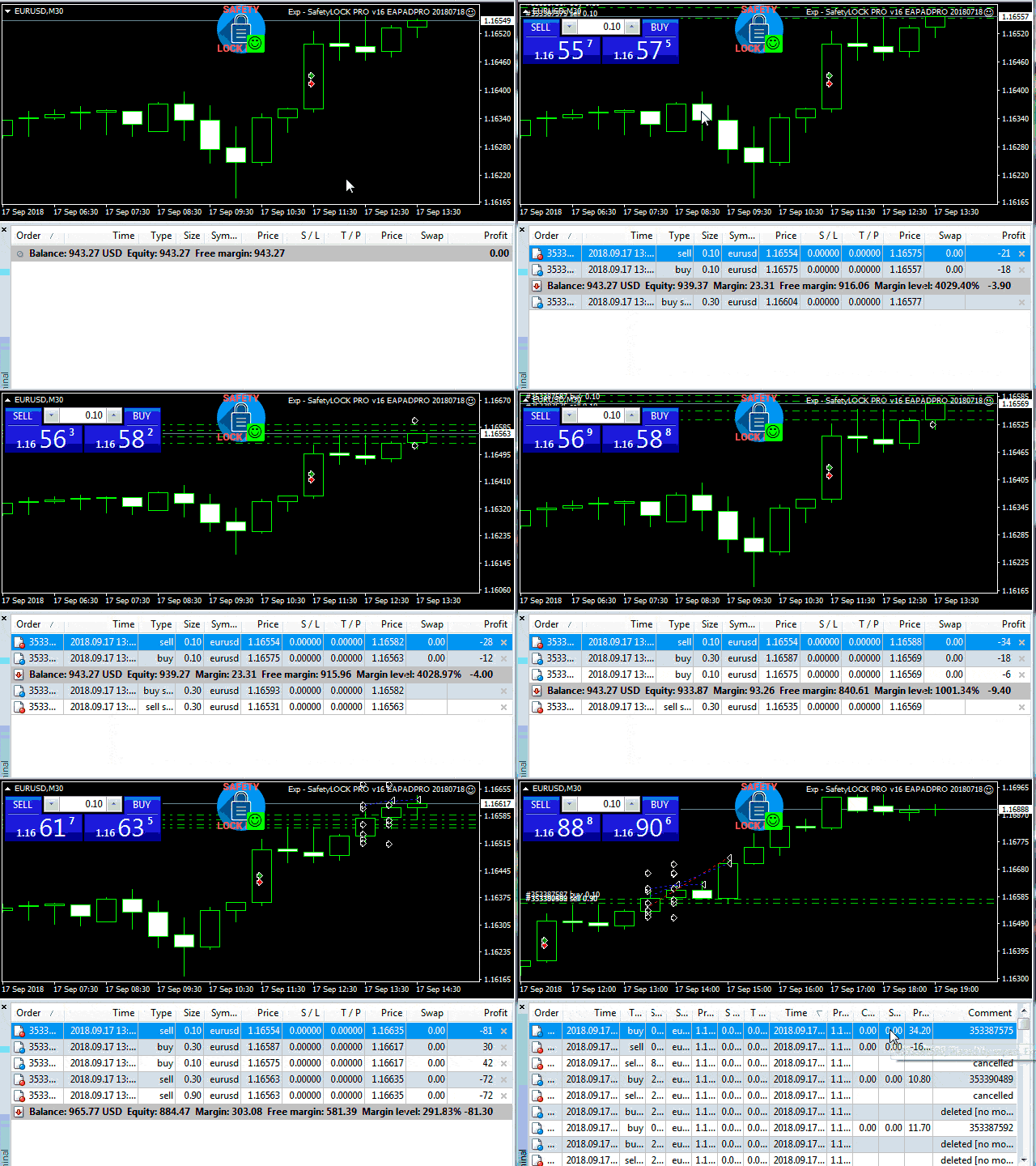


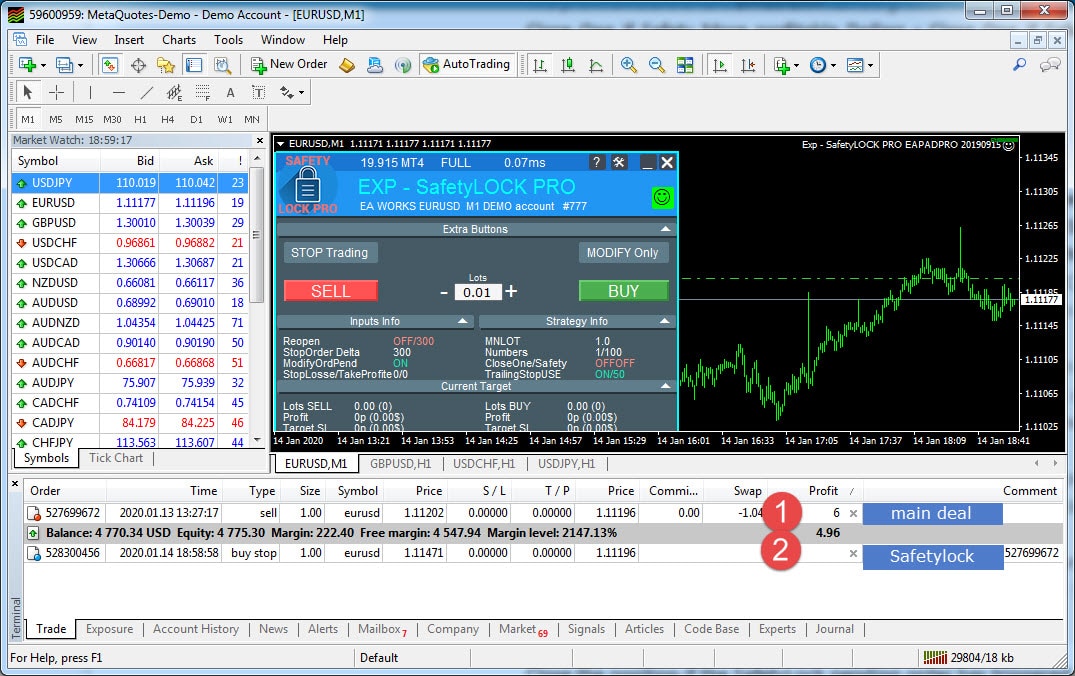
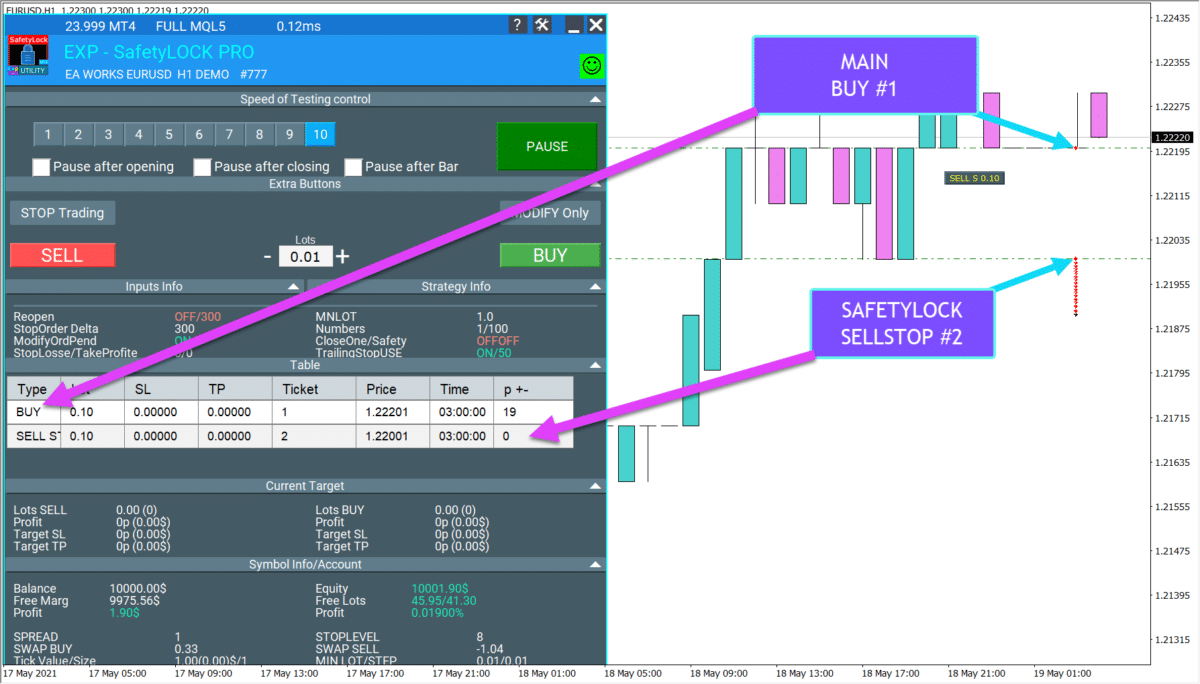
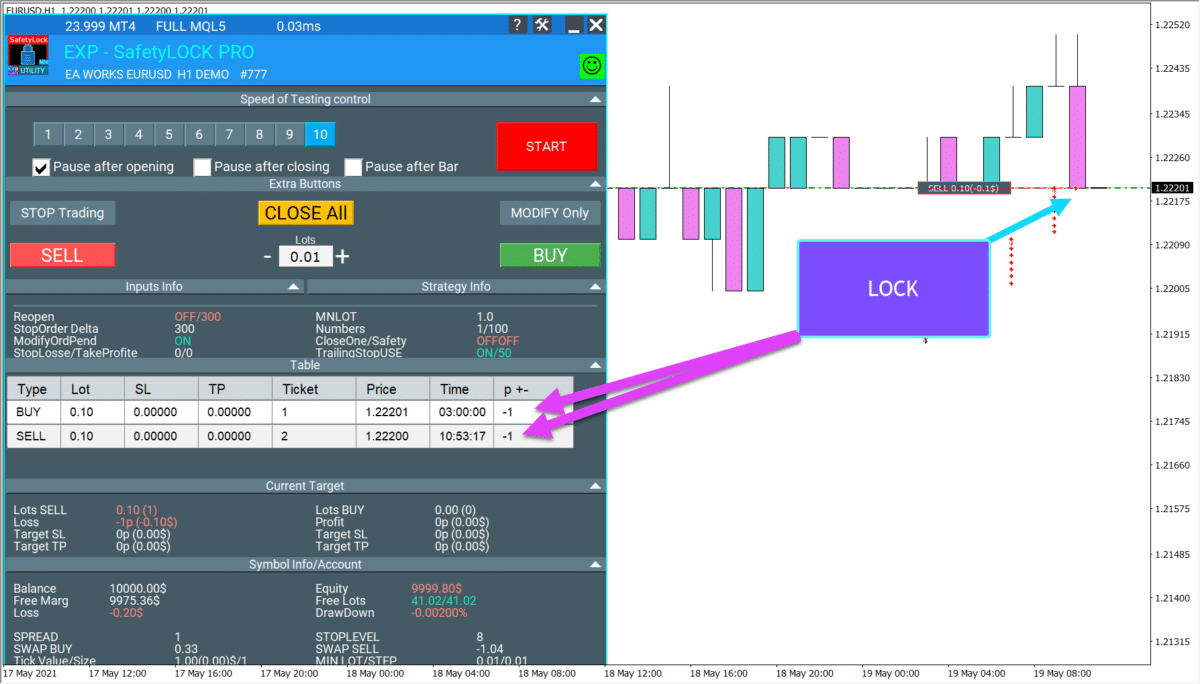























Leave a Reply