







Averaging positions. Opening of additional positions on the trend and against the trend with the function of the general trailing…

Assistant – the best free trading panel to support positions and deals with real/virtual StopLoss / TakeProfit / Trailing Stop

TickSniper Automatic Expert Advisor for Metatrader. Tick scalper

Main
Documentation
Settings
FAQ
Changelog
Reviews
Comments
Extra
About The X
Universal Expert Advisor (EA) for MetaTrader with Extensive Functionality
The Expert Advisor The X is a versatile trading tool for MetaTrader, offering a wide range of features and customizable settings.
It works with standard indicators and includes a built-in strategy builder, allowing traders to create and adjust strategies to fit their needs.
Key Features:
- Trading with Standard Indicators: The EA uses a variety of indicators from the standard MetaTrader set, providing a familiar and reliable basis for your trading strategies.
- Customizable Signals and Filters: Choose from 20 different signals and apply up to 20 filters to refine your trading strategy. This flexibility allows for precise control over the conditions under which trades are executed.
- Extensive Customization: With over 100 customizable parameters, you can fine-tune the EA to match your specific trading style and preferences. Whether it’s adjusting risk levels or setting unique entry and exit criteria, the EA gives you the tools to optimize your strategy.
- Tailored Signal Settings: For each signal, you can customize key elements, including the indicator parameters, the timeframe it operates on, and even the specific signal bar used for decision-making.
This Universal Expert Advisor provides a comprehensive and flexible solution for traders looking to leverage standard indicators while building their own strategies in MetaTrader.
Whether you’re a beginner or an experienced trader, its vast customization options make it a powerful tool for any trading approach.
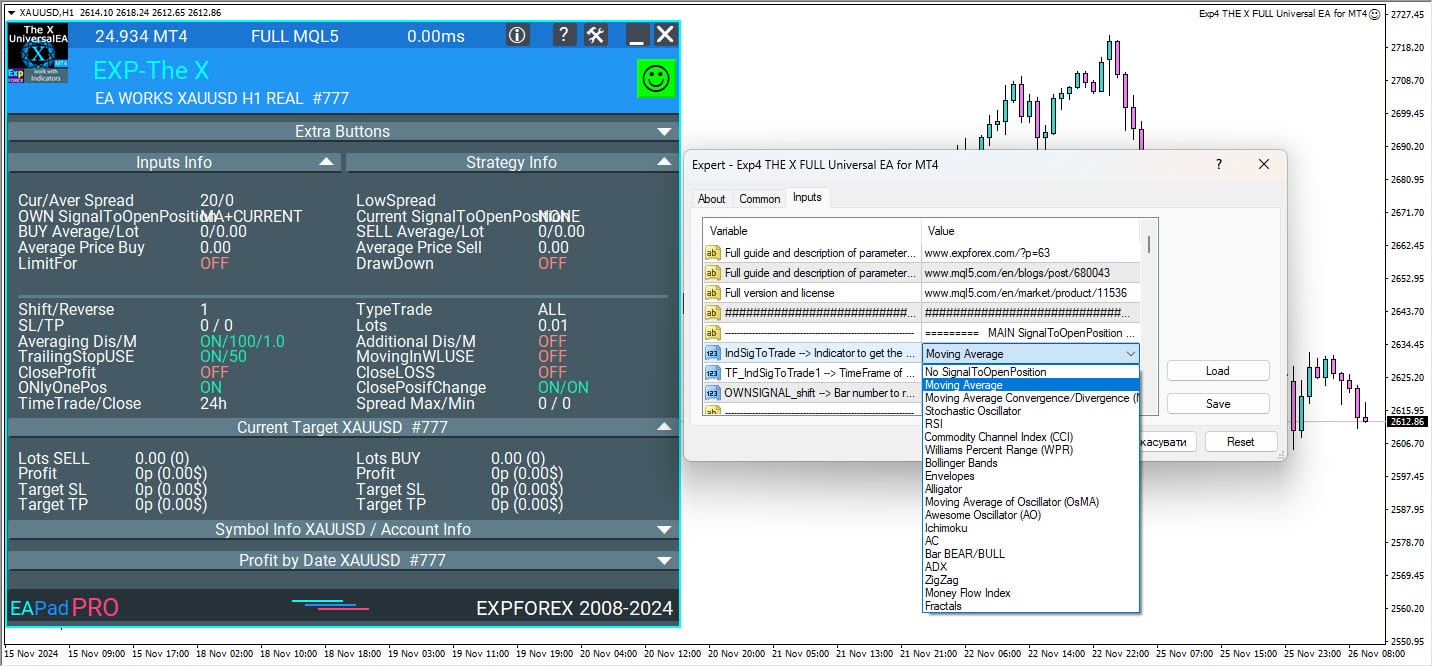
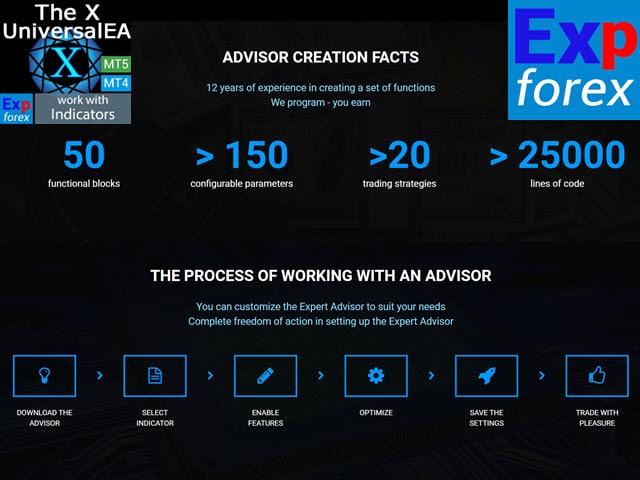
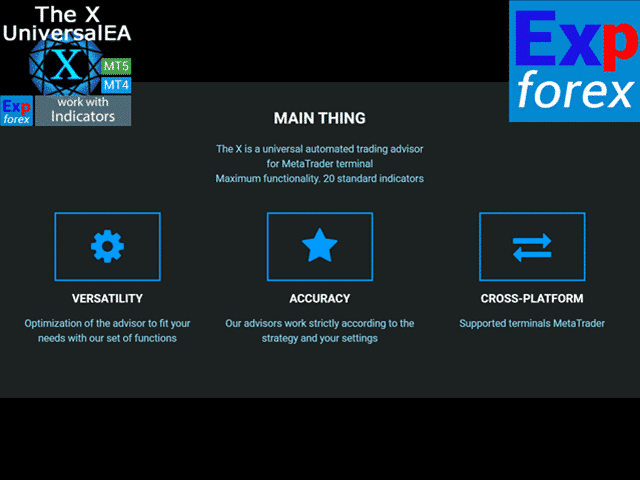
How does The X work?


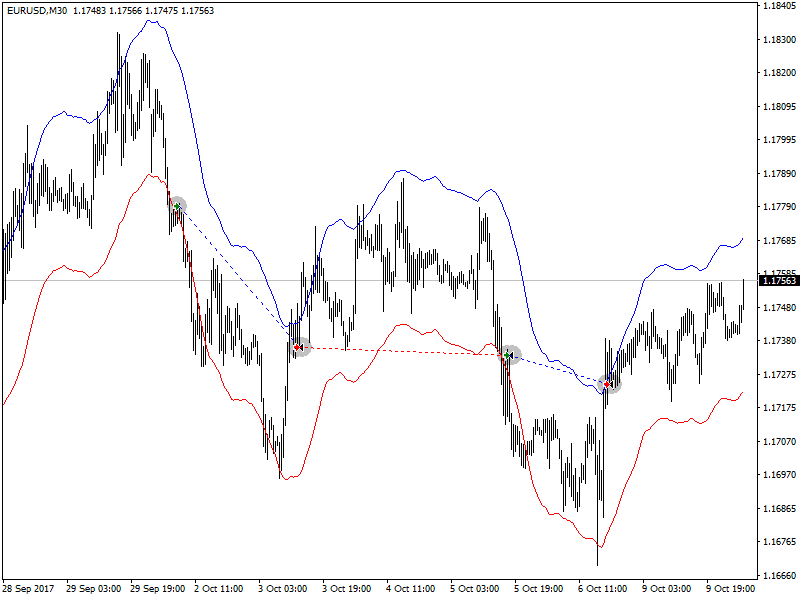
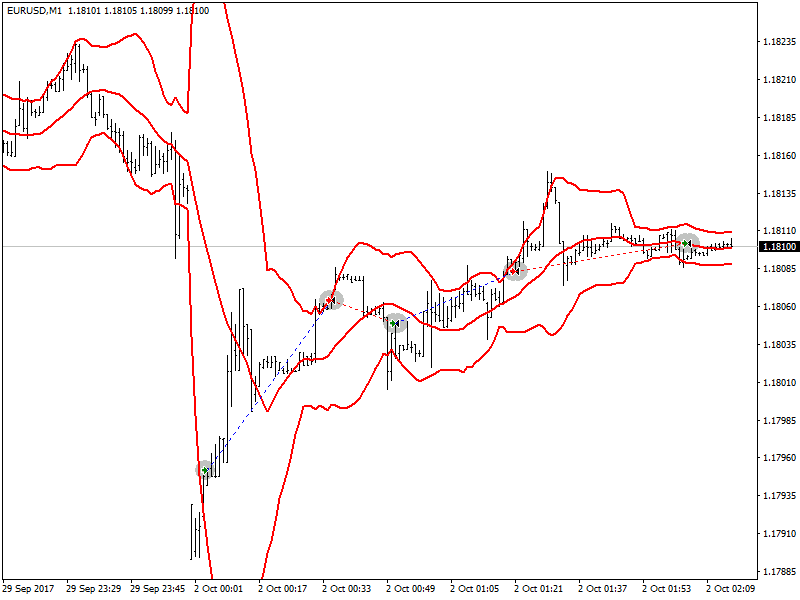
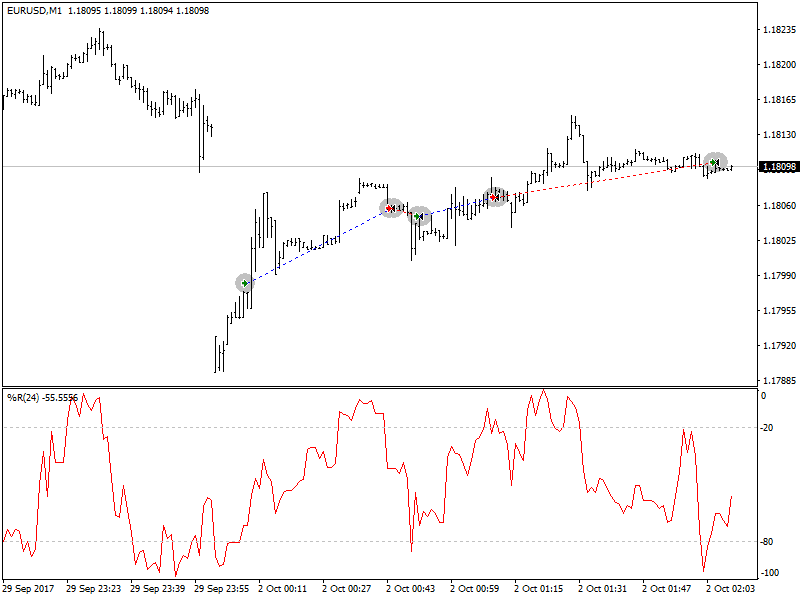
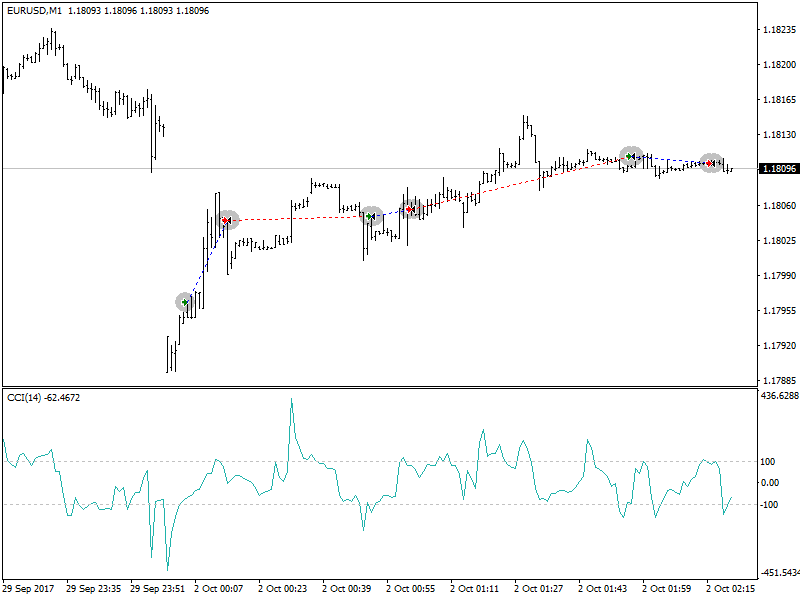
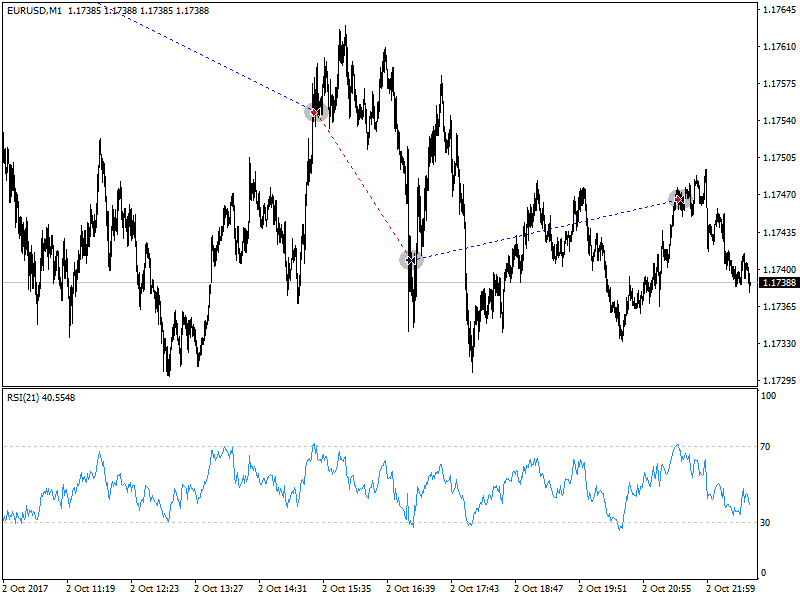
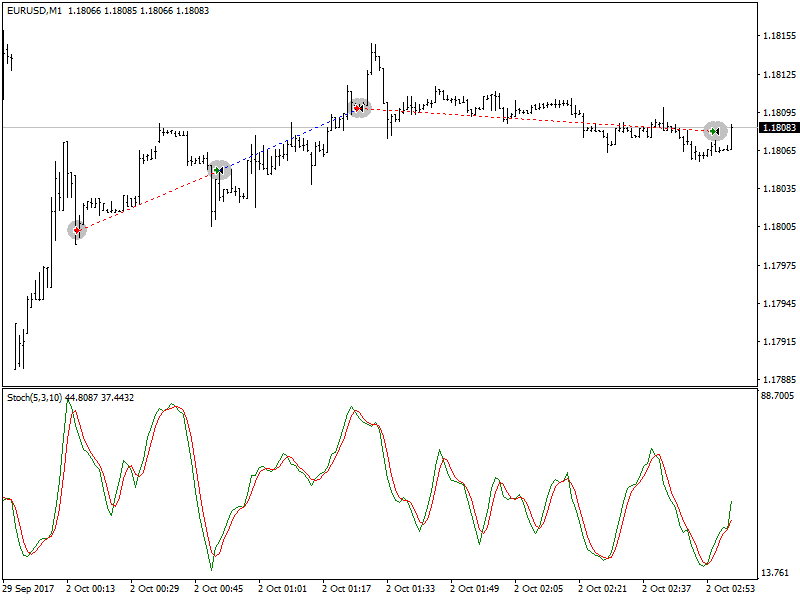
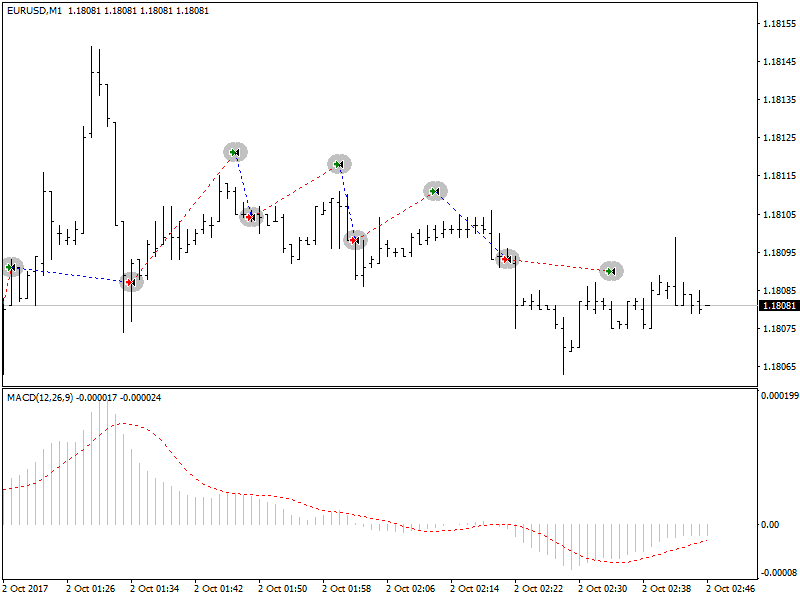
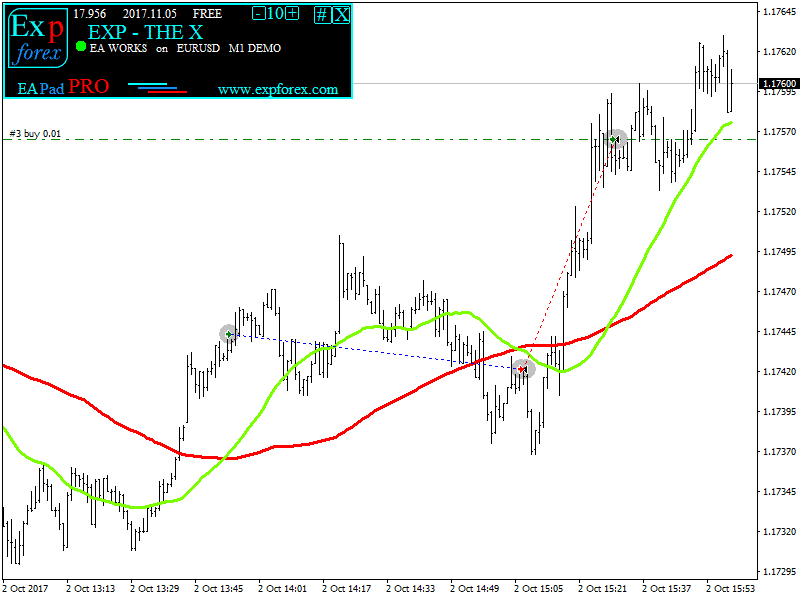

What do people write about The X?

Manuel Sanchez
Great EA. Just do your homework and you will find a good strategy. I love the interface panel. 5 start. Thanks to the programmer.-
AAron
excellent -
Evangelos Skikos
I have been working with universal x for 3 years, you can easily make an EA, which sells for $1000 to $12.483 the only thing missing is a good recovery, for now i'm doing recovery with VirtualTradePad.....I believe that in some time the author will add a very good one!!! -
Diego Venceslau Da Silva
Excellent EA. It actually represents in practice everything we ever wanted to jump from the pages of technical analysis manuals. Even creating complex configurations such as being able to generate signals with different timeframes, increasing the probability of success, learning that each indicator has its configuration concomitant with the asset that you want to trade. The EA gives you the freedom to create your own strategy, not having to be tied to other EA's that force you to be tied to a single person's strategy and hostage to periodic updates. Anyway, for the price you pay, this EA is simply a gift. Thank you Vladislav. -
Deniz90
Excellent EA, providing endless opportunities. The author is very helpful and responsive, definitely recommended. -
Tyler Roberts
This is by far the best expert I have purchased. It's a little complicated at first but after you play around and learn the functions it works great. The only EA I have made consistent money from! check my signals, those are all using this expert -
Iceberg0010
Крутой конструктор, радует обширный диапазон настроек. Аналогов по сути нет - ценник крайне адекватный для такого комбайна -
julia-Tkachenko
Супер навороченный комбайн на стандартных индюках. Класс! -
Sammy Boy
Excellent work Vladislav! thank u -
leachimk
Присоединяюсь к словам предыдущего автора. Советник обладает всеми необходимыми инструментами для успешной торговли. Ключевое слово - оптимизация. Особая благодарность разработчику за то, что он постоянно продолжает усовершенствовать советник. Респект и так держать!
You can Download free The X
Get started for FREE!
You can download and install our program for free!
And you can test it on your DEMO account without time limits!
And you can also test our program for free on a REAL account using the USDJPY symbol!
You can Buy full version of The X
Trade Accounts
Computers
FULL MT4 version
For MetaTrader 4
150 $
FULL MT5 version
For MetaTrader 5
150 $
RENT for 3 months
For MetaTrader 4
50 $
RENT for 3 months
For MetaTrader 5
50 $
Before making a purchase, we highly recommend reviewing our instructions and FAQ section to ensure a smooth experience.
Table of Contents (click to show)
List
- Description
- What is the difference between The X and The xCustomEA?
- Main advantages of The X Universal EA
- List of indicators and filters The X Universal EA
- Main Signal Indicator (Parameter: IndSigToTrade):
- Moving Average (MA) (Signal 1) in The X Universal EA
- Moving Average Convergence / Divergence (MACD) (Signal 2) in The X Universal EA
- Stochastic Oscillator (Signal 3) in The X Universal EA
- Indicator RSI (Signal 4) in The X Universal EA
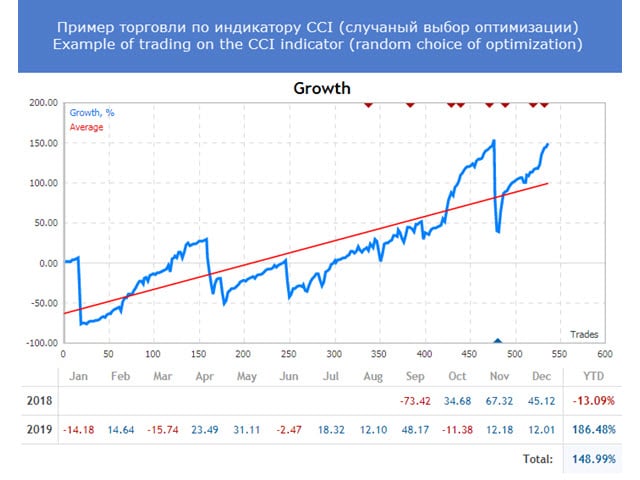
- Commodity Channel Index (CCI) (Signal 5) in The X Universal EA
- Williams Percent Range (WPR) (Signal 6) in The X Universal EA
- Bollinger Bands (Signal 7) in The X Universal EA
- Indicator Envelopes (Signal 8) in The X Universal EA
- Alligator (Signal 9) in The X Universal EA
- Moving Average of Oscillator (OsMA) (Signal 10) in The X Universal EA
- Awesome Oscillator (AO) (Signal 11) in The X Universal EA
- Ichimoku (Signal 12) in The X Universal EA
- Accelerator / Decelerator (AC) (Signal 13) in The X Universal EA
- Bar (Signal 14) in The X Universal EA
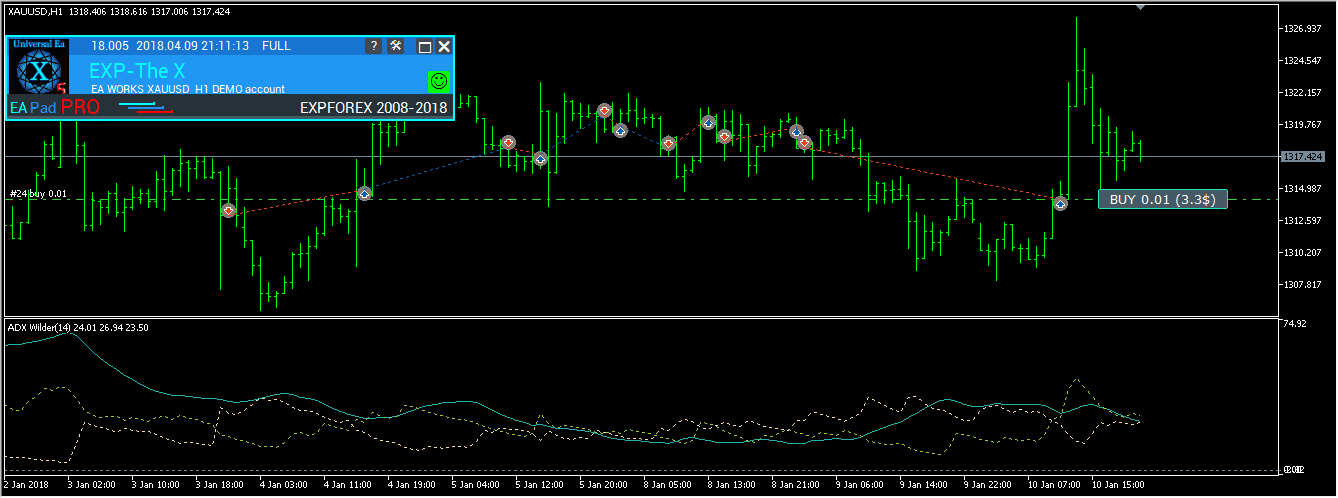
- ADX (Signal 15) in The X Universal EA
- Bar relatively MA (Filter 16) in The X Universal EA
- ZIGZAG (Signal 17) in The X Universal EA
- ATR (Filter 18) in The X Universal EA
- ADX Wilder (signal 19) – for only MT5 in The X Universal EA
- Money Flow Index (Signal 20) in The X Universal EA
- Fractals (Signal 21) in The X Universal EA
Description
The X Universal – Trading System for MT4 and MT5
The X is a universal, trading system designed for both MetaTrader 4 and MetaTrader 5.
This Expert Advisor (EA) offers an extensive range of features, including averaging, additional position openings during trends, and virtual stops to enhance trading strategies.
Key Features:
- Universal Strategy Builder: The X allows traders to build customized trading strategies using a broad set of functions.
- It includes more than 20 signals for opening positions and pending orders, as well as 21 filters to refine trading signals.
- Averaging and Additional Position Opening: The EA supports both averaging against the trend and additional position opening on the trend. The averaging function helps convert a losing position into a profitable one by building a grid of positions based on price movement. When the price reverses, the EA quickly recovers losses by averaging all positions into profit.
- Dynamic Lot Sizing: The dynamic lot function allows you to set the lot size as a percentage of balance or equity, offering flexible risk management.
Advanced Trading Functions:
- Virtual Stops:
- Manage trades with virtual stop-loss, take profit, and trailing stop to hide your risk management strategy from brokers.
- Trailing Stop and Breakeven:
- Includes a trailing stop function (including trailing on Parabolic SAR) and a breakeven function, which sets the stop-loss to the breakeven point once a trade is in profit.
- Martingale Function:
- The EA supports a Martingale mode, allowing you to increase the lot size after losing trades to recover losses more quickly.
- Global Profit and Loss Management:
- The X allows you to close all positions based on total profit or loss across your account, offering comprehensive control over your overall risk and reward.
- Time-Based Trading:
- You can set the EA to trade only during specific times or days of the week, providing more control over your trading strategy.
Additional Functions:
- Pending Orders: The EA can place pending orders and manage them based on the chosen signals and filters.
- Delay Restrictions: You can configure the EA with delay restrictions to avoid entering trades too quickly in volatile markets.
- Trailing Profit: The EA can trail the total profit across all open positions, helping to maximize gains while minimizing risk.
The X Universal Expert Advisor integrates a wide range of tools and features from multiple trading systems into a single, highly customizable EA.
Whether you’re using averaging, Martingale, or advanced stop-loss and take-profit settings, this EA provides comprehensive control over your trading strategy. With customizable signals from standard MetaTrader indicators, it’s designed to fit a variety of trading styles and strategies.
The rich functionality and flexibility of the Expert Advisor will please every trader.
Additional articles and links
The X and The xCustomEA: Testing and Optimization

EA The xCustomEA Universal Trading Expert Advisor (EA) on iCustom indicators.
Article: Optimization and testing! Search for advisor settings!
I recommend to get acquainted with our new advisor:
Exp – The xCustomEA Universal Trading Advisor on Custom Indicators. Advisor on the Indicator!
Example of Using Pipfinite in xCustomEA
Statistics: Example of Trading on a Live Account and Statistics for the Past Year
What is the difference between The X and The xCustomEA?
Difference Between The X and The xCustomEA
Both The X and The xCustomEA are built on the same foundation (MQL code and functions), but they differ in how they operate:
- The X = Universal EA:
- This Expert Advisor works with the standard MetaTrader indicators.
- It comes with around 20 pre-built strategies based on the standard indicators available in MetaTrader.
- The xCustomEA = Universal EA for Custom Indicators:
- Unlike The X, this EA is designed to work with custom indicators. It doesn’t have pre-built strategies.
- You can set custom indicators and configure your trading strategy based on the signals these custom indicators provide (e.g., arrow signals).
- The xCustomEA allows you to program your strategy using any custom indicator available online or in the MQL5 market.
- You can also download pre-made strategies for this EA, and the list of available strategies is updated regularly.
- Moreover, you can import signals from The X strategy and apply your custom changes, offering even more flexibility.
In summary:
- The X works with standard MetaTrader indicators and has built-in strategies.
- The xCustomEA allows you to trade using custom indicators and create your own strategies, providing a more personalized trading experience.
If you do not know how and do not want to learn programming and you enough of standard indicators, your choice =The X .
If you know how to program, and you have an interest in the study of other indicators, your choice =The xCustomEA .
Functions of these Expert Advisors (EA) = Equal!
Main advantages of The X Universal EA
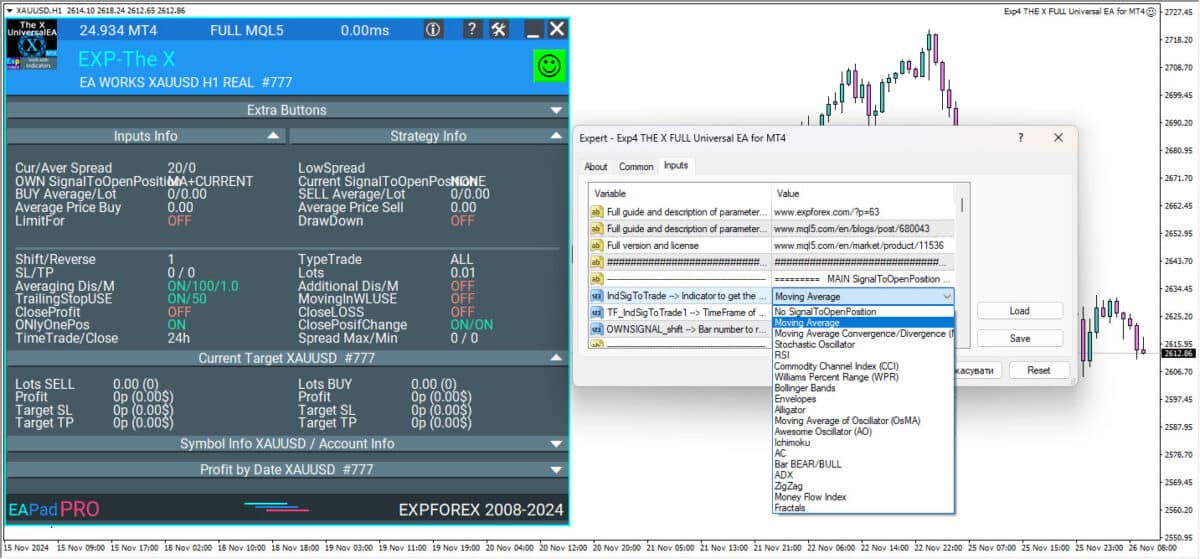
- Dynamic Lot Function:
- Automatically adjust the lot size based on the current balance or equity, providing effective money management to suit account size and risk preferences.
- Customizable Trading Periods (Time Trade):
- Users can set specific trading periods, restricting the EA to trade only during certain times of the day or on specific days of the week. This helps optimize trading activity for market conditions.
- Trailing Stop:
- The EA offers a trailing stop feature that can either start as soon as a position is opened or follow the standard algorithm, triggering only when the position moves into profit.
- MarketWatch ECN Support:
- Works seamlessly with ECN and NDD (Non-Dealing Desk) accounts, providing efficient trading on brokers that offer tighter spreads and direct market access.
- Error Handling for Real Accounts:
- Equipped with error-handling mechanisms specifically designed for live trading accounts, ensuring smooth operation in real-world trading conditions.
- Block Closing on Total Profit/Loss:
- The EA can close all positions once a total profit or loss is reached. It can also disconnect all EAs on the account after this point, helping manage risk across multiple strategies.
- Breakeven Function:
- Once the position is in profit, the stop-loss is automatically moved to the breakeven point or another desired level, securing gains while minimizing potential losses.
- Martingale Strategy:
- The EA supports the Martingale system, allowing you to increase the lot size after a losing trade to recover losses more quickly.
- Signal-Based Trade Management:
- Positions can be opened and closed based entirely on indicator signals:
- Open on a signal and close the position when an opposite signal is received or when a filtered signal turns off.
- Positions can be opened and closed based entirely on indicator signals:
- Signal-Based Position Closing:
- The EA can automatically close a position when a different signal appears, ensuring trades align with market conditions.
- “REVERSE” Function:
- It allows for a reverse trading strategy, where Buy positions are opened on a Sell signal and Sell positions are opened on a Buy signal.
- Averaging Function:
- It helps turn a loss-making position into profit by opening additional positions in the same direction when the price moves against the original trade. This allows the EA to reduce the average price and improve the chance of profit.
- Additional Position Opening in Trend Direction:
- Opens additional positions in the direction of the trend based on price increases and/or uses one of the available indicators as a filter to confirm the trend.
- Virtual Stoploss, Takeprofit, and Trailing Stop:
- The EA can use virtual stop-loss, take-profit, and trailing stop levels, keeping these hidden from the broker for enhanced discretion and strategy execution.
- Support for All Types of Orders:
- Works with market positions, pending orders, and limit orders, offering complete flexibility in managing different types of trades.
These features make the Expert Advisor a comprehensive and powerful tool for traders, providing flexibility, risk management, and strategic automation to optimize trading outcomes across various market conditions.
List of indicators and filters The X Universal EA
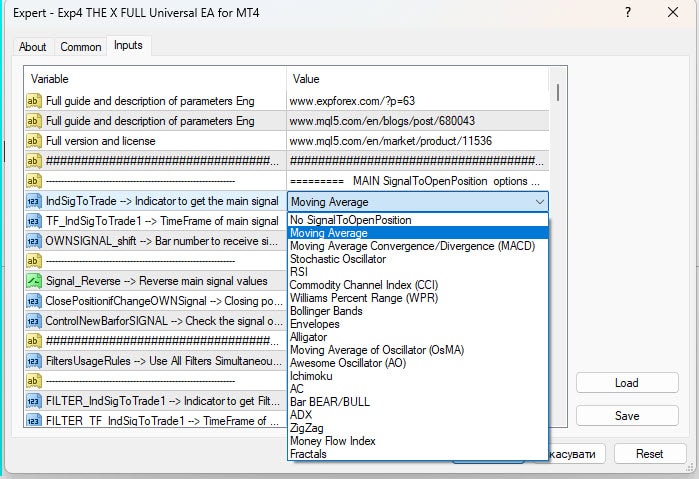
The X uses the following standard signals to create Signals and Filters.
Parameters of the expert IndSigToTrade. FILTER_IndSigToTrade2, FILTER_IndSigToTrade5.
Signal:
A Signal to trade occurs when all the conditions for the signal are met.
For example:
- The intersection of lines of MA or the appearance of a new ZigZag point.
- The intersection of level 70 for the RSI indicator is a signal. And if the RSI is above the level of 70, then this is already a filter.
- The signal is what appears when all the conditions are met on the relevant bar. The Expert Advisor (EA) accepts the fact of a signal.
- For example, The light has just turned on. This is a signal because the light has just turned on. When you turned on the light, the person woke up. It’s a signal.
- Opening positions occur after the signal is committed. The lines intersect, and then the position opens. If the lines were crossed earlier, then this is not a signal. The signal has already passed.
Filter:
Filter – The filter is what the indicator shows at that moment.
This is not a signal. This is the current position of the indicator.
For example,
- The light was on. This filter is because the light has already been turned on, and it is already on. When the light is on, the person no longer sleeps. This is a filter.
- This is the current position of the indicator, for example, the current position of the MA lines relative to each other. Or the current last vertex of ZIGZAG
- Signals are filtered at the current value of the indicator. If the Fast MA is above the slow MA, then only BUY should open this filter.
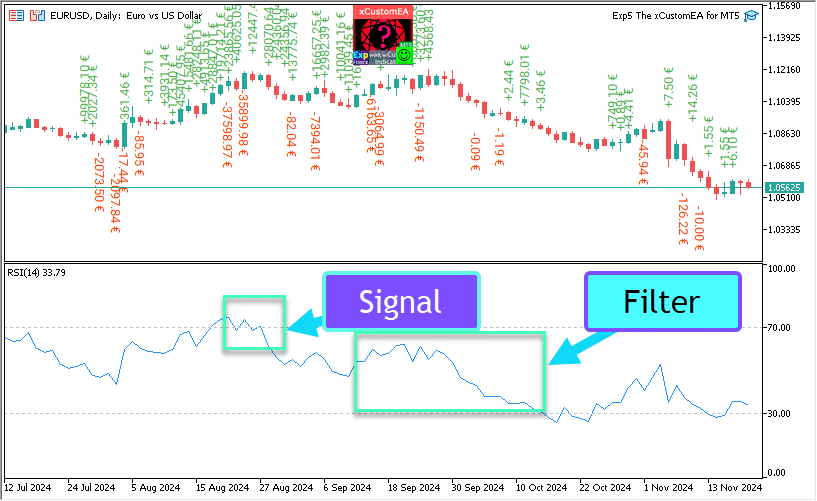
Main Signal Indicator (Parameter: IndSigToTrade):
Using this parameter, one of the 20 standard indicators can be used to create Buy and sell signals.
A Buy or Sell signal for opening a position is generated when the selected Main Signal Indicator changes state. (E.g., the RSI indicator just crossed 30%, or the MA lines just crossed each other).
This happens on the current bar (OWNSIGNAL_Shift=0) or after a specified delay of X bars (specified by the user, OWNSIGNAL_Shift =X).
The Buy and sell signals from the Main Signal Indicator are filtered by the filters selected by the user (up to 5 filters can be selected).
When the Main Signal Indicator provides a signal, the EA checks all the filters. Only when all the filters support the signal, a Buy or Sell, the position is opened.
If any of the Filters do not allow the signal, a position will NOT be opened, and then the signal is ignored.
No Signal Option: Trading with Filters only
A “No Signal” option has been provided for the Main Signal Indicator.
When the “No Signal” option is selected for the Main Signal Indicator (Parameter: IndSigToTrade), the EA uses only the filters to open Buy and sell positions.
When using filters only, a Buy signal is registered when the current position of all the filter indicators is in the Buy state, and a Sell signal is created when the current position of all the filter indicators is in the Sell state.
For example:
A Buy position is opened when:
- The fast MA is higher than the slow MA, and
- RSI is below 30.
A Sell position is opened when:
- The fast MA is below the slow MA, and
- RSI is above 70.
Moving Average (MA) (Signal 1) in The X Universal EA
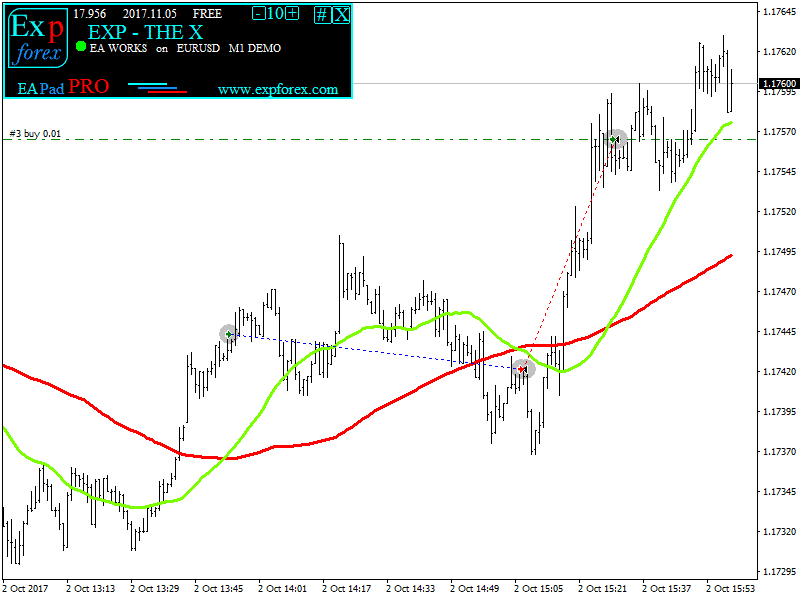
Technical indicator Moving Average (MA) shows the average value of the instrument price for a certain period of time. When calculating the Moving Average, a mathematical averaging of the price of the instrument for a given period is performed. As the price changes, its average value either grows or falls.
The signal is calculated by the mutual arrangement of two moving averages, one of which should have a shorter period (fast MA) and the other, respectively, a larger (slow MA). Their parameters can be specified in variables.
BUY signal is issued when the fast line MA is higher than the slow line one, and the
SELL signal when the slow line one is faster than the fast line one.
The “no signal” state is not used.
Moving Average Convergence / Divergence (MACD) (Signal 2) in The X Universal EA
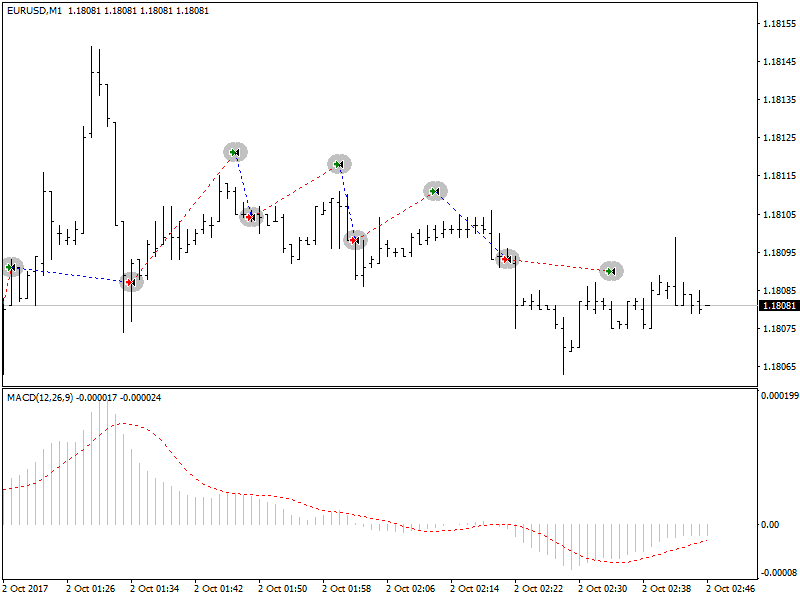
Technical Indicator Moving Average Convergence / Divergence (MACD) is the next dynamic trend indicator. It shows the relationship between the two moving average prices.
The Technical Indicator MACD is constructed as the difference between two exponential moving averages (EMA)
MACD is most effective in conditions where the market fluctuates with a large amplitude in the trading corridor. The most commonly used MACD signals are intersections, overbought / oversold conditions and discrepancies.
Operates with four variables. Signals are also simple:
BUY – the main line above the signal line,
SELL – the main line below the signal line.
“No signal” is not used.
Stochastic Oscillator (Signal 3) in The X Universal EA
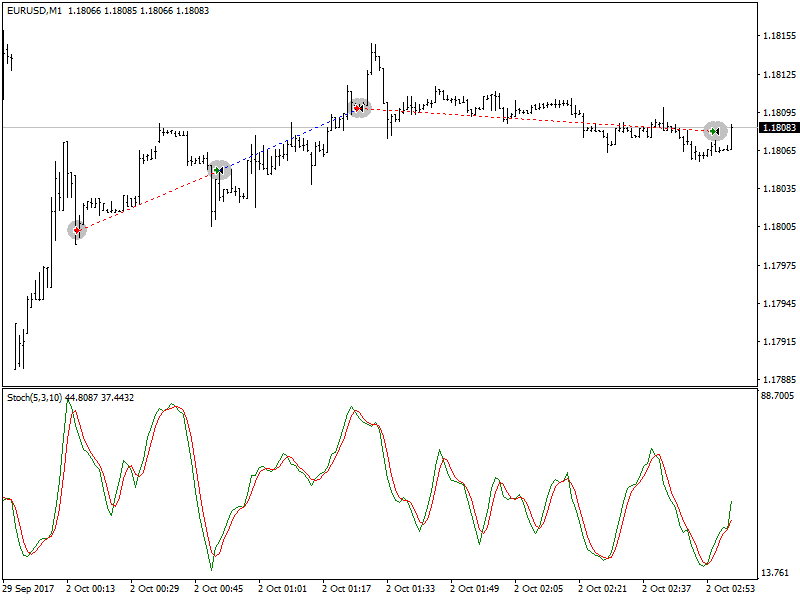
Technical Indicator Stochastic Oscillator (Stochastic Oscillator) compares the current closing price with the price range for the selected period of time. The indicator is represented by two lines. The main line is called% K. The second line% D is the moving average of the% K line. Usually% K is represented by a solid line, and% D is a dashed line.
The user defines BUY and SELL levels (generally 20-80 or 30-70).
BUY signal is the main line crossing the Stochastic_BUYLEVEL level up,
SELL signal is the main line crossing the Stochastic_SELLLEVEL level down.
Indicator RSI (Signal 4) in The X Universal EA
Technical Indicator Relative Strength Index (RSI) is the next oscillator that oscillates in the range from 0 to 100. By introducing the Relative Strength Index, W. Wilder recommended using its 14-period variant. Later, 9 and 25-period indicators were also disseminated. One of the most common methods for analyzing the Relative Strength Index is to find discrepancies in which the price forms a new high, and the RSI can not overcome its previous high. This discrepancy indicates the probability of a price reversal. If the indicator then turns down and falls below its cavity, it completes the so-called “failure swing”. This failed swing is considered a confirmation of an early reversal of prices.
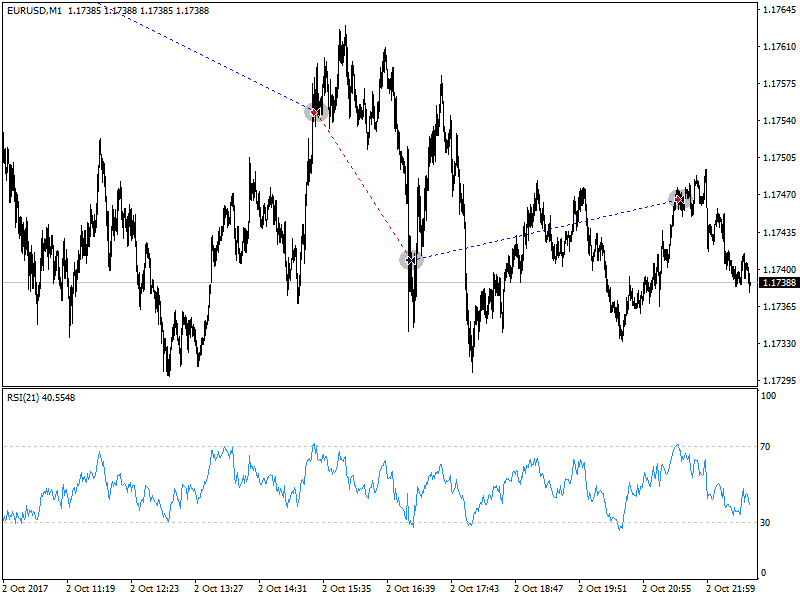
Similar to CCI and DeMarker. Signals are the exit from overbought (RSIHighLevel) and oversold zones (RSILowLevel).
BUY signal appears when RSI goes up from a lower value and crosses (RSILowLevel).
SELL signal appears when RSI goes down from a higher value and crosses (RSILowLevel)
The default state is “no signal”.
The RSIPeriod parameter can set the indicator’s period, and the RSIPrice parameter can set the Settlement price.
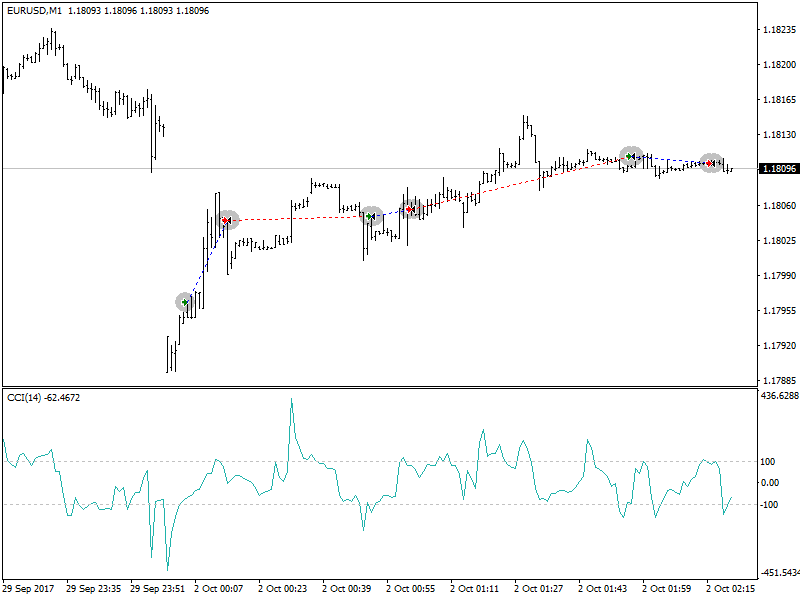
Commodity Channel Index (CCI) (Signal 5) in The X Universal EA
The technical indicator of the Commodity Channel Index (CCI) measures the deviation of the instrument`s price from its average statistical price. High values of the index indicate that the price is unusually high compared with the average, and low – that it is too understated. Despite the name, the Commodity Channel Index is applicable to any financial instrument, not just to goods.
Also, all three signals are used, but the ground state is still “no signal”.
BUY – the intersection of the top level from the top down
SELL. – the intersection of the lower level from the bottom up
The value of the external parameters CCIHighLevel and CCILowLevel determines the upper and lower levels.
The period and price of calculating the indicator are determined by the values CCIPeriod and CCIPrice.
Williams Percent Range (WPR) (Signal 6) in The X Universal EA
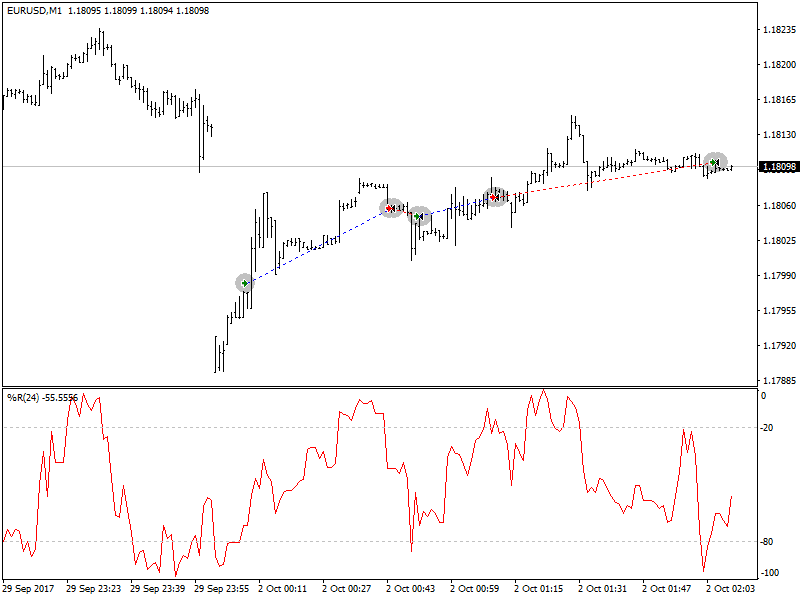
Technical Indicator Williams` Percent Range (% R) is a dynamic indicator that determines the state of overbought / oversold. Williams` Percent Range is very similar to the technical indicator Stochastic Oscillator . The difference between them is only that the first has an inverted scale, and the second one is constructed using internal smoothing.
Williams’ Percent Range Technical Indicator (%R) is a dynamic technical indicator, which determines whether the market is overbought/oversold. Williams’ %R is very similar to the Stochastic Oscillator. The only difference is that %R has an upside down scale and the Stochastic Oscillator has internal smoothing.
Indicator values ranging between -80% and -100% indicate that the market is oversold. Indicator values ranging between -0% and -20% indicate that the market is overbought. To show the indicator in this upside down fashion, one places a minus symbol before the Williams` Percent Range values (for example -30%). One should ignore the minus symbol when conducting the analysis (Meta Trader 5).
It is similar to RSI, CCI, and DeMarker.
Signal BUY – the intersection of the level of overbought (WPRHighLevel) from top to bottom,
Signal SELL – the intersection of the oversold level (WPRLowLevel) from bottom to top.
All the rest is “no signal”.
Only the parameter of the indicator period can be changed from outside – WPRPeriod.
Bollinger Bands (Signal 7) in The X Universal EA
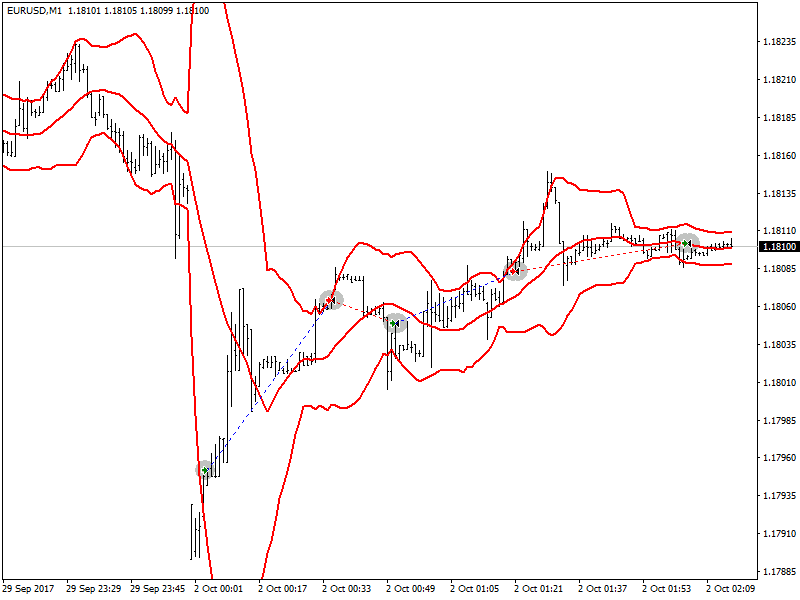
Bollinger bands (Bollinger Bands, BB) are similar to Envelopes . The difference between them is that the boundaries of the Trading Lanes (Envelopes) are located above and below the moving average curve at a fixed distance expressed in percent, while the Bollinger Bands boundaries are constructed at distances equal to a certain number of standard deviations. Since the magnitude of the standard deviation depends on volatility, the bands themselves adjust their width: it increases when the market is unstable, and decreases in more stable periods.
There are three types of signals:
BUY – the closing price of the previous candle below the lower line,
SELL – the closing price of the last candle above the upper line,
“no signal” – the price of closing the candle between the lines.
Indicator Envelopes (Signal 8) in The X Universal EA
Technical Indicator Envelopes Envelopes are formed by two moving averages , one of which is shifted up and the other is down. The choice of the optimum relative magnitude of the displacement of the boundaries of the strip is determined by the volatility of the market: the higher it is, the greater the shift.
Since the appearance and essence of the indicator is a channel, the signals are similar to signals when working in a channel.
BUY – the price of closing the candle below the bottom line,
SELL – the price of closing the candle above the top line
“no signal” – the closing price between the lines.
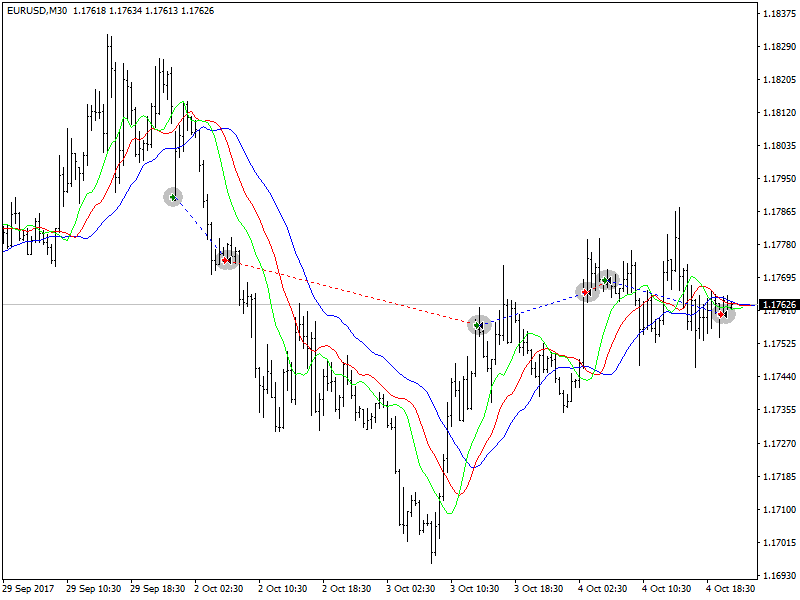
Alligator (Signal 9) in The X Universal EA
Most of the time the market does not move anywhere. Only 15-30% of the time the market forms some trends and traders who are not in the exchange hall, almost all of their profits are extracted from trend movements. My grandfather often repeated: “Even a blind chicken will find grain if it is fed at the same time.” We call trading in the “blind chicken market” trend. Although it took us years, we still developed an indicator that always allows us to “keep gunpowder dry” until we are in the “blind chicken market.”
Bill Williams
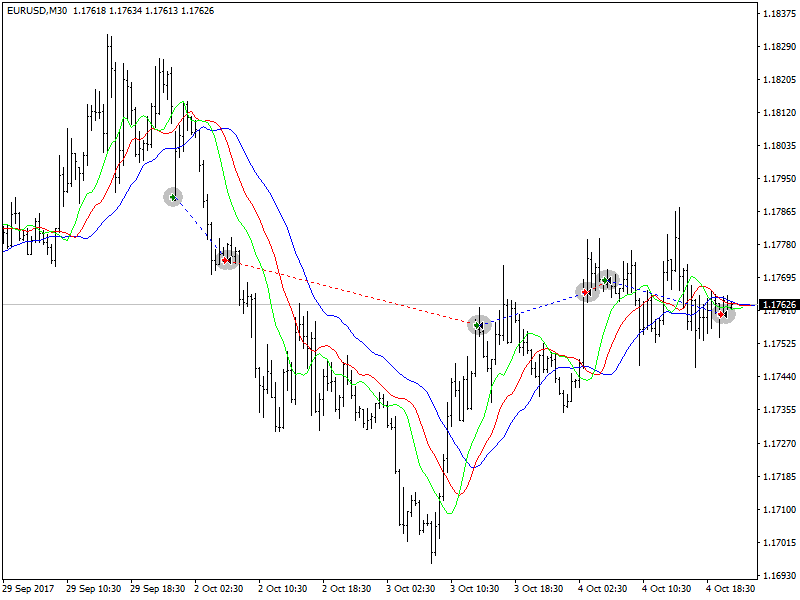
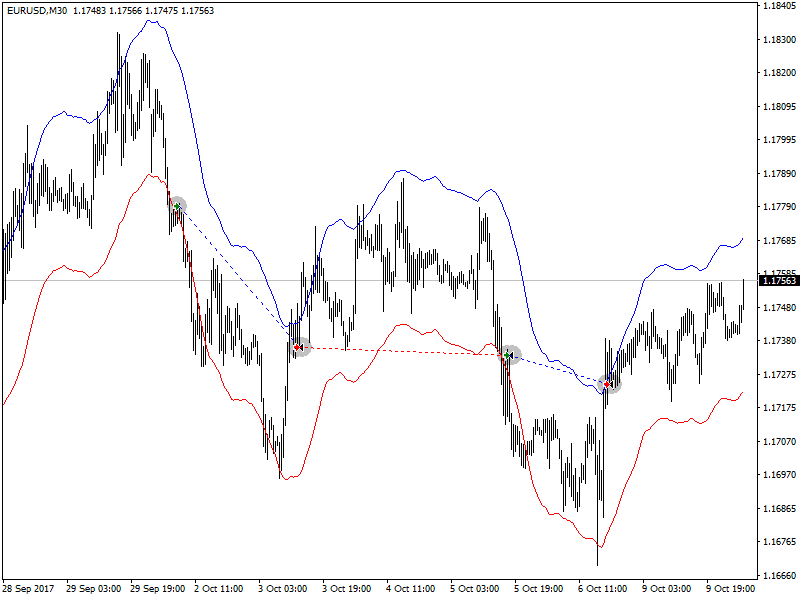
Technical Indicator Alligator is a combination of the Balance Lines ( Moving Averages ) using fractal geometry and nonlinear dynamics.
Also, for all lines, the same averaging method (AlligatorMethod) and the settlement price (AlligatorPrice) are used.
The indicator’s peculiarity is that all lines have a positive shift to the right. This allows you to safely read the values of the indicator on the current bar, as they are already accurately formed and not subject to change.
BUY signal is the lip line above the dentition line, and the line of teeth is above the jaw line,
SELL signal is the lip line below the dentition line, and the line of teeth is below the jaw line.
In all other cases, there is no signal.
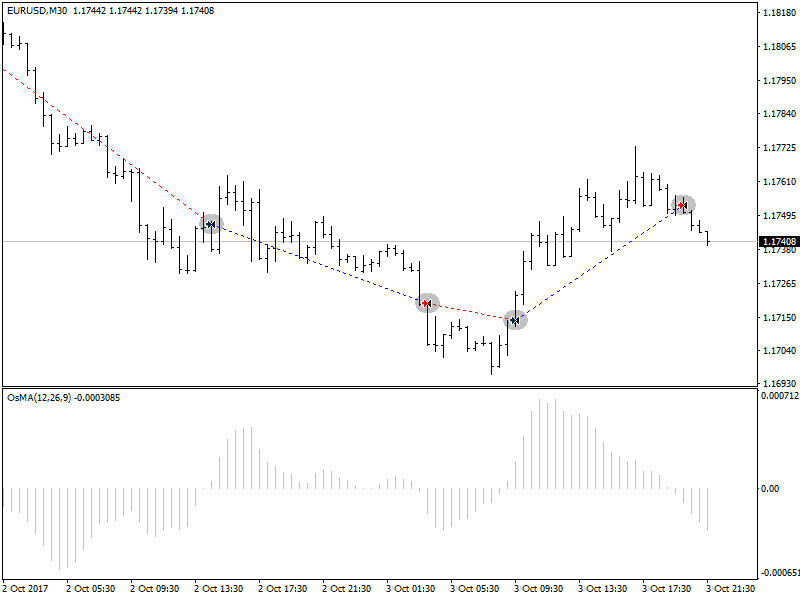
Moving Average of Oscillator (OsMA) (Signal 10) in The X Universal EA
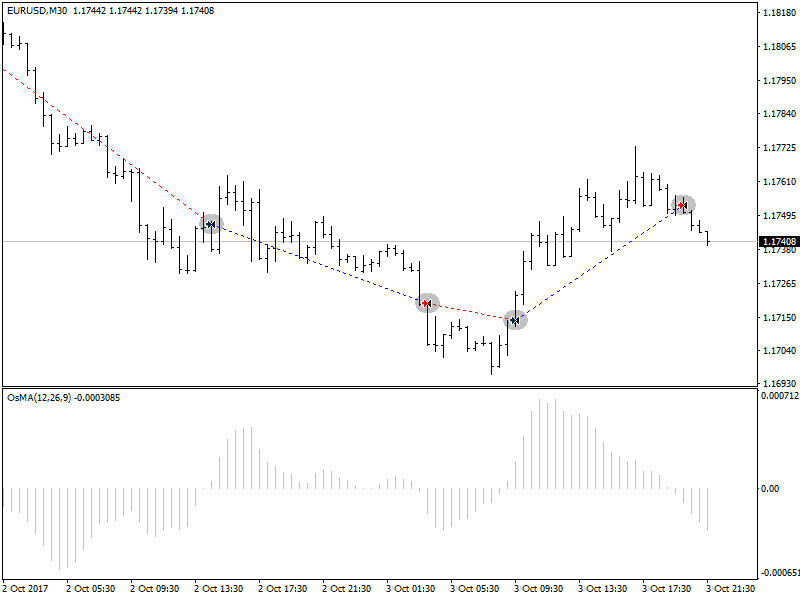
The Technical Indicator Moving Average of Oscillator (OsMA) is the difference between the oscillator and the smoothing of the oscillator. In this case, as the oscillator, the main MACD line is used, and as the smoothing, the signal line is used.
The signals are slightly different:
BUY – the value of the histogram is above zero,
SELL – the value of the histogram is below zero.
The “no signal” state will only be in those rare cases when the OsMA value is zero.
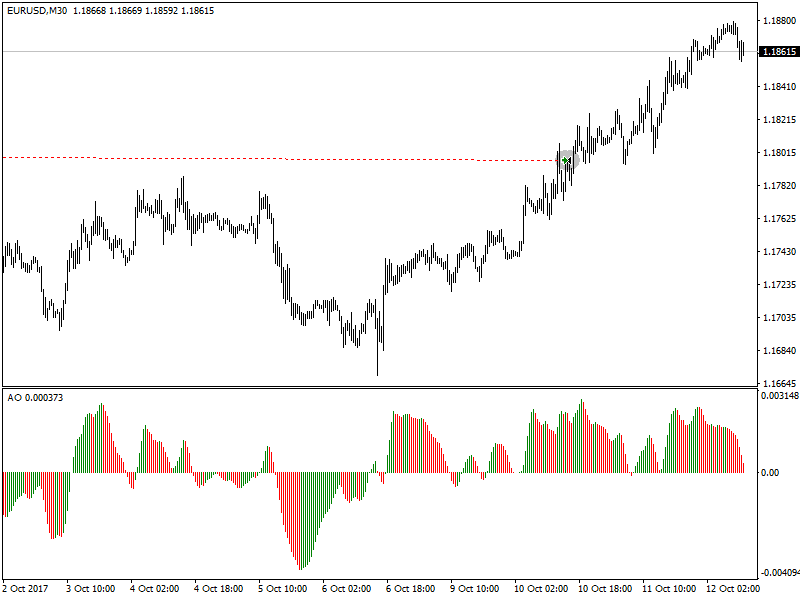
Awesome Oscillator (AO) (Signal 11) in The X Universal EA
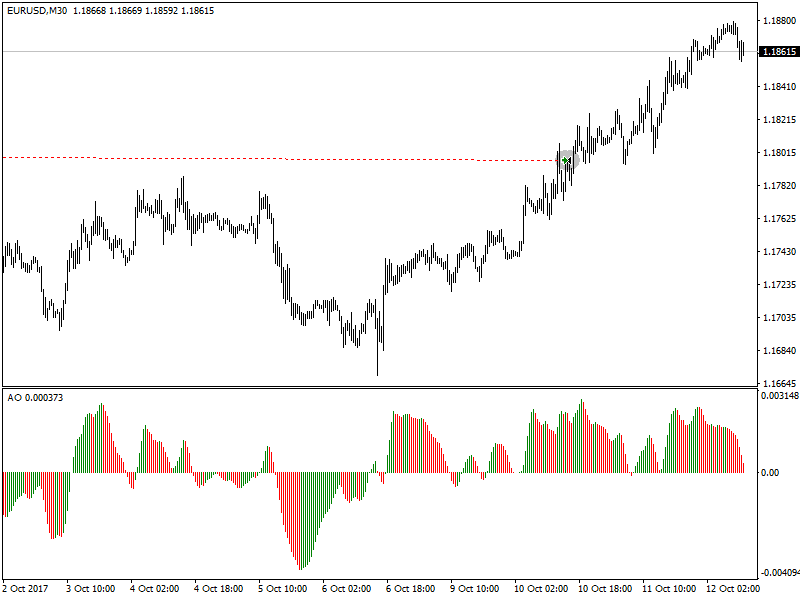
Technical Indicator Awesome Oscillator (AO) is a 34-period simple moving average constructed on the average points of bars (H + L) / 2, which is subtracted from a 5-period simple moving average constructed at the central points of bars H + L) / 2. He accurately tells us what is happening at the current time with the driving force of the market.
Has no parameters available to the user. One of the principles of working with the indicator is the search for “saucers”. “Saucer” Bill Williams calls two increasing values of bars in the positive area, between which is a bar with a lower value. Accordingly, the “inverted saucer” – these are two decreasing values of bars in the negative area, between which is a bar with a large value. Thus, to identify the “saucers” will require the last three formed candles (in the code – four).
BUY – “saucer”,
SELL – “inverted saucer”,
“no signal” – all other cases.
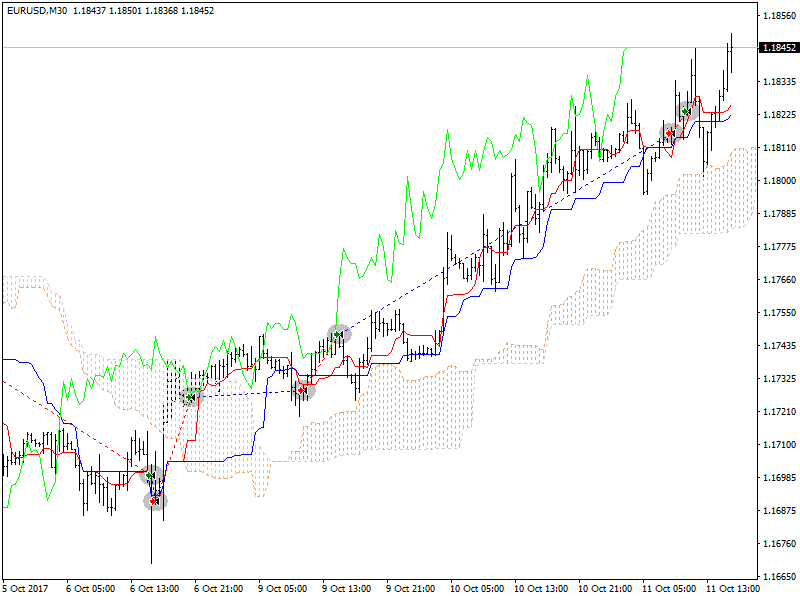
Ichimoku (Signal 12) in The X Universal EA
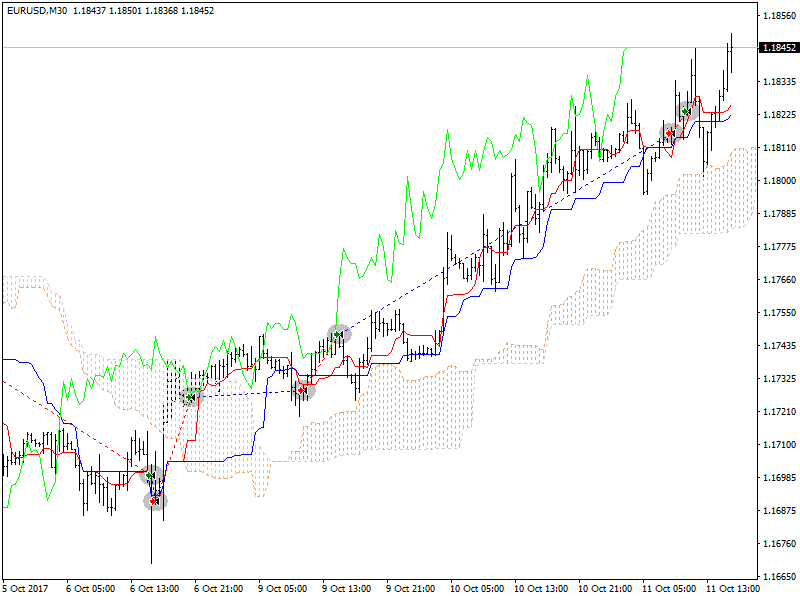
Technical Indicator Ichimoku Kinko Hyo (Ichimoku Kinko Hyo) is designed to determine the market trend, support and resistance levels and to generate buying and selling signals. The indicator works best on weekly and daily charts.
the principle of work on the intersection of lines TENKANSEN and KIJUNSEN,
BUY If TENKANSEN > KIJUNSEN.
SELL If TENKANSEN < KIJUNSEN.
Accelerator / Decelerator (AC) (Signal 13) in The X Universal EA
The Technical Acceleration / Deceleration (Acceleration / Decelerator Oscillator, AC) measures acceleration and deceleration of the current driving force. This indicator will change direction before changing the driving force, and it will in turn change its direction before the price change. Understanding that the AU is an earlier warning signal gives obvious advantages.
The same signals as in AO

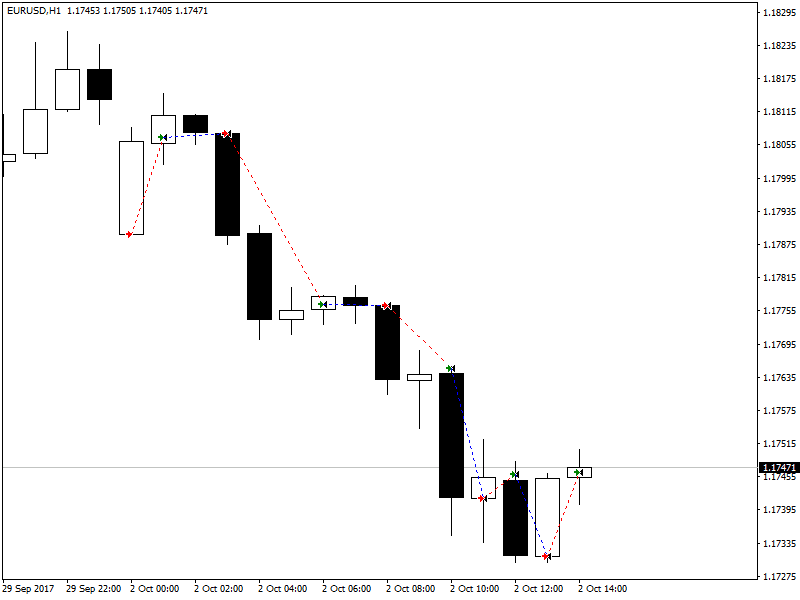
Bar (Signal 14) in The X Universal EA
Work in the direction of the bar
BUY – If the Close > Open (Bull Bar)
SELL – If the Close < Open (Bear Bar)
New Parametr Min_Points_of_Bar_OpenClose = 100
If the candle Close is above 100 points, the candle Open (Bullish candlestick) – BUY
If the candle Close is below 100 points, the candle Open (Bearish candlestick) – SELL
if Min_Points_of_Bar_OpenClose 0, the same old version
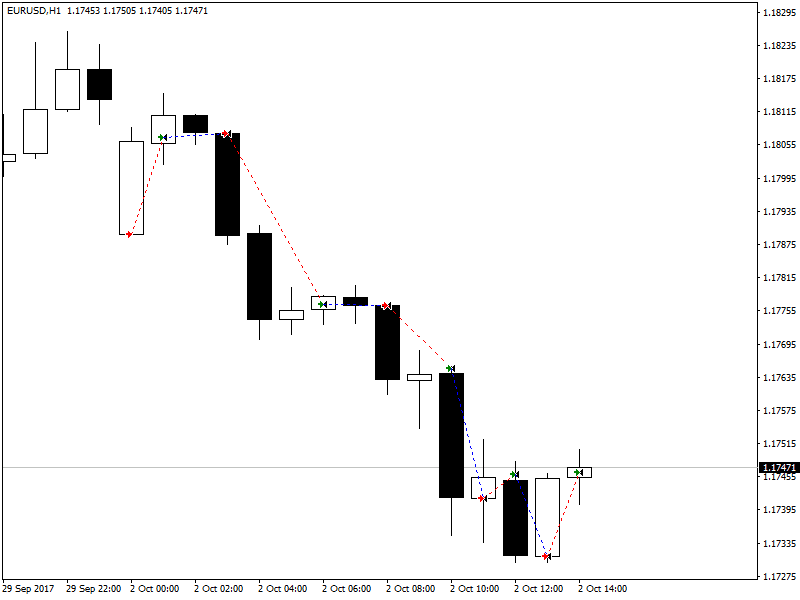
ADX (Signal 15) in The X Universal EA
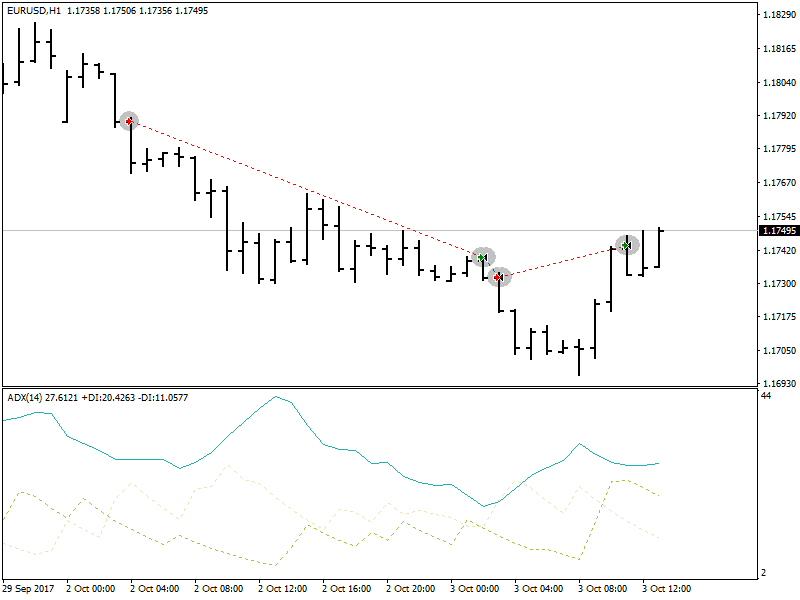
The Technical Indicator Average Directional Movement Index (ADX) helps to determine the existence of a price trend. It is based on the approaches described in Wells Wilder`s book “New concepts of technical trading systems.”
The strategy of signals from the directory.
This signal can receive two types of signals for the opening.
If ADXLevel = 0, then the following strategy is used:
Wilder suggests buying if + DI crosses above -DI and selling when + DI crosses below -DI.
If ADXLevel is not = 0, then the following strategy is used:
Wilder suggests buying if + DI crosses above -DI with ADX above ADXLevel and selling when + DI crosses below -DI with ADX above ADXLevel.
When using ADX as a filter, the position of the lines is used + DI> -DI = only BUY, + DI <-DI = only SELL,
If ADXLevel is 0, then the permission to open SELL is DI-> DI +
If ADXLevel is 0, then the permission to open BUY is DI +> DI-
If ADXLevel is not equal to 0, then the permission to open SELL is DI-> DI + and ADX> ADXLevel
If ADXLevel is not equal to 0, then the permission to open BUY is DI +> DI- and ADX> ADXLevel
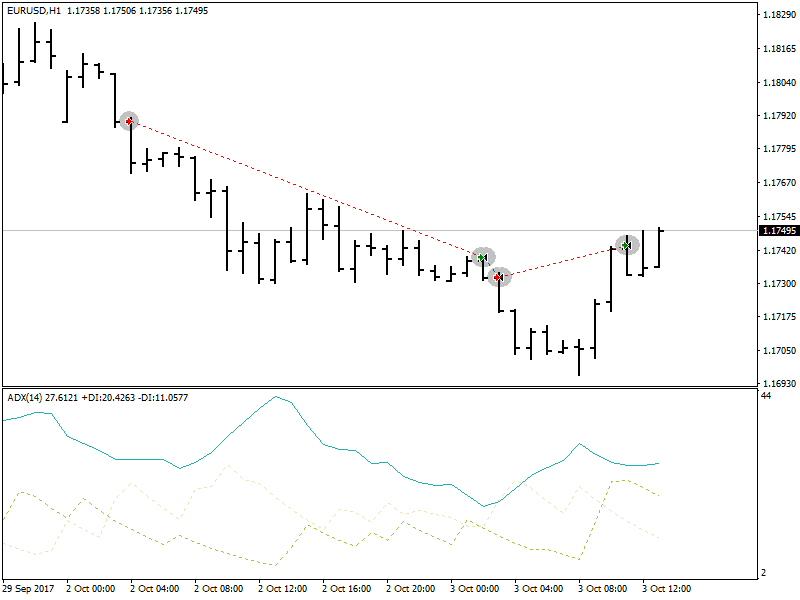
Bar relatively MA (Filter 16) in The X Universal EA
The signals to the adviser are filtered according to the indications of the closing price of the bar and Fast Slow MA
BUY – If the closing price of the bar above MAfast and MAslow – signals only BUY
SELL – If the closing price of the bar is below MAfast and MAslow – signals are only SELL
If you want to use this filter as a SIGNAL, you need to set IndSigToTrade = 0 and FILTER_IndSigToTrade1 = 16 (Bar relatively MA)
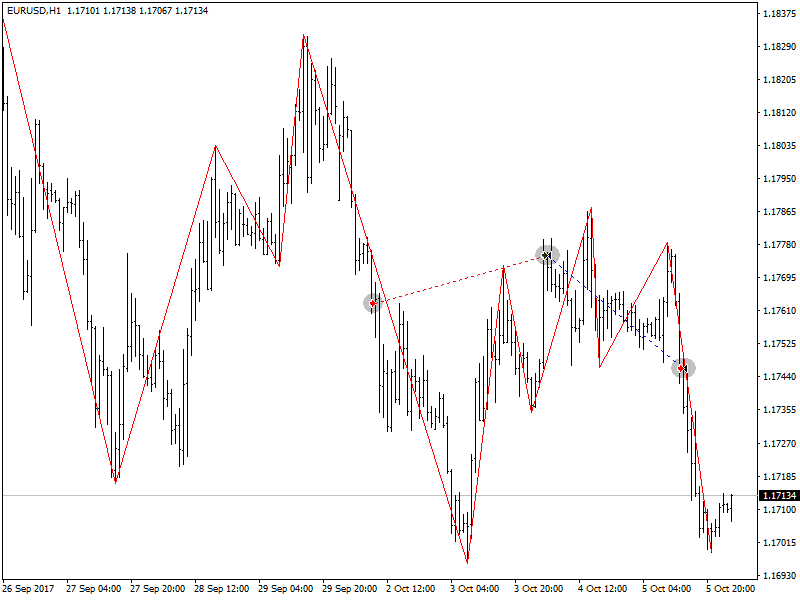
ZIGZAG (Signal 17) in The X Universal EA
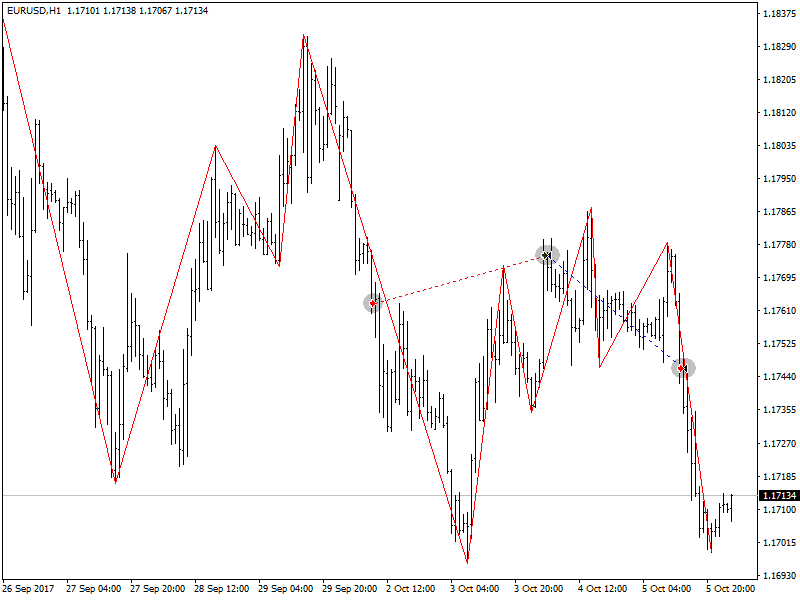
The signal for opening a position on the ZIGZAG indicator is the intersection of ZIGZAG extremums.
When using signals, it is important to set the shift parameter.
With a value of 0, the position opens immediately towards the intersection of the current Bid price of the last extremum ZIGZAG.
With a value of 1, the position is opened when the intersection is fixed on 1 closed bar.
The last extremum is the fixed extremum 1 when a new segment of ZIGZAG is already postponed from this extremum.
The intersection of the maximum and minimum points is the signal for opening the position.
The ZIGZAG filter in the direction of the last segment, ZIGZAG 0.
ATR (Filter 18) in The X Universal EA
The Technical Indicator Average True Range (ATR) is an indicator of market volatility. It was introduced by Wells Wilder in the book “New concepts of technical trading systems” and since then the indicator is used as a component of many other indicators and trading systems.
The indicator True Range often achieves high values in the foundations of the market after a rapid fall in prices caused by panic sales. Low values of the indicator often correspond to long periods of horizontal movement that are observed at the tops of the market and during consolidation. It can be interpreted by the same rules as other volatility indicators. The principle of forecasting with the help of the Average True Range is formulated as follows: the higher the value of the indicator, the higher the probability of a trend change; The lower its value, the weaker the direction of the trend.
ATR shows market volatility.
The trading strategy for ATR as a filter is to confirm the current trend.
When ATR grows, it means high market volatility.
Low ATRs mean Low market volatility.
ATR_MULTIPLIER = 1; – The coefficient of the ATR indicator, for example, EURUSD ATR = 0.0020, when using the coefficient ATR_MULTIPLIER = 2, The calculation will be included ATR = 0.0040.
Filter logic, according to ATR:
PRICE (ATRprice) of the current bar is higher than PRICE (ATRprice) of the previous bar + (ATR * ATR_MULTIPLIER) = high volatility filter BUY
PRICE (ATRprice) of the current bar is lower than PRICE (ATRprice) of the previous bar – (ATR * ATR_MULTIPLIER) = high volatility filter SELL

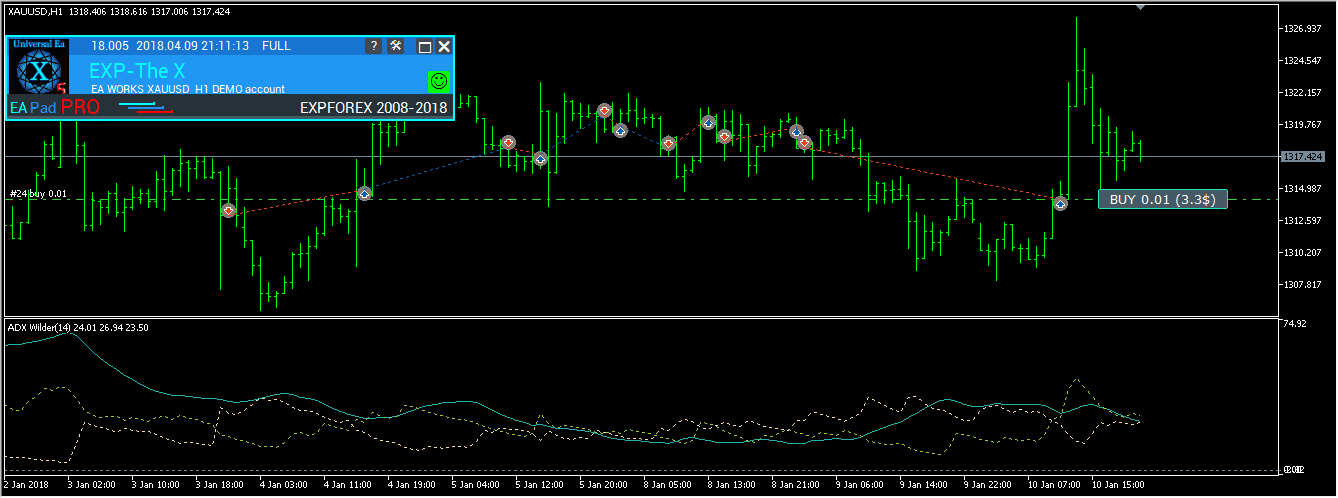
ADX Wilder (signal 19) – for only MT5 in The X Universal EA
Technical Indicator Average Directional Movement Index Wilder (Average Directional Movement Index Wilder, ADX Wilder) helps to determine if the price trend.
This indicator is built in strict accordance with the algorithm described by Welles Wilder in his book “New Concepts in Technical Trading Systems”.
This signal can take two types of signals for opening
If ADXLevel = 0, then use the strategy:
Wilder recommends buying when + DI crosses above the -DI and selling when + DI crosses below -DI.
! If ADXLevel = 0, then use the strategy:
Wilder recommends buying when + DI crosses above the -DI while ADX is above ADXLevel and selling when + DI crosses below -DI while ADX is above ADXLevel.
When the ADX is used as a filter, using the position of the lines + DI> -DI = only BUY, + DI <-DI = only SELL,
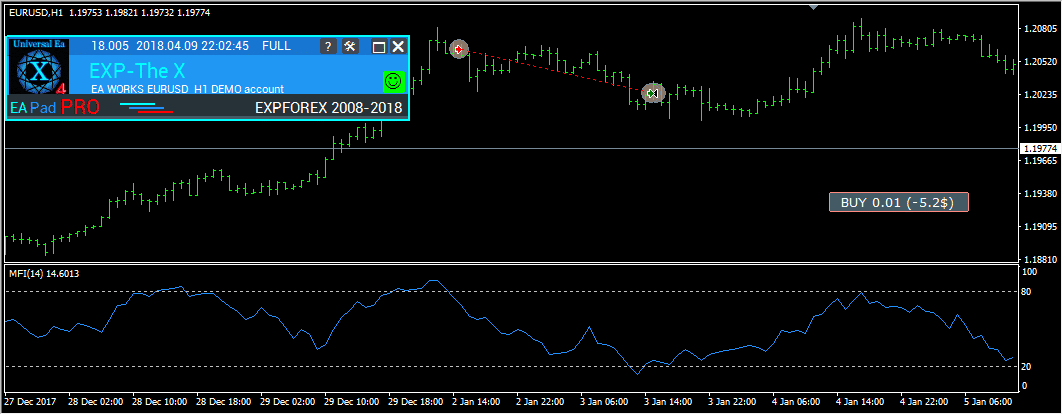
Money Flow Index (Signal 20) in The X Universal EA
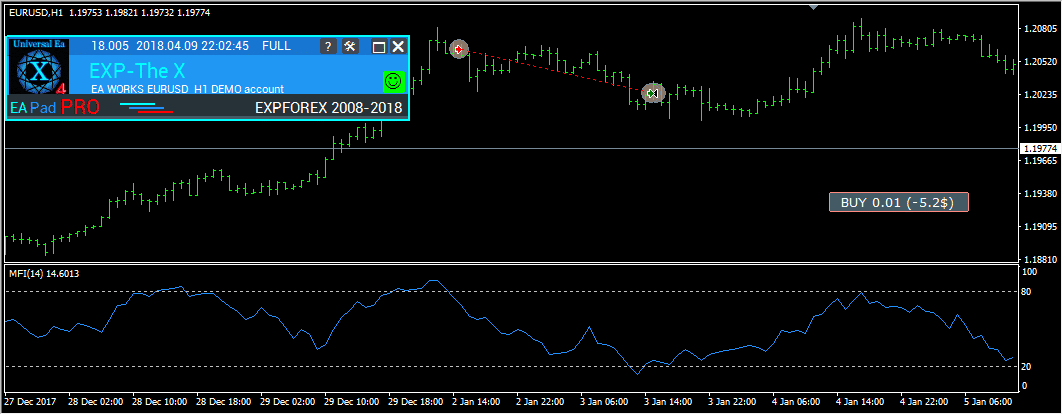
Technical Indicator Money Flow Index (MFI) shows the intensity with which money is invested in securities or withdrawn from it. The construction and interpretation of the indicator is similar to the Relative Strength Index , with the only difference being that MFI also takes into account the volume.
Trade on the indicator Money Flow Index
The Money Flow Index (MFI) shows the intensity with which money is invested in securities or is withdrawn from it.
The construction and interpretation of the indicator are similar to the Relative Strength Index, with the only difference being that in MFI, the volume is taken into account.
The signals of the indicator are similar to the signals from the indicator RSI;
Fractals (Signal 21) in The X Universal EA
Fractals – this is one of five indicators of the trading system of Bill Williams, allowing you to detect the bottom or top. The technical definition of a fractal up is a series of at least five consecutive bars, in which, before the highest high and behind it are two bars with lower highs. The opposite configuration (a series of five bars in which, before the lowest low and behind it there are two bars with higher minima) corresponds to the fractal down. On the chart, the fractals have the High and Low values and are indicated by the up or down arrows.
Trading on the Fractals indicator
The signal for opening positions is the intersection of the level of the last fractal:
When you cross up with the price of the previous high fractal – the BUY position opens;
When you cross down at the price of the last lower fractal, the SELL position opens;
Filter: Similar to the main signal:
If the price is higher than the previous upper fractal, only the BUY position;
If the price is lower than the last lower fractal, only the SELL position;
Attention! Fractals can be drawn on at least 2 closed bars and on an unlimited number of bars back in the past. Consider this when analyzing the signal!
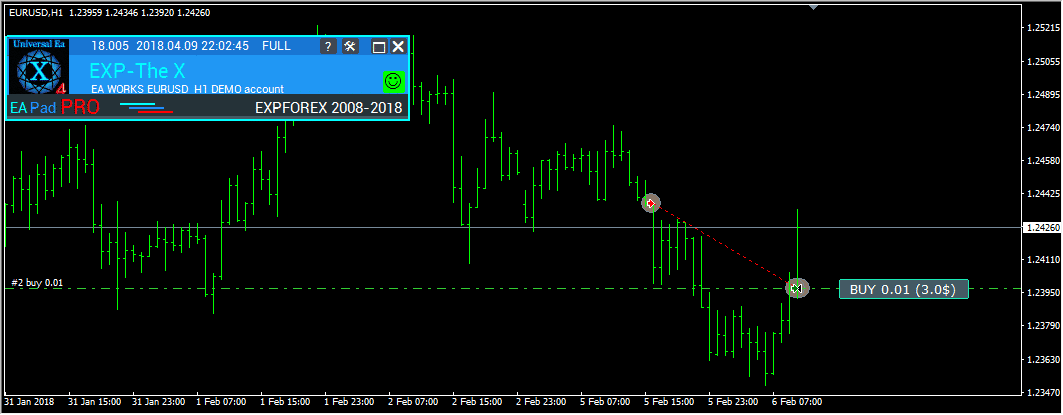
Table of Contents (click to show)
List
- OWN Signal options Block of signals and filters
- Function and Parameters
- Signal Options: Additional Signal Processing Unit
- Opening Filter Options
- Closing Options
- Pending Orders Option
- Trading Options
- Stops Options
- Lots Options
- Averager Options: The Block of Functions for Averaging Positions, Opening Positions Against the Trend
- Additional Opening: Block of Functions for Additional Opening of Positions on a Trend
- Time Trade Options: The Block for Managing Trade Time and Time Limits
- BreakEven Without LOSS Options: Block of Functions for Breakeven (Set Stop Loss to Break-Even at a Specific Moment)
- Standard Trailing Options
- TrailingStop by SAR: Parabolic SAR
- CloseALL When Profit or LOSS Options
- Limiting Losses and Profits
- Drawdown Options
- Virtual Withdrawal
- OnTester_Custom
You can download our files for optimization for EA
OWN Signal options Block of signals and filters
| Parameter | Description |
|---|---|
OWN Signal options | |
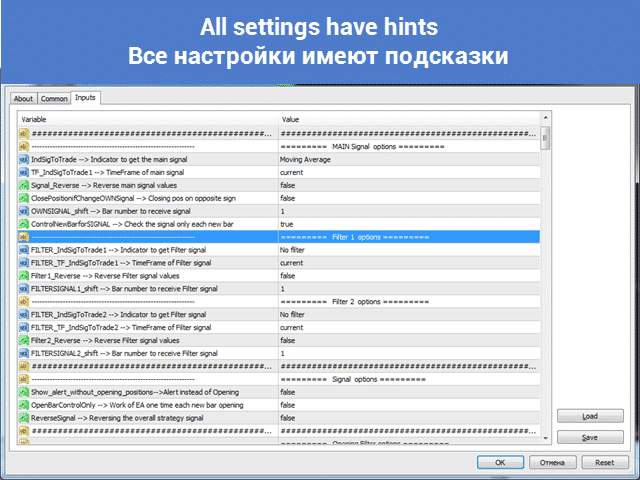
| IndSigToTrade | Select an indicator and a signal to open the first and main positions. More than 20 indicators and signals are available. You can read information on signals and indicators in the Documentation section. When using the main Indicator, the signal is generated as is! On the current bar! This means that the signal for opening appears as a fact of executing a signal. If there is a signal and the filter does not allow opening the position, then the signal is ignored. No Signal: When chosen, the advisor ignores the main signal and trades on filters. When using NoSignal, EA can ignore the fact of executing the main signal and work on filters. When using filters, the Expert Advisor opens a position based on the Current data of the selected Indicator. |
| TF_IndSigToTrade1 | The Time frame for the first main indicator. You can select the Time Frame by which the indicator will receive signals. Period_Current – the current Timeframe The larger the TimeFrame, the longer you need to wait for the main signal! The smaller the TimeFrame, the faster positions (deals) are opened. |
| Signal_Reverse | Flip(Reverse) the signals of this Main indicator. This option reverses the signals of the main indicator only. If the signal is to open a Buy, then the Expert Advisor opens a Sell! If the signal is to open a Sell, then the Expert Advisor opens a Buy! |
| ClosePositionifChangeOWNSignal | Enable Disable closing of positions on the opposite signal of the main indicator without the participation of other filters and other parameters. The ClosePositionifChangeOWNSignal parameter is divided into 3 values: – False (off) – True (on), – OnlyifProfit (Only if positions are in profit); |
| OWNSIGNAL_shift | The Number of BAR for the signal that the indicator will generate. – 1 = Last closed bar; signals on such bar are considered closed. – 0 = Current open bar; signals on this bar are considered drawings; be careful. More about this parameter: Detailed article on signal bars |
| FILTER_IndSigToTrade | You can Select an indicator and filter for filtering signals from the main indicator. Warning: Some indicators and filters are not compatible with each other. Therefore, by turning ON a filter, you can wait a long time to create a Signal for open positions! Be attentive and check your settings on the strategy tester. |
| FILTER_TF_IndSigToTrade | Timeframe for the filter. You can select the Time Frame by which the indicator will receive the filter signals. Period_Current – the current timeframe. For example, When using MA as the main signal with TF = M30, you can enable filtering on the higher MA with TF = H4. |
| Filter_Reverse | Flip(Reverse) the signals of this filter. This option reverses the signals of only this filter. For example, The main indicator MA shows BUY, but the older MA indicator shows SELL; When using this function, we turn over the signals of the older MA and get the aggregate signal BUY. |
| FILTERSIGNAL_shift | The bar number for the signal that the indicator will generate, – 1 = Last closed bar; signals on such bar are considered closed. – 0 = Current open bar; signals on this bar are considered drawings; be careful. More about this parameter: Detailed article on signal bars |
Function and Parameters
Parameter | Description |
|---|---|
Signal Options: Additional Signal Processing Unit | |
| Show_alert_without_opening_positions |
Alert If this option is enabled (TRUE), the Expert Advisor will not open a new position (Deal) on the signal but will only notify the user that a new signal has appeared. In this case, all other functions will operate normally. This allows the user to open a position (Deal) on their own if the advisor has issued (created) a signal. However, the EA does not create this deal (Position) and does not open the position (Deal) but only alerts the user about the signal. |
| Send_Push_without_opening_positions |
Push Notification If this option is enabled (TRUE), the Expert Advisor will not open a new position (Deal) on the signal but will only notify the user by phone that a new signal has appeared. In this case, all other functions will operate normally. This allows the user to open a position (Deal) on their own if the advisor has issued (created) a signal. However, the EA does not create this deal (Position) and does not open the position (Deal) but only sends a Push Notification to the user about the signal. |
| OpenBarControlOnly |
The Advisor Operates Only on Open Bars (Start of New BAR). This mode simulates the Advisor’s operation on bar opening (as in the strategy tester). When this mode is enabled (True), the Expert Advisor will trade exactly as in OpenPriceOnly testing mode. All Advisor functions will execute once at the opening of a new bar (depending on the selected timeframe), including Modification, Trailing Stop, Averaging, opening deals by signal, etc. |
| ControlNewBarforSIGNAL | Check the Indicator Signal Only for Each New Bar (Without Checking on Each Tick). Works only when OWNSIGNAL_shift ≥ 1 and IndSigToTrade ≠ NoSignal (with NoSignal, the Expert Advisor checks the filter values with each tick). When ControlNewBarforSIGNAL = true, the optimization speed increases by 1.5 times! 1. ControlNewBarforSIGNALType = 1 = True, smallest TF of the settings: New mode! The EA selects the smallest TimeFrame set by the parameters TF_IndSigToTrade1, FILTER_TF_IndSigToTrade1, FILTER_TF_IndSigToTrade2, etc. In this mode, the EA does not check the signal on the current TimeFrame but on the TimeFrame for receiving a signal from indicators! This mode is useful for those who use TF_IndSigToTrade1, FILTER_TF_IndSigToTrade1, FILTER_TF_IndSigToTrade2, other than the Current TimeFrame. 2. ControlNewBarforSIGNALType = 2 = True, current bar of the current TF: Old mode! In this mode, the EA checks every new bar of the current TimeFrame for new signals! If you use TF_IndSigToTrade1, FILTER_TF_IndSigToTrade1, FILTER_TF_IndSigToTrade2 other than the Current TimeFrame, the results on each TimeFrame may differ. We recommend installing the Expert Advisor on the TimeFrame M1! 3. ControlNewBarforSIGNALType = 0 = False: Do not use the new bar control to determine the signal! Attention: When this is off (false), the EA checks the signal every tick! There may be delays in testing and optimization! |
| ControlNewBarforOpenbySignal: | ControlNewBarforOpenbySignal = true: Old mode! The EA opens positions (Deals) on a signal only on every new current bar of the current TimeFrame! The EA opens positions (Deals) if there is a signal, only when a new bar of the current TimeFrame arrives! ControlNewBarforOpenbySignal = false: New mode! The EA opens positions (Deals) on a signal every new bar from the signal TimeFrame! The EA opens positions (Deals), if there is a signal, immediately upon detection of the signal. This mode is useful for those who use TF_IndSigToTrade1, FILTER_TF_IndSigToTrade1, and FILTER_TF_IndSigToTrade2, other than the Current TimeFrame. |
| ReverseSignal |
Flipping (Reverse) the Overall Strategy Signal Received from the Main Indicator + Filters! If the common signal is to open a Buy, then the Expert Advisor opens a Sell! If the common signal is to open a Sell, then the Expert Advisor opens a Buy! |
Opening Filter Options | |
| TypeTradeBUYSELL | Trade Direction: – Buy and Sell – Only Buy – Only Sell Attention: If you use pending orders (instead of positions) and operate in only one direction, every time a new signal is received, the old pending order will be deleted and a new one will be set at a new price. |
| MinuteToOpenNextPosition |
Permission to Open the Next Signal After the Last Open Position If there are no open positions (Deals), the Expert Advisor (EA) considers the time (in minutes) since the last closed position. Time is considered of the same type. If the BUY signal: Time since the last opened/closed BUY… If the SELL signal: Time since the last opened/closed SELL… The number of minutes to open the next Deal on the signals of indicators. It allows you to filter deals when using OnlyOnePosbySignal = false. |
| DistanceToOpenNextPosition |
Minimum Distance to Open the Next Position on the Main Signal (If OnlyOnePosbySignal = false and OnePosPerDirection = false). If DistanceToOpenNextPosition is above 0, then the next position (Deal) can be opened only when the previous position (Deal) on the signal has passed a DistanceToOpenNextPosition of profit points (Pips)! If DistanceToOpenNextPosition is below 0, then the next position (Deal) can be opened only when the previous position (Deal) on the signal is at a distance of DistanceToOpenNextPosition points (Pips) on both sides of profit or loss! |
| OpenOppositePositionAfterStoploss |
EA Opens the Opposite Position When Closing the Current Stop Loss. Opens the opposite position (Deal) immediately after receiving the stop loss of the previous deal (position) without using indicator signals. If the last position was closed by stop loss, the Expert Advisor would immediately open the opposite position. |
| OnlyOnePosbySignal |
Trade Only One Current Main Position in One Direction. If the Expert Advisor opens a SELL position, then all other SELL signals will be ignored. If the Expert Advisor opens a BUY position, then all other BUY signals will be ignored. |
| OnePosPerDirection |
Opening One Deal in One Direction, e.g.: If OnePosPerDirection = true and OnlyOnePosbySignal = false, then the EA can open one Buy Deal (Position) on a signal and one Sell Deal (Position) on a signal; If OnePosPerDirection = false and OnlyOnePosbySignal = true, then the EA can only open one Deal (Position) per signal, either Buy or Sell; If OnePosPerDirection = false and OnlyOnePosbySignal = false, then the EA can open multiple Deals (Positions) for each new indicator signal; |
| OnlyOnePositionPerMagic |
Opening One Position per Magic Number. The Expert Advisor checks whether there are open positions (Deals) for this magic number in other currency pairs. If there is no position, the advisor will open the deal at the signal, and the remaining advisors will wait for the completion of this deal. If OnePosPerDirection = false, then OnlyOnePositionPerMagic = true works as follows: One position per magic number is allowed; If OnePosPerDirection = true, then OnlyOnePositionPerMagic = true works as follows: One position of each direction (Buy and Sell) is allowed per magic number; |
| OnlyAlternateSignals |
Allows Opening Positions Only One by One. If the last closed position was a SELL, the next can be opened only as a BUY! It is necessary to trade the main indicator in No Signal Mode (IndSigToTrade = No Signal). |
| MAX_BUY_POSITION |
Parameter for Limiting the Maximum Number of BUY Deals (Positions). The positions opened by signals of indicators are taken into account. The averaging and additional positions are not taken into account. |
| MAX_SELL_POSITION |
Parameter for Limiting the Maximum Number of SELL Deals (Positions). The positions opened by signals of indicators are taken into account. The averaging and additional positions are not taken into account. |
| MaxSpreadToNotTrade |
The Maximum Spread at Which the Advisor Can Open a Position. If the current spread at the time of receiving the signal is greater than the specified value, the indicator signal is ignored until the spread is less than the specified value. |
| MinSpreadToNotTrade | Minimum Spread in Which the Advisor Can Open a Position. Warning: This filter is only used to open positions by signal, averaging, and additional opening. All other functions operate normally. Warning: This filter applies only to Positions! For Pending Orders, this filter does not apply. Therefore, the filter works only when you use Positions. |
| Include_Commission_Swap | Consider the Author’s Calculation of Commission and Swap When Functions Are Enabled: BreakEven (Stop Loss at Breakeven Point), Trailing Stop, Averaging. The author’s calculation of the Commission is based on the formula for calculating the value of 1 Point (Pip) from the open positions for this symbol and the magic number; a negative swap and Commission are included in the calculation. The function returns the cost of a negative swap and Commission in Points (Pips) and takes this into account when working with the BreakEven functions (Stop Loss at the Breakeven Point) and Trailing Stop. Attention: If you have a floating spread with your broker, the settlement of the Commission is executed and set at the moment of operating the BreakEven functions (Stop Loss at the Breakeven Point) and Trailing Stop, but the spread may increase, incurring additional loss points (Pips). This is not a calculation error! Also, consider that when a swap occurs, the advisor recalculates the BreakEven line (Stop Loss at the Breakeven Point) and sets new stops if the server allows it (restriction to the minimum stop level for your broker’s StopLevel). If the server does not allow setting a BreakEven and returns a minimum stop level error, the EA will not be able to modify the position, and you may incur additional loss points (Pips). To avoid incurring a loss when using Commission with a negative swap, we recommend increasing the distance between BreakEven (Stop Loss at Breakeven Point) or Trailing Stop. The level of BreakEven (Stop Loss at Breakeven Point) (LevelWLoss) can be calculated independently, considering the Commission. For example, if the Commission for opening and closing a position = 2 dollars (EURUSD) per 1 lot. To cover the loss from the Commission, set LevelWLoss = 2 (Pips) + 1 (control point) = 3 Pips. Thus, the advisor will set a BreakEven (Stop Loss at the Breakeven Point) at +3 Pips, covering the loss from the Commission. |
Closing Options | |
| ClosePosifChange |
Close Positions When the General Indicator Signal is Reversed. The difference between ClosePosifChange and ClosePositionifChangeOWNSignal is that with ClosePosifChange(true), a signal change is considered for all filters + the primary (Main) signal. When ClosePositionifChangeOWNSignal(true), the signal change is considered only on the Main Indicator (IndSigToTrade). It also works for pending orders. |
| ClosePosition_After_X_Minutes |
EA Can Close the Position After the Set Number of Minutes. Additionally, the Expert Advisor checks the enabled CloseChangeOnlyInProfit parameter: The EA can close only profitable positions. |
| CloseChangeOnlyInProfit | The EA can close deals on a return signal (changing the direction of the signal) only when the current position is in profit. |
Pending Orders Option | |
| StopOrderUSE | Open Pending Orders or Limit Orders Instead of Positions. 1. FALSE: Open Positions (BUY, SELL); 2. TRUE: Allows you to open a pending or limit order for the received signal at a distance of StopOrderDeltaifUSE points (Pips). Thus, we recheck the signal for profitability. If the signal is aligned with the price movement, the pending order will execute through StopOrderDeltaifUSE points (Pips). 3. Use Virtual Stop Orders: Places a virtual pending stop order at a distance of StopOrderDeltaifUSE points (Pips); 4. Use Virtual Limit Orders: Places a virtual pending limit order at a distance of StopOrderDeltaifUSE points (Pips); Caution: (Use Virtual Stop Orders) and (Use Virtual Limit Orders) only work in visualization mode or on live charts when the terminal is running on your computer. They do not work in optimization mode! |
| StopOrderDeltaifUSE |
Number of Points (Pips) for a stop or limit order. Distance from the current price. |
| StopOrderDayToExpiration |
StopOrderDayToExpiration = Number of days until the order expires. – 0 – ORDER_TIME_GTC: The order remains in the queue until it is removed; – 1 – ORDER_TIME_DAY: The order is valid only for the current trading day; – X – ORDER_TIME_SPECIFIED: The order remains valid until the expiry date. If you receive a Rejected error and hover over the order in history, you see: (Incomplete FOK information of the order), If you have a BCS broker or Open broker, then you need to set: TypeFilling = ImmediateOrCancel or TypeFilling = Return DayToExpiration = 1 |
| StopOrderBarToExpiration | The Expiration of the Pending Order in Bars. If StopOrderBarToExpiration = 10 and TF = M1, then the pending order will be removed after 10 minutes after installation. Attention: Each broker has its minimum time parameter for expiration time. |
| ReInstallStopOrdersNewSignalAppears |
Reset Pending Orders if a New Signal from the Indicators is Created. Allows you to delete the current BUYSTOP pending order and install a new BUYSTOP at a new level when the indicators generate a new signal. |
Trading Options | |
| Magic | The Magic Number of the Positions Opened by the Advisor EA. |
| Slippage |
The Maximum Possible Price Deviation When Opening and Closing Positions (in Points). Example: Slippage = 1 Maximum price deviation when opening a position = Opening price ± 1 point (Pip). Slippage = 100 Maximum price deviation when opening a position = Opening price ± 100 points (Pips). For example, if the opening price is 1.12345, but during the time of sending and opening the position (Deal), the price changes within 100 points (Requote), then the position (Deal) will open at a price within 1.12245 – 1.12445. |
| MarketWatch |
For Opened Positions with Stop-Loss / Take-Profit on an Account with MARKET Execution. First, the EA can open the position (Deal), and after the successful opening, the levels of StopLoss and TakeProfit are modified in this position (Deal). If your account is in the ECN or NDD group, you must set this option to true. |
| CommentToOrder |
Additional Comments on the Opened Positions. You can specify an additional comment here that will be added to the opened position to differentiate the settings, for example. Standard comment: “The X” + CommentToOrder |
| RoundingDigits |
EA Can Round All Prices When Opening and Modifying Orders and Positions (Deals). Options: – No rounding, – Rounding up to 1 digit, – Rounding up to 2 digits. The function is created for Gold and Silver, as well as for brokers that require a specified tick accuracy. Example: Deal open price = 1.12345 Rounding to 1 digit = 1.12340 Rounding up to 2 digits = 1.12300 |
| TypeFilling |
The Type of Fill for Positions and Orders. Used for the MT5 terminal. In AUTO mode, the Expert Advisor tries to determine the fill type automatically. However, in some situations, you need to set the fill type manually. If you receive an error when opening a position: 10030 TRADE_RETCODE_INVALID_FILL, An unsupported type of execution, set the fill type according to your broker’s rules. Example: FillOrKill This execution policy means that the order can be executed only in the specified amount. If the market does not currently have a sufficient amount of a financial instrument, the order will not be executed. The required volume can be made up of several offers available at the moment in the market. ImmediateOrCancel This means agreeing to execute the deal on the maximum available volume in the market within the specified limits. If full execution is not possible, the order will be executed for the accessible volume, and the unexecuted order volume will be canceled. Return This mode is used for market, limit, and stop-limit orders and only in the “Market Execution” and “Stock Execution” modes. In case of partial execution, a market or limit order with a residual volume is not withdrawn but continues to operate. For stop-limit orders, a corresponding limit order with the execution type Return will be created upon activation. |
Stops Options | |
| VirtualStops | Enable Virtual Stop Loss / TakeProfit / Trailing Stop Instead of Real Ones. Uses virtual (invisible) levels for StopLoss/TakeProfit/TrailingStop/BreakEven (Stop Loss at Breakeven). We have completely redesigned the algorithm for Virtual StopLoss/TakeProfit/TrailingStop/BreakEven (installing stop loss at the breakeven point). Now, all virtual stops are displayed on the chart and are key when closing positions at these levels. All data about virtual levels is added in the form of lines on the chart and global variables. Note: If you delete a stop line on the chart and global variables, virtual closing on this line will not work. Attention: Check your experts and indicators to remove lines from the chart and global variables! Attention: Virtual levels are triggered at the current price, after which the closing occurs. During the closing, there may be slippage of a couple of points! Attention: In MT4, VirtualStops do not work in optimization mode. Attention: When you enable VirtualStops, the testing speed is significantly reduced. Attention: Virtual SL/TP/TS do not have restrictions and server prohibitions. Therefore, they can be set at the current price, resulting in immediate closure. |
| SetMinStops |
Automatically Normalize All Parameters of the Expert Advisor to the Minimum Acceptable Stop Levels. With Virtual Stops – this parameter does not affect. With AutoSetMinLevel, stop levels will be adjusted to the lowest possible levels allowed by the server; If Stop Loss or Take Profit level is less than the minimum stop level on the server, then Stop Loss/Take Profit level = Minimum Stop Level (Spread*2 or fixed level on the server) + Spread. When using ManualSet, the user will receive a message that the EA’s stop levels are below the minimum, and the EA will receive an error from the server. If the stop level on the server is floating, then the minimum stop level is automatically calculated as Spread*2. |
| StopLoss | StopLoss of each position (Deal) you open in Pips. |
| TakeProfit | TakeProfit of each open position (Deal) in Pips. |
| ForcedModifySLTP |
Forced Modification of Positions: Set Stop Loss and Take Profit. The Expert Advisor will forcibly modify the StopLoss and TakeProfit for all its positions. For example: If the broker’s server opened a Deal but did not return its ticket, then the expert will forcibly check all its positions. If the EA finds that the StopLoss or TakeProfit of the position is 0, the Expert Advisor will force the modification of StopLoss and TakeProfit. |
| TimeToCheckAverageSpread | The Algorithm for This Function is Taken from Our Automated TickSniper Scalper Sales Advisor. Added parameters to the Stops (SL TP TS) Options block: – TimeToCheckAverageSpread: The number (milliseconds, 20,000 = 20 seconds) for determining the average spread – AutoCheckLowSpread: Auto-determination of the low spread. Automatically determines if the spread is too low (less than 1 point (Pip)) and sets all system settings to the lowest possible spread. This protects the system from the broker’s spread reduction. How to Use: For the parameter calculated in Pips based on the average spread of the currency pair, specify the setting with a “–” sign. For example: StopLoss = 2000 means that the StopLoss of each position will be 2000 points (Pips)! StopLoss = -100 means that the StopLoss of each position will be equal to 100 * Average Spread, calculated by the Expert Advisor over TimeToCheckAverageSpread milliseconds. If the spread is 20 points (Pips), then the StopLoss at the time of opening will be 2000 points (Pips). With a floating spread, this value always changes. The parameters available for setting in the spread mode: Distance, DistanceAdditionalOpening, StopOrderDeltaifUSE, StopLoss, TakeProfit, TrailingStop, TakeProfitALL, StopLossALL, LevelWLoss, LevelProfit. The average and current spread, as well as the level of the Auto Spread Low spread, will be displayed in our panel in the section Strategy Info. |
Lots Options | |
| Lots | A Fixed Lot (Volume) is Used to Open a Position (Deal) or Order. |
|
AdditionalLots – An additional lot (Volume) that will be added to each new deal based on a new signal. CoefficientLots – Lot coefficient, by which the lot will be multiplied for each new deal on a new signal. Work Only (When the advisor is allowed to open more than one position for each signal OnlyOnePosbySignal = false / OnePosPerDirection = false) | |
| DynamicLot |
A Dynamic Lot, AutoLot, for an Open Position. You can enable dynamic lot calculation based on the percentage of free margin and other factors. Calculation of Our AutoLot. AutoLot Calculation Type: BALANCE – AutoLot is calculated from the current balance. Lot calculation based on account balance! If there are open positions on the account, the next lot will be approximately the same because the balance does not decrease from the number of current open positions! FREEMARGIN – The standard lot calculation from the current free margin is that the more open positions on the account, the smaller the lot calculated for the next position. Because when opening a position, the free margin decreases, respectively, each new open position has a smaller lot when calculating the AutoLot. |
| DynamicLotStopLoss | Risk from SL – Calculates the automatic lot, taking into account Stop Loss. The maximum loss in percentage of the balance when closing a Deal at StopLoss. When calculating the lot, our Expert Advisor will take into account the Stop Loss (at the moment of opening the Deal). If the Deal closes at the Stop Loss, the loss of this Deal will be equal to % of the balance (at the time of opening the Deal). Important: If your Stop Loss was changed after the Deal was opened, the lot of the Deal cannot be changed. At closing the Deal, the loss can be more or less. Important: If you use a Trailing Stop, the Stop Loss changes with each tick, but the lot cannot be changed. Formula and code: https://expforex.com/my-autolot-secrets-dynamiclot-autolot/#eb-table-content-5 |
| LotBalancePercent | Percent for AutoLot. |
| RiskRate |
The Rate of Your Currency Against the Dollar (Or Your Account Currency). By default, RiskRate = 0, which means that the Expert Advisor will try to find the correct rate in the Market Watch. For AutoLot to work well with all currency pairs, you need to enable “Show All Currency Pairs” in the Market Watch. 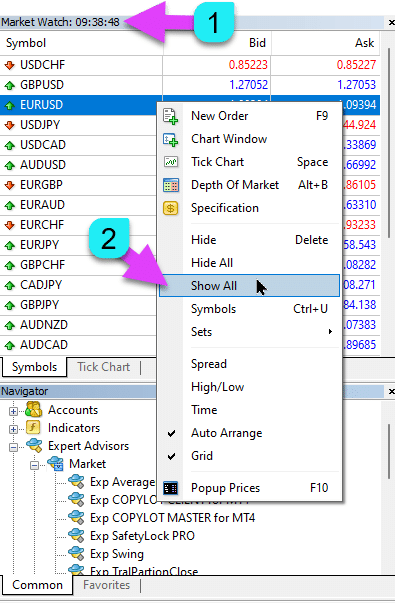
|
| MaxLot | The Maximum Lot That an Expert Advisor Can Open When Calculating an AutoLot and Martingale for the First Main Position. |
| Martin |
Martingale. The Standard Multiplication of the Lot of the Last Closed Position at a Loss. If Martin = 1, then Martingale is not enabled (Fixed lots Volumes). If Martin = 0, then the Expert Advisor cannot open the next position. If Martin = 2, then the first lot = 0.1, the second lot = 0.2, and so on: 0.4 – 0.8 – 1.6 – 3.2 – 6.4… If Martin = 0.5, then the first lot = 1, the second lot = 0.5, and so on: 0.25 – 0.125. |
Averager Options: The Block of Functions for Averaging Positions, Opening Positions Against the TrendRead More: Exp – Averager. Averaging Trading Positions. Opening Deals Against the Trend and On the Trend! | |
| UseAverAdditionalOpeningOrderinOne | The number of positions (Deals) is considered common for both Additional Deals and Averaging Deals. Attention! Only for the MT4 version! |
| AverageUSE | Enable the Averaging Function. If the Main position is lost by a certain number of points (Pips), our Expert Advisor opens a position of the same type (against the trend). Thus, averaging the first position. All functions of the Expert Advisor (Trailing Stop, Breakeven (Stop Loss at the Breakeven Point)) will work from the Average (middle) line of positions, which is calculated from all positions (Deals) of the same type. For example: You open a BUY position at a price of 1.600; The price goes down to 1.500, and the current loss is -100 points; Breakeven point (Average Price) = 1.600; To modify Stop Loss to the Breakeven level, we need to rise 100 points up trend; If we open the BUY position at the price of 1.500, then our position is averaged, and the Breakeven can be set to 1.550; To close two deals, the price must move up 50 points, not 100 points. The Expert Advisor (EA) activates the Trailing Stop, and two positions gain profit to increase it. Attention: For different lot sizes (Volumes) of positions, the average price is calculated using a mathematical formula. |
| TakeProfitALL |
Total Take-Profit for All Positions. TakeProfit, which will be set at a distance of TakeProfitALL points from the average price of opening positions. If you set TakeProfitALL = 5 points, this means that take profit will be set from the middle line at a distance of 5 points. |
| Distance |
The Distance of the Open Positions of the Averaging Grid. After how many points against the trend to open the next averaging position (Deal) from the last open position of one type for averaging. You can set 100 points (Pips). Then, each new averaging position will be opened after 100 points of loss from the last open position. You can set 50 points (Pips). Then, each new additional position (Deal) will be opened after 100 + 50 loss points from the last open position (100, 150, 200, 250, 300). |
| DistanceMartin |
The Increase Factor for the Distance from the Average for Each Deal. You can set it to 1.5. Then, each new averaging position will be opened after 100 + 50 (100*1.5) loss points (Pips) from the last open position (100, 150, 225, 337, 506). |
| LotsMartin | Coefficient: Increase the Lot (Volume) for the Grid Positions. The coefficient by which the lot will be multiplied for each next averaging position. For example: Starting Lot (Volume) of the main position = 0.1 LotsMartin = 2, then The next lot (Volume) of the opened averaging position will be 0.2, 0.4, 0.8, and so on. Attention: The middle line will be calculated using the formula based on lots. This allows you to bring the BreakEven level (middle line) closer to the current price. However, Martingale can be dangerous to your account. Please calculate this parameter so that your deposit can withstand such a load. |
| LotAdditional |
Additional Lot (Volume) for the Next Averaging Position. For example: Starting lot (Volume) of the main position = 0.1; LotAdditional = 0.05, then The next lot of the opened averaging position will be 0.15, 0.2, 0.25, and so on. |
| MaxOrdersOpen |
Maximum Number of Positions for This Currency Pair in One Direction (Separately for BUY and SELL). If the position grid reaches MaxOrdersOpen, then subsequent averaging deals are ignored. |
Additional Opening: Block of Functions for Additional Opening of Positions on a TrendRead More: Exp – Averager. Averaging Trading Positions. Opening Deals Against the Trend and On the Trend! | |
| AdditionalOpening | Enable the Opening of Additional Deals. If the Main position becomes profitable by a certain number of Deals, our advisor opens a position of the same type. Thus, averaging the first position. This helps to capitalize on a lucrative signal. All functions of the Expert Advisor (Trailing Stop, Breakeven …) will work from the middle line of positions, calculated from all positions (Deals) of the same type. For example: You open a BUY position at a price of 1.600; The price goes up to 1.700, and the current profit is +100 points; Breakeven point (Average Price) = 1.600; If we open the BUY position at the price of 1.700, then our position is averaged, and the Breakeven can be set to 1.650; The Expert Advisor opens 3 additional positions (Deals). Price rollback. The Expert Advisor (EA) activates the Trailing Stop, and 5 positions gain profit to increase it. Attention: For different lot sizes (Volumes) of positions, the average price is calculated using a mathematical formula. |
| StopLossALL |
Total Stop-Loss for All Positions. StopLoss that will be set at a distance of StopLossALL points from the average price of opening positions. If you set StopLossALL = 5 points, this means that StopLoss will be set from the middle line at a distance of 5 points. |
| DistanceAdditionalOpening |
The Distance for Opening Additional Grid Positions. After how many points on the trend to open the next additional position (Deal) You can set 50 points (Pips). Then, each new additional position (Deal) will be opened after 100 + 50 loss points from the last open position (100, 150, 200, 250, 300). |
| LotsMartinAdditionalOpening | Coefficient: Increase the Lot (Volume) for the Grid Positions. The coefficient by which the lot will be multiplied for each next additional position. For example: Starting Lot (Volume) of the main position = 0.1 LotsMartinAdditionalOpening = 2, then The next lot (Volume) of the opened additional position will be 0.2, 0.4, 0.8, and so on. Attention: The middle line will be calculated using the formula based on lots. This allows you to bring the BreakEven level (middle line) closer to the current price. However, Martingale can be dangerous to your account. Please calculate this parameter so that your deposit can withstand such a load. |
| LotAdditionalOpening |
Additional Lot (Volume) for the Next Additional Position. For example: Starting lot (Volume) of the main position = 0.1; LotAdditionalOpening = 0.05, then The next lot of the opened additional position will be 0.15, 0.2, 0.25, and so on. |
| MaxOrdersOpenAdditionalOpening |
Maximum Number of Positions for This Currency Pair in One Direction (Separately for BUY and SELL). If the grid positions reach MaxOrdersOpenAdditionalOpening, then subsequent additional positions are ignored. |
Time Trade Options: The Block for Managing Trade Time and Time Limits | |
| TradeStartStopbyTime |
TradeStartStopbyTime is the function for enabling the EA to operate within specified time limits. If TradeStartStopbyTime = false, then the Expert Advisor trades around the clock. If TradeStartStopbyTime = true, then the trading time limit is enabled: |
| SeveralTimeWork |
You Can Also Specify Several Time Slots for Trading in the SeveralTimeWork Parameter. Recording format: HH:MM-HH:MM; where: Hour Start Trading: Minute Start Trading – Hour Stop Trading: Minute Stop Trading. For example, SeveralTimeWork = 3:00-5:00;7:30-8:50;12:00-15:00; Then the Expert Advisor will trade during these time slots: From 3:00 to 5:00; From 7:30 to 8:50; And from 12:00 to 15:00. The Advisor will not open new deals at other times. |
| OpenHour OpenMinute |
The Expert Advisor Checks the Trading Time According to the Parameters: OpenHour: OpenMinute – the beginning of trading; CloseHour: CloseMinute – the end of trading for one day. For example: OpenHour = 5 and OpenMinute = 0, and also CloseHour = 18 and CloseMinute = 59, Then, the EA will trade every day from 5:00 to 18:59. |
| ClosePeriod_Minute |
If you want to specify the trading period from the start time, you can set the ClosePeriod_Minute parameter, which is the period in minutes. For example: OpenHour = 6, OpenMinute = 0, and ClosePeriod_Minute = 180. Then, the advisor sets the trading time from 6:00 to 9:00 (6 + 180 minutes = 9:00). |
| CloseAllTradesByOutOfTime |
Close All Open Trades and Pending Orders During Non-Business Hours if CloseAllTradesByOutOfTime = true. In this case, the Expert Advisor will trade during the specified times, and when trading time is over, the advisor will close all open positions and orders. – Not Use = Do not use the function; – Positions and Orders = Close positions and pending orders; – Only Positions = Close only positions (BUY and SELL); – Only Orders = Close only pending orders (BUYSTOP, SELLSTOP, BUYLIMIT, and SELLLIMIT). |
| TradeByDays |
In this block, you can specify Trading Days for trading: TradeByDays. For example, TradeByDays = true and Days = 1,2,3 – In this case, the Expert Advisor will trade only on Monday, Tuesday, and Wednesday, according to the time set above. Or trade around the clock for these 3 days if time is not set. If you set Days = 1,2,3,4,5 but the parameter TradeStartStopbyTimeFriday = false, the Expert Advisor will not trade on Friday. |
| DayForOptimization |
Set One Day for Optimization in the DayForOptimization Parameter. This option is useful to determine which days during optimization were the most profitable. For example, If DayForOptimization = 3, then the EA will only trade on Wednesdays. |
| TradeStartbyTimeMonday |
The Expert Advisor starts working on Monday if set by TradeStartbyTimeMonday = true at the time OpenHourMonday: OpenMinuteMonday. For example, OpenHourMonday = 3 and OpenMinuteMonday = 40, then the EA starts trading on Monday at 03:40 server time. (The time of your broker, as indicated in the Market Watch). |
| TradeStartStopbyTimeFriday |
TradeStartStopbyTimeFriday – Trading Time for Friday. In our Expert Advisor, you can set the trading time for Friday. Time options for Friday: OpenHourFriday: OpenMinuteFriday – CloseHourFriday: CloseMinuteFriday For example, if you need the advisor not to open new deals on Friday after 18:00, set: OpenHourFriday = 0: OpenMinuteFriday = 0 – CloseHourFriday = 18: CloseMinuteFriday = 0 In this case, the advisor will not open new deals after 18:00. |
| CloseFriday | You can also close all open trades and pending orders on Friday at the set time of 18:00 if CloseFriday = true. |
BreakEven Without LOSS Options: Block of Functions for Breakeven (Set Stop Loss to Break-Even at a Specific Moment) | |
| MovingInWLUSE | Enable the Break-Even Function. The function modifies the Stop Loss by LevelWLoss points when the position reaches LevelProfit points of profit. Functional Features of Experts from www.expforex.com Example: LevelWLoss = 50, LevelProfit = 200 As soon as the position accumulates 200 points of profit, the Stop Loss of the position will be modified to the opening price of the position (+ spread) + 50 points. Example: LevelWLoss = 0, LevelProfit = 100 As soon as the position accumulates 100 points of profit, the Stop Loss of the position will be modified to the opening price of the position (+ spread). Attention: If the averaging or additional function is enabled (true): Then, when you open 2 or more positions, the advisor enables the BreakEven function from the middle line and not from the opening price of positions. |
| LevelWLoss |
The level of profit (LevelWLoss) in points at which the Stop Loss is set when this function is enabled. 1 = 1 point of profit; 0 = Automatic minimum profit mode. If it is 0, then the number of points of profit for the BreakEven (Stop Loss at the Breakeven Point) = Spread of the current currency pair. |
| LevelProfit |
The number of profit points (LevelProfit) gained by the position to set a Stop Loss at LevelWLoss points (Pips). LevelProfit must be greater than LevelWLoss. |
Standard Trailing Options(Trailing Positions by Modifying Stop Loss into Profit!) | |
| TrailingStopUSE | Enable the Standard Trailing Stop Function. Note: If the averaging or additional function is enabled, and you open 2 or more positions, the Expert Advisor enables the trailing stop function from the middle line and not from the open position price. The average price is displayed on the chart. 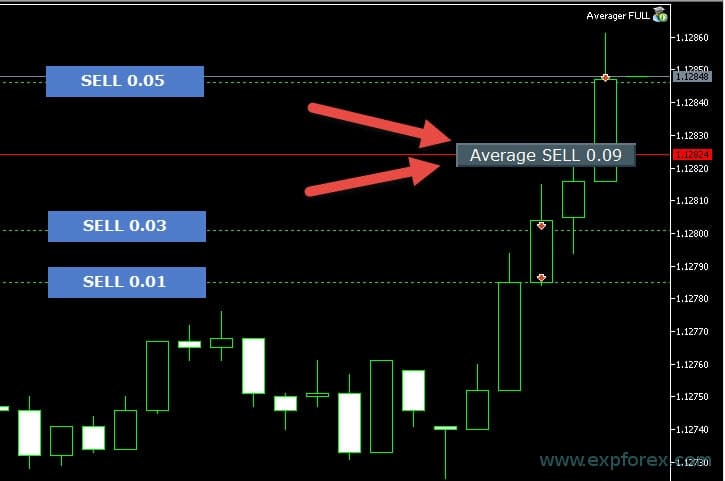 |
| IfProfTrail |
If “true” – the Expert Advisor starts modifying only from the moment the position reaches the Breakeven (Stop Loss at Breakeven Point) + TrailingStop of profit points (Pips). If “false”, the Trailing Stop works immediately after the position is opened, and the position is set to profit and pulled after the price moves. |
| TrailingStop |
Distance in Points from the Current Price to the Stop-Loss. If the current profit is 200 points (Pips), and TrailingStop = 100, then the Stop Loss will be set at +100 points. Thus, the price has the possibility of a rollback of up to 100 points (Pips). Otherwise, the StopLoss will activate, and the position will be closed at +100 points (Pips). |
| TrailingStep | The Step of StopLoss When the Trailing Stop Function is Enabled. |
| SaveTPafterTrailingStop |
When enabled, the Take Profit of the modified positions will not be altered after activating the Trailing Stop. For example: SaveTPafterTrailingStop = false: When running a Trailing Stop, the TakeProfit of the modified position will be deleted (set to 0); SaveTPafterTrailingStop = true: When the Trailing Stop is active, the TakeProfit of the modified position will be preserved. |
TrailingStop by SAR: Parabolic SAR(Set and Modify Stop Loss on the Parabolic SAR Indicator) | |
| TrailingStopSAR |
You can enable (true) the Trailing Stop function based on the Parabolic SAR indicator. Attention: If the indicator is at a loss for the position, the Expert Advisor (EA) waits until the parabolic point is profitable for the position. If you have 2 or more averaging positions, then the BreakEven (Stop Loss at Breakeven Point) is considered from the Average Price of the positions. |
| TrailingStopSAR_TimeFrame | Timeframe for the Parabolic SAR Indicator. |
| maximum | Parabolic SAR Indicator Settings. |
CloseALL When Profit or LOSS OptionsClosing Positions in MetaTrader Upon Reaching Total Profit/Loss with the Profit Trailing Function.This function is part of CloseIfProfitorLoss with Trailing. Control the total profit or loss with profit trailing. | |
| TypeofClose |
Type of Closing on Total Profit or Loss, in dollars (deposit currency), points (Pips), percent of the balance, or percent of equity. This block allows you to close all positions on this symbol if the total profit or loss of all positions reaches the set value. |
| SeparateBuySell |
Separate Calculation and Closing of Positions in Two Different Directions: BUY and SELL. If SeparateBuySell = true, then the Expert Advisor (EA) separately closes BUY and SELL directions for total profit or loss. If SeparateBuySell = false, then the Expert Advisor (EA) closes BUY and SELL directions together for total profit or loss. For the Expert Advisor to close both types of positions (Deals, BUY and SELL), the total profit of these two positions must exceed the set value. Note: If OnlyOnePosbySignal = false and OnePosPerDirection = false, or any settings that allow you to open multiple directions and multiple positions in each direction. |
| CloseProfit |
Close Positions with Total Profit. True – Enable, False – Disable. |
| prifitessss |
The Number of Units (Dollars (or Deposit Currency), Points (Pips), and Percent) for Closing. If the total profit on the positions of the currency pair is greater than or equal to the value of prifitessss, then all positions will be closed. |
| CloseLoss |
Close Positions at a Total Loss. True – Enable, False – Disable. |
| lossss |
The Number of Units (Dollars (or Deposit Currency), Points (Pips), and Percent) for Closing. If the total loss on the positions of the currency pair is greater than or equal to the value of lossss, then all positions will be closed. |
| TrailOptions |
Enable Trailing the Total Profit When Exceeding prifitessss Units. This option defines the distance from the prifitessss parameter to enable Profit Trailing. For example, prifitessss = $100 (deposit currency), TrailOptions = $10. Then, when the position gains a profit of $100, the Expert Advisor will not close these positions but will set a profit level of $90. Further, if the profit increases by $1 and becomes $101, the profit level will be fixed at $91. If the profit decreases and reaches $91, all positions will close at this level. |
| TrailOptionsStep | The Step of Increasing the Fixed Profit Level. |
| BalanceStart |
The Starting Balance, from which the percentage of the balance will be calculated. If set to 0, then the current account balance is used. |
| ForcedClose | Forced Closure of All Positions (Deals) after the Price Reaches a Total Profit or Loss. |
| MailSend | Send Email when closing positions (Deals) due to Total Profit or Loss. |
| Orderdelete | Delete Pending Orders when closing positions (Deals) due to Total Profit or Loss. |
| OFFAfterClosePROF |
Disable the Expert Advisor (EA) After Closing on Total Profit. The Expert Advisor will stop its operation and will not open new positions (Deals) and orders! |
| OFFAfterCloseLOSS |
Disable the Expert Advisor (EA) After Closing for Total Loss. The Expert Advisor will stop its operation and will not open new positions (Deals) and orders! |
| CloseTerminalAfterClosePROF | Close the Terminal After Closing on Total Profit. |
| CloseTerminalAfterCloseLOSS | Close the Terminal After Closing for Total Loss. |
Limiting Losses and ProfitsLimitation of losses and profits for a certain period. Limit loss and profit for 1 day/week/month. Limiting LimitFor – Limit type day/week/month; LimitForLosses – Limit on loss; LimitForProfits – Limit on profit; LimitType – Limit type by Dollars, Points, Deposit Interest; ClosebyLIMITING – Close the advisor’s Deals when the limit is exceeded; UseCurrentProfit – Take into account the current profit/loss when calculating the limit; This function can turn off the operation of the Expert Advisor if it has gained a certain profit/loss in the deposit currency for the day/month/week. The next operation of the Expert Advisor will be the following day, week, or month. For example, LimitFor = DAY, LimitForProfits = 10 dollars; You can also select the LimitType for calculations (in dollars, points, percent of the account balance). If you need to close and delete all Deals for this Expert Advisor when limits are exceeded, set ClosebyLIMITING = true. UseCurrentProfit enables/disables the calculation of the current floating profit/loss for this Expert Advisor. | |
Drawdown OptionsThe block for controlling the opening of positions in drawdown. DrawDown_Level – Enable the drawdown control block; Type_DrawDownHR – The type of drawdown calculation based on deals in history and current deals; DrawDown_Level_One – The first level of drawdown in percent; Type_Deal_Level_One – Action when passing the first level of drawdown (turn off new signals, turn off averaging of deals or additional opening, close all deals); DrawDown_Level_Two – The second level of drawdown in percent; Type_Deal_Level_Two – Action when passing the second level of drawdown (close all profitable positions, close all loss-making positions, close all). For example: DrawDown_Level = true, DrawDown_Level_One = 50, Type_Deal_Level_One = No_NewDeal, DrawDown_Level_Two = 90, Type_Deal_Level_Two = Close_All. With these settings, as soon as the current drawdown of Deals in history and current Deals exceeds 50% of the current deposit, the EA cannot open new Deals on new signals. At the same time, the averaging functions will operate. When the drawdown exceeds 90%, the EA immediately closes all Deals. | |
Virtual WithdrawalA virtual withdrawal tool is used in strategy testing to simulate deposit operations (Deposit Top-Up, Deposit Withdrawal). Added virtual withdrawal of funds in the tester: Withdrawal – Enable virtual withdrawal of funds when testing in the strategy tester; Withdrawal_mode – Withdrawal mode, in the deposit currency or as a percentage of the current balance; Withdrawal_amount – Number of withdrawals; Withdrawal_periodicity_days – Frequency of withdrawal in days; Withdrawal_Max – Maximum withdrawal amount; Withdrawal_EndOfTest – Withdrawal after the end of testing; | |
OnTester_CustomIn the Tester block, the variable OnTester_Custom_max is added, in which you can define your criterion for genetic optimization. More details about the test results: Statistics A record in the form of a formula. For example: OnTester_Custom_max = “STAT_PROFIT * STAT_TRADES / STAT_EQUITY_DD” It is mandatory to specify the names of variables, as in the reference documentation! You can set minimum values at which the optimization will consider the result during genetic enumeration! In other words, you can set a condition: “the minimum number of Deals” (or other parameters), upon which this run will be counted as a result. If, during selection, the advisor opens fewer Deals than specified in the settings, then this run of the optimizer will not be counted as a result! —Attention! For advanced users only. OnTester_Min_Trades = 0; // Min Deals for optimization OnTester_Min_Profit = 0; // Min Profit for optimization OnTester_Min_ProfitFactor = 0; // Min ProfitFactor for optimization OnTester_Min_Balance = 0; // Min Balance for optimization OnTester_Min_Equity = 0; // Min Equity for optimization OnTester_Max_Balance_DD = 0; // Max Balance DD% for optimization OnTester_Max_Equity_DD = 0; // Max Equity DD% for optimization Detailed USER GUIDE for This | |
FAQ Question Answer on the Exp – The X program

Our General FAQ
FAQ Answers to the most popular questions
What are the values in the parameters in points or pips?
In points! The value is derived from the Point variable.
- If you have a 5 or 3-digit broker, then 1 point = 0.00001 or 0.0001
- If you have a 4 or 2-digit broker, then 1 point = 0.0001 or 0.01
Enter the value required by your specific broker in the designated field.
There is much debate about what constitutes a point versus a pip. I use universal values (Point = Pip).
These values correspond to your broker’s specifications.
Do you have the kits and settings for this Expert Advisor?
No, I do not provide pre-configured kits or settings for this Expert Advisor. The EA is designed as a customizable tool, giving you full control to optimize it according to your own strategy and trading preferences. It’s built to be highly flexible, allowing you to utilize its wide range of functions to match your unique trading approach.
For more information on how to optimize and test The X Advisor, refer to our detailed guide on optimizing the EA for your specific needs.
The X and The xCustomEA: Testing and Optimization
Don’t want to optimize? Download my beginner advisor: Tick Hamster or TickSniper.
Why are the test results in MT4 and MT5 terminals different?
Because they are different terminals with distinct historical data and varying principles of the strategy tester.
What settings do you use on your signal?
I use the default settings on my signal. My primary focus is testing the correct functionality of the Expert Advisor, not optimizing it for profitability. Each trader should adjust the settings based on their own strategy and market conditions.
Why?
Since this Expert Advisor was created as a Strategy Builder, each user needs to develop and optimize their own strategy. If you’re looking for a ready-to-use strategy, I recommend TickSniper, which comes pre-configured as an automatic trading robot.

AI Sniper. Automatic Smart Expert Advisor for Metatrader.
AI Sniper is an intelligent, self-optimizing trading robot designed for both MT4 and MT5 terminals. It leverages a smart algorithm and advanced trading strategies to maximize your trading potential. With 15 years of experience in trading exchanges and the stock market, we have developed innovative strategy management features, additional intelligent functions, and a user-friendly graphical interface.

TickSniper Automatic Expert Advisor for Metatrader. Tick scalper
Exp-TickSniper is a fast tick scalper that automatically selects parameters for each currency pair separately. The EA has been developed based on experience gained in almost 10 years of EA programming. The EA performs short-term trades using smart trailing stop and based on the current currency pair data, its quotes, specification and spread.
Why are the results with Virtual StopLoss and real StopLoss very different?
The results with Virtual StopLoss and Real StopLoss can differ significantly due to the way each operates.
- Virtual StopLoss is not affected by external factors like spread increases, stop level adjustments, or price changes. It consistently adjusts positions to the exact level required, regardless of these changes. All actions are managed through the advisor’s global variables, ensuring that the stop-loss is always executed at the desired level.
- Real StopLoss, on the other hand, is subject to modification errors. These can occur due to factors like a sudden increase in spread, an increase in the minimum stop level, or rapid price changes. The Real StopLoss can only adjust to the level permitted by the broker’s server, which might not always match the intended target.
This discrepancy often leads to different closing times for positions. A Virtual StopLoss may close a position at a different interval compared to a Real StopLoss, which can disrupt the expected sequence of trades. For example, while one position remains open under a Virtual StopLoss, another position might not be opened under a Real StopLoss due to the time shift, affecting the overall trading logic.
Why are the results of the new version and the older version different?
We are updating our program to correct minor errors and nuances in the functions. Changing a single function or fixing one error can cause the results between the old version and the new version to differ. These updates aim to fix bugs and enhance functionality, ensuring better performance and reliability. While we understand that the results from the older version may differ from the new version, these updates are necessary to improve the overall performance of the Expert Advisor.
We will continue updating the program to ensure it works optimally.
I want you to make several changes to the EA
I approach adding new functions to the EA with caution, ensuring that any new features will benefit the majority of users. Unfortunately, I cannot program specific functions for individual users. However, you have the option to purchase the open code of the Expert Advisor, allowing you to program any custom features you desire.
I can only consider adding new functions if I see clear value that benefits most users. Thank you for understanding.
Can you add a few custom indicators to the Expert Advisor?
No, this Expert Advisor is designed specifically for standard indicators, and I cannot add custom indicators from the internet to this EA. However, you can purchase the open code of the Expert Advisor, which will allow you to program and integrate any custom indicators you wish.
EA The xCustomEA Universal Trading Expert Advisor (EA) on iCustom Indicators.
Read more about open source The X Instruction on Trading Strategy Programming.
When will you add more indicators?
I add new indicators only when I believe they are necessary for the system. Unfortunately, I cannot include every indicator in the Expert Advisor, as it is already equipped with a wide range of external parameters.
This function does not work for me!
I can help you only if you provide a full report on errors.
Can I use the SET file with advisor settings between the MT4 and MT5 terminals? Why don’t the settings work from MT5 to MT4?
Yes, you can use SET files with advisor settings between MT4 and MT5 terminals, as all variables are the same.
However, there’s one issue:
MetaTrader 5 supports any text encoding, while MetaTrader 4 only works with ANSI encoding. This means that a settings file saved in MT5 may not open correctly in MT4.
To use a SET file from MT5 in MT4, you need to open the file and save it in ANSI encoding before loading it into the MT4 terminal.
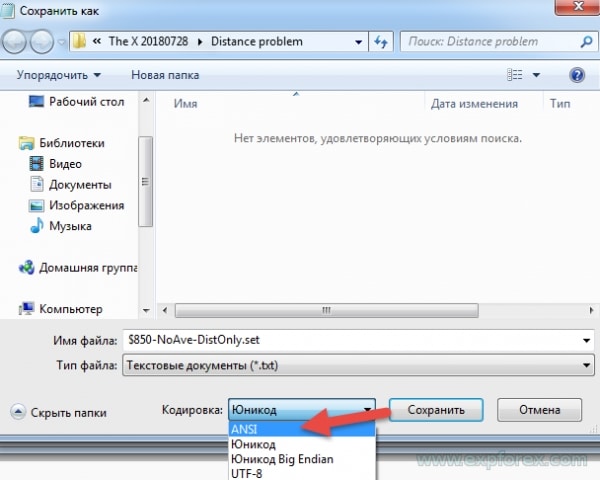
What platforms is The X Universal Trading System compatible with?
The X Universal Trading System is designed for both MetaTrader 4 and MetaTrader 5, allowing traders to utilize its extensive features on either platform seamlessly.
What are the key features of The X Universal?
The X Universal offers a wide range of features including a Universal Strategy Builder, averaging, additional position openings during trends, and virtual stops to enhance trading strategies.
How does the Universal Strategy Builder work?
The Universal Strategy Builder allows traders to create customized trading strategies using over 20 signals for opening positions and pending orders, along with 21 filters to refine trading signals.
What is the Averaging function in The X?
Averaging helps convert a losing position into a profitable one by building a grid of positions based on price movement. When the price reverses, the EA quickly recovers losses by averaging all positions into profit.
How does Additional Position Opening enhance trading strategies?
Additional Position Opening allows the EA to open more positions in the direction of the trend, leveraging favorable market movements to maximize potential profits.
What is Dynamic Lot Sizing?
Dynamic Lot Sizing lets you set the lot size as a percentage of your balance or equity, providing flexible risk management tailored to your account size and preferences.
How do Virtual Stops work in The X?
Virtual Stops manage trades with virtual stop-loss, take profit, and trailing stop levels, keeping your risk management strategy hidden from brokers for enhanced discretion.
What is the Trailing Stop and Breakeven feature?
Trailing Stop follows the market to lock in profits, while the Breakeven feature moves the stop-loss to the entry point once a trade is profitable, securing gains and minimizing potential losses.
How does the Martingale Function operate?
The Martingale Function increases the lot size after losing trades to recover losses more quickly, following the Martingale strategy within your risk management parameters.
What is Global Profit and Loss Management?
Global Profit and Loss Management allows you to close all positions based on the total profit or loss across your account, giving comprehensive control over your overall risk and reward.
How does Time-Based Trading function in The X?
Time-Based Trading enables you to set the EA to trade only during specific times or days of the week, providing more control over your trading strategy based on market conditions.
How does The X handle Pending Orders?
The X can place and manage pending orders based on selected signals and filters, allowing for strategic entry points in your trading.
What are Delay Restrictions?
Delay Restrictions can be configured to prevent the EA from entering trades too quickly in volatile markets, helping to avoid premature or excessive trading.
How does the Trailing Profit feature work?
Trailing Profit trails the total profit across all open positions, maximizing gains while minimizing risk by adjusting the profit target as the market moves.
What is the difference between The X and The xCustomEA?
The X works with standard MetaTrader indicators and includes pre-built strategies, while The xCustomEA is designed for custom indicators, allowing you to create personalized trading strategies.
What indicators are supported by The X Universal EA?
The X Universal EA supports a variety of standard indicators including Moving Average (MA), MACD, Stochastic Oscillator, RSI, CCI, Williams %R, Bollinger Bands, Envelopes, Alligator, OsMA, AO, Ichimoku, AC, Bar, ADX, ZIGZAG, ATR, ADX Wilder, Money Flow Index, and Fractals.
How can I customize trading strategies with The X?
Using the Universal Strategy Builder, you can customize trading strategies by selecting from over 20 signals and configuring up to 21 filters, tailoring the EA to your specific trading preferences.
How does The X manage risk?
The X incorporates multiple risk management features such as Dynamic Lot Sizing, Virtual Stops, Trailing Stop, and Global Profit and Loss Management to help control and mitigate trading risks effectively.
How to set up signals and filters in The X Universal EA?
Signals are generated based on selected indicators, and filters refine these signals. You can configure up to 20 filters to ensure that only trades meeting all criteria are executed.
How does the Alligator indicator work in The X?
The Alligator indicator combines multiple moving averages with a positive shift, generating BUY signals when the jaw line is above the teeth line and the teeth line above the lip line, and SELL signals when the opposite occurs.
What is the role of the Moving Average (MA) in The X?
Moving Average (MA) indicators calculate the average price over a specified period. In The X, a BUY signal is generated when the fast MA crosses above the slow MA, and a SELL signal when the fast MA crosses below the slow MA.
How does the Relative Strength Index (RSI) signal trades?
RSI generates BUY signals when it rises above the RSILowLevel and SELL signals when it falls below the RSIHighLevel, indicating potential price reversals based on overbought or oversold conditions.
What is the Average Directional Movement Index (ADX) used for?
ADX helps determine the strength of a price trend. It generates BUY signals when +DI crosses above -DI and SELL signals when +DI crosses below -DI, optionally filtered by the ADX level to confirm trend strength.
How does The X Universal EA support ECN and NDD accounts?
The X Universal EA works seamlessly with ECN and NDD (Non-Dealing Desk) accounts, providing efficient trading through brokers that offer tighter spreads and direct market access.
Risk Warning:
Past trading performance does not guarantee future results.
Trading foreign exchange on margin carries a high degree of risk and may not be suitable for all investors.
Be aware that using trading robots involves substantial risk, and you could lose more than your initial investment.
Please proceed with caution, assess your financial situation carefully, and consider seeking advice from a qualified professional.
Changelog The X – Universal Expert Advisor
Reviews about The X
Thanks for feedback!

Temuri
⭐⭐⭐⭐⭐
очень хорошый советник! большие возможности, вправду универсалный, единственно что надо сделат самому узнат возможности советника и ползоватся им. инструмент отличный, осталное от треидера зависит как им ползоватся.

Deniz90
⭐⭐⭐⭐⭐
Deniz90
Excellent EA, providing endless opportunities. The author is very helpful and responsive, definitely recommended.
Manuel Sanchez
⭐⭐⭐⭐⭐
Manuel Sanchez
Great EA. Just do your homework and you will find a good strategy. I love the interface panel. 5 start. Thanks to the programmer.
leachimk
⭐⭐⭐⭐⭐
leachimk
Присоединяюсь к словам предыдущего автора. Советник обладает всеми необходимыми инструментами для успешной торговли. Ключевое слово - оптимизация. Особая благодарность разработчику за то, что он постоянно продолжает усовершенствовать советник. Респект и так держать!

Evangelos Skikos
⭐⭐⭐⭐⭐
Evangelos Skikos
I have been working with universal x for 3 years, you can easily make an EA, which sells for $1000 to $12.483 the only thing missing is a good recovery, for now i'm doing recovery with VirtualTradePad.....I believe that in some time the author will add a very good one!!!

Suhail Chougule
⭐⭐⭐⭐⭐
Suhail Chougule 2022.08.08 07:26
Hi All below was my earlier review , After my issue got resolved , I would say hats off to the kindness and prompt action of the author of this EA. My issue was my mistake in understanding the EA. There was no bug in it. It is an excellent product. Though I would like to add to the features of the product 1) Separation of configurations especially indicators for Buy and Sell. For example I generally look at lows i.e. moving average of lows for my buying signal and RSI of high and vice versa for Sell signal. If we can some how have separate configuration for indicators it would be good. 2) Bars Bear/Bull if we can get also to provide time gone after bar started after which to consider buy or sell would also be very good. ----------------------Below is start of my earlier review left over here for reference------------------------- Interestingly I was working on older versions of this EA and the autolot was working as per my understanding and now the auto lot has gone bad. No matter what I put it does not take it. Only starts with fixed lot of 0.01 i.e. that is minimum lot. Also fixed lot is not working what ever you fix it goes to the minimum lot i.e. 0.01. Please fix this bug ASAP. I have sent you the details on the comment section kindly look into it please!!! ---------------------------------------------End of my previous review--------------------------------------------------------------------
Diego Venceslau Da Silva
⭐⭐⭐⭐⭐
Diego Venceslau Da Silva
Excellent EA. It actually represents in practice everything we ever wanted to jump from the pages of technical analysis manuals. Even creating complex configurations such as being able to generate signals with different timeframes, increasing the probability of success, learning that each indicator has its configuration concomitant with the asset that you want to trade. The EA gives you the freedom to create your own strategy, not having to be tied to other EA's that force you to be tied to a single person's strategy and hostage to periodic updates. Anyway, for the price you pay, this EA is simply a gift. Thank you Vladislav.

Rudolf Strahm
⭐⭐⭐⭐⭐
Rudolf Strahm 2022.01.05 16:57
Hallo Valdislav habe noch nicht sehr viel mit dem The X Full gearbeitet Habe heute mein Tick Sniper auf der Platform Admiral Maket MT5 mit VPS in Betrieb Genommen mit EURUSD mit Konto von 1000E kann ich noch 2 weitere FX Paare auf dem gleichen VPS Starten ?. Habe noch andere Programme von Dier. Mir gefält das Desigen und die Immer Gleiche Struktur in der Darstellung auf dem Desktop Bin begeister von Deine Erklärungen . Sori für Nur Deutsch aber googel hilft ja Heute gut bin der Ruedi ein älteres Kalliber Gruss Ruedi
Suhail Chougule
⭐⭐⭐⭐⭐
Suhail Chougule 2021.07.18 10:41
Excellent Software but needs bit of additional features 1) For Buy and Sell Signals --> Different Indicators i.e. MA on high for buying and MA on low for selling. 1.1) Restrictions i.e. RSI more than 70 disable buy signals, RSI less than 30 disable sell signals. 1.2) Additional opening given on new signal should also be percentage of equity or balance rather than fixed. 2) Same configurations to be available for all i.e. Martingale, Averaging, Additional opening.

Tyler Roberts
⭐⭐⭐⭐⭐
Tyler Roberts
This is by far the best expert I have purchased. It's a little complicated at first but after you play around and learn the functions it works great. The only EA I have made consistent money from! check my signals, those are all using this expert
Iceberg0010
⭐⭐⭐⭐⭐
Iceberg0010
Крутой конструктор, радует обширный диапазон настроек. Аналогов по сути нет - ценник крайне адекватный для такого комбайна
Comments The X – Universal Expert Advisor
Do you have a question?
16 responses to “The X – Universal Expert Advisor (EA) for Forex Using Standard Indicators”
-

Hi,
I am one of your satisfied customers and have purchased the following tool:
https://www.mql5.com/en/market/product/167However, there is something that is causing me some concern: the location of the future SL and TP information.
Currently, the information is displayed directly over the candle area that I need to see in order to determine whether the trade is worth the risk.
I would like to suggest positioning the information on the left side of the chart instead of the right side. Ideally, it could be placed 3–4 centimeters away from the control panel we use to execute trades.
This way, the information would remain visible regardless of how the control panel is resized.
-
Hi,
Thank you for your purchase and for the detailed feedback — I really appreciate it.
I understand your concern: when the future SL/TP labels sit over the candle area, they can hide the exact price action you need to evaluate the risk.
At the moment the labels are shown with an offset from the current price (for example, shifting them a few bars away) so they don’t cover the active candles. Unfortunately, wherever we place these labels (left/right/top/bottom), different users will have different preferences — but I agree that it should be comfortable for analysis.
Also, please note: you can hide the on-chart information at any time by pressing the “i” button on the panel. This clears the chart so you can do a clean analysis without any overlays.

-
-
Good Day ..
There is problem with Ind5 Extra Report Pad for MT5, Just show reoprt for all history even when i customis for one day or one week or specific period.
Seconde thing is suggestion,,
i suggest to add Max Drow Down in panel of Sympols, Magic, or Comments for specific magic or whole account
thanks
-
Good day,
Thank you for your message and for the detailed feedback.
1) Report period issue (MT5)
Regarding the Extra Report Pad for MT5:
Please note that in MetaTrader 5, the history data is provided by the terminal itself.
If the report shows the full history even when a custom period (day / week / custom range) is selected, the most common reasons are:
The terminal has full trading history loaded, and MT5 does not always correctly limit history for custom ranges.
Some MT5 builds return all deals via the history functions, regardless of the selected visual period.
We are already aware of this MT5-side limitation.
In the current version, the indicator works with the history data that MT5 provides. We will review whether additional internal filtering by date can be safely applied in a future update.
2) Suggestion: Max Drawdown in panel
Thank you for the suggestion.
Adding Maximum Drawdown:
per symbol
per magic number
per comment
or for the whole account
is a good and reasonable idea.
We agree that this information would be very useful for risk analysis directly in the panel.
We will consider this feature for future versions of the indicator. If implemented, it will be added in a way that does not affect performance and remains compatible with MT5 history specifics.
Thank you for your feedback and for using our tools.
If you have screenshots, logs, or a short video demonstrating the report period behavior, feel free to send them — it will help us analyze the case faster.
Best regards,
Expforex Support Team
-
-
Hello,
I am experiencing an issue with zScalp and Exp Assistant 4 on MT4:
• When zScalp opens a position on my PC while it is turned on, Exp Assistant 4 correctly applies the stop loss and take profit.
• However, if the PC is turned off, and zScalp opens a position via the MQL5 VPS, Exp Assistant 4 does not apply the SL or TP.It seems that the issue occurs only when Exp Assistant 4 is not active at the moment the trade is opened.
Could you please advise how to properly configure Exp Assistant 4 on the VPS so that all trades opened by zScalp automatically have SL and TP, even when my PC is turned off?
Thank you for your assistance.
-
Hello. Unfortunately, control panels don’t work with MQL VPS. This worked before. Unfortunately, this feature has now been removed from the terminal.
-
-
“How can I configure a copy trading expert advisor to enforce both daily and weekly stop-profit and stop-loss limits simultaneously?”
OR
“What’s the best way to implement dual time-frame risk controls (daily and weekly stop-loss/take-profit) in a copy trading EA?”
-
Hi,
Thank you for your question!
Currently, The X EA does not support simultaneous daily and weekly stop-loss or take-profit limits.
The system is designed with basic risk control mechanisms, but dual time-frame risk management (like daily + weekly limits together) is not implemented at this time.That said, we appreciate the idea, and if there’s enough interest from other users, this functionality may be considered for future updates.
Thanks again for your feedback and for using The X!
Best regards,
Vladislav
Expforex Team
-
-
“How can I configure a copy trading expert advisor to enforce both daily and weekly stop-profit and stop-loss limits simultaneously?”
OR
“What’s the best way to implement dual time-frame risk controls (daily and weekly stop-loss/take-profit) in a copy trading EA?”
-
“How can I configure a copy trading expert advisor to enforce both daily and weekly stop-profit and stop-loss limits simultaneously?”
OR
“What’s the best way to implement dual time-frame risk controls (daily and weekly stop-loss/take-profit) in a copy trading EA?”
-
“How can I configure a copy trading expert advisor to enforce both daily and weekly stop-profit and stop-loss limits simultaneously?”
OR
“What’s the best way to implement dual time-frame risk controls (daily and weekly stop-loss/take-profit) in a copy trading EA?”
-
Hello,
Is there any way to limit the maximum of simultaneous trades in the slave account?
I’f like to limit to maximum 2 trades in the same dmarket direction (or maximum simultaneous 2 sell positions and maximum 2 simultaneous buy positions).
Thank you
-
Hello!
Thank you for your question.
In COPYLOT, you can use the MaxPosBySymbol parameter to limit the maximum number of simultaneously open positions per symbol.
For example, if you set MaxPosBySymbol = 2, only 2 positions (regardless of Buy or Sell) will be copied for each currency pair, even if there are 10 open positions on the Master account.However, please note:
This setting does not distinguish between Buy and Sell directions.
It simply counts all open positions together for the same symbol (both Buy and Sell).
It is not possible to set a separate maximum for Buy and Sell positions with the standard COPYLOT settings.
✅ In summary:
You can limit the total number of positions per symbol.
But you cannot separately limit, for example, 2 Buy positions and 2 Sell positions independently.
If you need a custom solution or workaround, feel free to let us know!
Best regards,
Expforex Team
-
-
Hello,
Is there any way to limit the maximum of simultaneous trades in the slave account?
I’f like to limit to maximum 2 trades in the same dmarket direction (or maximum simultaneous 2 sell positions and maximum 2 simultaneous buy positions).
Thank you
-
Hello,
Is there any way to limit the maximum of simultaneous trades in the slave account?
I’f like to limit to maximum 2 trades in the same dmarket direction (or maximum simultaneous 2 sell positions and maximum 2 simultaneous buy positions).
Thank you
-
Hello,
Is there any way to limit the maximum of simultaneous trades in the slave account?
I’f like to limit to maximum 2 trades in the same dmarket direction (or maximum simultaneous 2 sell positions and maximum 2 simultaneous buy positions).
Thank you
Extra
Links
The X and The xCustomEA: Testing and Optimization
EA The xCustomEA Universal Trading Expert Advisor (EA) on iCustom indicators.
Useful links
Navigation by tabs
Related Posts

Duplicator – Duplication of deals/positions on the MetaTrader terminals
The Exp-Duplicator is an automatic Expert Advisor designed to duplicate trades and positions a preset number of times on your…

Extra Report Pad – Trader’s Diary. Professionally analyzes your trading
Extra Report Pad – professional solution for analyzing your trading account Today, it is essential to trade at once for several…
Partial Close and Trailing. Partial closing of positions on rollbacks
Partial Close and Trailing is an EA assistant that closes a portion of a position (i.e., part of the lot)…

The xCustomEA Advisor on the PipFinite Trend PRO. Automatic EA
Description An example of programming a strategy for the PipFinite Trend PRO indicator and trading using our universal trading system Exp…

Trade Report of TickSniper and the best advisors from Expforex
Description We have summed the summary and detailed trading results of our experts TickSniper, Good Santa, Tick Hamster, The X, on our real trading accounts. Trade…
The X and The xCustomEA: Testing and Optimization
Description The X and The xCustomEA are two standout Expert Advisors (EAs) in the Forex trading community, gaining widespread popularity over…

SafetyLOCK PRO Protect your positions by locking using the opening
SAFETYLOCK: Secure Your Trades Against Sharp Market Reversals Trading on financial markets involves high risks, particularly during sharp market reversals. SAFETYLOCK…

Close Minus by Plus, Closing unprofitable positions by searching and
Closing unprofitable positions by identifying and closing profitable ones. The Expert Advisor (EA) is designed to close unprofitable positions by identifying…
CLP CloseIfProfitorLoss with Trailing. Control of the total profit or
The Expert Advisor (EA) offers advanced features for managing and closing positions in MetaTrader, specifically upon reaching a predetermined level…

Templates MQL Open Source. Template for Creating Expert Advisor
Brief Creating Expert Advisors (EAs) to test your strategy using any indicator can indeed be simplified using templates and open-source resources….
EA The xCustomEA: Universal Trading Advisor for iCustom Indicators. Custom
Universal trading adviser on custom indicators for MetaTrader . Exp – The xCustomEA Universal trading advisor on custom indicators. The xCustomEA works on…

Tester Pad is a Forex trading simulator for strategy tester.
One-click trading on the Strategy Tester chart. The utility allows you to manually test your strategies in the strategy tester….
VirtualTradePad (VTP) Trading Panel. Trade Pad for One Click Traiding
VirtualTradePad or VTP – control panel for trade in 1 click in MetaTrader 4 and 5. Trade in 1 click from…

InfoPad, Online Information Panel for MetaTrader
InfoPad is a highly useful information panel designed to provide crucial information on the specific currency pair selected in the…
この記事は次の言語でもご覧いただけます:
Leave a Reply