
TradingView + EXPFOREX Market Info and Time Pad

expforex.com Official downloads 4 -logo

Official EXPFOREX License vs Cracked Versions: Why Verified Software Matters for MT4 and MT5

expforex.com Official downloads 4 -logo

Official EXPFOREX License vs Cracked Versions: Why Verified Software Matters for MT4 and MT5

TradingView indicator
Free Pine Script
Market dashboard

Market context, active sessions, and timing — in one TradingView panel.

EXPFOREX Market Info & Time Pad keeps the most useful chart information
visible without opening several separate indicators: price context, daily range,
volume, ATR, RSI, EMA trend, exchange time, and active world sessions.
One dashboardCore market information
Multiple marketsStocks, Forex, crypto, indices
Open sourceComplete TXT source included

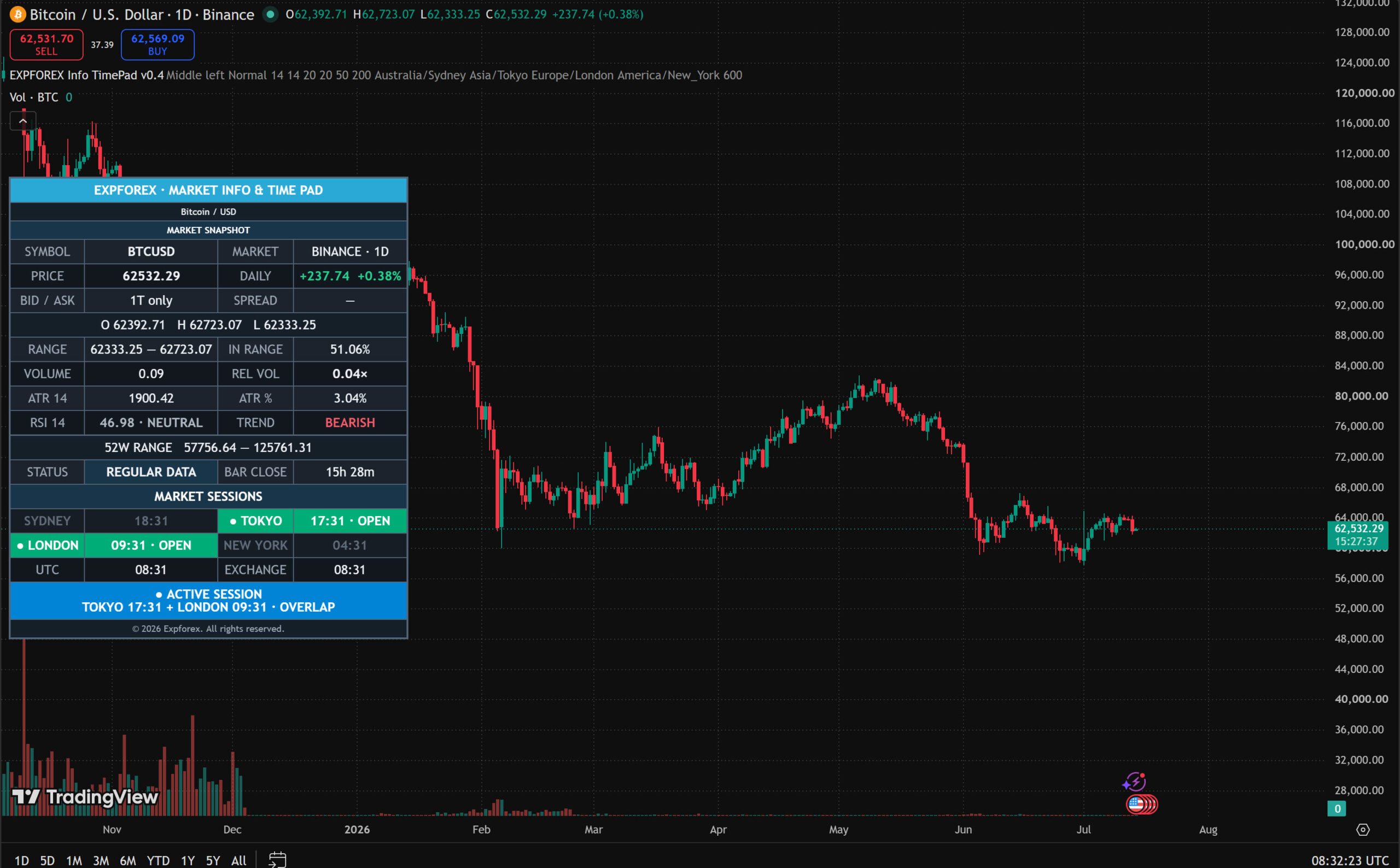
EXPFOREX Market Info and Time Pad displayed on a Bitcoin BTCUSD daily TradingView chart
BTCUSD daily chart with the EXPFOREX market-information dashboard.
What it solves

Understand the chart faster, without turning the workspace into a control room.

The indicator organizes information already available in TradingView.
It does not open trades, connect to MetaTrader, or access a broker account.

Price context

Current price, daily change, Open, High, Low, daily-range position, and 52-week range.

Market activity

Daily volume, relative volume, Bid/Ask availability, spread, and bar-close timing.

Volatility and trend

ATR, ATR percentage, RSI classification, and EMA 20/50/200 trend structure.

World sessions

Sydney, Tokyo, London, New York, UTC, exchange time, and session overlaps.

The dashboard follows the active TradingView chart.

Change AAPL to EURUSD, BTCUSD, XAUUSD, an index, or another symbol.
The displayed market values are recalculated automatically.

  • Where is price inside today’s range?
  • Is volume above its recent average?
  • Is current volatility high relative to price?
  • Do RSI and EMA structure agree?
  • Which regional sessions are active?
  • Is a major session overlap occurring?
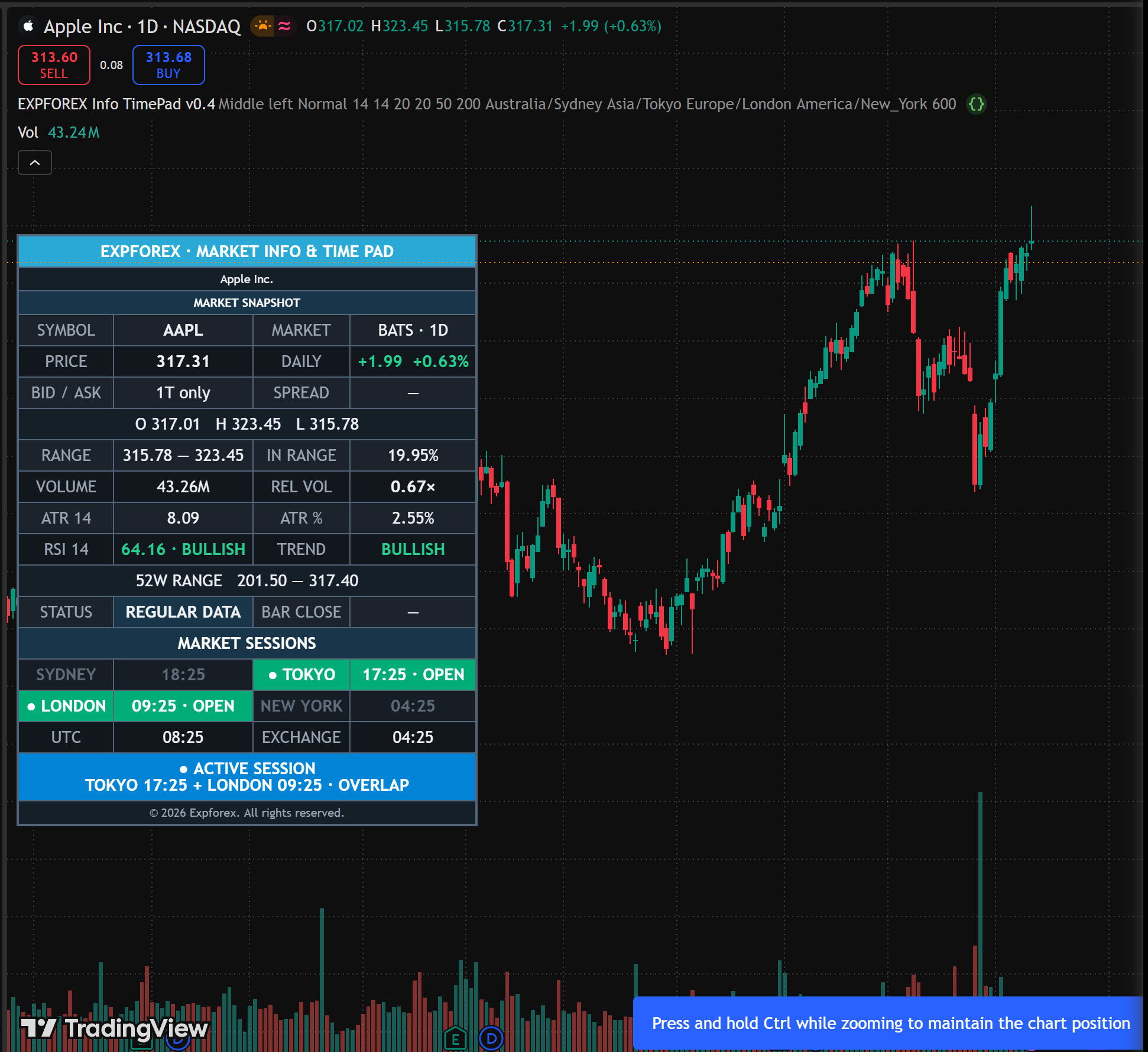
EXPFOREX Market Info and Time Pad on an Apple AAPL daily TradingView chart
The same panel automatically adapts to AAPL and the selected timeframe.

Free download and installation

How to copy, save, and run the Pine Script in TradingView.

TradingView does not import a local Pine Script file directly.
Download the ZIP, open the included TXT file, copy the complete source code,
paste it into Pine Editor, save the script, and add it to the chart.
EXPFOREX free Pine Script

Market Info & Time Pad v1.0.1

The ZIP contains one TXT file with the complete Pine Script v6 source.
TXT opens with the standard Windows Notepad and is the simplest format for copying code.

Pine Script v6
Complete source
TXT file
Free download


Download ZIP

There is no “Upload Pine file” command in TradingView.
The source code must be copied from the downloaded TXT file and pasted into Pine Editor.
01

Open Pine Editor

Open a TradingView chart and click the Pine icon.

02

Create an indicator

Select Create new → Indicator in the script menu.

03

Copy the source

Open the TXT file, select all code, and copy it.

04

Paste and run

Paste the code, save the script, and add it to the chart.

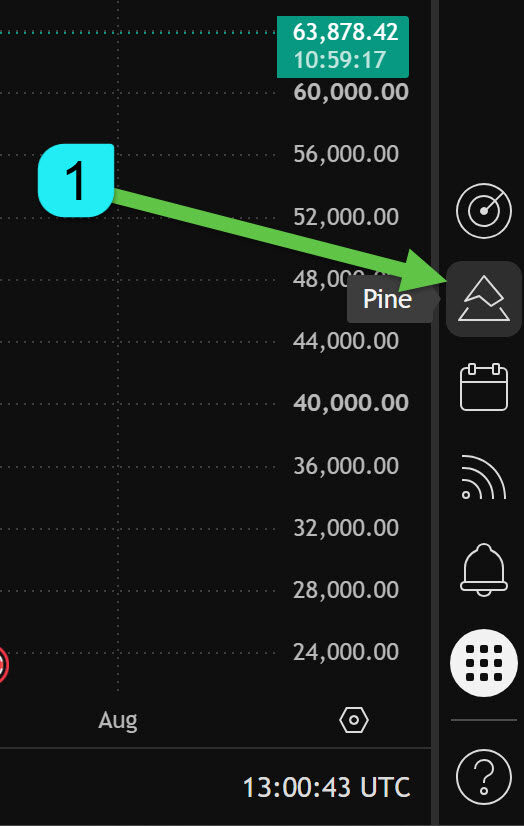
TradingView chart toolbar with the Pine Editor icon highlighted
Step 1 — Open any TradingView chart and click the Pine icon on the right toolbar.
Step 1

Open Pine Editor from the TradingView chart.

  1. Sign in to your TradingView account.
  2. Open any symbol in Supercharts.
  3. Click the Pine icon on the right-side toolbar.
  4. Pine Editor will open inside the chart workspace.
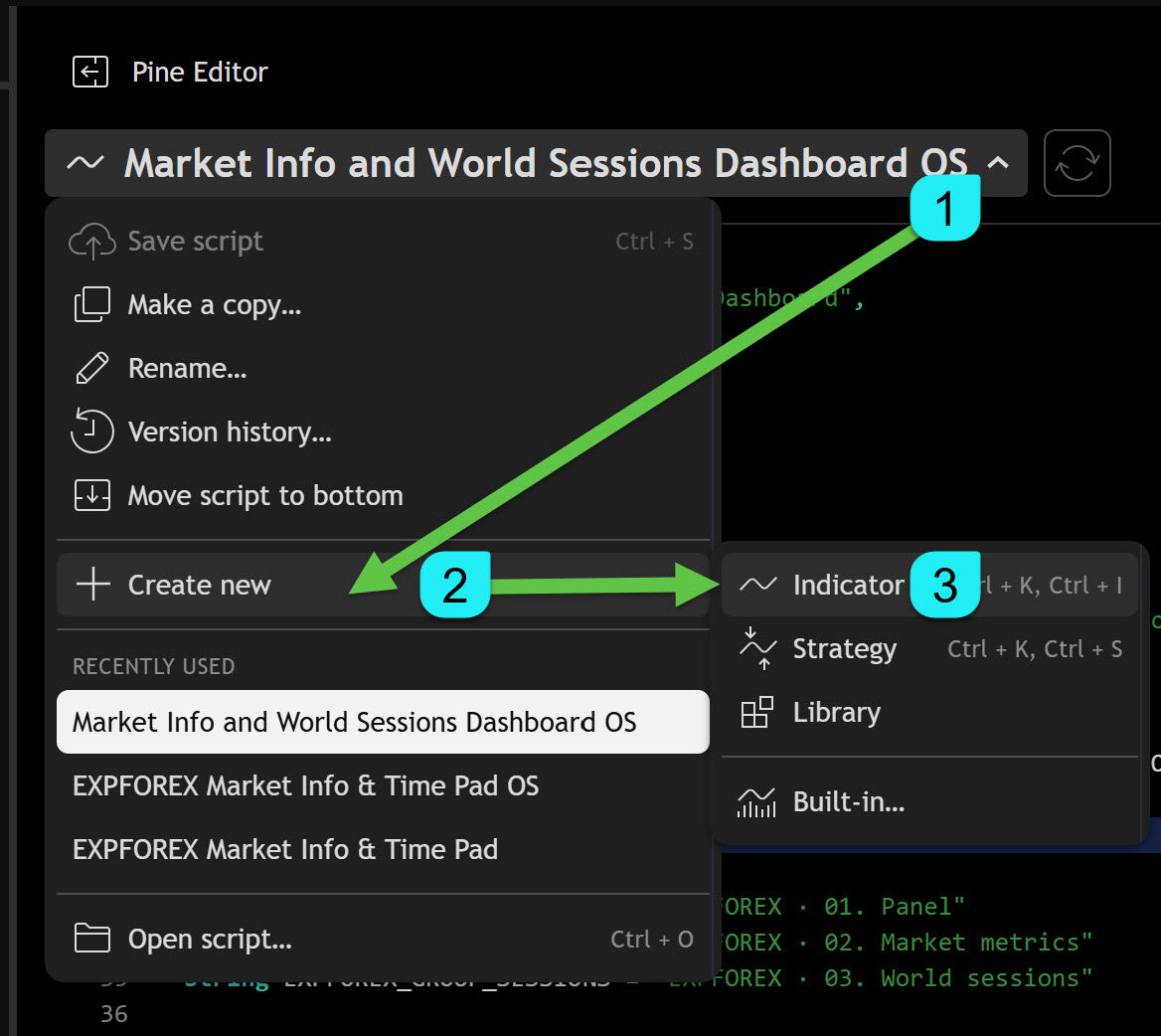
TradingView Pine Editor menu showing Create new and Indicator
Step 2 — Open the script menu and choose Create new → Indicator.
Step 2

Create a new blank indicator.

  1. Click the current script name at the top of Pine Editor.
  2. Select Create new.
  3. Select Indicator.
  4. TradingView will create a new script with example code.
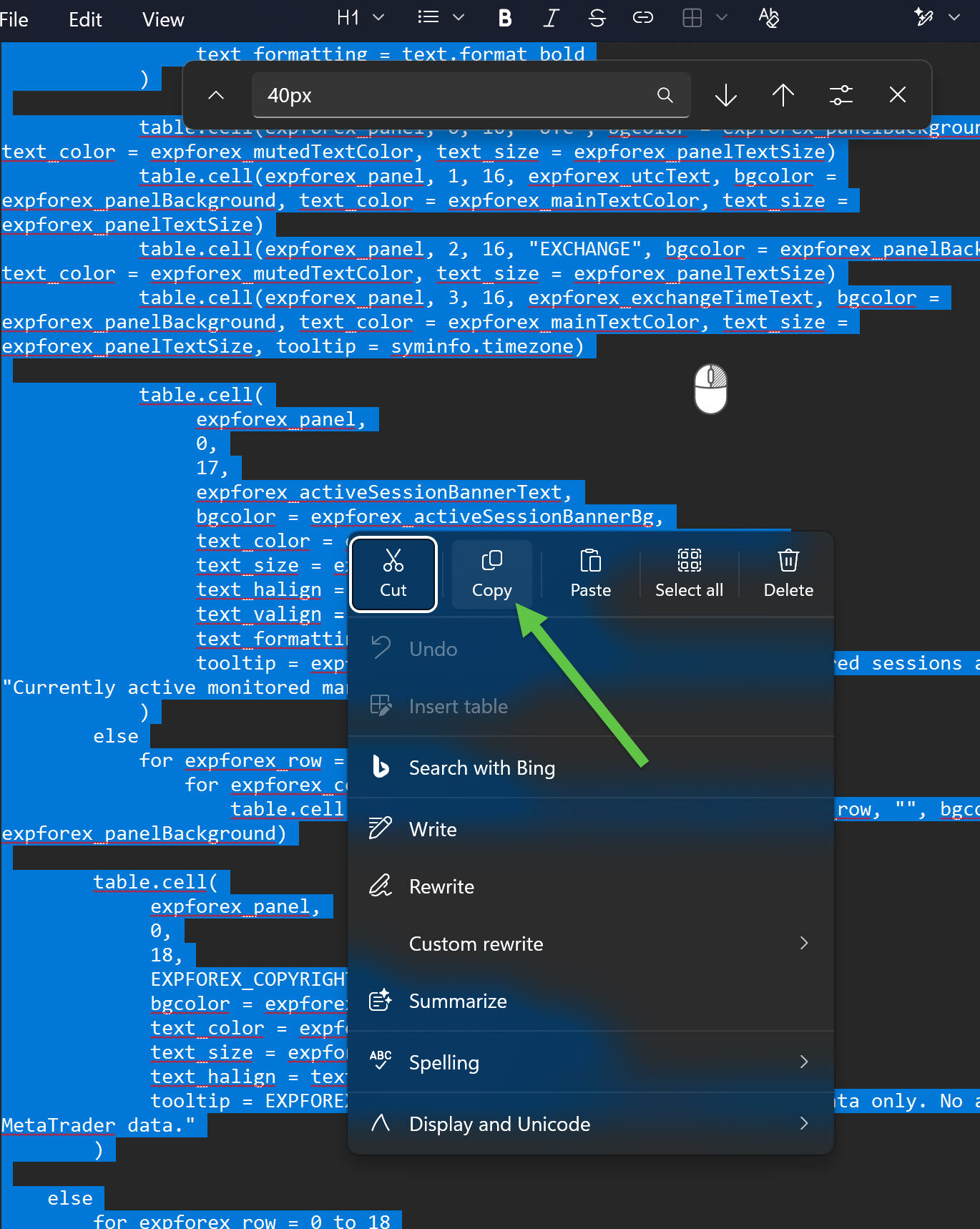
Complete EXPFOREX Pine Script selected in a TXT file with the Copy command highlighted
Step 3 — Open the downloaded TXT file, select the complete source, and copy it.
Step 3

Copy the complete source code from the TXT file.

  1. Extract the downloaded ZIP archive.
  2. Open EXPFOREX_Market_Info_Time_Pad_v1.0.1_Free_Pine_Script.txt.
  3. Press Ctrl + A to select the complete file.
  4. Press Ctrl + C, or right-click and select Copy.
Copy the entire file.
The selection must include the first license line, //@version=6, and the final table-rendering line.
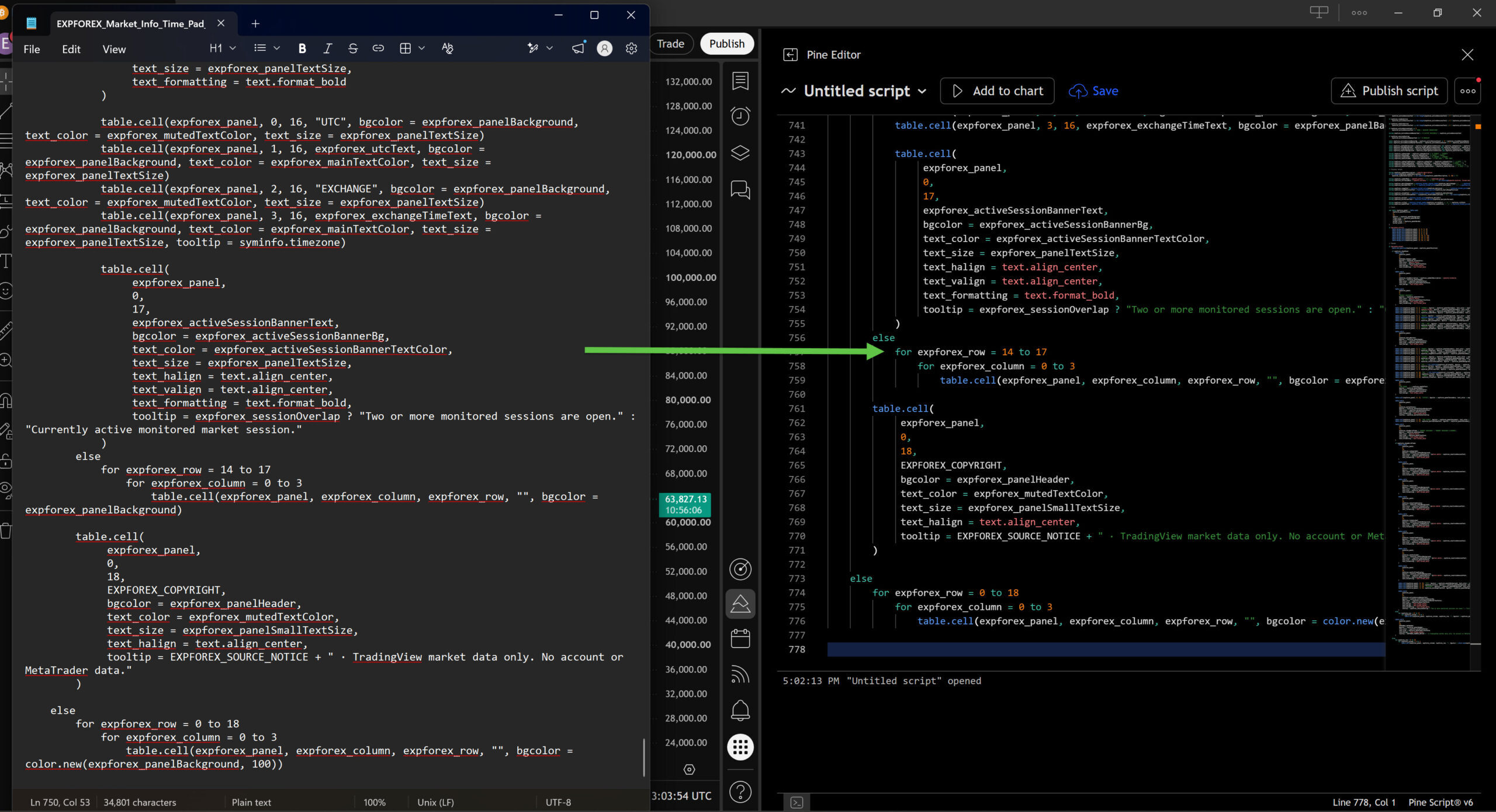
EXPFOREX TXT source file beside TradingView Pine Editor during code copying
Step 4 — Replace the default template in Pine Editor with the copied EXPFOREX source.
Step 4

Paste the code into Pine Editor.

  1. Click inside Pine Editor.
  2. Press Ctrl + A to select the default example code.
  3. Press Delete.
  4. Press Ctrl + V to paste the complete EXPFOREX script.
  5. Check that the first visible directive is //@version=6.
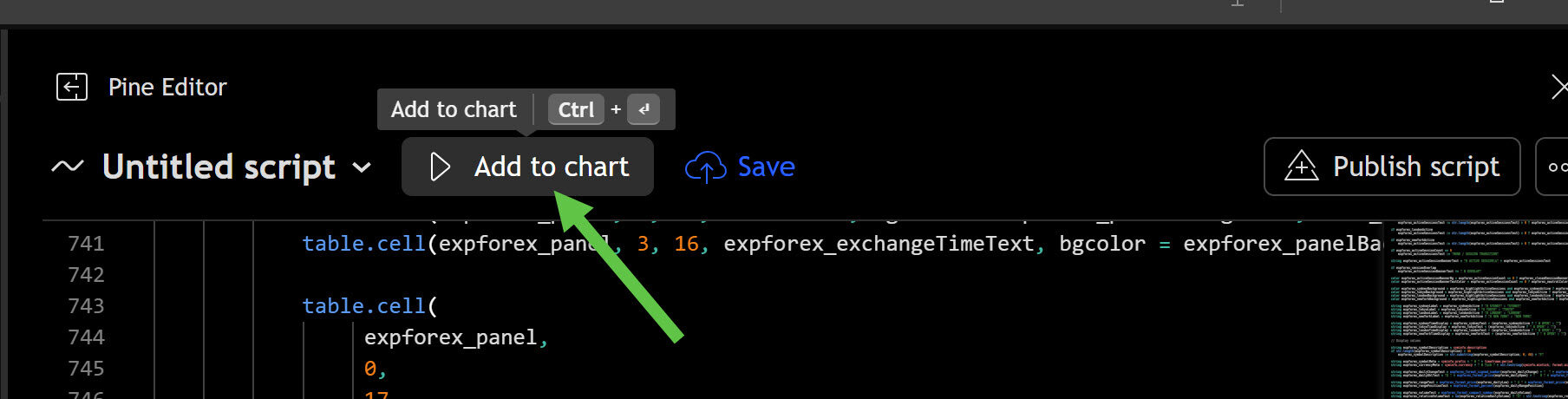
TradingView Pine Editor Save and Add to chart controls after pasting the EXPFOREX script
Step 5 — Save the script first, then click Add to chart.
Step 5

Save the script and add it to the chart.

  1. Click Save.
  2. Use the name EXPFOREX Market Info & Time Pad.
  3. Wait until TradingView finishes saving and compiling the script.
  4. Click Add to chart.
  5. The information panel should appear on the active chart.
Compilation error?
Make sure the complete TXT source was copied and that no lines were omitted at the beginning or end.

After installation

Configure the panel and keep the script in your account.

  1. Open the indicator Settings from the chart legend.
  2. Select panel position and text size.
  3. Adjust ATR, RSI, relative-volume, and EMA periods when required.
  4. Choose session colors and regional timezones.
  5. The saved script remains available in your TradingView Pine scripts.
No public publication is required.
The indicator runs as a personal script saved inside the user’s TradingView account.

Panel reference

Every panel value explained.

Open each section to understand what the dashboard displays,
how the values are calculated, and when data may be unavailable.
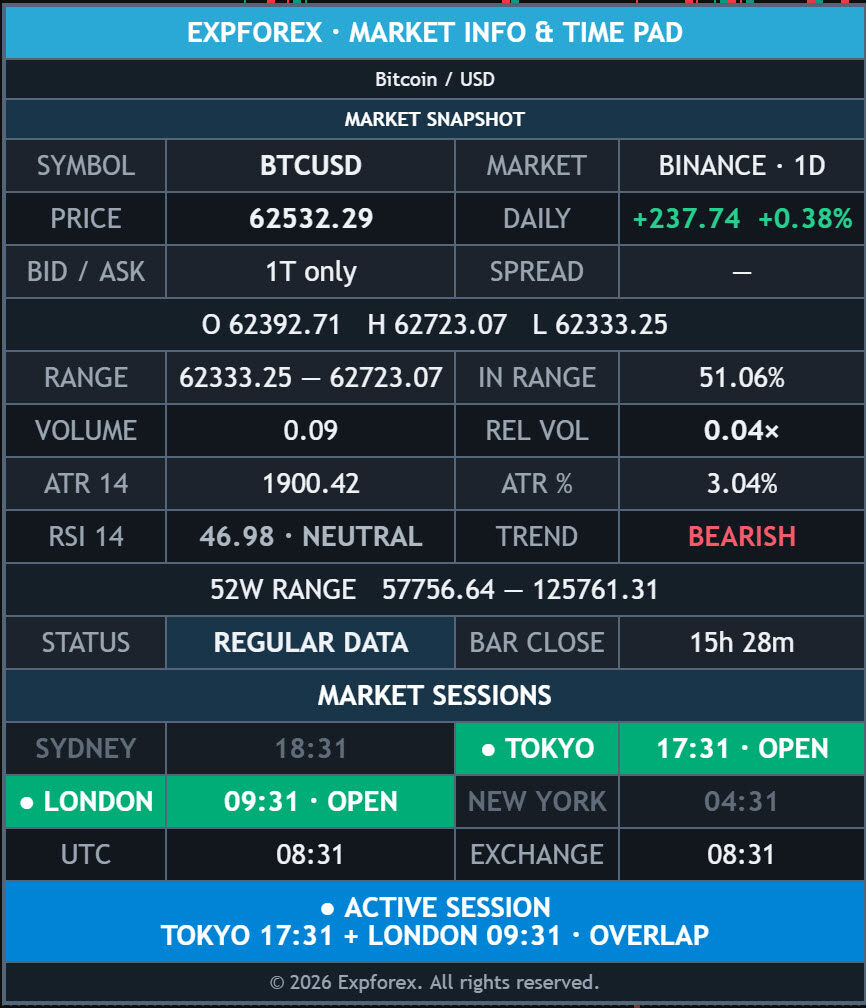
Close-up of the EXPFOREX TradingView market dashboard with price metrics and active trading sessions
Close-up of the indicator panel.
Symbol and price
Identity, price, daily change, Bid/Ask and OHLC
Symbol description
The TradingView description of the selected instrument.
SYMBOL
The active ticker, such as AAPL, BTCUSD, EURUSD, or XAUUSD.
MARKET
The TradingView data source or exchange prefix and current timeframe.
PRICE / DAILY
Latest chart price and change relative to the previous daily close.
BID / ASK / SPREAD
Quote data when TradingView exposes Bid and Ask on the 1T timeframe; otherwise the panel shows 1T only.
O / H / L
Daily Open, High, and Low requested from the daily timeframe.

Range and activity
Daily range, position, volume and relative volume
RANGE
The current daily Low-to-High range.
IN RANGE
Current price position inside the daily range: near 0% is close to the Low; near 100% is close to the High.
VOLUME
Current daily volume provided by the selected TradingView feed.
REL VOL
Current daily volume divided by average daily volume. The default comparison period is 20 days.

Volatility and trend
ATR, RSI, EMA structure and 52-week context
ATR 14
Daily Average True Range with the default period of 14.
ATR %
Daily ATR divided by current price for easier comparison between instruments.
RSI 14
Current-chart RSI classified as overbought, oversold, bullish, bearish, or neutral.
TREND
EMA 20/50/200 structure classified as bullish, bearish, or mixed.
52W RANGE
The lowest and highest weekly prices detected across the latest 52 weekly bars.

Status and world time
Bar state, countdown, exchange time and active sessions
STATUS
On live intraday charts: OPEN, PRE-MARKET, POST-MARKET, LIVE, or CLOSED when TradingView can classify the bar.
REGULAR DATA
Used on daily and higher periods to describe the data set without claiming the exchange is currently open.
BAR CLOSE
Estimated time remaining until the active bar closes.
UTC / EXCHANGE
Universal time and the exchange timezone supplied by TradingView.
ACTIVE SESSION
Sydney, Tokyo, London, New York, and any overlap between monitored regional windows.

Pine Script source

See how the TradingView dashboard is built.

The complete indicator is available as a free download. These selected fragments
show the main architecture without repeating more than 700 source lines inside the article.

Indicator identity and overlay configuration

Pine Script v6

The script uses Pine Script v6, draws above the chart, and keeps the product identity in one place.

//@version=6
indicator(
     "EXPFOREX Market Info & Time Pad",
     shorttitle = "Exp - InfoPad",
     overlay = true,
     behind_chart = false,
     calc_bars_count = 600
)

string EXPFOREX_PRODUCT_NAME = "EXPFOREX Market Info & Time Pad"
string EXPFOREX_COPYRIGHT = "© 2026 EXPFOREX"

Daily market data with request.security()

Pine Script v6

Daily OHLC, volume, average volume, and ATR are requested independently of the chart timeframe.

[expforex_dailyOpen, expforex_dailyHigh, expforex_dailyLow,
 expforex_dailyClose, expforex_previousDailyClose,
 expforex_dailyVolume, expforex_averageDailyVolume,
 expforex_dailyAtr] = request.security(
     syminfo.tickerid,
     "D",
     [
         open,
         high,
         low,
         close,
         close[1],
         volume,
         ta.sma(volume, expforex_relativeVolumeLength),
         ta.atr(expforex_atrLength)
     ],
     gaps = barmerge.gaps_off,
     lookahead = barmerge.lookahead_off
)

World clocks and active sessions

Pine Script v6

IANA timezone strings and TradingView time functions provide regional market clocks.

expforex_get_world_time(string expforex_timezone) =>
    str.format_time(timenow, "HH:mm", expforex_timezone)

expforex_is_session_active(
     string expforex_timezone,
     int expforex_startMinutes,
     int expforex_endMinutes
) =>
    int expforex_currentMinutes =
         hour(timenow, expforex_timezone) * 60 +
         minute(timenow, expforex_timezone)

    expforex_currentMinutes >= expforex_startMinutes and
         expforex_currentMinutes < expforex_endMinutes

Premium dashboard table

Pine Script v6

A persistent table object creates the compact panel independently of chart scale.

var table expforex_panel = table.new(
     expforex_panelPosition,
     4,
     19,
     bgcolor = expforex_panelBackground,
     frame_color = expforex_panelBorder,
     frame_width = 2,
     border_color = expforex_panelBorder,
     border_width = 1
)
Open-source Pine Script
The TXT download includes the complete source, EXPFOREX copyright, and MPL-2.0 notice.


Download full source code

World market time

Active sessions are highlighted; inactive sessions stay quiet.

The panel shows local time for Sydney, Tokyo, London, and New York.
Overlaps receive a separate full-width status color.

● ACTIVE SESSION
TOKYO 17:25 + LONDON 09:25 · OVERLAP

Session windows are reference periods. Exchange holidays, futures breaks,
broker schedules, and individual market rules can differ.

A compact six-step reading order

  1. DAILYDirection versus the previous close
  2. RANGEPosition between today’s Low and High
  3. REL VOLParticipation versus recent average
  4. ATR %Volatility relative to current price
  5. RSI + TRENDMomentum compared with EMA structure
  6. SESSIONRegional activity, exchange time, and bar close

Settings

Useful controls, without configuration overload.

Panel

Position, text size, symbol description, visibility, and accent color.

Metrics

ATR, RSI, relative-volume period, and fast/middle/slow EMA lengths.

Sessions

World clocks, active-session highlighting, colors, and IANA timezones.

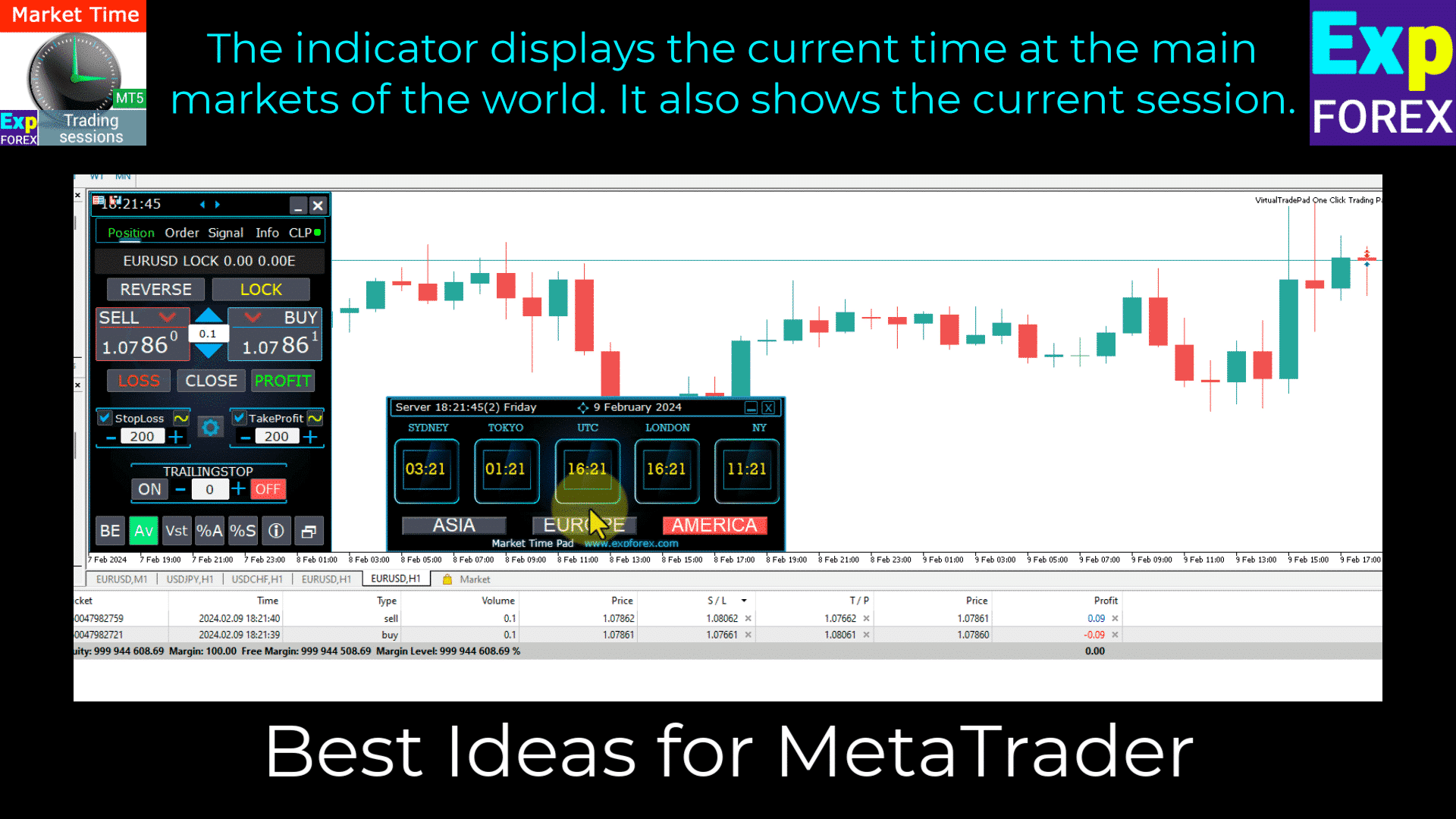
Continue in MetaTrader

Related EXPFOREX tools for execution, account data, sessions, and automation.

TradingView provides the market-information layer. These MT4/MT5 products extend the workflow
when you need broker quotes, positions, account statistics, manual execution, or automation.
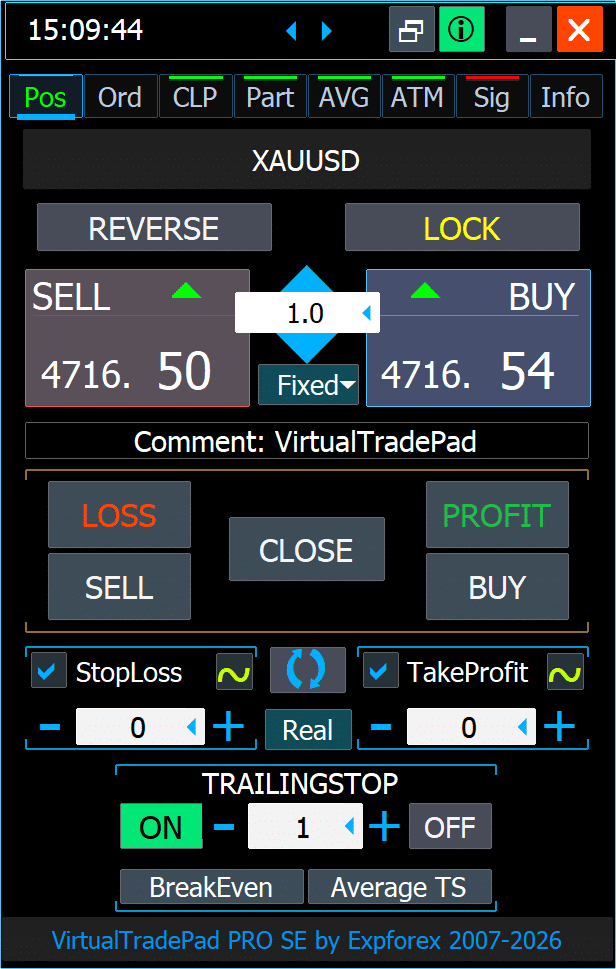

InfoPad information panel for MetaTrader symbols, account data, and trading statistics

Account and symbol data

InfoPad

Bid/Ask, spread, swaps, tick value, commissions, positions, and closed-profit statistics.

Explore product →

Important limits

Clear boundaries.

  • No order execution or broker connection.
  • No MetaTrader balance, equity, positions, commissions, or swaps.
  • Bid/Ask depends on supported TradingView 1T data.
  • Volume meaning depends on the selected market feed.
  • Session windows do not replace an official holiday calendar.
FAQ

How do I install the downloaded Pine Script?

Download and extract the ZIP, copy the complete TXT source, open TradingView Pine Editor, create a new indicator, paste the code, click Save, and then Add to chart.

Is the complete source code included?

Yes. The ZIP contains one TXT file with the complete Pine Script source.

Does the indicator open real trades?

No. It is an informational TradingView indicator.

Do I need MetaTrader?

No. MetaTrader is only relevant for the related MT4/MT5 products shown above.

Why does Bid/Ask show “1T only”?

TradingView exposes Pine Bid and Ask variables only in supported 1T contexts.

Can I move and resize the panel?

You can select its chart position and choose Small, Normal, or Large text.

Can it be used on cryptocurrencies?

Yes. For 24/7 assets, world sessions represent regional participation rather than market opening or closing.

EXPFOREX Market Info & Time Pad

Keep the essential market context visible.

Price, range, volume, volatility, trend, world time, and active sessions in one TradingView panel.


Download Pine Script ↓

Disclaimer:
The downloadable indicator is provided for informational and analytical purposes only.
It does not provide financial advice, guarantee results, or execute trades.

Ask a question

Article question

Formatting: BBCode is supported: bold, italic, quote, code and list tags. Links are saved as plain text.

Images are allowed for normal messages. ZIP/log files are available only for bug reports. Total upload size: 10 MB.

Comments will load when you scroll here. This keeps the page fast.

English Portuguese Español Deutsch Français Русский Українська Indonesian Italiano العربية Chinese 日本語 한국어 Türkçe ไทย Tiếng Việt

Lorem ipsum dolor sit amet, consectetur adipiscing elit, sed do eiusmod tempor incididunt ut labore et dolore magna aliqua. Ut enim ad minim veniam, quis nostrud exercitation ullamco laboris nisi ut aliquip ex ea commodo consequat. Duis aute irure dolor in reprehenderit in voluptate velit esse cillum dolore eu fugiat nulla pariatur. Excepteur sint occaecat cupidatat non proident, sunt in culpa qui officia deserunt mollit anim id est laborum.


    Please wait, contacting ...


    Risk Warning:


    Past trading performance does not guarantee future results.

    Trading foreign exchange on margin carries a high degree of risk and may not be suitable for all investors.

    Be aware that using trading robots involves substantial risk, and you could lose more than your initial investment.

    Please proceed with caution, assess your financial situation carefully, and consider seeking advice from a qualified professional.

    Disclaimer

    Follow Expforex